Why Your RDP Session May Be Slow on a Fast LAN (The 56 Kbps Trap!)
Summary: My Remote Desktop session into an old ThinkPad got progressively laggier. Ping said the network was perfect (1ms between host and client with no variation). Performance counters said the server was idle. I was about a day away from buying replacement hardware out of frustration with the lag 😣. The actual cause was a dropdown in the Remote Desktop Connection Experience tab that had the connection set to a 56 Kbps modem profile. 💡 Setting it to LAN (10 Mbps or higher) fixed it instantly. The counterintuitive part: the fix was to tell RDP to use more bandwidth, not less.
This was entirely my fault, a few days earlier there WERE some (temporary) LAN issues and in my haste I dropped the connection settings as low as I could (Modem), then days later that was my downfall. Switching it back to the LAN preset restored performance to near perfect.
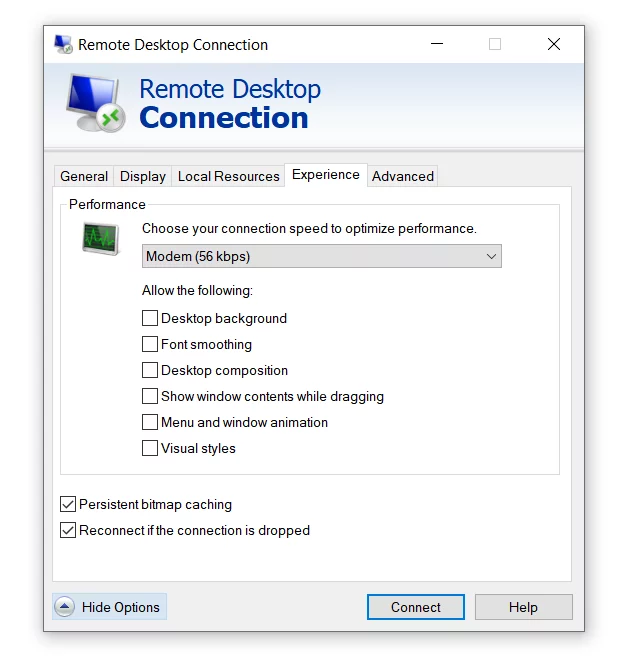
Don’t do this on a contemporary connection!
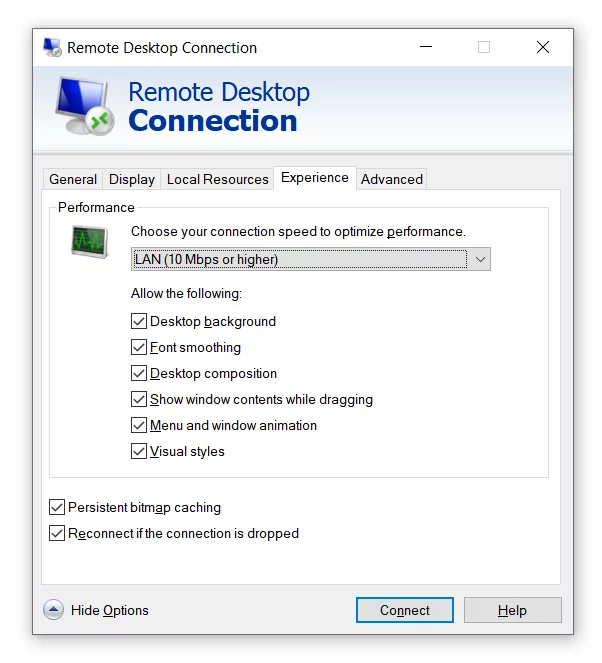
💡 MUCH better!
Details:
The setup
- Host: ThinkPad X230, i7-3520M @ 2.90 GHz (2 cores / 4 threads), 16 GB DDR3, 4 TB Crucial MX500 + 1 TB Samsung 850 PRO
- Client: Samsung laptop, my daily driver
- Network: wired gigabit LAN, same subnet, no VPN, no gateway in the path
- Protocol: plain old mstsc.exe RDP
An X230 is a 2012 machine. So when the session got slow, I blamed the old hardware. Two cores! Ivy Bridge! Intel HD 4000! Obviously it’s time to migrate to a VM or a newer laptop, right?
Wrong, a silly software config mistake was my issue. 🤯
Step 1: measure before you buy anything
Before spending money, I checked the boring stuff.
Ping from client to server, running continuously through the lag:
Reply from 192.168.7.88: bytes=32 time<1ms TTL=128
Reply from 192.168.7.88: bytes=32 time<1ms TTL=128
Reply from 192.168.7.88: bytes=32 time<1ms TTL=128
Sub-millisecond, zero packet loss, TTL=128 (meaning no router hops, same subnet). And critically, the ping never moved even during the worst lag. So the network path was clean.
Step 2: two performance counters
Windows has built-in RDP diagnostics that I only learned about during this mess. Run these in PowerShell on the server (the machine you’re remoting into) while the session feels bad:
Get-Counter -Counter @(
  "\RemoteFX Network(*)\Current TCP RTT",
  "\RemoteFX Network(*)\Current UDP RTT",
  "\RemoteFX Network(*)\Current TCP Bandwidth",
  "\RemoteFX Network(*)\Current UDP Bandwidth",
  "\User Input Delay per Session(*)\Max Input Delay"
) -SampleInterval 2 -MaxSamples 30
Two counter families matter here:
User Input Delay per Session\Max Input Delay measures how long your keystroke or mouse click sits in the queue before the application picks it up. This is the single best “is the server too busy?” metric, and it reports the maximum in the interval, not the average, because slowness is perceived from the worst input, not the mean.
Mine came back at 16 ms peak, 0.36 ms average. 16 ms is one 60 Hz frame tick. That is the counter’s floor. The X230 was picking up input essentially instantly.
So: network fine, server fine, session terrible. 🤔
RemoteFX Network counters gave me numbers I could not make sense of at first:
current tcp rtt        : 47
current tcp bandwidth  : 56
current udp rtt        : 0
current udp bandwidth  : 2783318386
47 ms RTT on a sub-1ms LAN? A bandwidth of 56 next to a bandwidth of 2.78 billion? I wrote those off as broken counters and went chasing GPU drivers instead. That was a mistake, and it cost me hours.
Step 3: the accidental fix
On a hunch, I opened the RDP client on the Samsung, went to the Experience tab, and changed the connection speed setting to LAN (10 Mbps or higher).
The lag vanished instantly.
Which made no sense, because everything I’d read (and everything I’d assumed) says that when RDP is slow you strip the session down: lower the color depth, disable desktop composition, kill the animations, turn off font smoothing. Send less data. I had been running with all of that already disabled.
Then I re-ran the counters.
56 was 56 Kbps
Here’s the before and after, same machine, same LAN, same session, nothing changed but one dropdown:
| Counter | Before (bad) | After (good) | Delta |
|---|---|---|---|
| Current TCP RTT | 47 | 5 | −42 ms (−89%) |
| Current TCP Bandwidth | 56 | 10,000 | 178× |
| Current UDP Bandwidth | 2,783,318,386 (garbage) | 303,803 (~304 Mbps) | real measurement |
| Max Input Delay (peak) | 16 ms | 16 ms | unchanged, never the problem |
| Max Input Delay (avg) | 0.36 ms | 0.25 ms | unchanged, never the problem |
| ICMP ping | <1 ms | <1 ms | unchanged, never the problem |
The units are kilobits per second. And look at those two numbers again:
- 56 = Modem (56 Kbps)
- 10000 = LAN (10 Mbps or higher)
Those are entries in the Experience tab dropdown. My session had been declaring itself a dial-up modem connection, and the RDP server took me at my word: maximum compression, minimal frame rate, progressive refinement (send a rough frame, sharpen it over later passes). Over a gigabit LAN. With sub-millisecond latency.
It wasn’t broken. It was doing exactly what it was told. 😅
The 47 ms “RTT” was the same story: that’s the protocol-level round trip under a session that was throttling itself into the ground, not the actual network. On the LAN profile it dropped to a healthy 5 ms. (5 ms is still higher than the <1 ms ICMP ping, and that’s expected. RemoteFX RTT measures the full protocol round trip, not raw ICMP.)
The UDP bandwidth going from an uninitialized 2.78-billion garbage value to a plausible ~304 Mbps also tells you UDP transport is genuinely running now. That matters beyond raw speed, because RDP over UDP handles packet loss much better than TCP-only does.
The fix
In the GUI: open Remote Desktop Connection, click Show Options, open the Experience tab, and set Performance to LAN (10 Mbps or higher).
To make it stick, save the connection as an .rdp file, open it in Notepad, and confirm these lines:
connection type:i:6
bitmapcachepersistenable:i:1
connection type:i:6 is LAN. Bitmap caching should stay on regardless: Microsoft’s own performance tuning guidance is that it gives a significant bandwidth improvement and should always be enabled unless you have a specific security reason not to.
If you want to pin it and stop Windows from re-deriving a bad estimate:
networkautodetect:i:0
bandwidthautodetect:i:0
Since the adaptive stack is clearly measuring UDP correctly once it’s not being lied to, leaving autodetect on may negotiate better than a hardcoded 10 Mbps floor. Worth an A/B on your own setup. Mine is happy either way.
Counterintuitive IMHO
Every troubleshooting instinct points the wrong direction here:
- “RDP is slow, so reduce the data.” Nope. On a LAN you have bandwidth to burn and (on old hardware) no CPU to spare. Aggressive compression trades CPU for bandwidth. That’s the exact wrong trade on a gigabit link.
- “The machine is 14 years old, that’s the problem.” Not this time. The counters showed it responding in a fraction of a millisecond.
- “The counters look broken, ignore them.” This one cost me the most time. That garbage-looking
56was the entire answer, sitting there in plain sight the whole time.
If your remote session is sluggish and your ping is clean, check the Experience tab, don’t waste unnecessary time and effort like I did 🙏
Happy computing! And if this fixed it for you too, drop a comment below 👍
Accurate at time of writing. Something off? Drop a comment.
What are you stuck on?
Stuck on something with Claude, Claude Code, or an AI workflow? Send the question. I'll try to answer in a future post and link it here.
Got it. Thanks.
Your question is in my inbox. If I can help, you'll see the answer on this site.