DisplayPort MST Monitors: Daisy Chainable Monitor List (2026)
Here is a current (as of September 2026) list of daisy-chainable monitors that support DisplayPort MST, USB-C, or Thunderbolt daisy chaining. I’ve maintained this list since 2019, and it has helped thousands of readers set up multi-monitor workstations with a single cable chain. Every monitor below has been verified to support daisy chaining when configured properly.
Editor’s Choice: Top Daisy Chain Monitors in 2026
If you’re short on time, here are my top picks across five categories. Each one is currently in stock and verified to support daisy chaining. Scroll down for the full comparison table with 60+ monitors.
Why so many Dell monitors? Dell dominates the USB-C dock monitor category because they’ve invested more than any other brand in MST and Thunderbolt daisy chain support across their entire business lineup. Three of my five picks are Dell because, after testing and researching dozens of monitors, they consistently deliver the best combination of build quality, dock features, and reliable daisy chaining. Where a non-Dell monitor genuinely competes, I’ve included it.
| Category | Monitor | Key Specs | Why I Recommend It | Check Price |
|---|---|---|---|---|
| Best Budget | Dell P2425HE | 24″, 1080p, IPS, USB-C 90W, RJ45 | The cheapest USB-C dock monitor with MST from a major brand. One cable gives you power, ethernet, and daisy chaining to a second display. | Check Price on Amazon |
| Best Value | ViewSonic VG2758-2K | 27″, QHD, IPS, USB-C 100W, 100Hz, 5-port USB hub | The best non-Dell option at this price. 100Hz refresh, 100W USB-C charging, built-in 5-port USB hub, and confirmed daisy chain support, all for under $350. | Check Price on Amazon |
| Best Overall | Dell U2724DE | 27″, QHD, IPS Black, TB4 + DP MST, 90W | The best-balanced 27″ daisy chain monitor. IPS Black for deeper contrast, Thunderbolt 4 AND DisplayPort MST support, and 90W USB-C charging. Works with both Windows and Mac daisy chaining. | Check Price on Amazon |
| Best 4K | Dell U2725QE | 27″, 4K, IPS Black, TB4 + DP MST, 140W | 140W USB-C charges virtually any laptop. 4K with IPS Black panel. A complete dock replacement: one cable for power, display, data, and daisy chaining to a second monitor. | Check Price on Amazon |
| Best Ultrawide | Dell U3425WE | 34″, 3440×1440, IPS Black, TB4, 90W | Curved ultrawide that replaces two standard monitors and still supports Thunderbolt daisy chaining. Currently the only premium ultrawide with TB4 chaining support. | Check Price on Amazon |
How Monitor Daisy Chaining Works
Daisy chaining lets you connect multiple monitors in a series using a single video output from your computer. Instead of running separate cables from your PC to each display, you connect one cable from your PC to Monitor 1, then a second cable from Monitor 1 to Monitor 2, and so on.
DisplayPort MST (Multi-Stream Transport)
The original and most common method. Your graphics card sends multiple display streams over a single DisplayPort cable, and each monitor in the chain picks up its own stream. Requirements:
- A graphics card or laptop with DisplayPort 1.2 or newer
- Monitors with both DisplayPort In and DisplayPort Out ports
- MST must be enabled in each monitor’s OSD (on-screen display menu)
- The last monitor in the chain does NOT need a DP Out port
USB-C / Thunderbolt Daisy Chaining
The newer approach, increasingly common in 2024-2026 monitors. USB-C monitors with MST support work the same way as DisplayPort MST, but through a USB-C cable that also carries power and data. Thunderbolt 3/4 monitors can daisy chain natively through the Thunderbolt protocol. Benefits:
- Single cable from laptop to first monitor (power + video + data + ethernet)
- Each monitor acts as a USB-C dock, reducing cable clutter
- USB-C with MST works on Windows; Thunderbolt daisy chaining works on both Windows and Mac
What You Need (Quick Checklist)
- A computer with DisplayPort 1.2+, USB-C with DP Alt Mode, or Thunderbolt 3/4 output
- Monitors from the list below (verified to support daisy chaining)
- Appropriate cables (DisplayPort, USB-C, or Thunderbolt)
- Enable MST in each monitor’s OSD settings (usually under “Display” or “Input” menu)
Complete Daisy Chain Monitor List (2026)
This table includes every currently available monitor I’ve verified to support daisy chaining via DisplayPort MST, USB-C MST, or Thunderbolt. Use the search box and column filters to narrow down by brand, size, resolution, chain type, or other features.
| Model | Brand | Size | Resolution | Panel | Refresh Rate | Chain Type | USB-C PD | Finish | Check Price |
|---|---|---|---|---|---|---|---|---|---|
| B248Y | Acer | 23.8″ | 1920×1080 | IPS | 75Hz | DP MST | – | Matte | Check Price |
| Vero B248Y E | Acer | 23.8″ | 1920×1080 | IPS | 75Hz | DP MST | – | Matte | |
| B277U | Acer | 27″ | 2560×1440 | IPS | 120Hz | USB-C MST | 90W | Matte | |
| 24E4CV | AOC | 23.8″ | 1920×1080 | IPS | 120Hz | USB-C MST | 90W | Matte | Check Price |
| 24P3CV | AOC | 23.8″ | 1920×1080 | IPS | 75Hz | USB-C MST | 65W | Matte | Check Price |
| 24P3CW | AOC | 23.8″ | 1920×1080 | IPS | 75Hz | USB-C MST | 65W | Matte | Check Price |
| 27E4CV | AOC | 27″ | 1920×1080 | IPS | 120Hz | USB-C MST | 90W | Matte | Check Price |
| Q27P3CV | AOC | 27″ | 2560×1440 | IPS | 75Hz | USB-C MST | 65W | Matte | Check Price |
| Q27P3CW | AOC | 27″ | 2560×1440 | IPS | 100Hz | USB-C MST | 90W | Matte | Check Price |
| Q27P4CV | AOC | 27″ | 2560×1440 | IPS | 120Hz | USB-C MST | 96W | Matte | Check Price |
| Q27U3CV | AOC | 27″ | 2560×1440 | IPS QD | 75Hz | USB-C MST | 96W | Matte | Check Price |
| U27E4CV | AOC | 27″ | 3840×2160 | IPS | 60Hz | USB-C MST | 90W | Matte | Check Price |
| CU34E4CV | AOC | 34″ | 3440×1440 | VA | 120Hz | USB-C MST | 90W | Matte | |
| PA278CV | ASUS | 27″ | 2560×1440 | IPS | 75Hz | DP MST | 65W | Matte | Check Price |
| PA278CGRV | ASUS | 27″ | 2560×1440 | IPS | – | USB-C MST | 96W | Matte | |
| PA32UCE | ASUS | 31.5″ | 3840×2160 | IPS | – | USB-C MST | 96W | Semi-Gloss | |
| PD2725U | BenQ | 27″ | 3840×2160 | IPS | – | TB3 | 90W | Matte | |
| PD2730S | BenQ | 27″ | 5120×2880 | IPS | – | TB4 | 90W | Semi-Gloss | |
| PD3225U | BenQ | 31.5″ | 3840×2160 | IPS | – | TB4 | 90W | Matte | |
| PD3226G | BenQ | 31.5″ | 3840×2160 | IPS | – | TB4 | 90W | Semi-Gloss | |
| P2425DE | Dell | 23.8″ | 2560×1440 | IPS | – | USB-C MST | 90W | Matte | |
| P2425HE | Dell | 23.8″ | 1920×1080 | IPS | – | USB-C MST | 90W | Matte | Check Price |
| U2424H | Dell | 23.8″ | 1920×1080 | IPS | 120Hz | DP MST | – | Matte | |
| U2424HE | Dell | 23.8″ | 1920×1080 | IPS | – | USB-C MST | 90W | Matte | |
| P2725DE | Dell | 27″ | 2560×1440 | IPS | – | USB-C MST | 90W | Matte | |
| P2725HE | Dell | 27″ | 1920×1080 | IPS | – | USB-C MST | 90W | Matte | |
| U2724D | Dell | 27″ | 2560×1440 | IPS Black | 120Hz | DP MST | – | Matte | |
| U2724DE | Dell | 27″ | 2560×1440 | IPS Black | – | TB4+DP MST | 90W | Matte | Check Price |
| U2725QE | Dell | 27″ | 3840×2160 | IPS Black | – | TB4+DP MST | 140W | Matte | Check Price |
| P3225DE | Dell | 31.5″ | 2560×1440 | IPS | – | USB-C MST | 90W | Matte | |
| U3225QE | Dell | 31.5″ | 3840×2160 | IPS Black | – | TB4+DP MST | 140W | Matte | |
| U3425WE | Dell | 34.1″ | 3440×1440 | IPS Black | – | TB4 | 90W | Matte | Check Price |
| U4025QW | Dell | 39.7″ | 5120×2160 | IPS Black | – | TB4 | 140W | Matte | |
| 524pm Series 5 Pro Conf | HP | 23.8″ | 1920×1080 | IPS | – | USB-C MST | 100W | Matte | |
| 524pu Series 5 Pro | HP | 24″ | 1920×1200 | IPS | – | USB-C MST | 100W | Matte | |
| 527pm Series 5 Pro Conf | HP | 27″ | 2560×1440 | IPS | – | USB-C MST | 100W | Matte | |
| 527pu Series 5 Pro | HP | 27″ | 2560×1440 | IPS | – | USB-C MST | 100W | Matte | |
| P24h-30 | Lenovo | 23.8″ | 2560×1440 | IPS | – | USB-C MST | 100W | Matte | |
| P24q-40 | Lenovo | 23.8″ | 2560×1440 | IPS | – | DP MST | – | Matte | |
| T24D-4v | Lenovo | 23.8″ | 1920×1200 | IPS | – | USB-C MST | 100W | Matte | |
| P27h-30 | Lenovo | 27″ | 2560×1440 | IPS | – | USB-C MST | 100W | Matte | Check Price |
| T27hv-30 | Lenovo | 27″ | 2560×1440 | IPS | – | USB-C MST | 90W | Matte | |
| P40w-20 | Lenovo | 39.7″ | 5120×2160 | IPS | – | TB4 | 100W | Matte | |
| 24BA850 | LG | 23.8″ | 1920×1080 | IPS | – | USB-C MST | 65W | Matte | |
| 27BA650 | LG | 27″ | 1920×1080 | IPS | – | USB-C MST | 65W | Matte | |
| 27BA65QB | LG | 27″ | 2560×1440 | IPS | – | USB-C MST | 65W | Matte | |
| 34BA75QE | LG | 34″ | 3440×1440 | IPS | – | USB-C MST | 90W | Matte | |
| 40WP95C-W | LG | 39.7″ | 5120×2160 | Nano IPS | – | TB4 | 96W | Matte | |
| 24B1U5301H | Philips | 23.8″ | 1920×1080 | IPS | – | USB-C MST | 100W | Matte | |
| 27B1U7903 | Philips | 27″ | 3840×2160 | IPS Black | – | TB4 | 90W | Matte | |
| 27E2F7901 | Philips | 27″ | 3840×2160 | IPS Black | – | TB4 | 96W | Matte | |
| ViewFinity S8 | Samsung | 27″ | 3840×2160 | IPS | – | TB4 | 90W | Matte | |
| ViewFinity S65TC | Samsung | 34″ | 3440×1440 | VA | – | USB-C MST | 90W | Matte | |
| VG2456 | ViewSonic | 24″ | 1920×1080 | IPS | – | USB-C MST | 60W | Matte | |
| VG2458 | ViewSonic | 24″ | 1920×1080 | IPS | – | DP MST | – | Matte | |
| VG2756-2K | ViewSonic | 27″ | 2560×1440 | IPS | – | USB-C MST | 60W | Matte | |
| VG2758-2K | ViewSonic | 27″ | 2560×1440 | IPS | 100Hz | USB-C MST | 100W | Matte | Check Price |
| VP2788-5K | ViewSonic | 27″ | 5120×2880 | IPS | – | TB4 | 100W | Matte |
Important Note for Mac Users
macOS does not support DisplayPort MST for multiple extended displays. MST-connected monitors will mirror rather than extend on all current Macs, including Apple Silicon (M1 through M5). This is a macOS limitation, not a monitor issue.
For multiple independent displays from a Mac, you have three options:
- Thunderbolt daisy chaining using Thunderbolt-capable monitors (marked “TB3” or “TB4” in the table above). This is the native Mac solution, but your Mac must support your desired number of external displays. Check Apple’s per-model display support page before buying.
- A Thunderbolt dock like the CalDigit TS3 Plus or the newer CalDigit TS4, which provide multiple video outputs from a single Thunderbolt connection.
- A DisplayLink adapter/dock as a workaround. DisplayLink-based docks use software drivers to add extra displays, but may have slight performance overhead.
How to Enable Daisy Chaining
All of the monitors on this list have been verified to be daisy-chainable when configured properly. Generally, this is a fairly easy process requiring at most a few adjustments in their OSD (on-screen displays) to enable the daisy chaining. Here is a sample from a ViewSonic monitor manual:
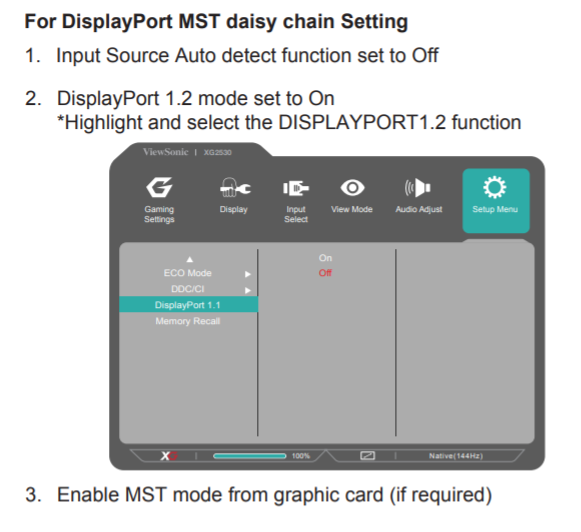
ViewSonic XG2530 Instructions
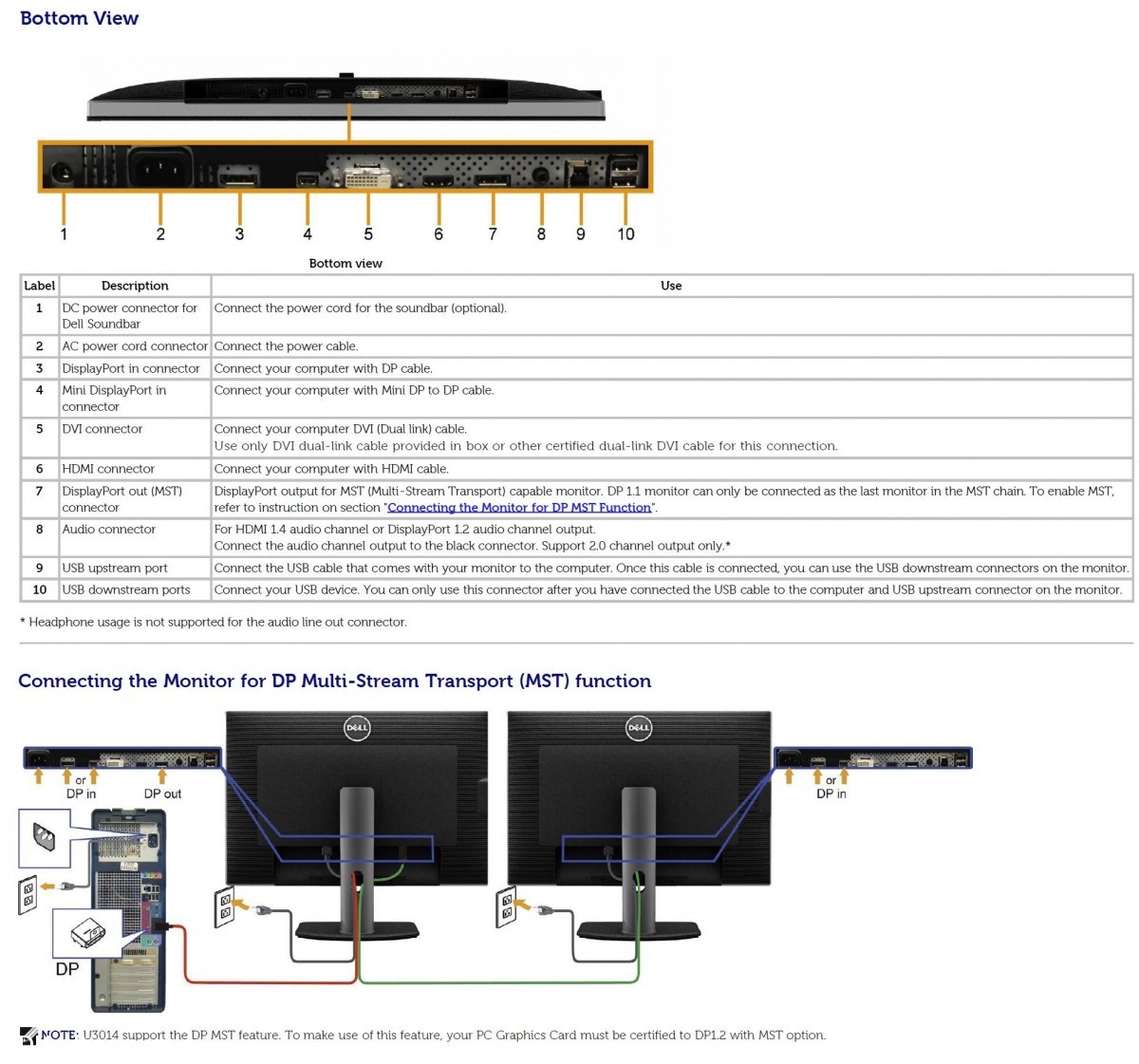
DisplayPort Daisy-Chaining Setup Diagram
Frequently Asked Questions
How many monitors can you daisy chain?
It depends on your resolution and DisplayPort version. With DisplayPort 1.2, you can typically chain two 1080p or two 1440p monitors, or one 4K monitor. DisplayPort 1.4 increases bandwidth, allowing more displays or higher resolutions. Thunderbolt 4 typically supports two 4K displays in a chain. Your graphics card’s capabilities also matter, so check your GPU specs.
Can you daisy chain monitors with HDMI?
No. HDMI does not support Multi-Stream Transport (MST). Daisy chaining requires DisplayPort (1.2 or newer), USB-C with DisplayPort Alt Mode and MST, or Thunderbolt 3/4. If your computer only has HDMI outputs, you’ll need to use a separate cable for each monitor or use a splitter (which mirrors rather than extends your display).
Does daisy chaining affect monitor performance?
No, there is no performance penalty in terms of image quality or refresh rate, as long as your GPU has enough bandwidth. The monitors in a daisy chain receive their own independent video streams. However, total bandwidth is shared across the chain, so running three 4K displays at high refresh rates may exceed your connection’s limits. For typical office/productivity use (60Hz), this is rarely an issue.
Can you daisy chain monitors on a Mac?
Not with DisplayPort MST. macOS does not support MST, so DP-connected monitors will mirror instead of extending your desktop. However, you CAN use Thunderbolt daisy chaining on Macs that support multiple external displays. Use monitors with Thunderbolt 3 or Thunderbolt 4 connections (marked “TB3” or “TB4” in the table above). Check Apple’s support page for your specific Mac model’s display limits.
What is the difference between MST and SST?
SST (Single-Stream Transport) sends one video stream per cable, like a standard HDMI or DisplayPort connection. MST (Multi-Stream Transport) sends multiple independent video streams over a single cable, which is what makes daisy chaining possible. MST is a DisplayPort feature introduced in DisplayPort 1.2. You need to enable MST mode in your monitor’s OSD settings for daisy chaining to work.
Do I need special cables for daisy chaining?
You need standard DisplayPort cables (DP to DP or mini-DP to DP), USB-C cables with DisplayPort Alt Mode support, or Thunderbolt cables, depending on your monitors’ connection types. No special “daisy chain” cables exist. Just make sure your DisplayPort cables are rated for the version your monitors support (1.2 or 1.4). For USB-C/Thunderbolt, use cables that support data + video + power delivery.
Discontinued Monitors (Archive)
Click to expand: Previously listed monitors that are no longer in production
These monitors were on previous versions of this list but are no longer readily available for purchase. They may still be found used or refurbished. If you already own one, they still work for daisy chaining.
- ASUS PA279Q – 27″, 2560×1440 (discontinued, currently unavailable on Amazon)
- Dell U2913WM – 29″, 2560×1080 ultrawide
- Dell U2414H – 24″, 1920×1080
- Dell U2413 – 24″, 1920×1200
- Dell U3014 – 30″, 2560×1600
- Dell UP3017 – 30″, 2560×1600
- ViewSonic VG2249 – 22″, 1920×1080
- ViewSonic VG2449 – 24″, 1920×1080
- ViewSonic VP2468 – 24″, 1920×1080
- Lenovo LT2934z – 29″, 2560×1080
- BenQ BL3201PT – 32″, 3840×2160
- https://www.jdhodges.com/blog/displayport-mst-lcd-list/ (43)
- mst monitor (15)
- mst monitors (12)
- displayport 1.2 mst-capable monitor (11)
- displayport 1.2 mst (10)
- displayport mst monitors (7)
- monitors with displayport out (5)
- monitors with displayport mst (5)
- displayport 1.2 mst capable monitor (5)
- monitors that support 1.2 (4)
Please Note: If you purchase a product from Amazon via a link on my site I may benefit from the sale, though it does not cost you anything extra. Thanks again for visiting my site and have a GREAT day!
Thanks, I needed that. Ordered monitors off your list. They worked perfectly. Cheers.
Hi Geof,
Thank you for your nice comment. I am very glad that my list was helpful!
Enjoy your monitors and have a GREAT weekend 🙂
Best regards,
-J.D.
JD!!
My office is having an issue with a box and graphics card and looks like we might go to an DisplayPort 1.2 MST setup. BUT I didn’t know what monitors were available. I went to google. My results gave me your page as my top result.
My first thought was…I KNOW THAT GUY!!
Thanks for this post, it helped me out a ton!!!
Aoha Blake!
Thank you for commenting, it is GREAT to hear from you 🙂
I hope your new office setup works great, please keep in touch!
Best regards,
-J.D.
Just a heads up, I utilized your table of MST capable monitors to pick two new monitors for my new MacBook Pro. I LOVE THIS CONFIGURATION. Thank you.
Hi Jordan,
Thank you for your nice comment. I am very glad that you are using multi-monitors with your MacBook Pro 🙂 That makes for a sweet setup!
Enjoy and have a great day!
Best regards,
-J.D.
Hi Jordan, I am glad to see that this worked for you. I am planning to daisy chain Dell U2417H UltraSharp 24. What box are you using?
Dear Wakake,
Thank you for your question.
I will email Jordan and see if he can give you some more info on his MacBook Pro MST setup.
Best regards,
-J.D>
My company used your displayport 1.2 monitor list to buy (10) of the ViewSonic 24″ monitors that you recommended. The results have been phenomenal and everyone in the office LOVES our new monitors. Thank you for your effort putting this mst monitor list together!
Dear Mike,
Thank you for your nice comment. I am very glad my monitor list was useful! I hope you and your co-workers continue enjoying the nice monitors 🙂
Have a GREAT day!
-J.D.
Hi buddy,
‘Which monitors support MST?’ There is not much information about it. Even on monitor-selling websites, the MST feature is often not written.
I was thinking about what to do, and I came across this article.
And you became my hero. 🙂 I thank you very, very much.
Dear Murat,
Thank you for your kind words! I am very glad that my MST monitor list was useful to you. 🙂
Have a GREAT week!
Best regards,
-J.D.
I want to use a macbook pro 2017 15″ to daisychain 2 Dell U2417H UltraSharp 24”. Will I need CalDigit TS3 Plus or something different?
Dear Wakake,
Thank you for your great question!
The CalDigit TS3 Plus is a GREAT dock. I use it for my vacation dock and it works splendidly and has excellent build quality.
Since you are only connecting two monitors, you will be able to use the dock’s dedicated DisplayPort port and ThunderBolt 3 (out) port with the appropriate cables/adapters.
Please let me know if you have any questions.
Best regards,
-J.D.
PS There is a lot more good multimonotor information on the TS3 dock here and here. (keep scrolling for examples of different setups).
Very useful list – I’ve been watching for a while while I wait for my company to proceed with a hardware refresh.
Do you have details on the Dell U2419H ? This appears to be a minor refresh of the U2417H, with a thinner bezel. There’s also a U2419HC which includes USB-C connectivity and also lists MST compatibility.
Dear James,
Great question!
The U2417H is a great MST monitor option and the thin bezels are just icing on the cake. Fore setup, just make sure that you: (X) enable MST in the monitor settings and (X) use the DisplayPort ports. 🙂 I think these would be great monitors for you!
Best regards,
-J.D.
PS The ONLY reports of MST issues are on MacBook Pro’s which only support mirroring with MST (not extended displays) on Mac OSX, it seems to solely be a software issue as booting in bootcamp (Windows) makes everything work fine. 🙁
J D,
At my work I use a laptop with a single 24 inch monitor. I have been looking for a way hook up two monitors.
While searching for a solution I came across Display Port v1.2 MST. I looked great, but was having trouble locating monitors that would work in my small cubicle.
Thank you for your fantastic post. I now know more about daisy chaining display port and which make and model to request from logistics.
Dear Carl,
Thank you for your very nice comment. I am glad my post helped and I am super excited that you are going to have two monitors now!
Have a GREAT week and thank you again for taking the time to comment. 🙂
Best wishes,
-J.D.
Thanks for maintaining this list. As someone who runs 6 monitors off 1 graphics card, MST monitors are a must!
Wow, that is AWESOME JB! So cool to hear about 6 monitors and only needing 1 video card. Excellent!
Have a great week and thank you for commenting. 🙂
Best regards,
-J.D.
Do you know of any monitors under 22″ that can be daisy chained?
Thanks!
Hey Leif, honestly under 22″ is a tough category for MST daisy chaining. The ViewSonic VG2249 on the list is 22″ and is about as small as these go from what I’ve seen. Monitor manufacturers rarely implement MST on smaller screens since the target market is typically multi-monitor productivity setups where small screens don’t make as much sense. If footprint is the constraint, a single ultrawide might be worth considering as an alternative.
Thanks for your work mate.
Dear Victor, you are very welcome! 🙂
Enjoy your multi-monitor setup and have a GREAT day!
Best regards,
-J.D.
Hi JD,
I have a Dell laptop Latitude 7480 with an Intel® HD Graphics 520.
I already have two additional monitors plugged to a Dell Docking Station and everything works fine.
Now I want to add another monitor (third additional one) but since the graphics card only supports max 2 additional monitors (besides the inbuilt screen) I am planning to buy one of the DisplayPort 1.2 MST enabled monitors from your list.
Would it possible to daisy chain a third additional monitor (one from your list) to my laptop?
Many thanks for all your help!
Kind regards
Dear Sergio,
Thank you for your nice comment!
I believe it should be possible for you assuming the combined resolution of the monitors does not exceed the DisplayPort 1.2 bandwidth limits.
Specifically, you will likely be able to get (3) 1920×1080 displays to work with daisy chaining. I am currently running QTY 3 1920×1080 monitors from a notebook in a situation similar to what you are describing. Going significantly beyond those resolutions may not work. Therefore, I do recommend testing things out first if possible (i.e. if your work, friends or local computer shop have some monitors you could test with that would be ideal)
Please let me know if I may be of further assistance and I hope you have a GREAT day!
Best regards,
-J.D.
Hi J.D,
I own a BL3201PT, but it doesn’t seem to have a DP out.
Am I supposed to re-configure one of the ports to be an output port?
Can’t find it in the settings.
Krgrds, Filip
Hey Filip, good catch. The BL3201PT does support MST daisy chaining, but there’s a catch: on that monitor, the DisplayPort output is actually the same physical port as one of the DP inputs, and you have to enable MST mode in the OSD (on-screen display) menu first. Look under the “Input” or “System” section in the monitor’s settings menu for an MST or Daisy Chain option. Once you enable it, that DP port switches to output mode. If you can’t find it there, BenQ’s support documentation for the BL3201PT should confirm the exact menu path.
Dudes, there only 1 32inch unit in the list. Surely there more. Appreciate any replies or suggestions here in the comments. thx
Hey Bradley, fair point. 32″ MST monitors are genuinely hard to find since most manufacturers target the professional/workstation segment for daisy chaining and those tend to cluster around the 24-27″ range. The list covers what’s verifiably confirmed to support MST. If you’re open to 27″, there are more options. If 32″ is firm, your best bet is to check BenQ’s and Dell’s professional monitor lines (the U and P series from Dell in particular), as they tend to have the most complete MST support documentation.
Thanks for this! Do you have any recent recommendations especially for a monitor that can do portrait mode and daisy link?
Hey Andrew, portrait mode plus daisy chaining is a solid combo for a vertical reading/coding setup. The ViewSonic VP2468 is worth looking at since it supports MST and has full ergonomic adjustment including portrait rotation. Dell’s P-series monitors (like the P2422H) also tend to support both. Just double-check the specific model’s spec sheet confirms DP out, not just DP in, since some listings are ambiguous on that point.
Thanks for the list and research, seems really hard to find any resources on the net regarding this feature.
Do you know of any monitors that have both MST and an in built KVM? That seems to be the golden goose I’m chasing at the moment, without success!
Thanks,
Leigh
Hey Leigh, MST plus built-in KVM is indeed the golden goose and it’s frustratingly rare. The closest I’ve seen are monitors like the Dell U2722D or the BenQ RD series that combine USB-C hub functionality with daisy chaining, which gets you some KVM-like behavior via software (like DisplayLink or the monitor’s USB upstream ports). A true hardware KVM built into an MST monitor is something I haven’t seen widely available. Most people end up pairing an MST chain with a standalone USB KVM switch, which isn’t seamless but gets the job done.
Hi. I’d like to add that the Dell P2720DC works. It has a dedicated Display out port and connects to the laptop via USB-C. MST needs to be enabled. I also use the montor’s USB 3.0 and 2.0 ports (as a USB hub). The monitor’s USB-C also power the laptop; the USB-C cable between the monitor and laptop is the only cable. Very satisfied. The end monitor is the HP E242 (1920×1200)
Dear Gary,
Thank you for the great recommendation! That sounds like a VERY nice setup 👍👍
Best regards,
-J.D.
can you do 3 monitors from 1DP port at the computer side?
does the computer need to be DP 1.2+ or what am I looking for on the motherboard/GPU specs to support this?
https://www.dell.com/support/manuals/en-ca/optiplex-7080-desktop/7080_sff_sm/intel-uhd-630-graphics?guid=guid-9c19f86d-f231-4cd1-819c-a38cceb2364e&lang=en-us
pretty sure this is it
Hey HT, yes you can run 3 monitors from a single DP port using MST daisy chaining, though bandwidth limits resolution on all three. For this to work, your GPU needs to support DisplayPort 1.2 or later (most discrete GPUs from the last decade do), and each monitor in the chain must also support MST passthrough. On the GPU side, look for “DisplayPort 1.2” or higher in the spec sheet. Intel integrated graphics can be hit or miss with MST, so if you’re running off a CPU’s integrated graphics, check Intel’s spec page for your specific processor. Discrete Nvidia and AMD cards are generally more reliable for 3-monitor MST chains.
I was interested in daisy-chaining the XG2530 because of this list, but noticed that it has only a single displayport. Daisy-chaining is also in its manual. I asked ViewSonic directly, who responded as follows:
“The XG2530 does not support display port daisy chain. The manual information on page 16 does not apply to this model.”
Dear Brandon,
Thank you for bringing this to my attention! I apologize for the mistake and I have removed the XG2530 from the list.
Best regards,
-J.D.
Thanks for the list! So helpful to easily read something to get the answer I need versus vendor pages that can’t provide such simple information!
Going with that VG2249!
Thanks for keeping this list updated!
Hi Matthew! I’m very glad that my page and the list were able to help you! Thank you for the incredibly kind comment. The VG2249 is a good choice 👍
Have a great day and weekend!
-J.D.
This is such a useful list to have in 2023!
I have been using a Dell Latitude 7490 with the more advanced docking station in my setup with a 2015 Dell UltraSharp U2515H (MST-capable, 2560×1440 at 25″, pretty sharp) daisychained to an also 2015 LG 25UM65-P ultrawide (2560×1080, portrait mode for documents and code).
To my big surprise, I discovered accidentally last week that a very simple portable Thunderbolt docking station (Cable Matters, 2019, EUR 50) supports the above daisy chained setup just as well as my fancy EUR 300 Dell docking station. So it is actually the Thunderbolt tech in the 7490 along with the MST tech in the U2515H that is doing all the heavy lifting! Not the dock!
I do remember, though, that the DP cables in the chain all need to be supporting 1.2 for it to work well.
Keep up the good work!
Hi Jerome,
Thank you kindly for your comment and the info 🙂 I am very glad the list helped. Sorry for the late and delayed reply, have a great week!
Best regards,
-J.D.
PA248CRV, PA248CNV both mention daisy chain in specifications
Thanks for the heads-up on these two!
Thank you. You have (briefly) made the internet usable again for me.
You are very welcome! I’m glad my site was helpful 👍
Have a great rest of the weekend!
-J.D.
Thank you for your work! Paul V.
Thanks Paul, I’m glad you found the list of daisy-chainable monitors helpful! 😀👍
Have a great day!
-J.D.