Best Computer for Claude Code in 2026
Originally published February 6, 2026. Updated April 14, 2026.
TL;DR: If you are looking for the best computer for Claude Code in 2026, my short answer is the MacBook Air M5 (currently $150 off on Amazon). Most people do not need a monster workstation. The AI heavy lifting runs in the cloud. Your machine handles file I/O, builds, test suites, and your dev environment. Cheapest Mac that works: the $599 MacBook Neo. Windows: a ThinkPad with 32GB of RAM. Desktop on a budget: Mac mini M4 ($599). Desktop with more headroom: Mac mini M4 Pro (~$1,279 on Amazon). Local AI is a different category entirely, covered below.
What changed since the original: MacBook Air M5 replaces M4 as the default pick. MacBook Neo added as the budget option. Mac mini M4 Pro added for desk users who want headroom. Windows recommendation broadened to the ThinkPad family (32GB+). AI Max 395 mini PC section expanded beyond Framework to cover the full market. Claude Code Remote Control and VS Code Remote covered. Prices verified mid-April 2026.
This post contains affiliate links. I only recommend products I own or have tested, or would buy myself. Prices shift constantly. Verify before purchasing. I try to update this monthly.
Jump to: Editor’s Choice | What It Needs | Best Laptop | Budget Mac | Windows | Desktops | Dedicated Box? | Local AI | Peripherals | Ergonomics | What Changed
Editor’s Choice: Best Computers for Claude Code
Short on time? Here are my picks. Scroll down for the reasoning behind each one.
| Category | Pick | Key Specs | Why I Recommend It | Check Price |
|---|---|---|---|---|
| Best Laptop | MacBook Air M5 | M5, 16GB, 512GB SSD, fanless, 18-hour battery | The default answer for most people. Currently $150 off on Amazon. Silent, all-day battery, best hassle-free coding experience in the business. | Check Price on Amazon |
| Best Budget Mac | MacBook Neo | A18 Pro, 8GB, 256GB SSD, fanless, $599 | Cheapest Mac laptop ever made. I tested Claude Code on it and it works VERY well. Not magic, not a toy, just a very capable $599 machine that you can take with you anywhere or leave at home as an always-on dev machine. | Check Price on Amazon |
| Best Windows Laptop | ThinkPad (32GB+) | Modern T-series or P-series, 32GB RAM minimum, NVMe SSD | Best keyboard in the business, great docking ecosystem. My daily driver for travel has been a T14 Gen 4 with 32GB and it has been rock solid. When serious local AI work is needed, I switch to the P14s Gen 6 with 96GB RAM. Legitimate Claude Code platform on Windows or Linux. | Check Price on Amazon |
| Best Budget Desktop | Mac mini M4 | M4, 16GB, 256GB SSD, 5×5 inches, $599 | Tiny, quiet, cheap. If you already own a monitor, keyboard, and mouse, this is one of the cheapest serious Claude Code setups you can buy. | Check Price on Amazon |
| Best Desktop | Mac mini M4 Pro | M4 Pro, 24GB, 512GB SSD, Thunderbolt 5 | More headroom for Docker, big builds, multiple editors, and sustained all-day sessions. ~$1,279 on Amazon right now. | Check Price on Amazon |
What Claude Code Actually Needs From Your Hardware
Claude Code has two sides. The AI reasoning happens on Anthropic’s servers. But every file read, every test suite, every git operation, every build it triggers: that is your CPU, your RAM, your SSD doing the work. A single Claude Code session on a real project can compile TypeScript, run 200 tests, spin up a dev server, and open browser tabs for verification in seconds. If your machine cannot keep up with that burst, you spend more time waiting than coding. If you have already migrated to VMs, Docker, or remote sessions, the local load stays low. If you are doing local dev with builds, test suites, and Docker alongside Claude, you will be surprised at how much stress you can put on your system.
That said, the barrier to entry is lower than most people assume. Claude Code runs on Raspberry Pis. It runs on $200 used Dell Optiplexes. I have even tested it against a $399 Chuwi MiniBook X to see where the floor really is. Anthropic’s minimum requirements are 4GB of RAM and an internet connection. Anthropic now ships a native installer that does not require Node.js (the old npm install path is being phased out). Claude Code runs natively on macOS, Windows, and Linux.
Here is what actually matters, in priority order:
- A reliable internet connection. Claude’s reasoning happens in the cloud, so connection quality matters. I target 100Mbps+ down and low latency, but Claude Code works fine on much less. Anthropic’s only real requirement is an internet connection. I run Starlink from rural Missouri and it works. If you are curious about off-grid setups, a Starlink kit and a portable power station can keep you coding from anywhere. I have done it across the country: a Starlink Mini with ROAM for travel and a V3 at home for off-grid use. Works very well.
- RAM. More than CPU, more than storage. A Claude Code session alongside VS Code (or your preferred dev environment), a browser with documentation tabs, a running dev server, and Docker can push 20GB on a normal workday. 16GB is the daily-driver floor, especially on Windows. Apple’s memory compression and fast unified architecture make 8GB usable on the Neo for focused work, but you may feel it if you multitask heavily. 32GB is comfortable. 64GB+ if you want local language models alongside everything else.
- Fast storage. Claude Code performs rapid file reads and writes across your entire project. NVMe is ideal for serious work, but a fast SATA SSD can work in a pinch. I would not use a spinning hard drive in 2026 unless it is for backups or bulk storage.
- Screen real estate. Claude’s output alongside your editor, terminal, browser, and reference docs, all visible at once. A second monitor is the single highest-ROI upgrade you can make. Laptops give you a built-in monitor; adding one external display makes for a surprisingly effective duo.
- A good keyboard. You are typing thousands of words of prompts a day. A good keyboard makes a bigger difference than you would expect.
- A chair your back does not hate. Not glamorous. Absolutely critical. More on this below.
Best Laptop for Claude Code: MacBook Air M5
If you are looking for the best MacBook for Claude Code, this is it. The M5 MacBook Air launched in March 2026 and is already seeing $150 discounts on Amazon, bringing the 13-inch base model (16GB/512GB) to $949. The 24GB/1TB configuration is sitting at $1,349. Those are record-low prices for a machine that just launched. My read is that the MacBook Neo at $599 is putting real pressure on the Air lineup, and buyers are benefiting.
The M5 chip is a meaningful upgrade from the M4: faster CPU, improved memory bandwidth, and better sustained performance. I have the M5 iPad Pro and the silicon is impressive. The macOS terminal experience is still the best in the business for Claude Code work. The machine is fanless, completely silent, and the 18-hour battery means you can work a full day unplugged.
Why not the MacBook Pro? Because it is overkill for most Claude Code scenarios. If you are running local models or heavy Docker workloads, the Pro’s extra cores and RAM ceiling make sense. But this guide is aimed at most Claude Code users who are ramping up their usage, not those already in the deep end. If that is you, the Pro is a fine choice, just not the default recommendation.
For most readers, the 16GB base config at $949 handles Claude Code alongside VS Code, a browser with a dozen documentation tabs, and a terminal without strain. Where you will feel the 16GB ceiling: running Docker containers, heavy local dev environments, or dozens of browser tabs in parallel with Claude. If that is your workflow, I would pay the extra $400 for the 24GB/1TB configuration at $1,349. The extra RAM eliminates the “do I need to close something?” tax.
For a comparison across Apple’s full chip lineup, see my Apple CPU comparison: M1 through M5 Max.
Buy this if: You want the easiest recommendation. You want laptop portability with long-term headroom. You want a machine that stays out of the way.
Skip this if: You want the absolute cheapest Mac (see the Neo below). You need Windows or Linux specifically. You want to run local LLMs (you will want 64GB+).
See current MacBook Air M5 pricing on Amazon | 24GB/1TB configuration
Best Budget Mac for Claude Code: MacBook Neo ($599)
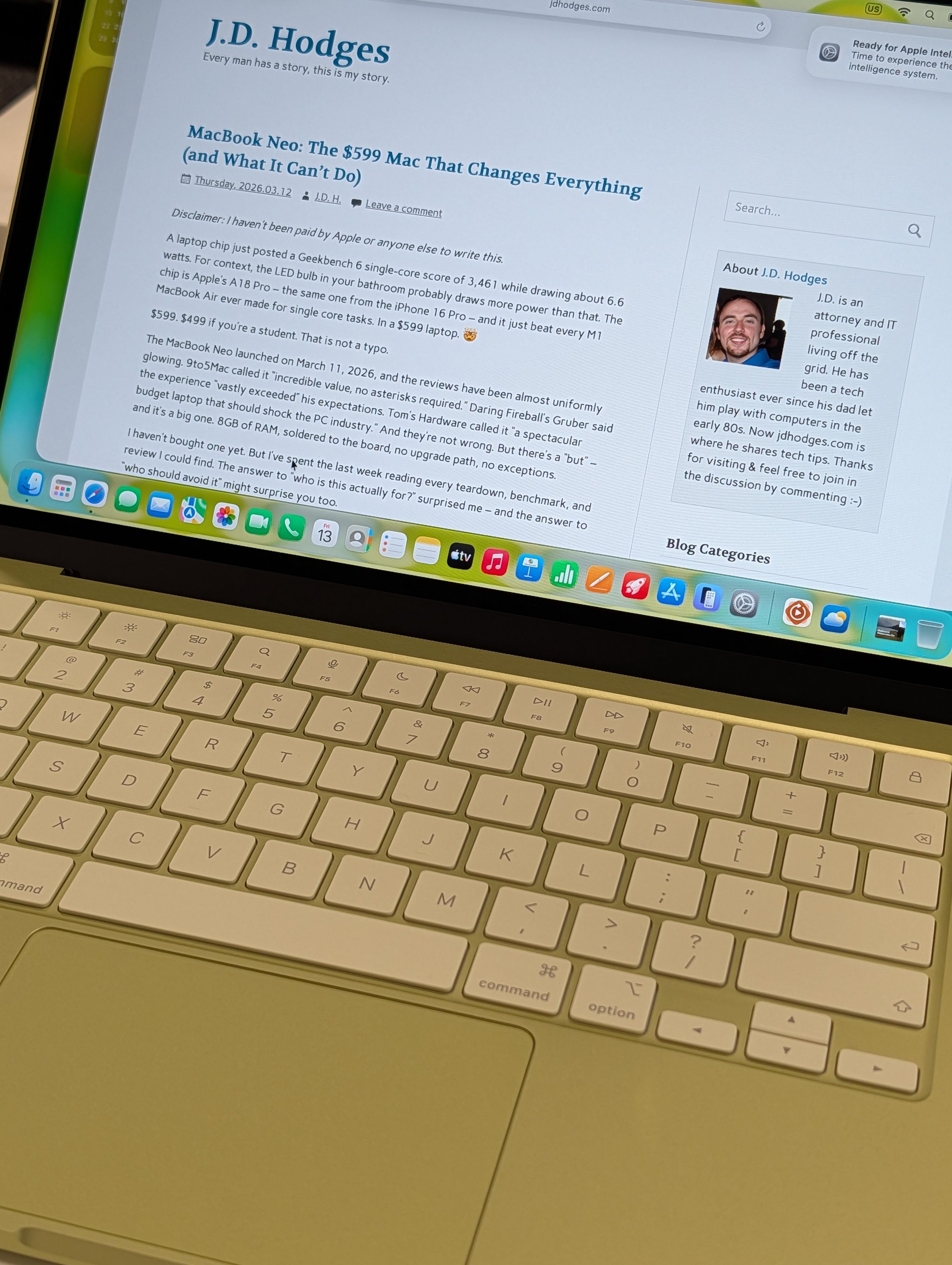
I bought the cheapest Mac laptop Apple has ever made and aimed Claude Code at it: running Claude Code locally on the machine and also using it as a remote target from other machines. It worked quite well.
The MacBook Neo runs an A18 Pro chip (the same one from the iPhone 16 Pro) in a fanless aluminum chassis with a 13-inch Liquid Retina display and 16 hours of battery life. At $599, it is a different kind of product than anything else on this list. The single-core performance beats the M1 MacBook Air by 47% and lands within striking distance of the M4.
In my stress testing, Claude Code’s core processes used about 994 MB of RAM. The full Claude workflow (Desktop renderer, Code agent, WindowServer, screen sharing) did cause an 80% Geekbench drop from thermal throttling under sustained load. But here is what matters: Claude Code itself still felt responsive. API response time from Anthropic’s servers is the pacing bottleneck for most interactions, not local CPU, so the throttling only shows up during heavy sustained builds or large test suites.
The $699 model adds Touch ID and doubles storage to 512GB. Worth the bump. Touch ID alone is a daily quality-of-life improvement.
Buy this if: Price matters most. You are cloud-first with Claude Code. You work on one project at a time and your sessions are sane. You want a surprisingly capable Mac for $599.
Skip this if: You run Docker alongside Claude. You regularly work with large codebases (100K+ files). The 8GB RAM ceiling is real, soldered, and has no upgrade path.
More MacBook Neo coverage: full review, benchmark deep dive, comparison vs. Windows alternatives, and the tap-to-click fix that makes the trackpad dramatically better.
Check MacBook Neo availability on Amazon
Best Windows Laptop for Claude Code: ThinkPad (32GB+)
Not everyone wants a Mac, and not everyone should.
If your workflow depends on Windows-specific tools, if you prefer Linux, or if you just like the ThinkPad ecosystem, a modern ThinkPad with 32GB of RAM and fast NVMe storage is the safest Windows recommendation I can make. The keyboard is still the best in the laptop business. The docks are mature. The Linux support is good. The machines are built to be used hard. If you plan on using the laptop screen directly for extended work, pick a unit with a higher-end display option. If you are docking to external monitors most of the time, save the money on the display upgrade.
I have been using ThinkPads for almost 30 years. They were originally made by IBM, and those early machines were something special. My ThinkPad history on this site goes back to the X220 and X230 (that mSATA + 2.5″ SATA combo with the full-size dock was incredible for its era, and one still serves as a media server). I even had a 701c for a while. The butterfly keyboard was legendary. The point is: I have lived in this ecosystem long enough to know what works. Lenovo took over the brand, but they have by and large continued the philosophy that made the originals such great work tools.
My current daily driver is a ThinkPad T14 Gen 4 with a Ryzen 7 PRO 7840U and 32GB of LPDDR5X. It handles Claude Code sessions, VS Code, a browser with 20+ tabs, PDFs, spreadsheets, and terminal tasks without breaking a sweat. The 780M integrated graphics are a meaningful step up from older Vega iGPUs. I also keep a ThinkPad L14 Gen 3 (Ryzen 5, 32GB DDR4) as a backup at a remote office, and even that older Gen 3 machine handles light Claude Code work without complaint. The floor is lower than you think.
Claude Code on Windows is now a legitimate platform. Anthropic ships a native Windows installer with Git for Windows as the only prerequisite. Native Windows works well for Windows-native projects and tools. If you want sandboxed execution or Linux-heavy toolchains, WSL 2 is the better route.
For current options: the T14s Gen 6 and T14 Gen 6 are both excellent with 32GB configs available on Amazon in the $1,100-$1,500 range. Lenovo announced the T14s Gen 7 at MWC 2026 (lightest T-series ever at 2.45 lbs, up to 64GB LPDDR5X), but it is not yet widely available from retail channels at the time of writing. If you want 96GB of RAM for local AI alongside Claude, see the P14s Gen 6 in the Local AI section below.
Buy this if: You need Windows or Linux. You value what I think is the best laptop keyboard in the industry. You already have ThinkPad docks or accessories. You want a machine that lasts.
Skip this if: You have no strong OS preference and would rather have better battery life, a better display, and a better trackpad. The MacBook Air is still the easier recommendation for most people.
See current ThinkPad T14s configurations on Amazon
Best Desktops for Claude Code
Budget Desktop: Mac mini M4 ($599)
If you already own a decent monitor, keyboard, and mouse, the base Mac mini M4 is one of the cheapest serious Claude Code setups available. It starts at $599 with 16GB of unified memory and a 256GB SSD. The machine is 5×5 inches, pulls about 30W under normal load, runs completely silent, and drives up to three external displays. For pure cloud-first Claude Code work at a desk, it is hard to beat.
Check Mac mini M4 pricing on Amazon
Best Desktop: Mac mini M4 Pro (~$1,279 on Amazon)
If you are setting up a permanent desk and plan to live in editors, terminals, Docker, browser tabs, and long Claude sessions all day, the M4 Pro is the better long-term investment. It starts at $1,399 MSRP with 24GB of unified memory (regularly ~$1,279 on Amazon), adds Thunderbolt 5, and has a meaningfully faster CPU and GPU than the base M4. The extra 8GB of RAM and the Pro chip make a real difference when your workflow involves Docker containers, multiple VS Code windows, a running dev server, and Claude Code all competing for resources simultaneously.
The M4 Pro also supports higher memory configurations (up to 64GB) if you want to future-proof, though the 24GB base is plenty for cloud-focused Claude Code work.
Buy this if: Your desk is your primary workspace. You want headroom for Docker, heavy builds, and sustained multi-hour sessions. You want Thunderbolt 5 for future peripherals.
Skip this if: You only need light Claude Code use (the base M4 is fine). You primarily work on a laptop. You want local AI models (see the AI Max 395 section below).
Check Mac mini M4 Pro pricing on Amazon
Timing note (April 2026): Low stock and shipping delays on some Mac mini configurations suggest Apple may be preparing an M5 Mac mini. If you are not in a rush, it might be worth watching the product cycle. If you need a machine now, the M4 and M4 Pro are both solid buys, and Apple’s resale values mean you will not lose much if you upgrade later.
Do You Actually Need a Dedicated Claude Box?
Usually, no.
If you already own a decent Apple Silicon Mac with 16GB of RAM, or a modern Windows laptop with 16-32GB, keep it unless your actual workflow is choking. Claude’s model runs in the cloud. The bottlenecks are usually your editor, your browser tabs, Docker, builds, and test suites, not Claude itself.
A dedicated always-on machine starts to make sense if you want one of three things:
- Remote access. A box you can SSH or Tailscale into from anywhere, so Claude Code keeps working even when your laptop lid is closed.
- Isolation. You want Claude operating away from your main personal machine, maybe for client work or security reasons.
- Always-on jobs. Dev servers, scheduled tasks, monitoring, MCP servers, or a persistent agent setup that should not depend on your laptop being awake.
If that sounds like you, the most reliable setup I have found is VS Code Remote SSH over Tailscale. Install VS Code Server on your always-on machine, connect via SSH from any other device, and your Claude Code sessions run on the remote hardware with full access to local files and MCP servers. Tailscale makes the networking dead simple with no port forwarding required.
Claude Code does have a built-in “Remote Control” feature (launched February 2026) that lets you continue a terminal session from your phone or a browser. In my experience, it is still rough. Sessions drop frequently with no automatic recovery, and if you are away from the machine when it drops, you may be locked out until you get back. The VS Code Remote SSH approach is far more reliable for daily use and gives you the full IDE, not just a terminal view. VS Code also supports Remote Tunnels if you need browser-based access from an iPad or Chromebook, though SSH is more stable long-term.
I run a Minisforum MS-01 as a Proxmox server for exactly this kind of always-on work: VMs for different projects, scheduled tasks, monitoring, and Claude Code sessions that persist whether my laptop is open or not. A Mac mini works just as well if you prefer macOS.
If none of that applies to you, spend the money on more RAM, a better monitor, or a chair that does not wreck your back. Those will improve your Claude Code experience more than a second machine will.
If You Also Want to Run Local Models
Claude Code itself does not require exotic hardware. But if you also want to run open-weight models locally, that is a different purchase. Memory capacity and GPU capability start to matter a lot more, and price goes up fast.
This section is not required reading for most Claude Code users. If you just want to use Claude well, the picks above have you covered. This is for the people who also want local inference alongside their cloud AI workflow.
| Category | Pick | Key Specs | Why I Recommend It | Check Price |
|---|---|---|---|---|
| Best Portable Local AI | ThinkPad P14s Gen 6 | Ryzen AI 9 HX PRO 370, 96GB DDR5, 14″, 3 lbs | 96GB of RAM in a 3-pound laptop. I run 70B parameter models on this. Nothing else at this price comes close. | Check Price on Amazon |
| Best Desktop Local AI | AI Max 395 Mini PC | Ryzen AI Max+ 395, up to 128GB unified, 96GB assignable VRAM | A new category of small, quiet desktops that can run 70B+ models. Multiple vendors shipping from ~$2,000. | Search on Amazon |
| Best for CUDA / GPU AI | RTX 5090 Desktop | RTX 5090 32GB GDDR7, $1,999+ GPU alone | For local image generation, CUDA workflows, and NVIDIA-specific inference. Overkill for plain Claude Code. | See RTX 5090 Desktops |
Best Portable Local AI: ThinkPad P14s Gen 6
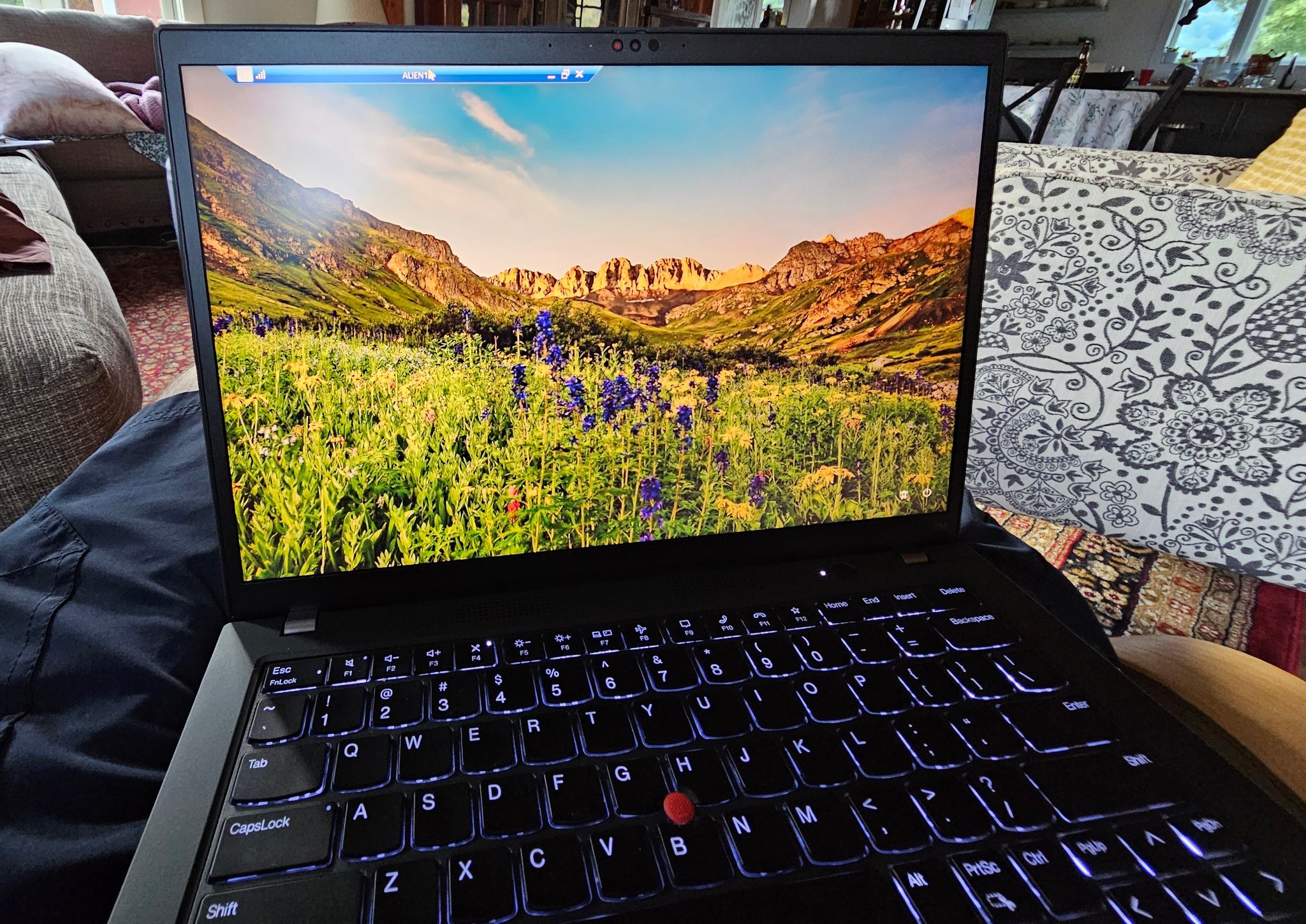
The ThinkPad P14s Gen 6 with the AMD Ryzen AI 9 HX PRO 370 can be configured with 96GB of DDR5 RAM in a 3-pound, 14-inch chassis. Most laptops max out at 32GB or 64GB. The P14s Gen 6 supports 48GB SODIMMs per slot, and that is what makes this machine different from everything else on this list.
I paid about $1,600 for mine (Lenovo frequently runs deep discounts, sometimes 45% off list price), and I have been running large language models on it that would bring any other laptop in this price range to its knees. Through LM Studio and Ollama, I can run 7B to 14B models at full speed, Llama 3.3 70B quantized at usable conversational speed, and 100B+ parameter experiments with aggressive quantization if I bring patience.
The real value is the hybrid workflow: Claude handles your production work in the cloud while the ThinkPad handles everything you want to keep local. Privacy-sensitive code, offline experimentation, testing prompts against local models before burning API credits.
Buy this if: You want both cloud AI (Claude) and local AI (Ollama, LM Studio) in one portable machine. You want 96GB of RAM near the $1,600 price point.
Skip this if: You do not care about local models. For pure Claude Code work, the T14 with 32GB or a MacBook Air is a better fit at a lower price.
See current ThinkPad P14s Gen 6 configurations on Amazon
Best Desktop for Local AI: AI Max 395 Mini PCs
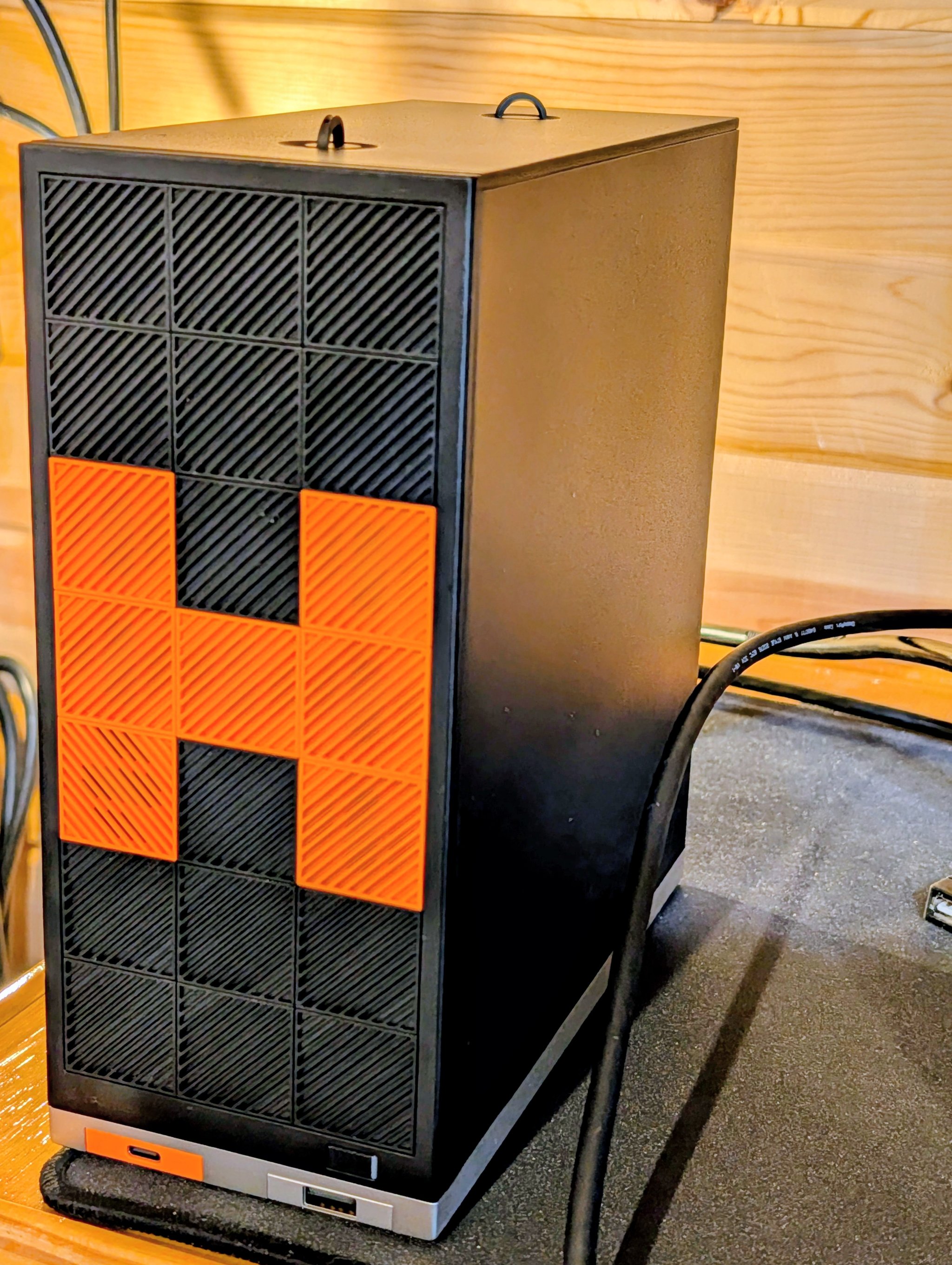
The AMD Ryzen AI Max+ 395 created a new product category: small, quiet desktop machines with up to 128GB of unified LPDDR5x memory and 96GB assignable as VRAM (more on Linux with a memory allocation tweak). That is enough to run Llama 3.3 70B Q6 at conversational speed on your desk, in a box smaller than a shoebox.
The landscape has exploded. As of April 2026, there are 30+ machines announced or shipping with this chip from vendors including Framework, Minisforum, Beelink, GMKtec, ASUS, Corsair, and others. The chip and top-end memory ceiling are similar across vendors. What varies is cooling, port selection, build quality, and price. The ongoing DDR5 memory shortage has made pricing volatile, so check current availability before committing.
Here is how the market looks right now:
Beelink GTR9 Pro (~$1,985-$2,399): Currently the best value in this category. Dual 10Gbps ethernet, dual USB4, WiFi 7, 128GB/2TB configuration. Available on Amazon. The $1,985 price is a pre-sale discount from the $2,399 list price, so check current pricing. If I were buying into this category today, this is where I would start.
Framework Desktop ($2,999): I use mine daily and it has been a solid, reliable machine. Noctua fan option runs quiet, the modular design is distinctive, and Framework’s build quality is excellent. The trade-off: Framework was originally $1,999 for the 128GB config but raised prices to $2,999 due to the DDR5 memory shortage. That is a 50% increase. It is also sold direct through frame.work, not Amazon, and batches sell out regularly. If Framework appeals to you, check their site for current availability.
GMKtec EVO-X2 (~$1,999 promo from gmktec.com, $2,799 list): Has an OCuLink port for connecting an external GPU enclosure, which is unique in this category. GMKtec runs frequent promotions, so check their site for current deals. Also available on Amazon.
Minisforum MS-S1 Max (~$2,499 direct): The most feature-rich option: USB4 v2 (80Gbps), PCIe x16 slot, dual 10GbE, and a 2U rack-mountable chassis. Amazon price is inflated (~$3,039); buy direct.
For more detail on the unified memory architecture that makes all of these work, see my Strix Halo VRAM allocation deep dive.
Buy any AI Max 395 machine if: You want to run serious local models (30B-70B+) without a discrete GPU tower. You value quiet operation and small form factor. You want the hybrid workflow: Claude in the cloud, local models on your desk.
Skip this category if: Claude Code is your only AI tool. These machines are overkill for pure cloud-AI work. I would get a Mac mini instead.
Search AI Max 395 mini PCs on Amazon
CUDA / GPU Path: RTX 5090 Desktop ($5,300+)
An RTX 5090 desktop is not the normal answer for Claude Code. Claude’s AI runs in the cloud. But if you also care about CUDA workflows, image generation (ComfyUI/Stable Diffusion), or need NVIDIA-specific inference acceleration, the 5090 with 32GB of GDDR7 is the current top end. Real street prices for a full 5090 desktop are running $5,300+ as of April 2026. The GPU alone is $1,999 MSRP, typically higher at retail.
I have an RTX 5090 AI BOX paired with my Framework Desktop for the best-of-both-worlds approach: unified memory for large models, discrete CUDA for acceleration. I also have an Alienware 18 Area-51 with the RTX 5090 laptop GPU (24GB GDDR7) for when I want that capability in a portable form (if you can call 9.5 pounds portable). These were both snagged on deep sales before pricing got as volatile as it is now.
Buy an RTX 5090 if: Local models matter. CUDA matters. Image generation matters. Budget is secondary to capability.
Skip it if: Your main goal is simply using Claude Code well. A Mac mini or one of the AI Max 395 machines handles that for a fraction of the cost.
Peripherals That Actually Matter
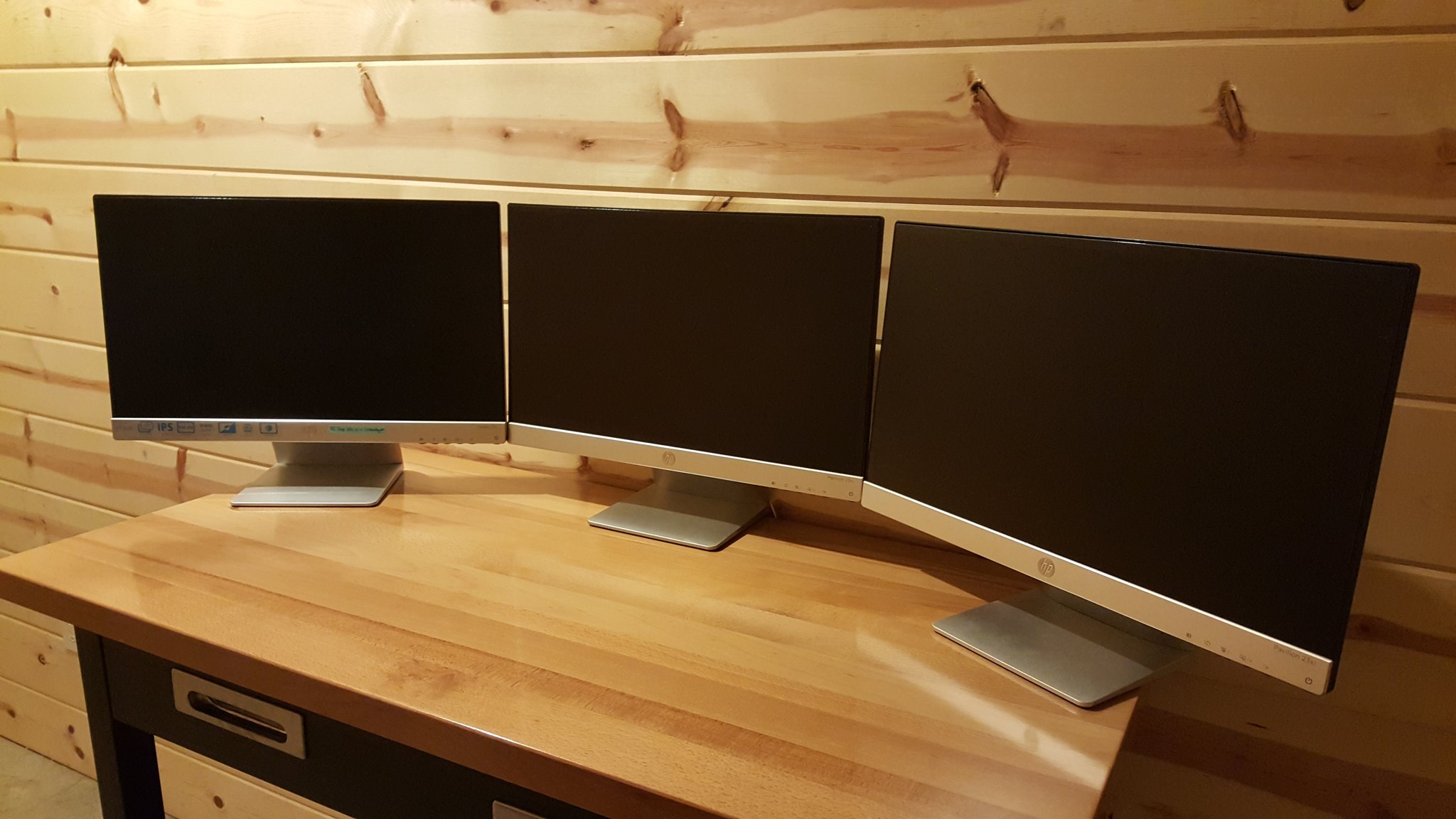
I have strong opinions about peripherals because I spend 10+ hours a day at my desk. Here is what I actually use. Your setup will be different, and that is fine. If you have recommendations that work well for you, drop them in the comments.
Monitors: ASUS ProArt PA278QV (~$219) and PA278CV (~$260)
Both are 27-inch WQHD (2560×1440) IPS panels with factory-calibrated color accuracy (Delta E < 2). The key difference: the PA278CV adds USB-C with 65W power delivery, which means one cable for video and power from a laptop. The PA278QV is cheaper and connects via DisplayPort or HDMI.
Both rotate to portrait orientation, which is the most underrated productivity hack for code and documentation reading. A vertical 27-inch at 1440p gives you roughly two printed pages of content visible at once. I run one landscape for my primary workspace and one portrait for documentation and long Claude conversations. These monitors frequently go on sale for even less than the prices above, and at sub-$300, buying two of them is cheaper than one premium ultrawide.
For more display options, see my DisplayPort MST daisy-chainable monitor list with 60+ verified monitors.
Check PA278QV price | Check PA278CV price
Keyboard: Corsair/Elgato Galleon 100 SD ($349)
This is a full-size mechanical keyboard with an integrated Stream Deck: 12 customizable LCD keys, two rotary dials, and a 5-inch display built into the right side where the numpad would normally be. Hot-swappable MLX Pulse switches, gasket-mounted PCB, aluminum frame.
Why it matters for Claude Code: you can map the Stream Deck keys to your most common actions (accept, reject, plan mode, toggle between terminal and editor). Having physical buttons for those actions is faster than keyboard shortcuts when you are reviewing AI-generated code all day. Not cheap, but the most interesting input device I have used this year.
Check Galleon 100 SD price on Amazon
Mice: Logitech MX Master 3S (~$90) and Razer Viper Ultimate (~$80)
Two mice for two use cases. The MX Master 3S has the best scroll wheel I have ever used: electromagnetic, infinite scroll with a flick, ratcheted precision when you need it. When you are scrolling through long Claude outputs, terminal logs, and code diffs all day, that wheel matters more than you would expect. It is the mouse I reach for during work.
The Razer Viper Ultimate is for everything else: lighter, faster, wireless with a charging dock, and better for general desktop navigation when you want speed over precision scrolling. Having both lets me switch depending on what I am doing.
Check MX Master 3S price | Check Viper Ultimate price
Software You Should Not Overlook
A few tools that cost nothing and make the daily Claude Code workflow noticeably smoother:
- Clipboard manager: Maccy (Mac, free) or Ditto (Windows, free). Windows also has a built-in clipboard history (Win+V) that many people do not know about. When you are copying code snippets, prompts, file paths, and error messages constantly, a clipboard history is essential. I did not realize how much time I was wasting until I started using one.
- Terminal: Warp (Mac/Linux) or Windows Terminal. Both support tabs, split panes, and modern text rendering. Claude Code works in any terminal, but a good one makes long sessions more comfortable.
Chair and Desk
Your body is part of the system. A bad chair is a hardware bottleneck that limits how long you can work effectively before your back, neck, or wrists start degrading your output. I use a Herman Miller Aeron (buy refurbished, save 40-50%) and an Uplift V2 standing desk. Changing positions throughout the day, even just standing for 20 minutes every couple of hours, is worth more than any CPU upgrade. A standing desk does not need to be expensive. A manual crank model for $250 does the job.
Ergonomics: The Real Hardware Bottleneck
This is the part of the article that most buyer’s guides skip, and the part I think matters most.
When Claude helps you produce in two hours what used to take two days, the temptation is not to take the rest of the day off. The temptation is to fill those freed-up hours with more. If your workstation is not set up to support that pace sustainably, you will burn out faster than any previous generation of knowledge workers.
Rules I have learned the hard way:
The 20/20/20 rule. Every 20 minutes, look at something 20 feet away for 20 seconds. Your eyes are staring at text all day. Give them a break.
Stand every 60 minutes. Set a timer. A standing desk helps, but just getting up and walking to the kitchen counts.
No coding after 11pm. The quality of your prompts degrades when you are tired. The quality of your judgment about accepting AI-generated code degrades faster. Claude does not get tired. You do.
Water bottle always full. Simple and effective. Dehydration kills focus before you notice it.
Run first, code second. Physical exercise before the workday. It is not about fitness (though that is a bonus). It is about showing up to the keyboard with a clear head.
The best computer for Claude Code is not just the machine with the biggest spec sheet. It is the machine that fits your workflow and the setup you can work comfortably in for long stretches. Spec sheets do not account for what happens to your output at hour six when your chair is wrong or your screen is too small to see Claude and your code at the same time.
Claude Code in 2026: What Changed
Since I first published this article, Claude Code has changed substantially:
- Native installer. The old npm installation path is being phased out. Install from the Claude Code setup page and you are up in minutes, no Node.js required.
- Native Windows support. WSL is no longer required. Claude Code runs natively on Windows with just Git for Windows as a prerequisite.
- Claude Desktop. Prefer a GUI over the terminal? Claude Desktop gives you Claude Code capabilities without the command line.
- VS Code extension. Install from the marketplace, connect your account, and Claude Code works directly in your editor.
- JetBrains plugin. Same story for IntelliJ, PyCharm, and the rest of the JetBrains family.
- Remote Control. Start a session on your desk, continue it from your phone or any browser at claude.ai/code. Still a research preview with some rough edges (see the Dedicated Box section above), but the direction is promising.
- CLAUDE.md project instructions. Tell Claude about your project once, and it remembers across sessions. I wrote a full guide on how to write CLAUDE.md files if you want to get the most out of this feature.
- Account requirement. Requires a Pro ($20/mo), Max ($100-200/mo), Team, Enterprise, or Console (API) account.
The practical effect: Claude Code is no longer a terminal-only tool for people comfortable with npm. It is a mainstream development platform with first-class support across macOS, Windows, Linux, and multiple IDEs. That changes the hardware recommendations because you no longer need to optimize around terminal-first workflows.
What I Would Buy Today
If I were starting from scratch with my own money:
- One laptop for everything: MacBook Air M5 (24GB/1TB) at $1,349. Done.
- Cheapest Mac that still works: MacBook Neo at $599, plus a $219 ProArt PA278QV as a second monitor.
- Windows laptop: ThinkPad T14s with 32GB ($1,100-$1,500 on Amazon). Add a dock and you have a full desk setup.
- Desk setup on a budget: Mac mini M4 ($599) plus two ProArt monitors ($450 total). Under $1,100 for a serious workstation.
- Desk setup with headroom: Mac mini M4 Pro (~$1,279) plus a ProArt PA278CV ($260, one cable for video and power).
- Remote thin client: MacBook Neo ($599) as the portable machine + Mac mini M4 Pro ($1,279) at home, connected via VS Code Remote SSH over Tailscale. Best of both worlds for under $1,900.
- Local AI on a budget: Beelink GTR9 Pro with the AI Max+ 395 and 128GB (~$2,000-$2,400 depending on current promotions). Best current value in this category.
- Local AI, high end: Framework Desktop ($2,999) plus an RTX 5090 AI BOX if you need CUDA.
- The peripheral I would buy first: A second monitor. It pays for itself in the first week.
In my experience, the person who writes clear, thoughtful prompts on a $600 laptop with two monitors will usually outperform the person hammering vague requests into a $10,000 rig. But the right hardware makes the good work more sustainable and more comfortable over long days.
I plan to update this guide monthly as prices shift and new hardware ships. If you have a setup that works well for Claude Code and I missed it, drop a comment. Everyone’s workflow is different, and the best recommendations come from the community, not just one person’s desk.
Some links in this post are affiliate links. If you purchase through them, I may earn a small commission at no additional cost to you. I only recommend products I own, have tested, or would personally use. Prices are approximate as of mid-April 2026 and will vary. Framework Desktop is sold directly through frame.work, not Amazon.
Information in this post was accurate at the time of writing. Verify current pricing and availability before purchasing.
This post was drafted with assistance from AI tools, reviewed and edited by me.
Great breakdown. One weird input device missing from the list: a gamepad. I built a small macOS app (VibePad — vibepad.now) that maps
controller buttons to Claude Code shortcuts — accept, reject, plan mode, scroll.
With AI writing most of the code, vibe coding is mostly just approving or rejecting suggestions. Turns out a PS5 controller is
weirdly perfect for that. I’ve been building side projects from my couch with it and it’s surprisingly fun.
A $30 8BitDo controller might be the dumbest-looking addition to your Scenario 2 build — but also the most fun one.
Thank you for your comment, Vova! That is pretty darn aweome, I never would have though of a simple game controller but its pretty perfect (do you have labels or is it all just muscle memory?) Actually, I see your mapping diagram now that is EPIC. 💪 You just invented ultimate vibe coding!!!
And you’re right that vibe coding has changed the input model completely. When AI writes the code and you’re mostly approving or rejecting, a gamepad makes way more sense than people would expect. VibePad: the voice dictation via L2, smart clipboard handling, and full JSON remapping elevate this way beyond a simple key mapper. Nice work.
Your comment inspired me to dig out my old Elgato Stream Deck. Found a project called TerminalDeck on GitHub that maps Stream Deck buttons directly to Claude Code — dedicated Yes/No/Cancel/Enter buttons, voice dictation, the whole deal. Setting that up this week (if I find time, which likely I won’t lol since there is SO MUCH TO DO when directing AI and imagining projects) Your controller is probably better but I’m sure steamdeck would be good for SOMETHING re:Claude or VS Code.
The bigger insight that you stumbled up, in the future the keyboard may not be the optimal AI coding interface anymore. When you’re in approval mode, a $30 8BitDo controller or a Stream Deck might be the highest-ROI peripheral in the entire build (and toss in some voice dictation).Thanks for reading and for thinking outside the box. 👍🥇
PS if you ever have more use cases, claude tips, or specific product recommendations, would love to hear! EXCITING TIMES!