How to Remove McAfee WebAdvisor and That Popup on Windows
TL;DR: To remove McAfee WebAdvisor, uninstall “WebAdvisor by McAfee” from Settings > Apps & features. You have to SCROLL to find it b/c the “Find a setting” search does not filter the app list. Click through the “we’ll miss you” retention popup and you’re done. I just use Windows Defender as it is much less obtrusive and generally very capable.
I booted my Lenovo Legion 7 (16ACHG6) for the first time in a while and was greeted with this not so charming popup. I bought the laptop direct from Lenovo, which actually matters here: Lenovo preloads a McAfee trial on Legion laptops and even publishes their own McAfee uninstall guide, which is telling. WebAdvisor doesn’t ship through the Microsoft Update Catalog, so the factory image is the most likely suspect. Either way, it has to go.
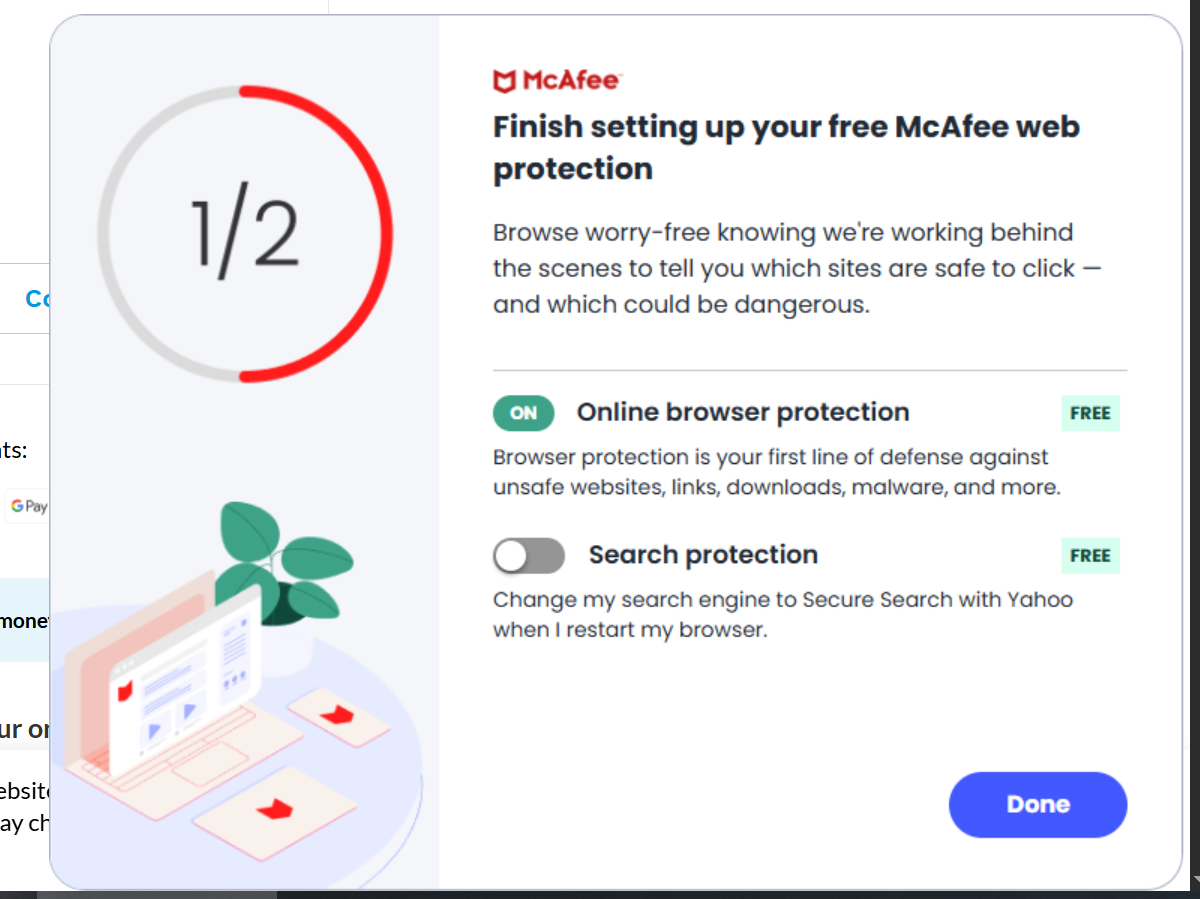
So what is this McAfee popup?
This is McAfee WebAdvisor, a real installed Windows program (not a phishing alert or a browser injection). Windows Apps & features listed it on my Legion 7 as “WebAdvisor by McAfee,” version 4.11.1107, 96.7 MB. If you’re instead seeing a popup inside your browser that claims your PC is infected and tells you to call a phone number, that’s a different problem (usually a rogue site notification), and you want a different article.
On my Legion 7 the popup had escalated into a more aggressive version than what I used to just X out of. That’s what made me stop procrastinating and remove it.
The popup’s second toggle is labeled “Search protection” and reads: “Change my search engine to Secure Search with Yahoo when I restart my browser.” That’s not a protection feature. That’s a search-engine hijack with friendly marketing copy. Click Done on that screen and Yahoo takes over as your default search the next time you restart your browser. So don’t do that!
Go uninstall the whole thing instead.✅👍
How to remove McAfee WebAdvisor (5 steps)
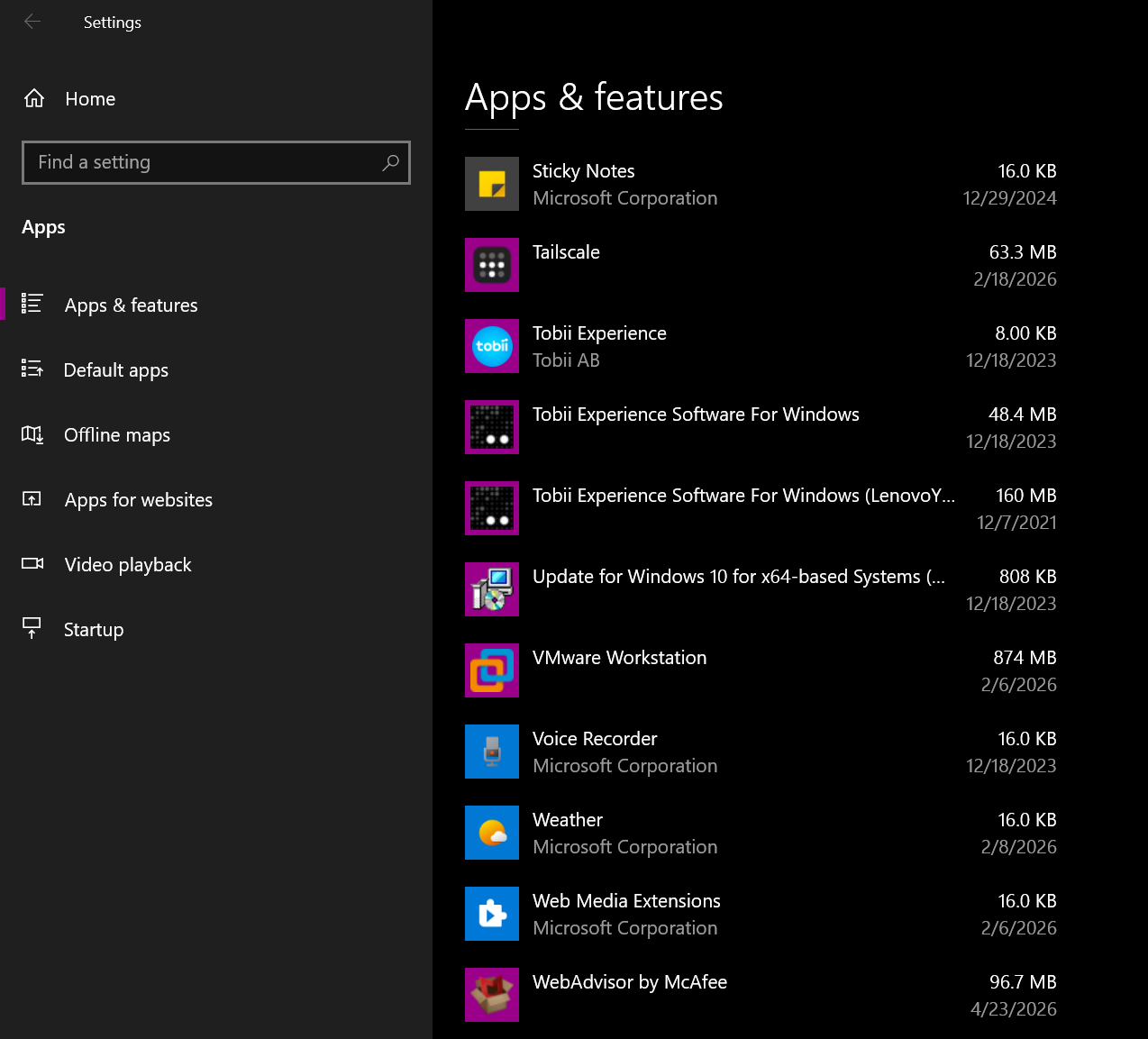
- Open Settings > Apps & features.
- Scroll down to the W’s. Do NOT type “mcafee” or “webadvisor” into the “Find a setting” box at the top. That box searches Settings pages, not your installed apps, so it returns nothing useful and a lot of people bail here thinking WebAdvisor isn’t really installed. Just scroll.
- Click WebAdvisor by McAfee, then click Uninstall.
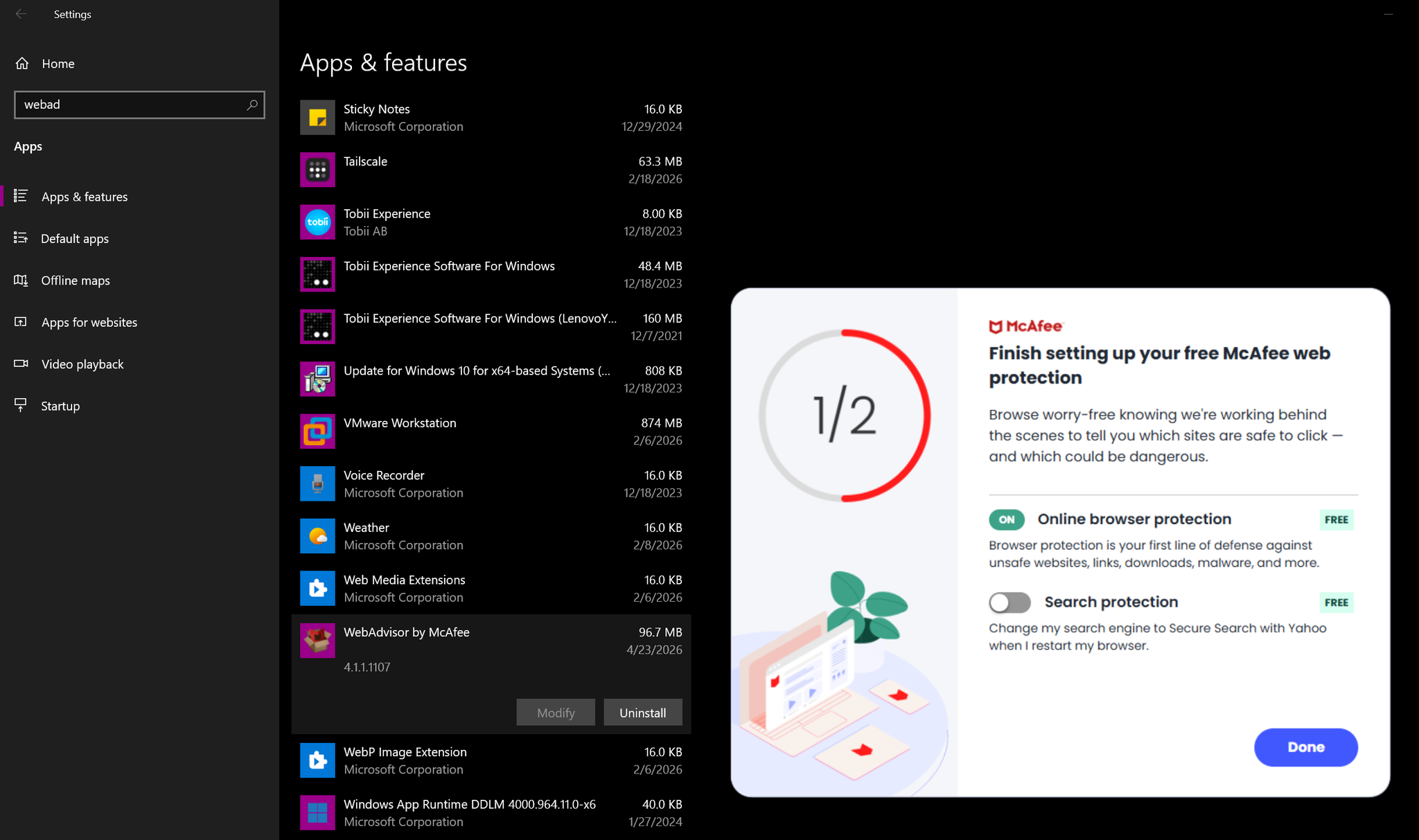
- McAfee will throw a “Wait! If you uninstall, we’ll miss you” retention popup at you. Click No thanks, just uninstall it. Not the “Keep web protection” button.

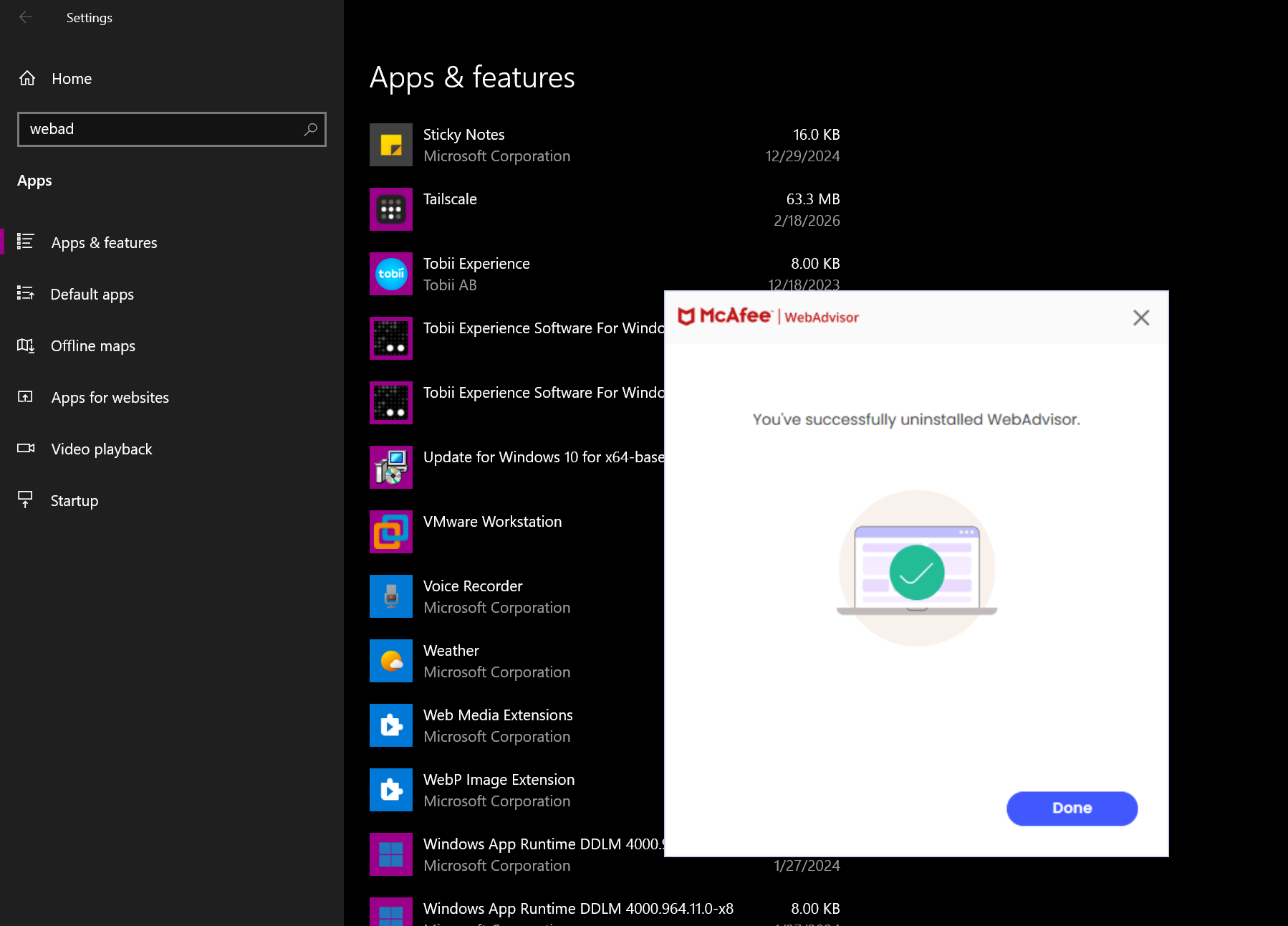
- Done. You’ll get a “successfully uninstalled WebAdvisor” confirmation. No reboot was needed on my Legion 7, but reboot if it prompts.
If Yahoo is already your default search, reset it
If you clicked Done on that popup on a prior boot, WebAdvisor has already flipped you over to Yahoo and uninstalling the Windows app does not automatically undo it. Quick fix:
- Chrome: Settings > Search engine > Manage search engines and site search. Set Google as default, then delete any “Yahoo” or “Secure Search” entries from the list.
- Edge: Settings > Privacy, search, and services > Address bar and search > Search engine used in the address bar. Pick whatever you actually want.
- Firefox: Settings > Search > Default Search Engine.
If WebAdvisor won’t uninstall, or comes right back
Two things to check if the regular uninstall doesn’t stick.
1. Your browser extensions. Even after the Windows app is gone, an orphaned WebAdvisor extension in Chrome or Edge can keep nagging you. In Chrome, visit chrome://extensions and remove anything McAfee. In Edge, edge://extensions. In Firefox, Add-ons and themes.
2. The official McAfee removal tool as a last resort. If the normal uninstall fails or WebAdvisor silently reappears, try MCPR (McAfee Consumer Product Removal). Download it from McAfee directly, not a third-party mirror, run it as administrator, reboot, and re-check Apps & features. It doesn’t always get everything on the first try, but for stubborn cases it’s the cleanest option.
Will removing WebAdvisor leave you exposed?
Short answer: no. I just use Microsoft Defender on this machine. It’s built into every modern Windows install, updates automatically with Windows Update, and doesn’t pop up asking for money. WebAdvisor liked to flash a “McAfee secure search is off” warning on the way out; that reads to me like a scare tactic, not a real protection gap. Defender’s SmartScreen already flags malicious downloads and sketchy sites in Edge.
Expired subscription? If you had a paid McAfee product that expired and the nags are telling you to renew, no, you don’t owe them anything. Uninstall is the answer.
Different McAfee product, same energy: if you also have the full McAfee LiveSafe suite chewing up a Lenovo, that’s a separate removal I covered a while back.
If this popped up on your Lenovo too, I’d love to hear your model number and if you uninstalled McAfee.
I hope this helps, have a great day!