Printer connected to WiFi but shows offline [SOLVED]
Q. I have a printer that is connected to my home wifi network. It has an IP address and I can access its web interface from my PC. Sometimes I can print just fine from my Windows PC but other times it reports the printer is offline even when I know it is online. Can you help me? -email from Evan Thornton
A. Hopefully! It sounds like a Windows printer driver configuration issue. Specifically, if your printer is getting its IP from a DHCP server (your router) but the driver was setup specifying a static IP for the printer TCP/IP port, then it would show up as “offline”. So, to fix that you would specify the printer’s name (hostname) instead of the printer’s IP address. Here are some screenshots showing the process:
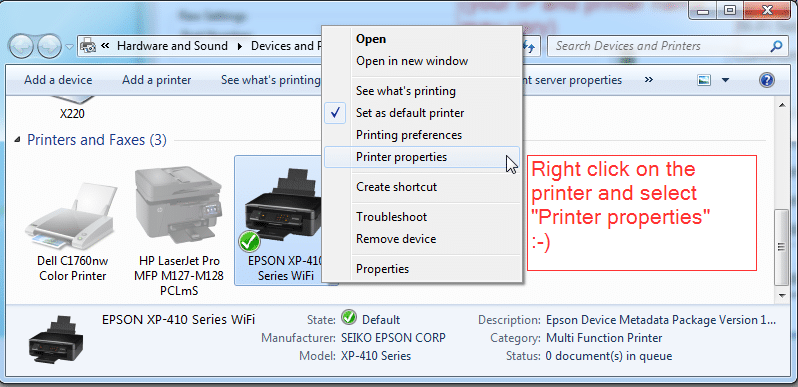
Printers -> Printer Properties
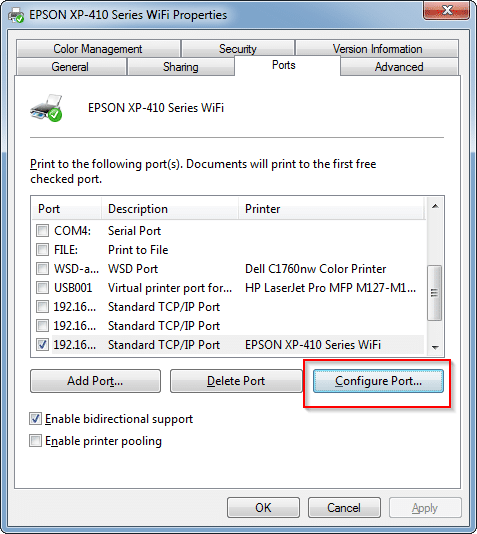
Ports -> Configure Port
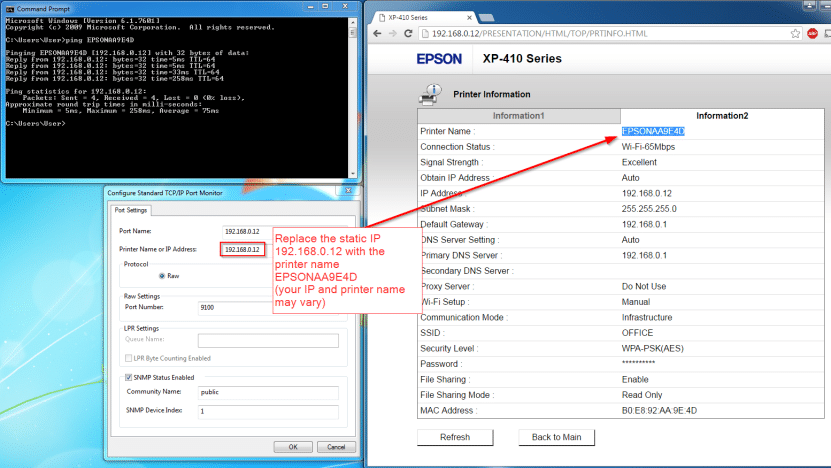
Find your printer’s hostname and replace the static IP with the hostname
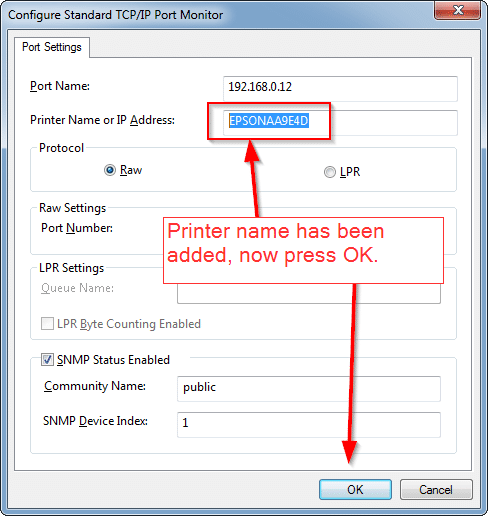
Hostname is now specified!
After those steps, hopefully your printer will show up as “Ready” and will stay online hereafter! 🙂
- printer is offline but connected (228)
- printer says offline but it's connected (167)
- printer says offline but it\'s connected (102)
- printer connected to wifi but offline (52)
- printer offline but connected (42)
- why is printer offline when it is connected (29)
- printer showing offline but is connected (25)
- printer is connected but offline (16)
- brother printer connected to wifi but offline (15)
- printer connected to wireless but offline (13)
Hello,
I was having the same issue so I followed the steps above, but when I got to the step where I needed to click “configure port” it said that the action is not supported. Any advice? Whenever we get a new router I have trouble connecting.
Thank you
Hey Amanda, the “Configure Port” button graying out or saying “not supported” usually happens with certain printer port types (like WSD ports) that Windows doesn’t let you reconfigure the same way. If that’s the case, the workaround is to delete the existing printer port entirely and add a new standard TCP/IP port using your printer’s hostname. Go to Printer Properties > Ports > Add Port > Standard TCP/IP Port, and enter your printer’s network hostname (rather than its IP address) so that it stays connected even if the IP changes after a router swap.
Thank you! This fixed my printer problem!! Keep it up!!! xoxo
Dear Cathy,
I am very glad my tip helped you fix your printer issue. Have a GREAT week!
-J.D.
Thank you so much, this worked for me.
No problem! I’m so glad that the tip helped! 👍
Have a great day!!
-J.D.
I have a laser jet HP printer and this hasn’t worked as there are spaces between the name I am in despair as I am sick of ringing HP support them fixing it but not explaining what they have done only for it to work for an hour then go offline again. Can no one help me???
Hey Hazel, the spaces in the hostname can definitely cause problems with the port configuration step. What you’ll want to do is use your printer’s IP address for the port configuration, but also enable a static (fixed) IP for the printer so it doesn’t change. Most HP printers let you assign a static IP through the printer’s own web interface (just browse to the printer’s current IP in a browser). Once the IP is fixed, set the Windows port to use that IP directly, and the spaces-in-name issue won’t matter. That should give you a stable connection instead of this cycle of going offline.
please help me
Hey Gael, sure, I’ll try to help! Can you share a bit more about your setup? What printer model do you have, and what specifically is happening when you try to print? With a little more detail I should be able to point you in the right direction.
Hi J.D.,
I tried this tip but I get a message saying an error occurred during port configuration. This operation is not supported.
What should I do? I have no idea why my printer is showing offline when it isn’t.
Thanks for your help.
Susan
Hey Susan, the “operation is not supported” error on Configure Port usually means your printer is set up using a WSD (Web Services for Devices) port, which Windows doesn’t allow you to modify the same way. The fix is to switch it to a standard TCP/IP port instead. In Printer Properties > Ports, click “Add Port,” choose “Standard TCP/IP Port,” and enter your printer’s hostname or IP address. Then select that new port and you should be able to configure it normally. Just make sure to use the printer’s hostname (not IP) so it stays connected if your router ever assigns a different IP.
Hello, I have this same problem but when I try to configure port I get an error message saying this operation is not supported. What do you suggest I do?
Thank you,
Susan
Hey Susan, I just replied to your other comment above with the same answer, but the short version: your printer is likely using a WSD port, which doesn’t support the Configure Port dialog. The fix is to add a new Standard TCP/IP port using your printer’s hostname. See my longer reply just above for the step-by-step!
hey! it works…so far 🙂
the difference was that clicking on “configure port” gave an error, so i went and started with “add port”. and it worked.
thanks a bunch
Dear Slovene,
Thank you for sharing your tip! I am very glad that “add port” worked for you!
Have a GREAT week. 🙂
Best regards,
-J.D.