ASUS S200E SSD Upgrade Guide
Here is a step-by-step photo tutorial for upgrading the S200E to utilize a fast SSD!
2016 UPDATE: My top SSD recommendation is the Samsung 850 EVO series. They start at around $70 for the 120GB version and they go all the way up to 2TB. Huge performance improvement vs the default HDD.
-
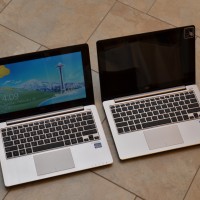
- S200E (left) and X202E (right) these machines are virtually identical!
-
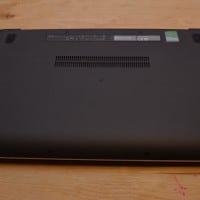
- Bottom of the S200E showing the 9 screws that need to be removed (4 front, 4 back, one middle)
-
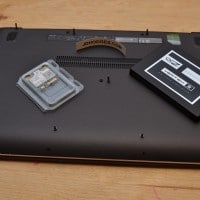
- Remove 9 bottom screws (4 front, 4 back, 1 middle) new wifi card to be installed (and that SSD is too thick!)
-
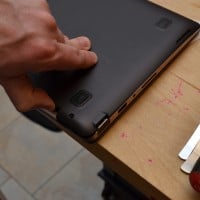
- Gently prying the bottom of the case open
-
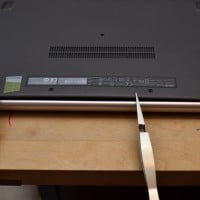
- Tools to keep the cover open while continuing work
-
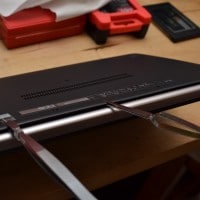
- Keep it open so you can continue to pop the retention tabs open
-
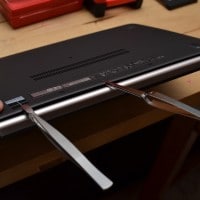
- Tools can help as extra hands 🙂
-
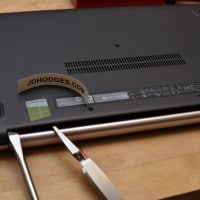
- A flat bladed screwdriver (or a plastic wedge) are ideal for gently opening the case
-
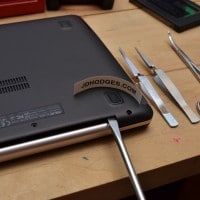
- Using a flat bladed screwdriver to gently pop open the retention clips/tabs
-
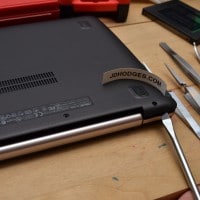
- Gently running the flat bladed screwdriver along the cover to release more retention tabs
-
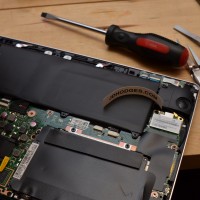
- Cover removed, showing battery/motherboard/etc.
-
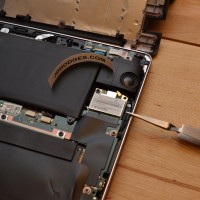
- Tool pointing to original wifi card
-
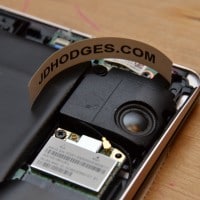
- Closeup of the wifi card and one of the speakers
-
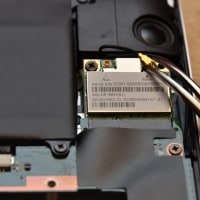
- S200E/Q200E: If replacing wifi card, very carefully remove the single wifi antenna connector
-
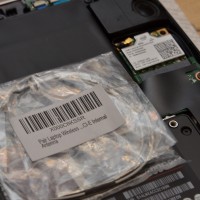
- Adding additional wifi/bluetooth antenna for use with upgraded Intel wifi card
-
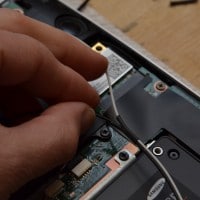
- Wifi antenna cable came as a pair, I split them apart and removed one of them
-
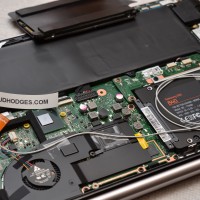
- Routing for the new wifi antenna
-
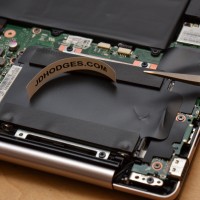
- Tool pointing to hard drive location
-
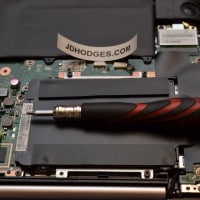
- Screwdriver tip pointing to SATA connector
-
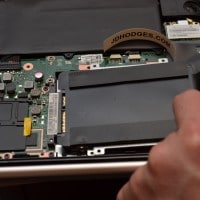
- Gently use the pull-tab to remove the hard drive
-
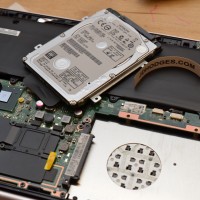
- 500GB hard drive after removal
-
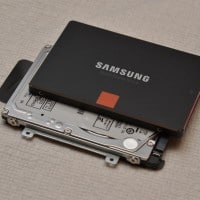
- HDD SSD comparison photo
-
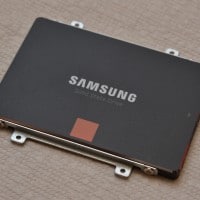
- Samsung 840 512GB 7mm SSD, ready for installation
-
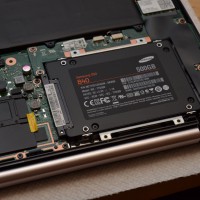
- SSD installed in ASUS S200E/X202E/Q200E
-
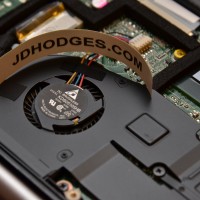
- FYI Closeup of the cooling fan
RATING NOTE: while this upgrade is a little more difficult than some others, the new SSD still resulted in a HUGE performance improvement so I give this upgrade a 4.5/5 star rating 🙂
Top Search Terms:
- s200e ssd (47)
- asus s200e ssd (43)
- asus s200e ssd upgrade (28)
- asus s200e ssd install (16)
- asus s200e (15)
- asus s200 ssd (11)
- asus s200e upgrade (11)
- asus s200e ram upgrade (8)
- asus s200e hard drive replacement (7)
- upgrade asus s200e (7)
Thank you for the guide, it really helped me get my S200E case open… could not figure it out before!
Also, do you have any tips on Windows 8 Pro clean installation on S200E? I am having a terrible time with it… 🙁 Thank you in advance! 🙂
Hi LaptopLuvr,
Thank you for your comment, I am glad the guide helped you!
Can you elaborate on the issue(s) you are experiencing with clean installing Win8 Pro on the S200E/X202E/Q200E style laptops?
Best regards,
-JD
Just what I was looking for…..did you update to the Elan touchpad driver also?
If you did, does it require 2 x finger scrolling and where is the configuration file?
Thx
Hi tddrs,
I went with the latest Elan driver I could find:
http://dlcdnet.asus.com/pub/ASUS/nb/DriversForWin8/Touchpad/Touchpad_Elantech_Win7_8_64_VER11566.zip
So far the driver has been working very nicely, everything is smooth and it really cuts down on the accidental touches (when typing etc.)
#1 I am not sure what you mean by “does it require 2 x finger scrolling”? Are you asking if you can single finger scroll on the right side of the trackpad? If that is your question then I did not see an option to enable that 🙁 you can see one of the configuration screens here:
http://www.jdhodges.com/2013/03/trackpad-windows-8-swipe-disable-app-switch/asus-smart-gesture-swipe-settings/
http://www.jdhodges.com/wp-content/uploads/2013/03/asus-smart-gesture-swipe-settings.png
#2 Also, I am not sure where the configuration file is normally located on the Elan drivers? But if you give me a rough idea where to look I will try to find it…
Sorry to not be of more help!
Best regards,
-JD
Thank you for the guide. I feel comfortable opening my S200E now. What SSD do you recommend for the S200E? I want at least 200GB and would like to keep it under $250 if possible. Thank you.
Hi Imam,
Thank you for your comment. I am excited that you too are going to upgrade your S200E! 🙂
My top SSD recommendation at the moment, while still meeting your price and size criteria, is the Samsung 840 256GB SSD. As of today it is available on Amazon for less than $171 and has nice performance and reliability characteristics. I am using the 500GB version of that SSD in my S200E and the performance has been excellent. 🙂
Please let me know if you have any other questions Imam and good luck with your nice upgrade!
Best regards,
-JD
NOTE: whichever SSD you end up choosing, make sure it is 7mm height as 9.5mm height drives are too thick and will not fit in the S200E/X202E/Q200E (unless you modify/remove the SSD casing which normally voids the SSD warrnty :-().
Thanks for the reply.
1.To clarify, I am looking for the Elan driver notification icon so I can configure functionality.
I uninstalled the ASUS driver prior to installing the Elan V 11.7.2.1 ….
Your link shows the original ASUS Smart Gesture configurator. are they one and the same for the ASUS and the ELAN ? That’s the confusion – in any case I have no notification area icon.
2. The Elan seems to only allow 2 finger scrolling, I wondered if it has the functionality for single finger scrolling. I guess I am looking for a configurator that does not look the same as the ASUS configurator. Maybe I am missing something
Thanks again !
Sorry for the late reply, Tddrs. I do not remember a separate Elan tray icon beyond the ASUS or Elan touchpad utility itself, and those packages often looked very similar. Single-finger edge scrolling support also varied by driver version, so if that option is missing it may simply not be in the build you installed.
J.D.
I recently followed your instructions and changed the HDD on my S200E for a 840 SSD 256GB. I used the Samsung software to clone and your instructions for opening up the laptop. I found it very straightforward and my computer just booted up exactly as I left it. Performance is now quicker (boot up and shut down impressively so). However, I think that the internal fan is in use more now than with the HDD (but don’t want to swap the HDD back to test this!). Is this a normal effect? I check Taskmanager and don’t note any stuck programs that are monopolising the CPU. Any ideas?
thanks
Hi Alex,
Thank you for your comment. I apologize for taking so long to respond!
I too have noticed the fan being on quite a bit in my S200E with SSD. Unfortuntaely, I did not leave the HDD in long so I cannot really compare SSD vs. HDD fan levels 🙁
However, something that might be a factor is this:
-with a slow hard drive (HDD) the performance bottleneck is often the HDD, not the CPU… therefore the CPU may be idle (using less power) while waiting for the HDD to catch up
+with a fast solid state drive (SSD) the performance bottleneck is often the CPU, not the SSD… therefore the CPU may be running more often or at higher speeds (and hence using more power) since it is not pausing while waiting for data
Sorry to not be able to explain that more succinctly. I have read reviews in the past where they discuss the battery life impact of SSDs and they specifically address that more (CPU) work can be done in a shorter amount of time when the usage scenario is storage bound (because the CPU is never starved for data).
However, the above discussion is only relevant if the CPU were to stay active… a more common scenario would be that an SSD could allows tasks to be completed more quickly and if no other tasks remain then everything (CPU/SSD/etc.) could then idle.
I hope some of this makes sense and I am sorry to not have a better answer for you!
Best regards,
-JD
PS A couple things to try that might help reduce the fan usage:
+if you have not updated to the latest BIOS/UEFI version for your S200E I would try recommending that as sometimes improvements there can reduce fan usage
+try adjusting the Windows power usage plan/settings
Hi JD, I’m facing the same situation regarding the over ventilation, I’m using an Intel SSD 320s with an Atom N2600 (Packard Bell DotS) and it seems that now the bottleneck is the CPU. 🙂
Many thanks for the guide.
I was wondering if you could comment on the battery life after your SSD upgrade.
Thanks again.
Patrick
Hi Patrick, thank you for your question. Sorry for taking such an eternity to respond!
I estimate battery life improved by approx 10-15% with the Samsung 840 SSD. The newer 850 EVO SSDs are probably even better.
Have a great rest of the weekend 🙂
-J.D.
Many thanks for your reply. I did use the SSD in an old laptop and found that it did work a lot better than with the original drive. unfortunately the laptop died after a few months!
Thanks again for your reply, it is much appreciated even after all these years! 😉
Patrick
Dear Patrick,
I am very glad that I could help. Thanks for the kind comment and for taking the time to comment even after all these years. Have a GREAT day!! 👍
Best regards,
-J.D.
hi J.D.
I just installed the Intel 6235 WIFI card and additional antennae into my ASUS S200E. Everything went as you discussed in your article. However, I’m not getting a connection into my home WIFI. I have checked it out and it is working just fine. Is there a software switch I need to give attention to to engage the new WIFI card?
thanks for your article,
Bruce
Hi Bruce,
Thank you for your comment. I am sorry to hear that things are not working correctly yet with your upgraded wifi card. 🙁
Could you answer a few questions for me:
+did a ‘new hardware found’ dialog box popup in Windows the first time you booted your laptop after installing the card?
+did you have to install any drivers?
+does a wifi card show up in your Windows device manager? Start->Control Panel->Devices and Printers->Device Manager
++if not, do you see any unknown devices listed?
If none of those things occurred, then it may be a case of a defective wifi card…
Otherwise, if the card is showing up in Windows and you simply can’t connect to your particular home wifi network then we can troubleshoot that…
Please let me know Bruce and I will try to help further!
Best regards,
-JD
Hi,
thank you for the very professional work!
Can you suggest me a good dual-band wi-fi card (bluetooth are optional)?
Ps a wi-fi card able on amazon.it would be perfect, i live in Italy.
Thank you very much
Sorry for the late reply, Il. For this machine I would still lean toward the Intel 6235 if you want a proven dual-band card, and then add the second antenna if needed. I cannot recommend a specific amazon.it listing, but the card choice itself is the main part.
Hi I was wondering if you need the second antenna if all i want it the WIDI support?
Sorry for the late reply, Vinnie. If you want reliable WiDi support, I would still add the second antenna. The card may partially work with one lead, but the better setup in the post assumes the extra antenna.
Is the hard drive screwed in? I can not get it removed with just the tab.
Hi Taylor,
Thank you for your great question!
Yes, there are a couple black screws that hold the hard drive caddy securely to the motherboard. You can see the screw holes here on the bracket:
http://www.jdhodges.com/blog/asus-s200e-replace-hdd-ssd/dsc_0641/
Sorry for leaving out that step in the photos!
Please let me know if you have any other questions and I would love to hear what SSD you are using for your upgrade 🙂
Best regards,
-J.D.
Great information and very useful tips to open the case… can you please share with me how do you use the Samsung software to clone the SSD… is the SW part of the SSD when you buy it ? or where do you get it ? do you need to remove the HDD first then clone it or can this be done directly in the S200E laptop ? as you can see from the question … this will be my first attempt.
Thank you
Minh
Sorry for the late reply, Minh. Samsung’s cloning software was often bundled with the SSD or available from Samsung, and you normally do the clone before removing the old hard drive. The usual method is connecting the new SSD by USB, cloning, then swapping the drives.
Hi J.D.
is the internal antennae necessary for using 6235 WIFI card or is just for getting a performance improvement?
Can I just replace the original card with 6235 WIFI card without adding anything else?
Thanks for this great guide!
Best,
Marco
Hi Marco,
Thank you for your nice comment 🙂 I believe to utilize bluetooth and get the best performance, the 6235 would do best with two antennas.
Let me know if you have any other questions, and if you go through with the upgrade(s) please let me know how you like it!
Best regards,
-J.D.
Hi everyone, very handy guide yoy’ve provided to us JD ! 🙂
Regarding the “Two” antena question, I’ve found that:
1. The BT doesn’t need antenna, it’s internal.
2. The second antenna is required in case of a dual band Wifi Card.
Hello J.D.,
thank you for your answer!
I’ve just opened my s200e and I saw that 2 cables (one to to main and one to aux) are already connected to my wi fi card.
What do you think is better to do?
Best,
Marco
Hi Marco,
That is great that your s200e already has two antennas! You should be able to utilize them both if your new wifi card has two connectors, or if your new wifi card only has one antenna you can just use the ‘main’ connector.
Hope that helps, if I didn’t answer your question completely please let me know!
Best regards,
-J.D.
Same here, and we are (I think) with an Atheros wifi card (the AR5B225 in my case), and it’s good to have two antennas 🙂
@JD, talking about wifi cards, I’m planning to aquire an Intel 7260AC very soon, so what do you think about it?
Sorry for the late reply, Vega. The 7260AC can work, but the 6235 was the safer recommendation when I wrote the wireless notes for this machine. If you want the least hassle, I would still lean 6235.
did you pull the battery leads before the hdd swap or just do it hot?
Sorry for the late reply, Cory. I would not do it hot. The safer route is to shut the machine down fully and disconnect power before the drive swap.
I want to upgrade to SSD and also to change to a different version of windows. I’ve heard that it’s difficult to do this because of the product key written to bios. I have horrible visions of buying the new drive and then it not activating although I could always go back to the original drive. Any help is much appreciated
Sorry for the late reply, Pete. The embedded key is mostly helpful when you reinstall the same Windows edition the machine came with. If you are switching to a different Windows version, I would verify the licensing side first rather than count on the BIOS key to solve it.
Hi J.D.,
I have two Asus Q200E,
I saw your post and I want to know
I can get the antenna of one and put it to the other?
I must necessarily change the wifi card to get bluetooth? If it is, I can get the antenna from a hp that I know works de bluetooth?
Sorry for the late reply, Ronald. You can reuse or move an antenna lead if the connector and routing work, but Bluetooth support comes from the combo Wi-Fi and Bluetooth card itself, not from the antenna alone. So yes, you would still need a compatible combo card if the goal is Bluetooth.
Hello I found your web page via a google search and I apologize that I cannot find what I am looking for if it is out there but I need to know if I can disconnect my battery to be able to plug my laptop in to see if the battery is bad. I got the back off no problem but only after removing every screw did I discover that the battery is “hard wired” in.
Sorry for the late reply, Kristin. Yes, you can disconnect the internal battery cable and test the machine on AC power alone, but do it with the laptop fully shut down and unplugged first. That is the safest way to rule out a bad battery.
Hello JD
My current HDD is dead after a fall.
I will use this oportunity to install a SDD. But do you kknow how to recover my windows 7 as I can’t clone my crashed HDD ?
If not possible, if I installed Ubuntu on the SDD will all the drivers been recognized at the installation ?
Thanks.
Jonathan.
Sorry for the late reply, Jon. If the hard drive is dead, you will not be able to clone Windows off it, so you are looking at recovery media or a fresh install. Ubuntu will usually get the basics working, but I would not promise every ASUS driver feature will be perfect out of the box.
Hey,
Found your link and wanted to update a fix for the S200e/X202.
I got the interior open and replaced the thermal paste (TIM) with Arctic MX4 (leftovers!); nice walkthrough on youtube without commentary https://www.youtube.com/watch?v=Lqx0-g3URiI
Cleaned the fan assembly & installed thin heat sinks over thermal pads: http://www.techsupportforum.com/forums/f108/asus-vivobook-s200-x202e-q200-overheating-thermal-throttling-solved-883009.html
It now takes an extra few minutes but instead of throttling, my S200 just crashes; that was the problem I was trying to fix! Still, a few quid (GBP) down but happy in the knowledge I’ve done pretty much all I can.
Just waiting for my new laptop to arrive… Core i7 in a similar shell (not Asus this time); hoping no overheating issues!
Ben
Dear Ben,
Thank you for your detailed comment. I am sorry to hear that you are experiencing a crashing issue with your S200 🙁 It sounds like you really have done everything possible.
I hope you enjoy your new Core i7 based laptop! 🙂
Best regards,
-J.D.
hi,
the second antenna can be installed on keyboard, and thus bluetooth functionality works properly???
thanks a lot!
Hi Miguel,
Thank you for your comment. Yes, that should work very well IMHO.
Best regards,
-J.D.
hi, again. Will it work for Asus X200LA touchscreen laptop? I´ve already purchased Intel 7260 Combo card, wifi+BT. With the pre-installed black antenna cable, Bluetooth can´t find any surrounding devices when in searching mode.
Can the adhesive part of the second antenna remain loose inside the keyboard, and thus be in contact with the motherboard which isn´t isolated by any kind of plastic material?
Sorry for the late reply, Miguel. I am not sure about the X200LA specifically, but I would not leave the added antenna loose where it can touch the board. I would keep it insulated and secured so it cannot shift around.
Hi There.
what about the windows? the windows is preinstalled in the old HDD, and I don’t have the serial number for it. How to install windows in the new SDD. any software we need to use?
thanks for your feedback.
Hi itspiank,
Thank you for your great question!
I have put together a brief list of options here: http://www.jdhodges.com/blog/clone-hard-drive-to-ssd/
However, if you let me know what OS version (Win 7,8,10 etc.) you are using I would be happy to make a specific recommendation 🙂
Thanks and have a great day!
-J.D.
hi there,
Second auxiliary antenna properly installed but BT signal is not stable, especially for audio transfer; clearly less range than pre-installed antenna. what´s the problem? should I use two screws to attach the card to the motherboard or just the only one provided for the main antenna?
thanks a lot.
Sorry for the late reply, Miguel. One screw is normal if that is how the card mounts, so I would not blame that. Weak Bluetooth audio usually points more toward antenna placement or a poor connection than the screw count.
Have just done this upgrade following your guide – worked great, thanks for the clear instructions.
I recycled a 256gb Samsung 830 out of another computer.
I used the Asus Backtracker software to create a 16gb USB recovery drive and used that to reinstall Windows 8 onto the SSD, which worked really well. As the new drive is smaller, and I plan on updating to Windows 10 anyway, I was able to use the Backtracker software to delete the recovery partition and recover c20gb of space.
Dear J.D.,
I will be helping a friend to install a SSD on his S200E but have some concerns regarding installing a fresh copy of Windows 8:
1) From my understanding, the product key is embedded. And I was just wondering if I do a fresh install using the official Windows 8.1 iso (https://www.microsoft.com/en-ca/software-download/windows8), do I need to enter the product key?
Sorry for the late reply, John. If you install the same Windows 8.1 edition the machine was licensed for, it will often read the embedded key automatically and not ask. That is usually much easier than it sounds.
Hi J.D.,
Do you think the Samsung 750 EVO is a good option over the 850 EVO? My S200E has just 2 GB of RAM.
Have a great day. Thank you for your helpful blog.
Hi P.J.,
Great question! Yes, the 750 EVO should be a great low cost option for your S200E:
http://www.anandtech.com/show/10258/the-samsung-750-evo-120gb-250gb-ssd-review-a-return-to-planar-nand/10
As you mentioned, the 2GB of RAM may be the main bottleneck. Therefore, the 750 EVO is probably a more cost effective option than the 850 EVO as the minimal extra speed of the 850 is likely not worth the additional cost.
Best regards and have a great weekend!
–
Hi
I changed my HDD with new Samsung 850 Evo. After I turned it on Bios menu is on screen while DVD driver is connected with windows 10 boot able disc inside. Now problem is I cant boot my system up
do I need to change any item in Bios setting or my SSD has problem or …??
Farhad, if the SSD is new and blank, seeing the BIOS screen usually just means there is nothing bootable on the drive yet. If BIOS recognizes the SSD, I would focus on boot mode and installing Windows from the DVD or USB rather than assuming the SSD is bad.
Hi I have installed an sunbow 120gb ssd and cannot get the system to boot from a usb with the ssd installed. I have set the boot security correctly as it all works with the original disk installed i.e. I can boot from usb
Any ideas ??
Simon, if the machine will boot USB with the original drive but not with the SSD installed, I would look hard at the BIOS boot mode and Secure Boot settings. The SSD itself should not prevent USB boot if the machine is seeing it correctly.
So it’s been a while since the last post. I am determined to use my asus s200e. My hhd totally failed. I dont have a back up of it either. If I get a ssd can I just download windows 10 and the asus drivers? And reinstall from scratch or am i lost as don’t have a back ip.of my original drive.
Mark, yes, if the original drive is gone you can still do a clean Windows install on a new SSD and then load the ASUS drivers afterward. You are not stuck, you just lose the easy cloning path.
Amazing improvement in performance after replacing 500GB spinning disk with Kingston 240GB SSD.
But had to reinstall Windows again from scratch. I couldn’t clone the disks as they were of different sizes. I couldn’t take system backup and restore as there was only one HDD slot, and for backup it wouldn’t allow USB devices.
But it was worth every penny and effort.