Acer Aspire One AO756 memory upgrade and SSD swap
The Acer Aspire One AO756 is a nice little laptop that is available for a quite reasonable price (usually around $270 USD). As an added perk, with a few easy upgrades it can be even better!
The AO756 allows for easy access to the RAM (memory) and unlike many of its brethren, it actually has two memory slots allowing for up to 16GB of memory to be installed! The hard drive is also easily accessible in case you want to install a nice fast SSD. 🙂
RAM: Corsair 8GB or 16GB memory upgrade
SSD: 250GB Samsung 840 EVO
Read on for a photo tutorial of taking the AO756’s bottom cover off and performing these upgrades:
-
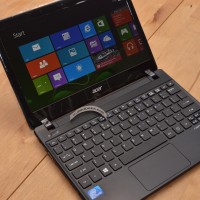
- Acer AO756 showing the Windows 8 start screen
-
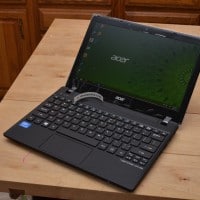
- Acer AO756 showing the Windows 8 desktop
-
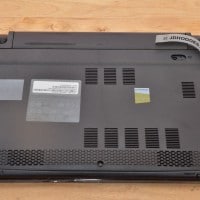
- Turn the laptop over and disconnect power
-
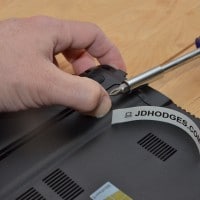
- Push the battery release with your thumb (screwdriver pointing to the release button)
-
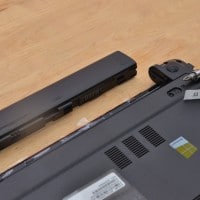
- Battery removed
-
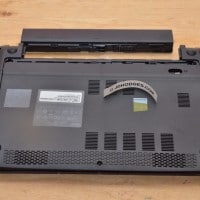
- Battery removed ready to remove the single retention screw
-
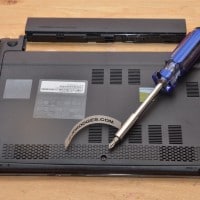
- Screwdriver pointing at screw to be removed
-
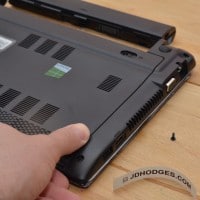
- After screw is out, pull toward you on both rubber feet
-
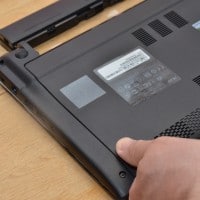
- Pulling the cover open
-
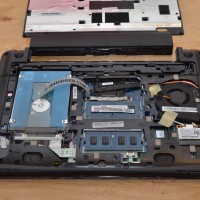
- View of the AO756 motherboard after removing the bottom panel
-
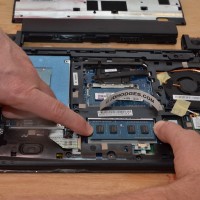
- Releasing the memory retention tabs to release the memory
-
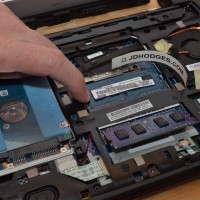
- Releasing the memory retention tabs for the 2nd memory stick
-
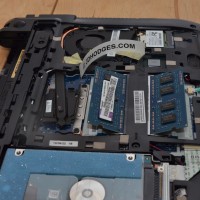
- Both sticks released
-
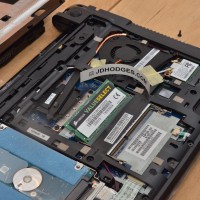
- Alternative 1: One new stick of memory installed
-
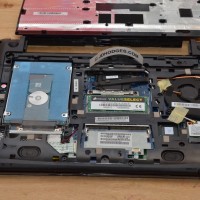
- A view of the entire AO756 motherboard, w/one new stick of memory installed
-
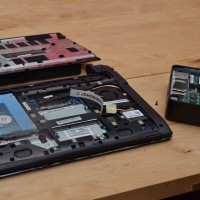
- Acer AO756 next to Intel NUC
-
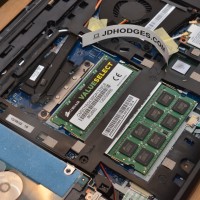
- Alternative 2: Putting 16GB of RAM in (2x8GB)
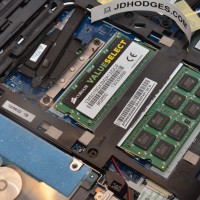
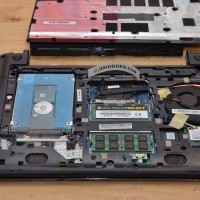
-
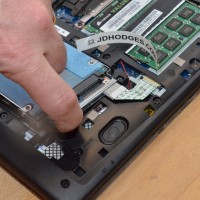
- Pull the hard drive up with a finger
-
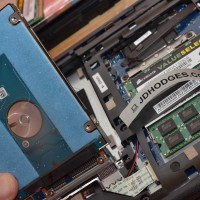
- Easy access to the hard drive
-
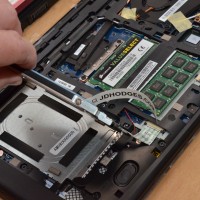
- Two screws hold the HD to the metalbracket
-
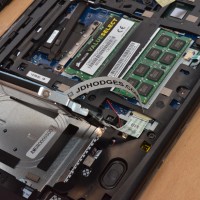
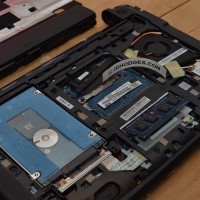
- Another view of the hard drive from the side
-
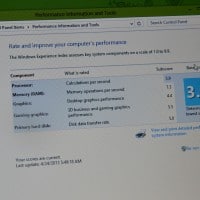
- AO756 WEI score after upgrading RAM
Alternative 1: installing a single 4GB DDR3 SODIMM for a nice cheap upgrade. Alternative 2: installing two 8GB memory sticks for a whopping 16GB total of RAM!
I hope this tutorial was useful, happy upgrades to you! 🙂
Best regards,
–J.D.
PS Overall I give this laptop 4/5 stars for upgradeability: it is very easy to work on and supports a lot of RAM, one star is docked because it lacks an mSATA port…
BONUS video of the process:
- acer ao756 memory upgrade (11)
- acer aspire one 756 win 8 (6)
- acer aspire one ao756 ram upgrade (6)
- acer ao756 ram upgrade (6)
- acer aspire one ao756 (6)
- ao756 memory (5)
- acer aspire one ao756 memory upgrade (4)
- acer 756 msata (4)
- ao756 ram (4)
- acer aspire ao756 (4)
Just used your guide to upgrade my 756 to 16gb ram and ssd too, it rocks now! Thanks and keep up the good work! Yours, Naira
Hi Naira,
Thank you for your comment. I am very happy that might guide helped you upgrade your nice AO756! Enjoy your awesome machine and have a great weekend 🙂
Best regards,
-JD
i have a question about aspire one, will it be better if it runs in xp? or windows 7? which would you recommend, thanks 🙂
Hi Bianca,
Thank you for your question. I highly recommend Windows 7. Driver and application support will be better and you will have a much more modern operating system all around 🙂
Best regards,
-JD
PS if you plan on putting in more than 4GB of memory I recommend Windows 7 64-bit (x64)
Hi, can you help me? I installed 2x4GB of RAM made by Corsar, BIOS and OS see them, but still keep 6GB unused. I have no idea about it. It works, but I have the same 2GB, that I have with basic RAM.
P.S. I upgraded my W7 to Maximal Edition with key, that I found it the internet. Maybe, my problem is revenge for that cheat?
Sorry for the late reply, Mike, and this may be outdated now. If the BIOS and Windows both see the RAM but most of it is unusable, the first thing I would check is whether you are actually running 64-bit Windows. The memory itself sounds recognized, so I doubt the modules are the core problem.
Will this memory upgrade work with Window 8?
Hi Jennifer,
Thank you for your comment.
Yes, this memory upgrade will work great with Windows 8 (or 8.1). If you are planning on more than 4GB of memory I recommend using 64-bit Windows (rather than 32-bit) so as to fully utilize all your RAM.
Please let me know if you have any other questions.
Have a great week,
-JD
Thank you for you quick reply…I just purchased the 4GB of memory. Wish me luck.
Thanks again!
Awesome Jennifer! Good luck with your upgrade and enjoy your nice laptop 🙂
installing the two Corsair 8gb memories as described DOES NOT work on a Acer AO756-2899.
The bios shows two 4gb memories for a total of 8gb. The bios memory cannot be changed on the bios screen.
Any help would be appreciated.
Sorry for the late reply, Paul. If each 8GB stick is only showing up as 4GB, that sounds like a compatibility issue with those modules rather than a setting you can fix in the BIOS. I would try a known-compatible kit before assuming the laptop cannot do it.
Hi JD,
I posted a question a few days ago about a problem I am having with my Acer Aspire One 725 (you helped me upgrade the memory to 8GB this summer). Can’t find the message anymore, but I noticed that you have answered other questions since then, so I am trying one more time.
My Acer does not work when the battery is in place, whether or not it is plugged into AC. When the battery is removed, it boots up fine. I was working on battery one afternoon for a few hours and then plugged the computer back on AC. When I came back a few hours later, the computer was down and wouldn’t boot up again. The technician I saw ordered a new battery, but it did not work. Told me I should try updating the BIOS (which he couldn’t find).
Any ideas?.
Many thanks and best regards,
Michelle
Sorry for the late reply, Michelle. Since it works fine with the battery removed and a new battery did not help, my best guess is a charging or power-circuit problem rather than the RAM upgrade or even the BIOS. That one sounds more like motherboard-level troubleshooting than a simple setting.
Hello and thank you very much for the well detailed blog article. I wanted to ask if there are any compatibility issues with new ssd hard drives like :
https://www.amazon.com/Patriot-Torch-120GB-height-Solid/dp/B00OTY083M/ref=sr_1_fkmr0_1?s=electronics&ie=UTF8&qid=1493219158&sr=1-1-fkmr0&keywords=SSD+PATRIOT+FLARE+120GB+2.5%27%27+SATA3
Warm Regards
Vasilis
Sorry for the late reply, Vasilis. I have not tested that exact Patriot drive in the AO756, but I would not expect a problem with a normal 2.5 inch SATA SSD just because it is newer. The main thing I would confirm is the physical height and standard SATA compatibility.