Q. Quicken register two lines [HOWTO] [SOLVED]
Q. I know you use Quicken from some of your other “tip” posts, can you help me with something? Specifically, I added a new checking account to Quicken Deluxe 2015 and the register seems to be stuck at one line-height for the new account 🙁 How do I get it back to the old two lines?! Thx! -Tony M.
A. Hi Tony, I think I can help! There are a couple of ways to do it:
- Click the “gear” icon in the upper right of the register, then choose “Two-line Display” from the drop-down
-or- - Press “Ctrl+2” (Ctrl and 2 at the same time) while in the account you want to change
Hopefully, either method will do the trick for you!
PS here is a screenshot showing where you check the box:
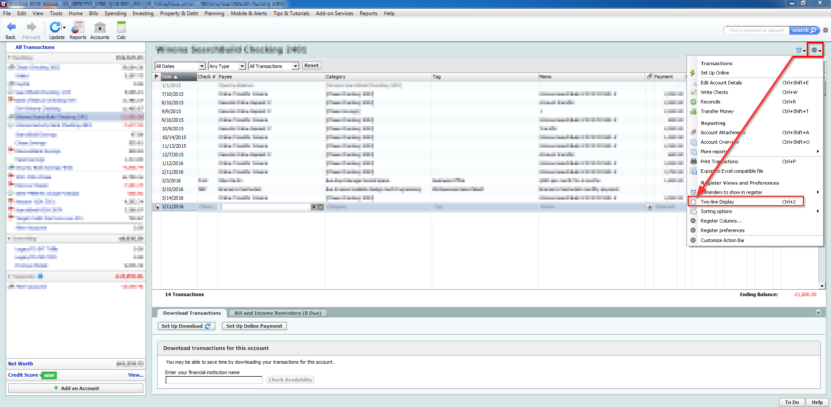
The upper right-hand corner has the Gear icon that you need
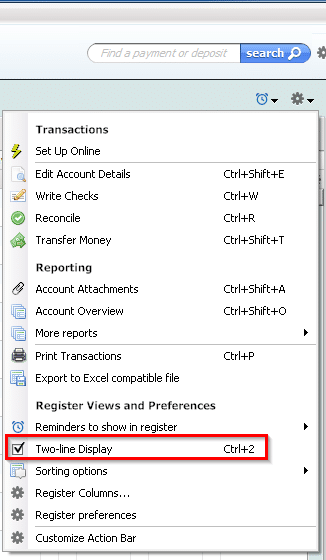
Check the Two-line display box! 🙂
NOTE: according to readers, these instructions also work for Quicken 2010, 2011, 2012, 2013, 2014, 2015, 2016, 2017, 2018, 2019 and 2020. Whew, that is a LOT of years! 🙂
Top Search Terms:
- nu vot (29)
- quicken two line register (6)
- quicken 2 line register (5)
- how can i delete a group of register entries in quicken 2014 (3)
- in quicken program how do i show more entry lines on register (3)
- quicken 2019 single line register (2)
- quicken register two line (2)
- how do you expand lines on quicken spread sheet (2)
- quicken how to change to two line view (2)
- quicken how to get 2 lines per transaction (2)
Thank you!!!!
No problem! Thanks for taking the time to comment and have a great day!!
Best regards,
-J.D.
That drop-down menu is gone in Quicken 2017. You get submenu that says “Show all 1-line registers like this.” when you’re in the new account, but there’s nowhere to change to 2 line. However Ctrl 2 works. Thanks!
No problem! Have a great day!! 👍
-J.D.
To back up, I created a new account in Q 2017, and in the register menu on the upper right (gear), the 2-line option is gone. There’s a submenu that saying to change to the 1-line register in all accounts, but no way to change to 2 line. However again Ctrl 2 works. Thanks again.
Re quicken and 2 line display. Thank you for tip on fixing it. New problem, on One of my three accounts the line separating past dates from future dates has disappeared. Do you know how to get it back? Thank you.
Sorry for the late reply, Carol! That date separator line is controlled by Quicken itself and I honestly haven’t run into that specific issue. My best guess would be to try closing and reopening the account register, or doing a File > Validate & Repair to see if that resets it. If neither works, it’s possible a Quicken update changed the behavior since then.
J.D.,
Thanks much, they removed the check box, but, the “ctrl 2” still works!
Pete
No problem! Glad that I was able to help and that it still works 👍
(Sorry for the late reply)
Have a great day!!!
-J.D.
Thank you! Exactly what I needed to know.
Hi Linda,
Thank you for your comment. I am glad this Quicken tip worked for you 🙂
Best regards,
-J.D.
Ctrl+2 is a toggle. It switches back and forth between 1-line and 2-line. Thought I would add that.
Thanks for the tip!
Hi C. Morlane. I’m very glad I the tip helped. Thanks for taking the time to comment and have a great weekend! 👍
Best regards,
-J.D.
I too thank you. the Ctrl +2 did the job nicely.
Hello and thank you for your comment!
I am glad the CTRL+2 trick worked well for you 🙂
Have a GREAT day!
-J.D.
Thank you for your assistance. The gear was it!
Hi Alison,
I am very glad these steps worked for you! Thanks for taking the time to comment and have a great day!! 👍😀
Best regards,
-J.D.
Thanks! The single line display was just too cramped for my old eyes!
Chuck Weber
Dear Chuck,
Thank you for your comment. I am glad that the two line display is helpful to you. I like to make things easier on my eyes too 🙂
Have a GREAT weekend!
Best regards,
-J.D.
How do you change from one line display to two line display in Quicken 2010 Deluxe?
Hey James, the same steps should work in Quicken 2010 Deluxe. Try pressing Ctrl+2 while you’re in the register, or click the gear icon in the upper right and look for the Two-line Display option. Several readers have confirmed these steps work all the way back to 2010.
Worked great with the gear icon, thanks.
Excellent, Richard. I am very glad this helped with your Quicken preferences 🙂 Enjoy your two line register!
Best regards,
-J.D.
Thank you SO much for this tip. It took me right to where I needed to be. I am not sure why I can’t seem to remember my way through changing from 1 line to 2 lines in the register, bit I don’t add accounts often and always have to seek help when I do. YOUR guidance made it a fast and easy project for me. I appreciate your help.
Dear JJH,
Thank you for your kind comment. I am very happy that I could be of service. 🙂
Have a wonderful week and thank you again for taking the time to comment!
Best regards,
-J.D.
Thanks
Dear Paul,
You are very welcome! Have a GREAT week!
Best regards,
-J.D.
Thank you so much. Just added a new account and could not figure out. You are the best!
Thank you for your comment, Jim. I am very glad this tip helped you to enable the Quicken two-line register on your new account.
Have a GREAT day!
Best regards,
-J.D.
Just a heads up that the 2-line tip STILL WORKS FOR QUICKEN 2020. So cool. Thx!
Dear Jenna,
Thank you for your nice comment. I am very glad that this tip worked for you on the latest Quicken version!
Have a GREAT week. 🙂
Best regards,
-J.D.