Recover/copy a corrupt Quicken file [SOLVED]
If you ever have a problem in Quicken where you cannot backup your QDF data file, and you cannot even copy your QDF data file, then you may want to try the following.
This allowed me to save my mom’s Quicken data after nothing else worked (i.e. validate/repair did not work) and all the other solutions I found online did not work.
This particular problem was caused by bad blocks on a failing SSD, but it could have just as easily been a bad HDD. The issue was that the bad blocks were at approximately 230MB into the file. That meant that any copying or backing up would fail right there as well, resulting in a failure notice in Quicken and an incomplete backup/copy. Likewise, even a simple Windows file copy attempt would faily.
Thankfully, by using Force-Copy as shown below I was able to copy/recover the QDF file, validate it and then start using it again with very minimal data loss (about 96KB).
If you have questions about this process, feel free to comment below and I will try to help! 🙂
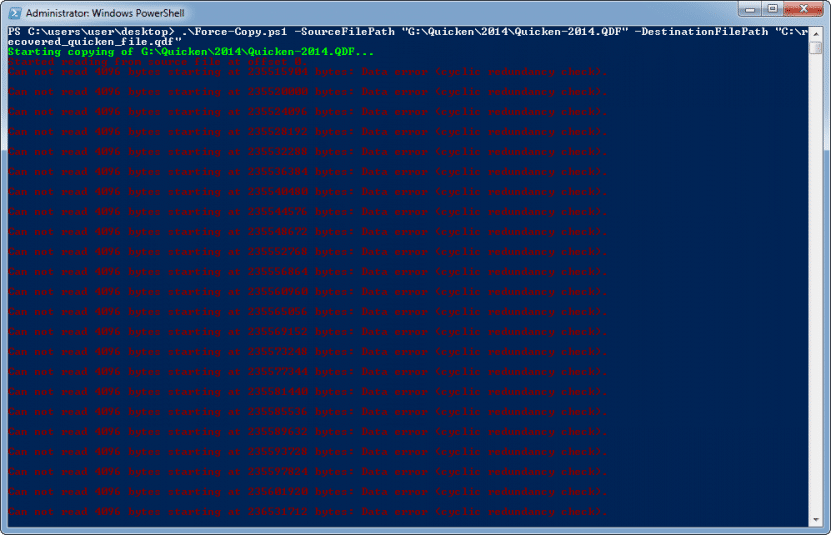
Force-Copy starts the copy process
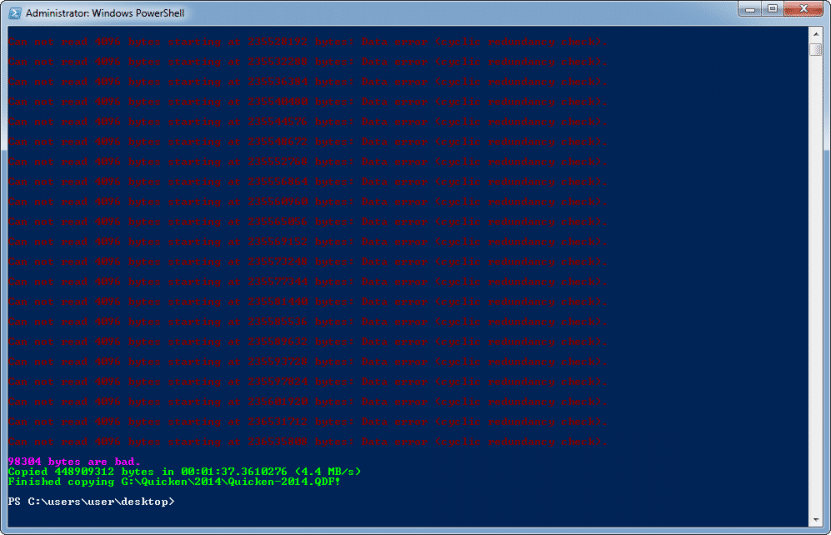
Force-Copy copied the file!
PS C:\users\user\desktop> .\Force-Copy.ps1 -SourceFilePath “G:\Quicken\2014\Quicken2014.QDF” -DestinationFilePath “C:\recovered_quicken_file.qdf”
Starting copying of G:\Quicken\2014\Quicken-2014.QDF…
Started reading from source file at offset 0.
Can not read 4096 bytes starting at 235515904 bytes: Data error (cyclic redundancy check).
Can not read 4096 bytes starting at 235520000 bytes: Data error (cyclic redundancy check).
Can not read 4096 bytes starting at 235524096 bytes: Data error (cyclic redundancy check).
Can not read 4096 bytes starting at 235528192 bytes: Data error (cyclic redundancy check).
Can not read 4096 bytes starting at 235532288 bytes: Data error (cyclic redundancy check).
Can not read 4096 bytes starting at 235536384 bytes: Data error (cyclic redundancy check).
Can not read 4096 bytes starting at 235540480 bytes: Data error (cyclic redundancy check).
Can not read 4096 bytes starting at 235544576 bytes: Data error (cyclic redundancy check).
Can not read 4096 bytes starting at 235548672 bytes: Data error (cyclic redundancy check).
Can not read 4096 bytes starting at 235552768 bytes: Data error (cyclic redundancy check).
Can not read 4096 bytes starting at 235556864 bytes: Data error (cyclic redundancy check).
Can not read 4096 bytes starting at 235560960 bytes: Data error (cyclic redundancy check).
Can not read 4096 bytes starting at 235565056 bytes: Data error (cyclic redundancy check).
Can not read 4096 bytes starting at 235569152 bytes: Data error (cyclic redundancy check).
Can not read 4096 bytes starting at 235573248 bytes: Data error (cyclic redundancy check).
Can not read 4096 bytes starting at 235577344 bytes: Data error (cyclic redundancy check).
Can not read 4096 bytes starting at 235581440 bytes: Data error (cyclic redundancy check).
Can not read 4096 bytes starting at 235585536 bytes: Data error (cyclic redundancy check).
Can not read 4096 bytes starting at 235589632 bytes: Data error (cyclic redundancy check).
Can not read 4096 bytes starting at 235593728 bytes: Data error (cyclic redundancy check).
Can not read 4096 bytes starting at 235597824 bytes: Data error (cyclic redundancy check).
Can not read 4096 bytes starting at 235601920 bytes: Data error (cyclic redundancy check).
Can not read 4096 bytes starting at 236531712 bytes: Data error (cyclic redundancy check).
Can not read 4096 bytes starting at 236535808 bytes: Data error (cyclic redundancy check).
98304 bytes are bad.
Copied 448909312 bytes in 00:01:37.3610276 (4.4 MB/s)
Finished copying G:\Quicken\2014\Quicken-2014.QDF!
PS C:\users\user\desktop>
GUI Alternative
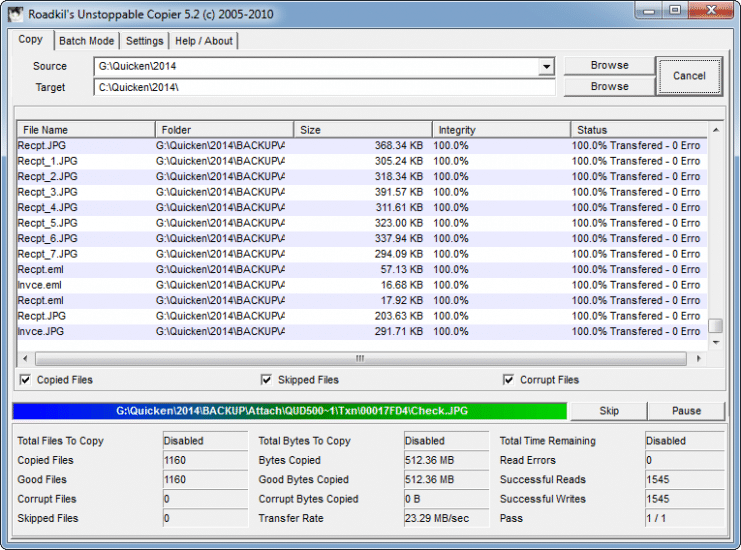
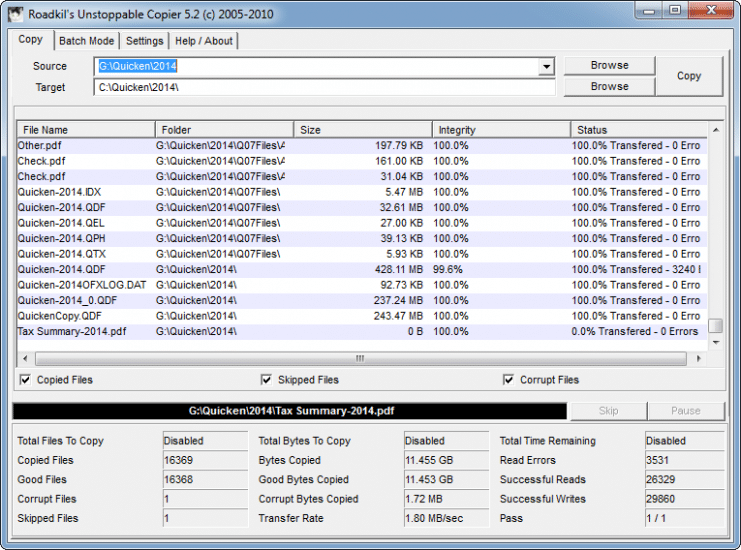
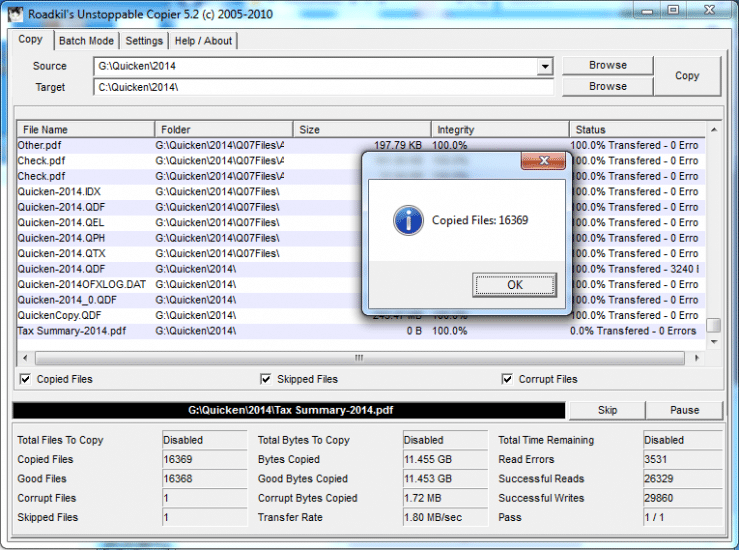
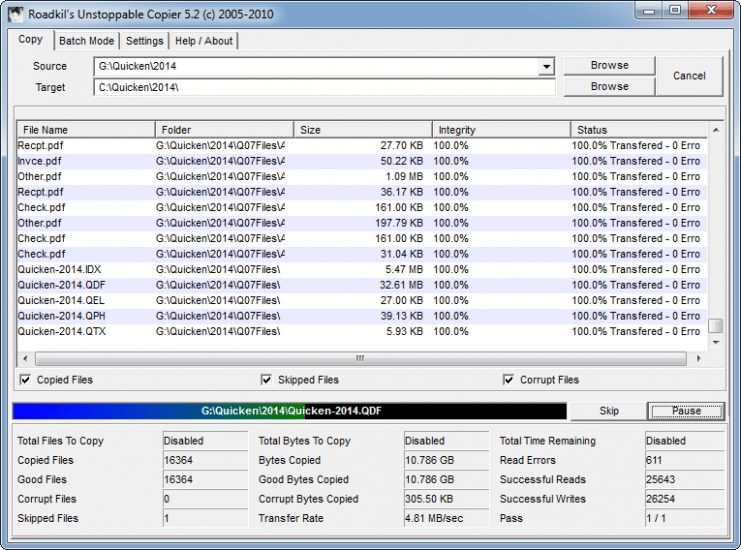
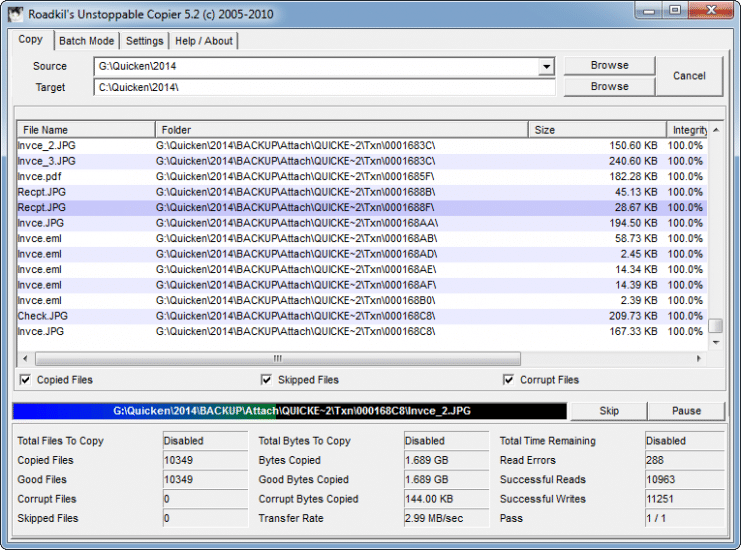
If you prefer a more graphical approach to recovering/copying files, you may want to check into Roadkil’s Unstoppable Copier. Force-Copy is very precise and returns the absolute most recoverable data, Unstoppable copier is somewhat more approachable in its usage. See screenshots below…
- nu vot (14)
- repair damaged quicken file (5)
- quicken 2017 file not copied (5)
- qdf damaged data record (5)
- quicken backup file not reading (5)
- repairing your quicken file with qif (4)
- quicken 2010 repair database (4)
- corrupted fidir.txt file quicken (4)
- mom quicken (3)
- quicken 2019 file will not copy (3)
I tried using your suggestion in the above and I keep getting an error message which explains as follows:
Windows PowerShell
Copyright (C) 2016 Microsoft Corporation. All rights reserved.
PS C:\Users\Hank> .\Force-Copy.ps1 -SourceFilePath “C:\Users\Hank\OneDrive\Quicken\2016.QDF” -DestinationFilePath “C:\re
covered_quicken_file.qdf”
.\Force-Copy.ps1 : The term ‘.\Force-Copy.ps1’ is not recognized as the name of a cmdlet, function, script file, or
operable program. Check the spelling of the name, or if a path was included, verify that the path is correct and try
again.
At line:1 char:1
+ .\Force-Copy.ps1 -SourceFilePath “C:\Users\Hank\OneDrive\Quicken\2016 …
+ ~~~~~~~~~~~~~~~~
+ CategoryInfo : ObjectNotFound: (.\Force-Copy.ps1:String) [], CommandNotFoundException
+ FullyQualifiedErrorId : CommandNotFoundException
PS C:\Users\Hank>
Any suggestions would be appreciatded as I am having a horrible time in Quicken 2015 copying a .QDF file. I even removed Quicken and reinstalled it and that did not help. Same exact issue is having on my wife’s computer.
I ran validate and even super validate without any better results.
Sorry for the late reply, Henry. That error means PowerShell cannot find `Force-Copy.ps1`, so you are either not in the folder where the script lives or you need to call it with the full path. Running PowerShell as Administrator can help, but the key issue in that message is that the script itself was not found.
Thank you for such great articles; It helped me recover my data when I thought all hope was lost!
My pleasure Max, thanks and have a GREAT day!
Best regards,
-J.D.
I am unable to recover mine quicken data. I am in tension How I recover it so I go to google and search it and I found your blog and I click on it. After reading this complete blog I am able to fix my Quicken data recover. Thank you so much for sharing this important information.
Hi Mark,
Thank you for your comment. I am very glad that my post helped 🙂
Good luck with Quicken and have a GREAT day!
Best regards,
-J.D.
How do you know what data was lost so that you can manually enter those transactions?
Kozi, in my case the only practical way was to compare the recovered file against the last known good backup and then reconcile recent transactions manually. There is not a magic report for lost data that I know of once a QDF has been damaged.
Will this process work in 2020, for a 2017 Quicken H&B Data file. I loaded Quicken this morning, and all of my accounts are LISTED (left panel) but ALL of my past transactions are GONE. WEIRD.
Thanks, DJ
DJ, I cannot say for certain because your symptom sounds a little different from the bad-block copy failure in my post. If all the accounts are listed but the transactions are gone, I would immediately look for the newest intact Quicken backup before doing much else.
Hello,
I just found a corrupt Quicken Data file that said the transaction index had a problem. It said it fixed it, but still does not load the file. How do I start this process of Force Copy like you show above? Do I just get to a DOS Prompt and copy the same thing you did, just changing locations? Does it have to be in Administrator? I have a lot of data on here that I am trying to recoup. Please let me know. Thank you.
Domenic, the basic idea is to run the PowerShell script against your damaged QDF while changing the source and destination paths to match your files. I would do it from an Administrator PowerShell window if you can, but the most important part is having the script file itself in hand and pointing it at the correct QDF.
Never mind – I found it. Part of Windows PowerShell. Thanks for posting this option. Wish me luck. 😉
Hi Sara. I’m so glad that I could help you. Good luck! 😉
Have a great day!! 👍