[SOLVED] Can’t pin folders to Quick Access (The parameter is incorrect.)
IMPORTANT NOTE: some commenters reported that while the method described below DOES restore the ability to add new items to the quick access area, it also removed their existing (old) quick access folders/shortcuts. Therefore, they had to re-add those items. I recommend backing up or taking note of what folders/shortcuts you have BEFORE carrying out this tip. 👍👍
Question. I am trying to pin my Google Drive folder to the new “Quick access” list in Windows 10 but it fails with a dialog showing “The parameter is incorrect“. Can you help?
Answer. Certainly! Please try the following 🙂
#1 Open a command prompt (it does not have to have administrator privileges)
#2 Paste:
del /F /Q %APPDATA%\Microsoft\Windows\Recent\AutomaticDestinations
(all one line)
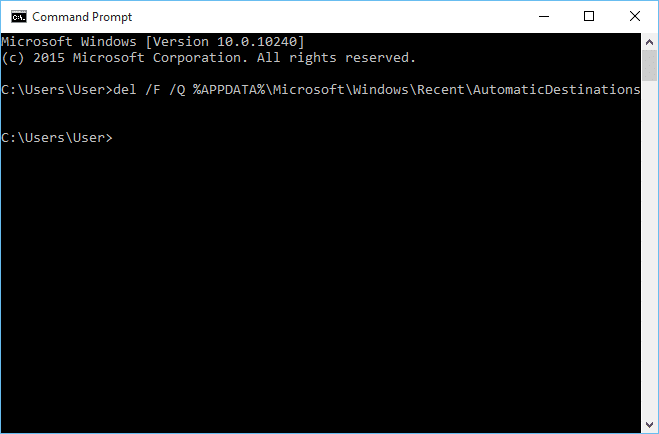
The magic command to fix Quick Access woes
#3 Press Enter key to run the command
Voila, you should be able to add any folder now, including Google Drive or Music or whatever. Woot! 🙂
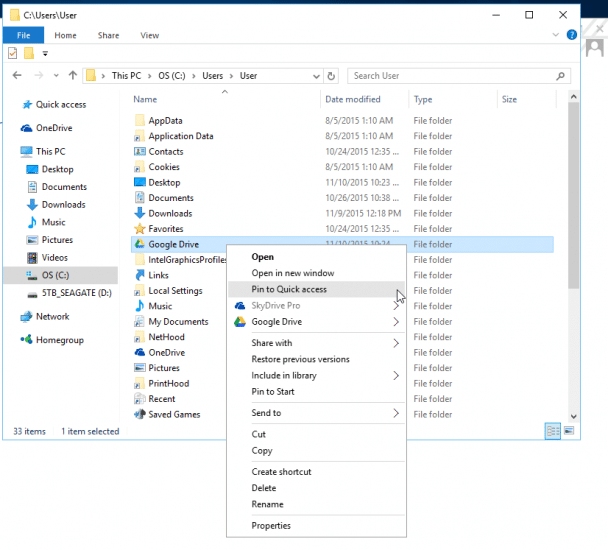
Okay, now we got this!
- cannot pin to quick access (12)
- unable to pin folder to quick access corupt (5)
- https://www.jdhodges.com/blog/solved-cant-pin-folders-quick-access-parameter-incorrect/ (5)
- cannot pin folders to quick access (4)
- can\'t pin to quick access (4)
- pin to quick access error already exists (4)
- pin to quick access parameter incorrect (4)
- cannot add to quick access (4)
- pin google drive to quick access (4)
- can only pin one thing to quick access (3)
Awesome! Worked like a charm. Was really driving me nuts.
Hi Jay,
Thank you for your nice comment! I am very glad the tip worked well for you 🙂
Thanks again for visiting and have a great week.
Best regards,
-J.D.
nicely worked like a magic.
This definitely worked!
I tried this but didn’t seem to work for me. If I add a folder to the quick access it will show up. If I add another to the quick access it will replace the one I just added. These are folder saved on a network drive. If I do the same thing with folders directly from my computer desktop it will work fine and let me add multiple folders. Very frustrated and confused why this happens.
Sorry for the late reply, Judd! The network drive issue is a different beast from the local folder problem this post covers. Windows Quick Access has known quirks with network paths, especially if the UNC path isn’t being resolved consistently. One thing worth trying: pin the network folder using its full UNC path (\serversharefolder) rather than a mapped drive letter, or vice versa if you’re already using UNC. Also check if the network location shows up under ‘This PC’ vs. ‘Network’ in Explorer, as that can affect how Windows resolves it.
Thanks! Tons of other site suggestions did not work. Happy that this will save me 20 mins a day!
No problem! I’m glad the tip helped. Have a great day!! 👍
Hi,
its worked for me. But, could you please explain the command.
Why it is helpful ????
Sorry for the late reply, rahulteja! The command clears out the AutomaticDestinations folder, which is where Windows stores the Jump List and Quick Access history. When that file gets corrupted (which happens surprisingly often), pinning new folders fails with ‘The parameter is incorrect.’ Deleting the files forces Windows to rebuild the folder fresh, which clears the corruption. The /F flag forces deletion of read-only files, and /Q runs it quietly without asking for confirmation.
Does this unpin files or folders that are already pinned?
Good question, Mike. No, the command doesn’t touch your pinned folders directly. However, as I noted at the top of the post, some people have reported that it did remove their existing Quick Access shortcuts. So I’d recommend noting down which folders you have pinned before running it, just in case you need to re-pin them afterward.
Thank you. It works for me. At first, I did not really understanding the coding. I copied and pasted the codes from another helper on different website. However, I want to inform others who have the same issues to try following this direction.
Like magic
Glad I could help 👍
Thank you so much for this! I have been without access to Quick Access for months and it was driving me crazy.
Hi Pennie, I’m glad I could help! Thank you so much for the nice comment.
Have a great weekend! 😀
That worked, many thanks
Hi SM,
Thank you for your nice comment. 🙂 I am glad this tip helped you pin to Quick Access!
Best regards,
-J.D.
Wow! I tried your suggestion and all of a sudden my folders returned to quick access! Thanks a lot!
Hi Danny,
Thank you for your kind comment. I am very glad that my suggestion worked for you!
Have a great day 🙂
-J.D.
Called my IT department, they couldn’t help. You, my friend, are the man. Thanks for the help.
Hi Joel,
Thank you for your nice comment 🙂 I am super-glad that my tip worked for you!
Thanks again and have a great week.
Best regards,
-J.D.
Yep, worked for me too. Thanks for posting the fix.
No problem! I’m glad the tip helped. Have a great day! 👍
THANK YOUUU! This is the most helpful thing ever. So glad I found this. Thank you.
Hi Mushi. I’m glad that I could help. Thank you for the nice comment!
Have a great weekend!! 👍😀
Thanks J.D.!
You are very welcome John! Enjoy! 🙂
It worked! thanks man! you the real mvp!!
Thank you for your nice message, Marvin.
I am VERY glad that the tip worked!
Have a great week and enjoy your Quick Access folders 🙂
Best regards,
-J.D.
Hi
it didn’t work for me :'(
says unspecified error.
it used to be pinned to quick access then after windows update lost all my quick access folders which is a pain in the butt!
Didn’t work for me. If I try to drag a folder to Quick Access it shows a red circle with a slash.
THANK YOU!!!!!
Hi T Denault,
You are very welcome!
Have a great weekend 🙂
Best regards,
-J.D.
Thanks ,bro.. It works… 😉
No prob! Glad I could help. Have a great day!👍😀
God bless you! It works. Thank you so much
Dear Paiz,
Thank you so much for the nice comment! I’m glad that the tip worked and that I could help.
Have a great weekend!!👍😀
Hate to be “that guy”, but it did not work for me.
(Yes administrative CMD, yes did the whole line, yes, etc.)
OMG this worked… This was sooooo irritating. Stopped all of a sudden and IT dept was completely lost. Thank you, thank you!!!
Dear Rusty,
Thank you for your nice comment. I am super glad this tip was able to restore your ability to pin folders to the Quick Access area! 🙂
Have a GREAT week and thank you again for commenting!
Best regards,
-J.D.
Wow. This Worked. Awesome. Thanks For sharing this tricks
Dear Azhar,
Thank you for your kind comment. I am very glad the tip worked. Have a GREAT day! 🙂
Best regards,
-J.D.
I found this solution on many sites.
When i run the cmd on administrator privileges it doesn’t work.
But when i run the cmd without adm it’s work!
LOL
Thank You so much, it’s worked. thanks for sharing this tricks….
Hi Fahmy. I’m glad I could help! Thanks for the nice comment. 👍
Have a great day!!😀
Yo! lol…this actually DELETED my existing Pinned folders. For whatever reason, I thought I might’ve been deleting something stuck in cache – which I know sounds dumb. Simply put, I thought I was deleting something that got “hung up on”, but not necessarily deleting all existing Pinned folders, which were many I had. This should be noted in the original posting. Nevertheless, I now can pin again but I’m wondering if my issue had to do with the number of pinned folders.
Awesome, worked like a dream. Thanks man.
No prob! I’m glad I could help.
Have a great weekend! 👍
Thanks a lot! Regards from Germany, Martin
Hi Martin! I’m so glad I could help. Thanks for the awesome comment!!
Have a great weekend! 👍😀
Thanks guys it really worked , Keep up the good work.
Thank you for the kind comment, A.V.J.
It was my pleasure, have a GREAT week!
Best regards,
-J.D.
2021, and your advice is still helping! Thanks, J.D.!
Cheers,
-Paul
Excellent, Paul!
I am VERY glad this advice is still working for people 🙂
Thank you and have a GREAT week!
Best regards,
-J.D.
That worked for me but deleted my older pinned folders!
It worked, but it did delete all my formerlly pinned folders. Not a big deal, except I could not remember what they all were. If I had been warned ahead of time, I could have taken a quick screen shot and recreated my pinned folders in a heart beat. Oh, well. Small problem to correct a bigger one that has been perplexing me for a while.
BTW, what does this command do? It’s alway nice to understand what something does without having to blindingly do it.
Totally fair question, Kelly. The command deletes the files in the AutomaticDestinations folder, which is where Windows stores Jump List and Quick Access state. When that data gets corrupted, new pins fail with a cryptic error. Clearing it forces Windows to rebuild the folder from scratch. The /F flag forces deletion even on read-only files, and /Q suppresses the ‘Are you sure?’ prompts so it runs without waiting for input.
Thank you for this tip. It worked perfectly. All of a sudden everything I had pinned to Quick Access disappeared from there and I could not re-pin those files and folders. No idea why. Saved a lot of frustration!
Excellent Alvin! I am glad my tip helped you get your quick access folders and files back in order 🙂
Have a GREAT week!
Best regards,
-J.D.
Thanks, that was very helpful. I’m curious how it works. Could you explain?
Glad it helped, John! The command clears the AutomaticDestinations folder, which is where Windows caches Quick Access and Jump List data. When that cache gets corrupted, Windows throws ‘The parameter is incorrect’ whenever you try to pin something new. Deleting the files lets Windows rebuild the cache cleanly the next time you open Explorer.
Thank youuuuu…
You are very welcome Chindi!
Best regards,
-J.D.
Mr. J.D. Hodges, Thank you, it worked. That error in my previous comment because I used the MS Power Shell. I used the CMD command and worked.
Cheers Mr. Wonderful
Dear Mabbad,
Thank you for your nice comment. I am very glad this tip worked for you!
Have a GREAT week and enjoy your Quick Access folders. 🙂
Best regards,
-J.D.
Brilliant, Thank You, Worked Great.
Excellent, Jake! I am very glad this tip worked for you 🙂
What a great resource! Well done! It worked like a charm. However, now I’ve lost access to my recent folders. How can I get that back?
Glad it worked, Joshua! To get your recent folders back, open File Explorer, go to View > Options (or View > Change folder and search options), and on the General tab make sure ‘Show recently used files in Quick Access’ and ‘Show frequently used folders in Quick Access’ are both checked. That should restore the automatic recent items.
Thanks, man!
Dear Marcos,
I am very glad this tip worked for you!
Enjoy your quick access folder and have a GREAT weekend! 🙂
Best regards,
-J.D.
Your solution had erased all of my currently existing Quick Access!! Now, I’ll have to go back into all my folders to add them again. >=\
Not happy. 2 stars
quick accesses**
(gramatical typo)
Dear AC, I am very sorry that this erased all your existing quick access folders! I have updated the post to warn people to back up their items first before performing the instructions.
Thank you for your understanding and pleas accept my apologies.
Best regards,
-J.D.
Wow! Thank you. Not only did it solve this problem which just creeped up on me, it solved another issue that has been driving me nuts for months. I had been unable to pin documents to my excel icon on my taskbar. Thank you!!
No prob! I’m glad I was able to help with both problems. Have a great weekend! 👍😀
Worked a treat – THANK YOU!
No prob! I’m so glad I could help.
Have a great day! 👍
This fixed it for me too. Thank you!
Hi Joe. I’m glad the tip helped and was able to fix it.👍👍
Have a great day!
My case is also keep showing “The parameter is incorrect.”
It’s not working. When I use “del /F /Q %APPDATA%\Microsoft\Windows\Recent\AutomaticDestinations” in cmd, it shows “The system cannot find the path specified.”
Hi There,
I’ve visited multiple websites to find the solution. I’ve tried similar methods like you’ve describe, but my CMD prompt returns: “The system cannot find the path specified”.
Do you maybe have an idea what the cause of this would be? It does find the folder when I navigate to it in Windows Explorer.
Thanks in advance!
Hey Liam, ‘The system cannot find the path specified’ usually means Windows can’t resolve the %APPDATA% environment variable in that context, or the AutomaticDestinations folder doesn’t exist yet on your machine. Try pasting this exact path directly into Explorer’s address bar first to confirm it exists: %APPDATA%MicrosoftWindowsRecentAutomaticDestinations. If the folder is there, try running the command prompt as administrator. If the folder doesn’t exist at all, the corruption is likely elsewhere and the Quick Access issue may have a different cause.
Thank you very much. So straightforward. And it must have taken me all of ten seconds to pin my other folders back into Quick Access😉
Dear George,
I’m so glad that the tip helped and was easy to understand. Thanks for the nice comment! 👍
Have a great weekend!! 😀
It worked, but it will remove all previous pinned quick access, so note that you need to rmb the pinned quick access before running this command.
After trying to work with MS in India for a week or so, on this and other issues with no success, I gave up. Even though I have Windows 11 your tip, although a little long in the tooth, worked for me. Thanks
Dear Frank,
Thank you for your comment. I am glad this tip was able to restore your Quick
Access pinning on Windows 11!
Have a GREAT week!
-J.D.
Thanks! This worked for me – and did not delete my existing Quick Access links!
Very helpful!
GT
Hi Gregory Todd. I’m super happy the tip worked and was helpful. Thanks for the nice comment!
Have a great weekend! 👍😀
♦♦♦♦♦ Thanks, J.D. – in 6/2022 and on Win11 Pro 64-Bit: still works!
Thanks David O for the nice comment. I’m so glad that the tip worked for you!
Have a great day! 👍😀
7 years later and it still worked perfectly, thanks a lot man!
Excellent, Zander! I am very happy this worked for you! 👍😊
Perfect quick fix – don’t know how in the world lay people would ever figure these things out!!
Thanks Sally! I’m so glad this helped you!
Have a great day 👍😀
This worked for me:
1: Take a screenshot of all your pinned folders on the sidebar or note them down.
2: Delete all the pinned folders which have the grey pin needle to the right of them, so that will include for most people the Desktop, Downloads, Documents and Pictures folders as well as any folders that you have deliberately pinned to the Quick Access sidebar. Other Quick Access folders which Windows automatically put there can be left alone.
3: Re-pin the folders which you just removed.
This popped up as a problem after a Dropbox update. Your fix worked. Thanks very much! Nice to see the internet using its powers for good! Thanks again.
Rock on! Thank you Charlie and have a GREAT day!
Awesome! Thank you so much, man.
My pleasure! Have a great day Melly! 🙂
No prob! 👍
OMG Fantastic!! Way better than several other incredibly time consuming suggestions that did not work.
Thank you
You are very welcome Brenda! 🙂 Thank you for your kind comment and I hope you have a GREAT week!
I took a chance and it fixed my problem and didn’t fry my system or anything crazy woohoo
Glad the tip helped! 👍
Perfect! Thanks so much – worked like a charm!
Hi Shaun. I’m so glad the tip helped. Thanks for taking the time to comment and have a great day!!
Best regards,
-J.D.
you’re a hero – thank you for this easy fix 🙂
Hi Margaret. You are very welcome. Thank you for taking the time to comment and have a GREAT week! 👍 😀
Best regards,
-J.D.
Finally, your trick worked perfectly. Thanks so much! 🙂
Hi Mada. I’m so glad that I could help. Thanks for the kind comment and for taking the time to comment. Have a great day!! 😀👍
Best regards,
-J.D.
That fixes it. I saw a lot of general purpose response to this which I think were uninformed like “hard disk damage”. I don’t think those people had a clue as to what caused it, but were spouting information without any basis or knowledge of the problem.
The problem for me might have started when I had my data hard disk removed out of my computer to copy large amount of data (files and folders on another computer) while I was continuing to install stuff on my new computer build. I got some errors at one point saying it couldn’t access drive D: where my windows folders like Documents, Music, and other common file folder libraries were mapped to.
But your fix cleared that problem.
I was hoping I didn’t have to start with a new Windows installation or restore previous Windows boot hard disk image and start installing software and configuring windows to fix it.
Hooray, it worked! I’m now able to pin folders to Quick Access again. Thanks very much!!!
FYI, I lost the ability to open Quick Access as I tried unsuccessfully to fix the following problem: I’d like to be able to rearrange the items in Quick Access, whether to put more commonly used folders nearer the top or alphabetize. Many sites indicate I should be able simply to “click & drag”, but that doesn’t work on my PC.
Any thoughts?
Great to hear it worked, Alexander! For reordering Quick Access items, unfortunately Windows doesn’t support drag-and-drop reordering of the pinned section reliably in most versions (it’s a long-standing complaint). A few workarounds people use: unpin everything and re-pin items in the order you want (since newly pinned items appear at the bottom), or use a third-party tool like QTTabBar that gives you more control over the sidebar. Not a clean solution, but that’s about what Windows offers natively.
It didn’t work for me. When I used the del /F /Q %APPDATA%\Microsoft\Windows\Recent\AutomaticDestinations command, I received the following error:
Remove-Item : A positional parameter cannot be found that accepts argument ‘/Q’.
At line:1 char:1
+ del /F /Q %APPDATA%\Microsoft\Windows\Recent\AutomaticDestinations
+ ~~~~~~~~~~~~~~~~~~~~~~~~~~~~~~~~~~~~~~~~~~~~~~~~~~~~~~~~~~~~~~~~~~
+ CategoryInfo : InvalidArgument: (:) [Remove-Item], ParameterBindingException
+ FullyQualifiedErrorId : PositionalParameterNotFound,Microsoft.PowerShell.Commands.RemoveItemCommand
Years after this post I found it. This fix was perfect and easy! Thank you!
That is feedback! I’m genuinely thrilled that this Quick Access fix is still holding up and was easy for you to implement years later. 💪 It’s wild how long these little Windows quirks stick around. So glad you were successful and I hope you have a GREAT week!
-J.D.