Tag Archives: thinkpad

Lenovo X230 RAM/SSD Upgrades, IPS LCD installation
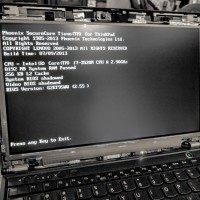
My X220 ThinkPad has finally started getting long in the tooth. Therefore, a replacement is in order. 🙂 After perusing all the latest and greatest laptops of 2016 (XPS 13, XPS 15, ASUS, HP, etc.) I settled on the Lenovo X230 ThinkPad. An incremental upgrade for sure, but one that has left me satisfied and feeling like I am good for another year or two at the least. The price was right and the upgrade-ability of these models is superb.
Which X220 USB port is the USB 3.0 one? [SOLVED]

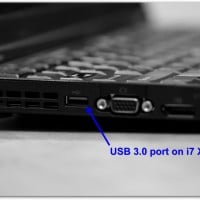
Q.Which X220 USB port is the USB 3.0 compatible? A. It is the ‘blue’* one, the rearmost USB port located on the left side of the laptop near the fan exhaust vent. You can see a photo of the port here: The other two ‘black’ ports are regular USB 2.0 ports. *Please note only the i7 X220’s have a USB 3.0 port, the i3 and i5 models do not 🙁 If you have an X220 i3 or i5 model and

Lenovo T440s Order

Quantity Part number Description Item price Line total 1 20AQCTO1WW ThinkPad T440s  $1,374.00  $1,374.00 Processor 4th Gen Intel Core i5-4200U Processor (3MB Cache, up to 2.60GHz) Operating System Genuine Windows 7 Professional 64 Operating System Language Windows 7 Professional 64 English Display T440s 14.0 FHD WWAN Graphics Intel HD Graphics 4400 Memory 4 GB DDR3L – SDRAM 1600MHz Base Keyboard Keyboard Backlit – US English Fingerprint Reader Fingerprint Reader, dock Hard drive 500GB Hard Disk Drive, 7200rpm Micro Hard Drive

How to enable Lenovo ThinkPad Yoga backlit keyboard? [SOLVED!]

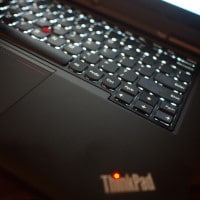
The Lenovo ThinkPad Yoga is available with a backlit keyboard, here are photos of mine: However, Lenovo makes the “on” button for the keyboard backlight a little hard to find… you have to press the Fn key + the Spacebar key to turn enable/disable the backlight. 🙂 Overall, a very nice machine with a rather cool keyboard! PS here are some other Lenovo laptops that use the same keyboard shortcut!!! Top Search Terms:lenovo yoga keyboard backlight (213)lenovo yoga 2 keyboard

Lenovo Yoga 2 Pro and ThinkPad Yoga max external resolution

I am getting ready to test the max external display resolution for my ThinkPad Yoga and my wife’s Yoga 2 Pro (the new version of the Yoga 13). I will test the OneLink dock as well. 🙂 Reports indicate that 2560×1600 and 2560×1440 are possible. http://forums.lenovo.com/t5/Idea-Windows-based-Tablets-and/Lenovo-Yoga-13-max-resolution-for-external-monitor/td-p/1248815 https://forums.lenovo.com/t5/Idea-Android-based-Tablets/External-Monitor-at-2560-x-1440/td-p/1063879 http://forums.lenovo.com/t5/ThinkPad-Edge-S-series/Thinkpad-Yoga-Insufficient-external-display-resolution-over-the/td-p/1334903   Top Search Terms:yoga 2 pro external monitor (21)lenovo yoga 2 pro external monitor (17)yoga 2 pro external monitor resolution (13)yoga 2 external monitor (11)yoga pro 2 external monitor (10)lenovo yoga 2

Connect Lenovo X240/X230/X220 to LCD TV via HDMI? [SOLVED]

If you have a Lenovo X240, X230, or X220 laptop and would like to connect it to a display using HDMI, you will need an adapter. Thankfully the adapters are very easy to use and are quite inexpensive (<$15). Here are the appropriate adapters for each laptop: Lenovo ThinkPad X240 and X230 Mini-DisplayPort to HDMI adapter: Gold Plated Premium Mini DisplayPort (or Thunderbolt) to HDMI Male to Male Cable, Black 6 fthttp://www.amazon.com/gp/product/B00APLJ58M?ie=UTF8&tag=pixensity-20&linkCode=as2&camp=1789&creative=390957&creativeASIN=B00APLJ58MCable Matters Mini DisplayPort | ThunderboltTM to HDMI® cable

BCM20702A0 Lenovo drivers for Windows 7 & 8

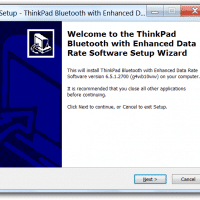
Q. Hello, I have a Lenovo Thinkpad laptop with an Unknown Device that has ‘BCM20702A0’ listed on it… do you know what driver I should use to fix it? A. Here is the Lenovo driver that should solve your Thinkpad’s BCM20702A0 Unknown Device issue: [local mirror in progress], Lenovo dl link Win 7(x86 and x64), Lenovo dl link Win 8 (x86 and x64)   BCM20702A0 device driver installation screenshot: Supported Laptop/Notebook models: Software name: ThinkPad Bluetooth with Enhanced Data Rate Software ThinkPad L420,

Turn X220 Bluetooth ON

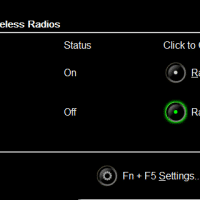
Today was the first day I used bluetooth with my Lenovo X220 ThinkPad. The process is simple, but make sure you enable bluetooth by pressing Fn+F5 and change the Bluetooth status to “Radio On”: Once you turn the radio on, Windows 7 will display various prompts. When you pair a device (in my case bluetooth speakers) Windows 7 may install some necessary drivers and then you should be good to go. More X220 Bluetooth info: X220 activating Bluetooth – Off by default

« Older Entries Recent Entries »