Category Archives: computer tips

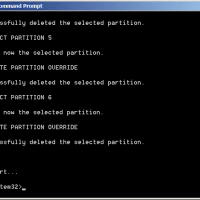
Delete recovery partition on Windows 8.1 [SOLVED]

I recently updated my Dell XPS 2015 to a 512GB m2 SSD. That left me with the old 128GB m2 SSD which I installed into a USB 3.0 UASP enclosure. However, I still needed to delete the partitions off of the old SSD so I could do a clean format. Here are the steps to do so: Open Command Prompt as administrator, then run: C:\Windows\system32>DISKPART DISKPART> LIST DISK Disk ### Status Size Free Dyn Gpt ——– ————- ——- ——- —

Fix Fujitsu ScanSnap iX500 scanner power problem [SOLVED!]

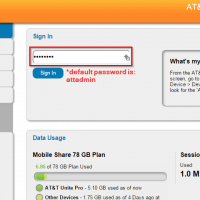
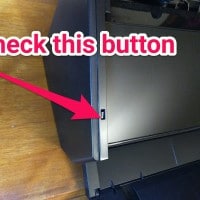
Q. Hiya. I have a Fujitsu ScanSnap iX500 scanner for my Mac and it will not power on šŸ™ I checked the power supply and it is a really expensive scanner, do you know how I could go about repairing it so it will power on again? -Shirley Barnes A. Hi Shirley! I know something you can try. I have the same ScanSnap ix500 for my PC and the scanner has a small button/switch that is normally recessed, but it

Fix Dell XPS 13 5GHz wifi speed issues [SOLVED]

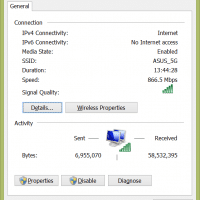
When I first connected my Dell XPS 13 to my ASUS router I was quite impressed by the 893Mbps connection speed. However, a few days later and I could not even see the 5GHz wifi network. šŸ™ I was stuck at 144Mbps and not loving it. After experimenting with the drivers, I determined that an automatic driver update had effectively disabled the 5GHz capability of the internal wifi card and that by reverting to the original (stock) Windows 8.1 driver

Dell XPS 13 SSD upgrade to 512GB [2015]

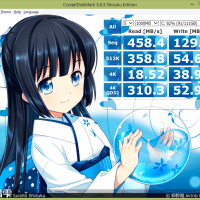
2015/07 UPDATE:Ā for my Dell XPS 13 (2015 infinity display) I completed the 512GB SSD upgrade about 4 months ago andĀ I highly recommend the upgrade!Ā Here are the new performance numbers: ———————————————————————– CrystalDiskMark 3.0.3 Shizuku Edition x64 (C) 2007-2013 hiyohiyo Crystal Dew World : http://crystalmark.info/ ———————————————————————– * MB/s = 1,000,000 byte/s [SATA/300 = 300,000,000 byte/s] Sequential Read : 481.072 MB/s Sequential Write : 436.664 MB/s Random Read 512KB : 329.971 MB/s Random Write 512KB : 392.295 MB/s Random Read 4KB (QD=1) :

New MacBook vs Dell XPS 13 Infinity Display

Apple just announced their new 12″ MacbookĀ and personally I am going to be keeping my Dell XPS 13 “infinity display” laptop. Reasons: Extra screen size for similar footprint Higher resolutions available Speaker quality (Apple might surprise here, but judging by their phones and tablets I do not hold out much hope) SD card reader Better battery life USB ports that can be used even when the laptop is charging Easily upgradeable SSD $500 cheaper (with Dell coupons) Areas where the

Updating VMware Tools fails [SOLVED] isolation.tools.guestInitiatedUpgrade.disable = “FALSE”

Updating VMware Tools fails with the error: Update Tools failed. Edit the virtual machine’s vmx fileĀ (2007298) Symptoms You are unable to update VMware Tools. Updating VMware Tools fails. You see the error: Update Tools failed. Edit the virtual machine’s vmx file, add the line below and try again. Please read KB article 1714 on tips for editing a vmx file. isolation.tools.guestInitiatedUpgrade.disable = “FALSE” To resolve this issue, enable VMware Tools updates from within the guest by updating the virtual machine

SLOW Dell XPS 13 i3 CPU performance [FIXED!]

UPDATE: The latest Dell XPS 13 BIOS version A04 fixed the processor speed issue on my XPS 13, and it no longer requires SpeedStep to be disabled! You can find the download link here: Dell BIOS DL ORIGINAL POST: MARCH 5TH 2015 I recently purchased a new 2015 Dell XPS 13 “Infinity Display” laptop. Dell has been running some coupon specials and last week you could get the model with an Intel Core i3 processor for right around $700 USD.

Access is denied [SOLVED] Command Prompt Windows 7/8/10

Q. Help! I am trying to access a file from an old hard drive on my new machine but when I navigate to the directory on my Windows command prompt I get an ‘Access is denied.’ error message šŸ™ Can you help me??? -Megan A. Yes, I believe I can help you Megan šŸ™‚ #1 First you need to start the command prompt as an administrator. You can do this by navigating to the command prompt in the start menu

« Older Entries Recent Entries »