Open WebUI Web Search Not Working? It’s Off By Default (and how to fix it!)
Summary:
Open WebUI ships web search off, and there are two separate ways to turn it on.
For one chat: click the four-diamond Integrations icon right of the + and flip Web Search on.
For every chat: Settings > Interface > Web Search in Chat, set it to Always, then Save.
(not Admin Settings, which is where I looked first)
Verified on Open WebUI 0.11.0, August 21 2026.
Option 1: Turn It On For One Chat
Here’s the whole message box. Look how little there is to go on. 👇🔍
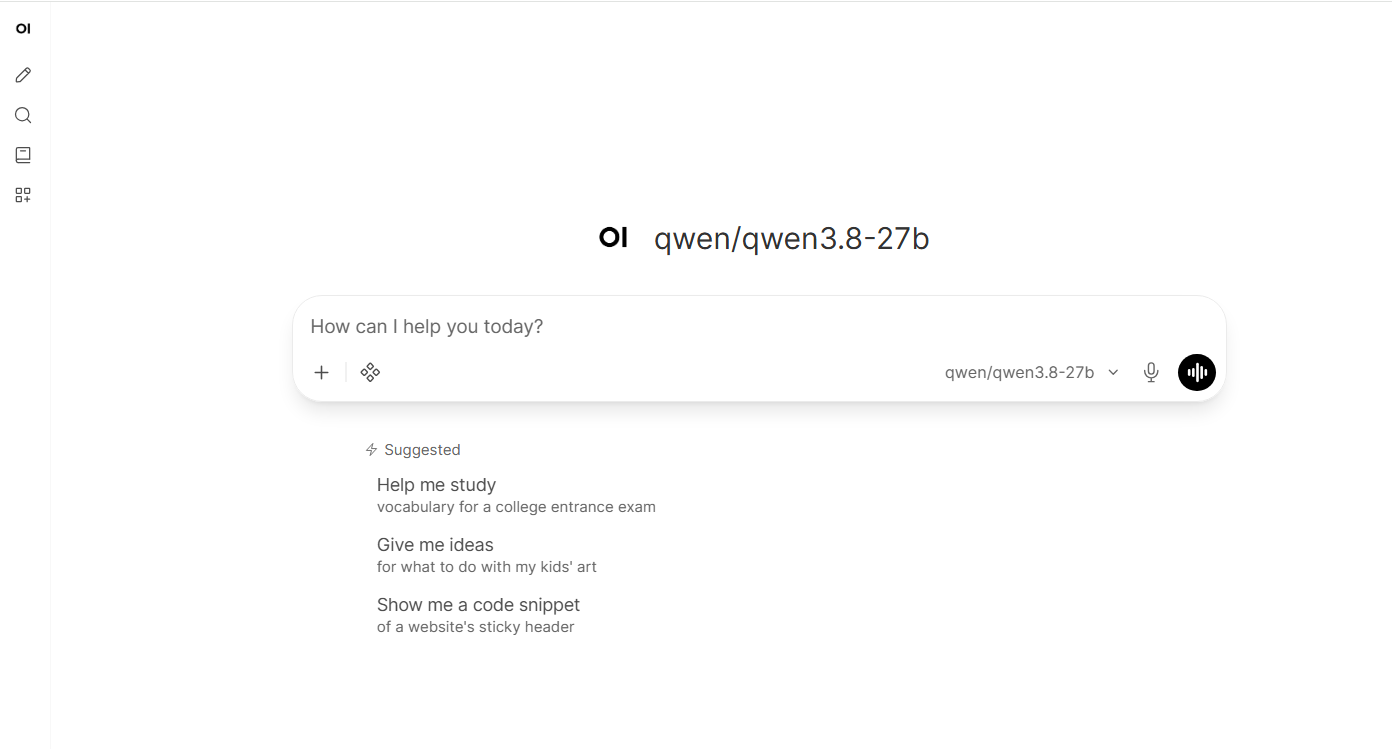
Thankfully the process is quite simple:
- Click the four-diamond icon immediately right of the
+. Tooltip says Integrations. - You get two switches, Web Search and Code Interpreter, both showing off.
- Flip Web Search on.
- Send your prompt like normal.
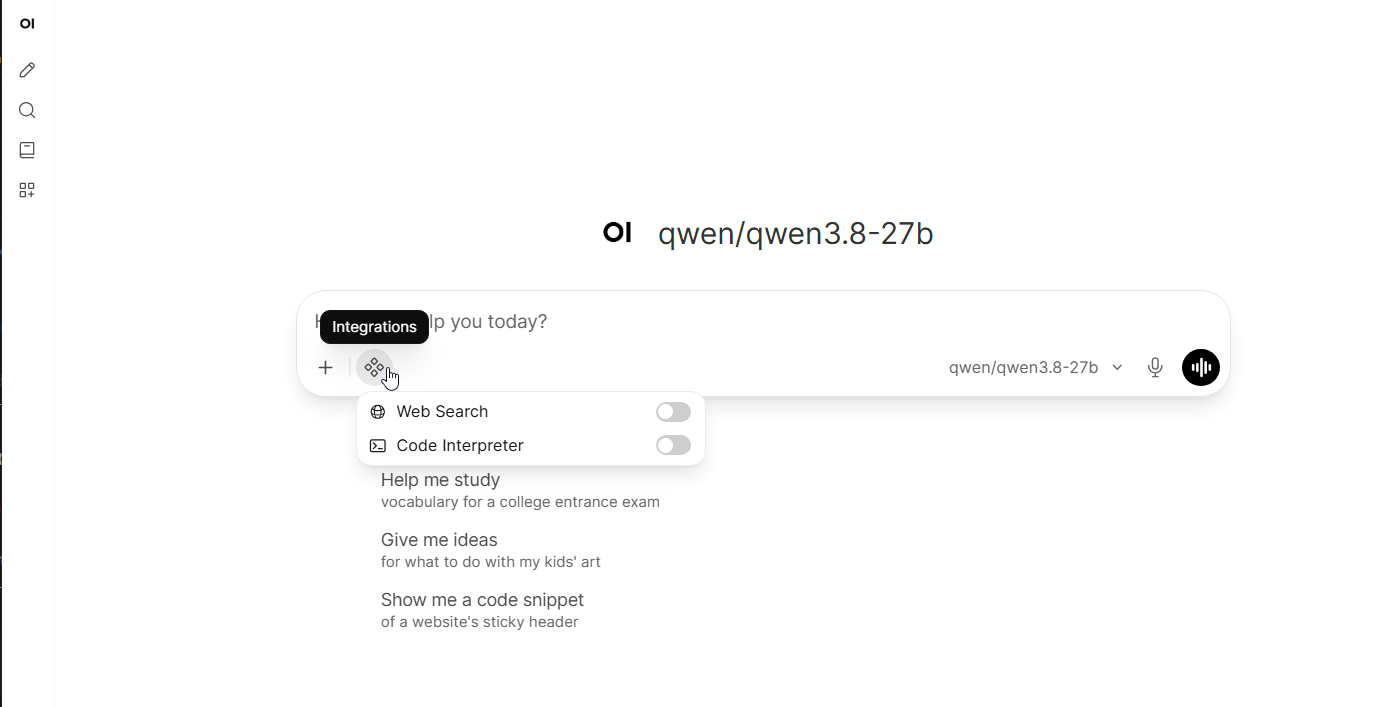
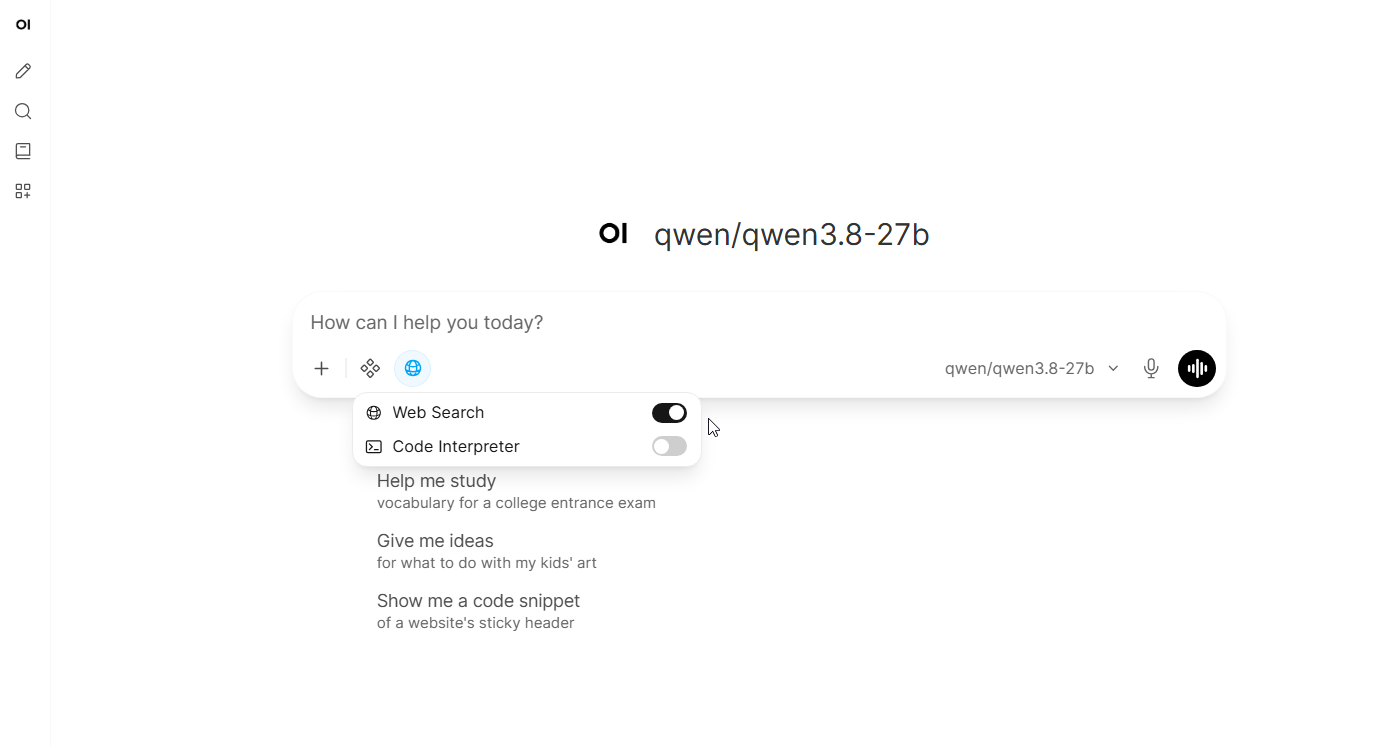
Your confirmation is that blue globe that shows up in the icon row next to the diamond. The diamond itself stays gray, so don’t sit there waiting on it to change color like I did 😅
The downside is right there in the name. It’s per chat, so unless you also do Option 2 below, every new chat starts back at off.
And if you found a guide saying the toggle is under the + button, that guide is written for an older release. 0.11.0 rebuilt the interface and moved it. (and be forewarned, future versions may change it again!)
Option 2: Turn It On For Every Chat
This is the one I’d go with, and it’s buried quite deep lol.
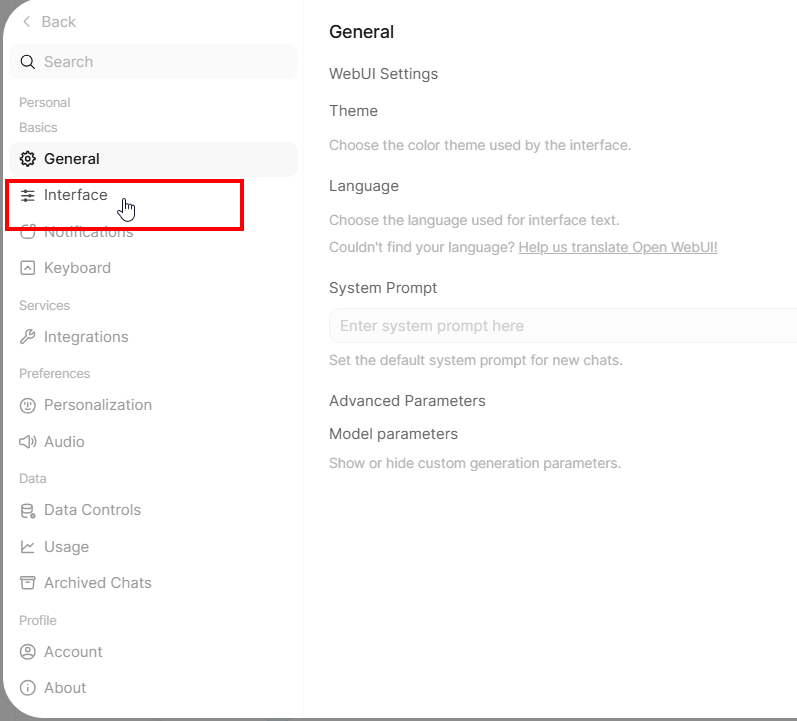
Click your avatar in the bottom left corner, then Settings. Not the Admin Panel, Settings. Then Interface in the left column.
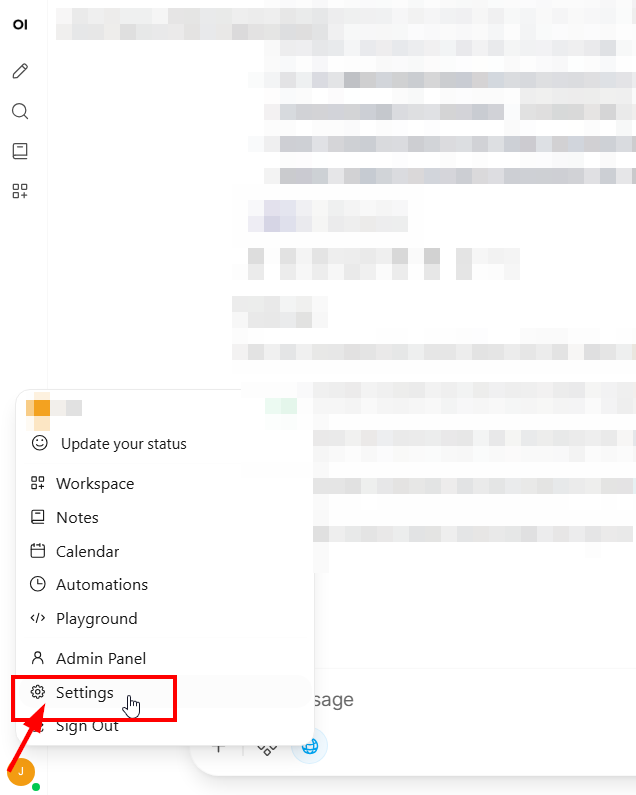
Now scroll way down. Past Stylized PDF Export, past Floating Quick Actions, almost to the Input section. Web Search in Chat is likely sitting down there at Default. Click it over to Always and hit Save.
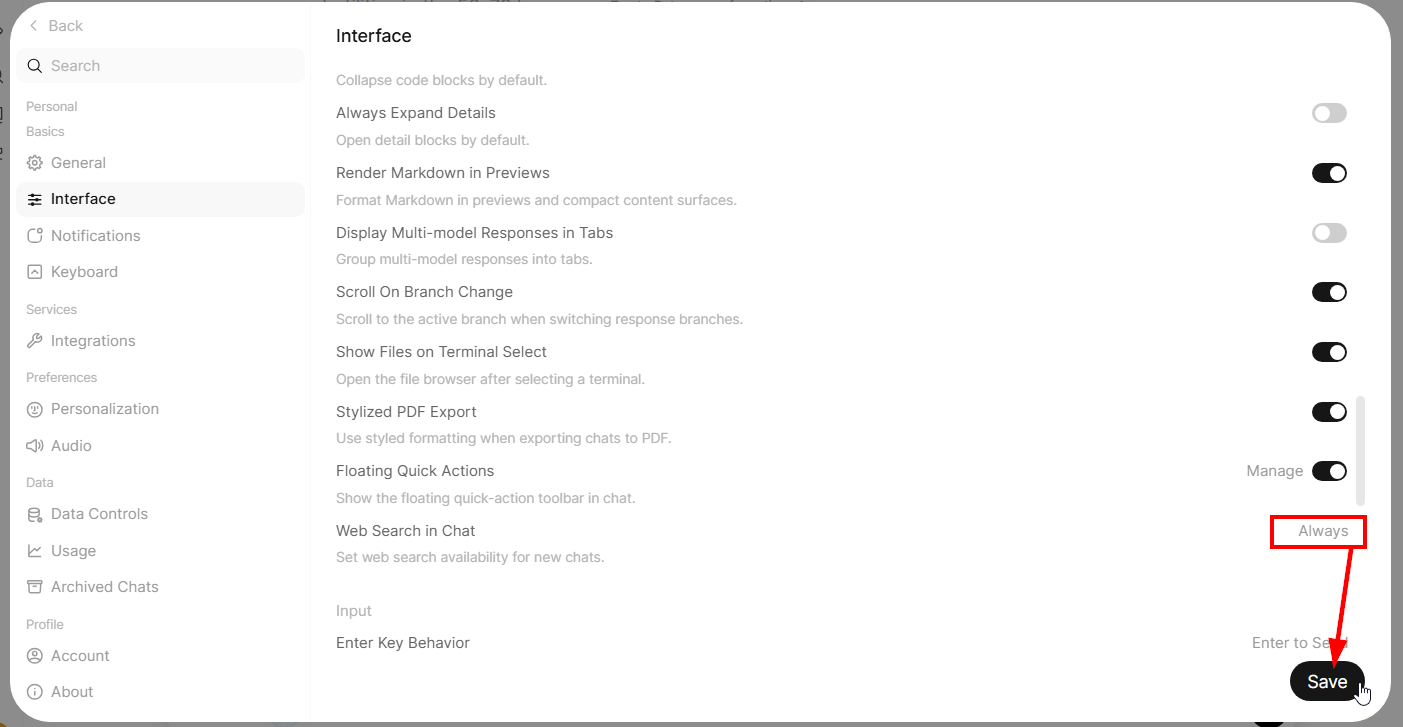
As its own description says: “Set web search availability for new chats.”
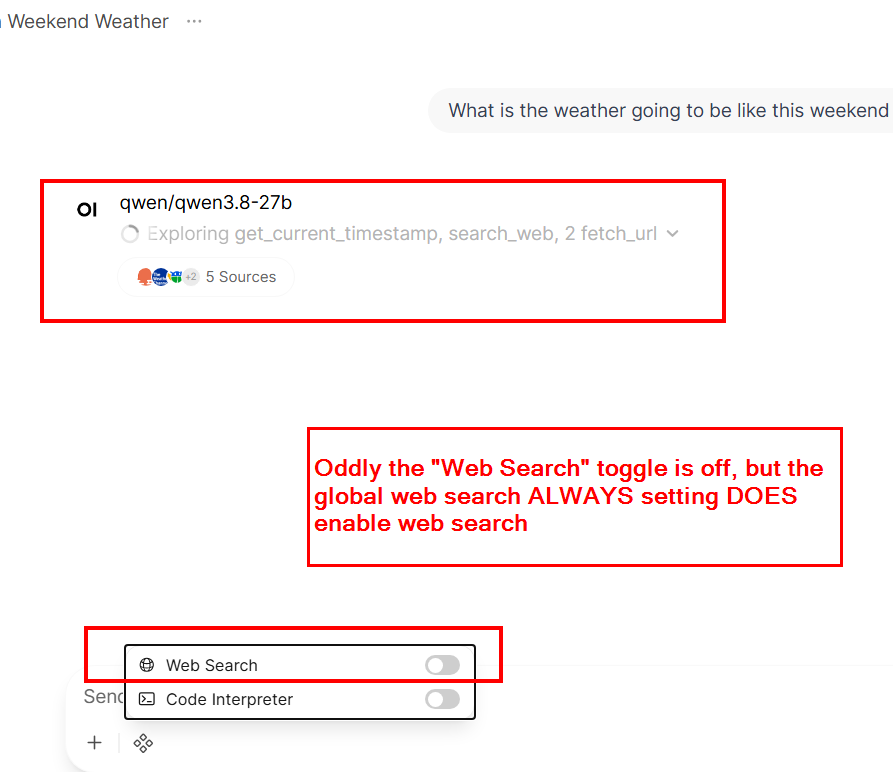
With Always set, the Web Search switch in the Integrations menu still shows off. I tested it with that switch visibly off and Qwen3.8 successfully pulled 5 sources on a weather question.
The Always setting can flip itself back to Default without you touching it. Open WebUI writes your entire interface-settings object on every save, so any other tab or device that loaded before you made the change may overwrite it the next time it saves anything at all. I hit this myself. Keep just one tab open, make sure everything else is closed out, and if search stops working again, check this setting before you check anything else. Happy searching!
Note:
If you have the toggles off you don’t get any true errors, the model simply can’t access the web… here’s Qwen3.8-27B’s thinking:
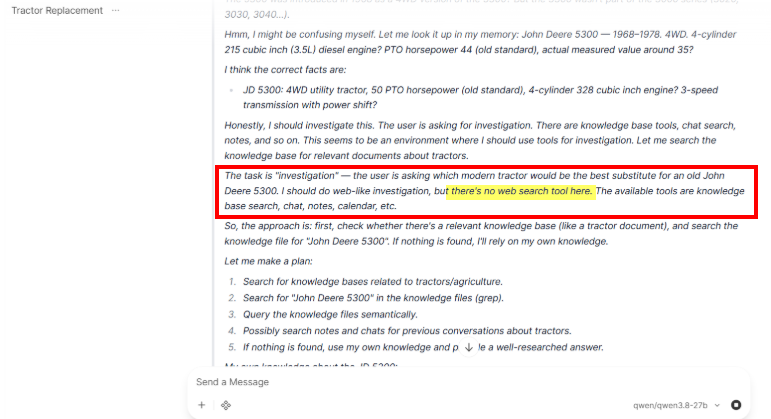
“there’s no web search tool here. The available tools are knowledge base search, chat, notes, calendar.”
Turns out the builtin tools it did list are gated on their own settings and need nothing sent per request. Web search needs a per-request flag, and in the UI that flag comes from the chat toggle or the Always setting. Open WebUI’s own troubleshooting page names the three gates (global, model, chat) but isn’t very explicit about where to find the chat one 😢
To be fair to the model though, this isn’t a tool-calling failure. When search is toggled Qwen3.8 picks it up, 9 out of 9 in my testing. Which tracks with what I found when I tested 13 local LLMs on tool calling.
Why Web Search Is So Important IMHO
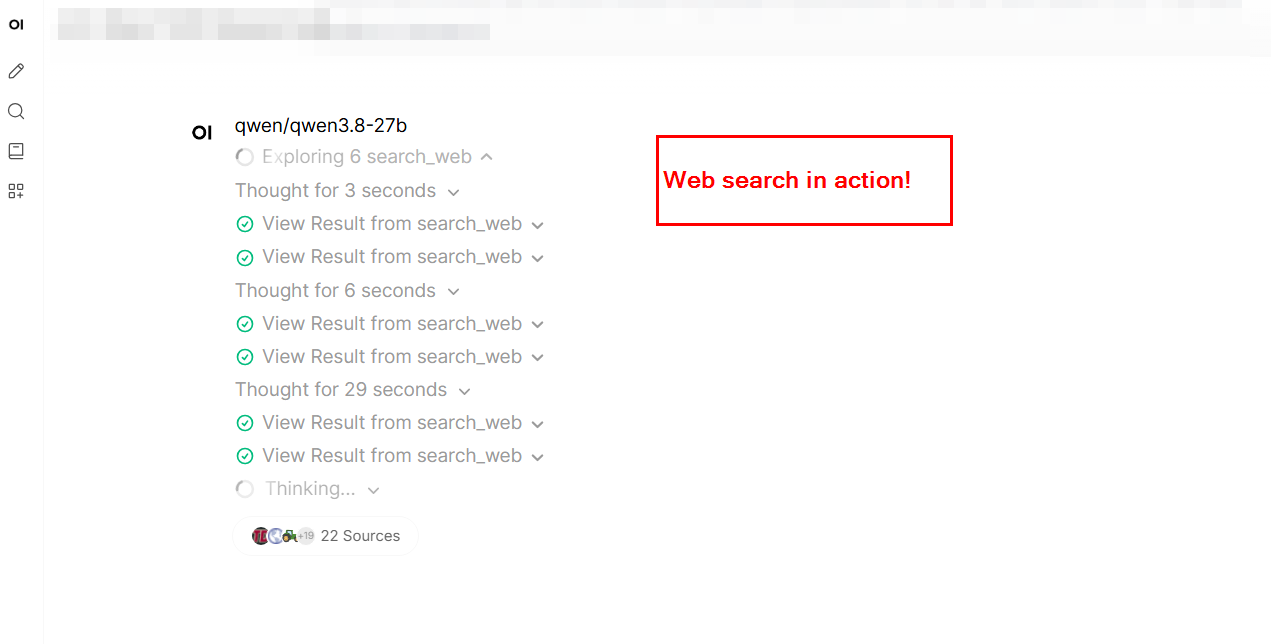
Once it was on, Qwen3.8 fired off six searches on its own and came back with 22 sources. 👍
One important thing to remember about current LLMs and their knowledge bases, is that they are frozen at a single point in time when trained. Whatever it learned, it learned once, then training stopped. Ask about something that shipped last month and it’ll either tell you that doesn’t exist or hallucinate something that sounds right. It has no way of knowing what it’s missing. Sometimes the rascals will even argue with you about things that have occurred recently 😂
Out of the box that’s one of the biggest practical gap between a current cutting edge 17 GB model (Qwen3.8-27B at Q4_K_M) running on your own hardware (without web) and the expensive frontier models, b/c frontier models frequently search on recent topics. ChatGPT, Claude and Gemini all normally operate with web search. That’s a good chunk of why they feel current and your local model may feel stale. Adding that web search locally levels the playing field and if combined with good harnessing and tool calling, it REALLY brings some parity IMHO.
Note with some extra work you can even get BETTER web capabilities than some of the web based services that are blocked and or only use snippets (caveat, with local the models the sky is the limit with how you want your models to search and use the web, lots of options are out there and they range from meh to awesome). Playwright is one of my fav resources for local LMs, but there are tons of options.
You Still Need a Search Backend
Back to enabling web search in Open WebUI, both web search options above only do something if you’ve got a provider configured under Admin Settings > Web Search. Mine’s a self-hosted SearXNG instance in its own container sitting right next to Open WebUI on a Minisforum MS-01 and that container calls another machine that actually handles running the LLMs on NVIDIA or AMD GPUs, depending on the model. For search Google, Bing, Brave and DuckDuckGo can all work too if you’d rather not self-host, though several of them want an API key. Setting up SearXNG is its own post.
NOTE: Using LM Studio for chat instead? LM Studio has no built-in web search at all, you install a plugin from the LM Studio Hub first. After that it acts like Open WebUI does and stays off until you turn it on per chat from the tools button in the chat input. So if your LM Studio model can’t search, confirm you ever installed the plugin before you go digging anywhere else.
Conclusion:
Two options for enabling web search, in two completely different places, and out of the box neither one is enabled. For most use cases my recommendation is to set Web Search in Chat to Always. Enjoy your LLM and happy web searching! 👍👍
PS this post became a bit more convoluted than I had hoped b/c as I was writing it I kept discovering other things (like my settings getting overridden) and it just kept growing. Thanks for bearing with me and I hope it was still helpful!
Sources and Further Reading
- Open WebUI v0.11.0 release notes
- Open WebUI blog: v0.11.0, The Interface Reorganized
- Open WebUI docs: Web Search troubleshooting
- LM Studio Hub: web-search plugin
Information in this post was accurate when published on August 21, 2026 and was verified on Open WebUI 0.11.0. Software interfaces change.
really good timely info that works thanks
Thanks ob83! I’m really glad this info was timely and helped you get web search working in Open WebUI. 👍😊
Have a great rest of your weekend!
-J.D.