How to enable Lenovo ThinkPad Yoga backlit keyboard? [SOLVED!]
The Lenovo ThinkPad Yoga is available with a backlit keyboard, here are photos of mine:

Press Fn+Spacebar to turn on the keyboard backlight
However, Lenovo makes the “on” button for the keyboard backlight a little hard to find… you have to press the Fn key + the Spacebar key to turn enable/disable the backlight.
🙂
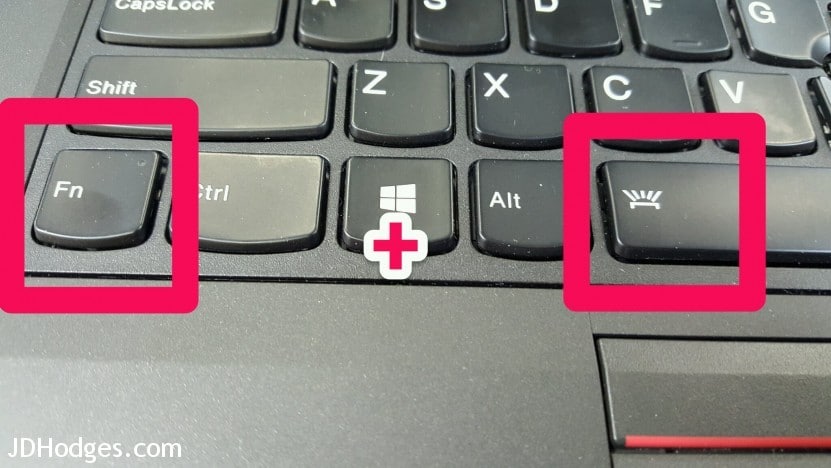
Fn + Spacebar
Overall, a very nice machine with a rather cool keyboard!
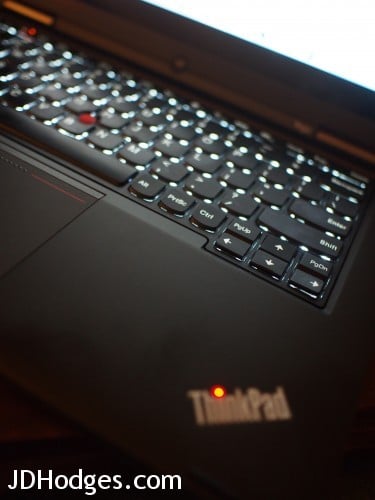
Red LED accent for ‘i’ in the ThinkPad logo
PS here are some other Lenovo laptops that use the same keyboard shortcut!!!
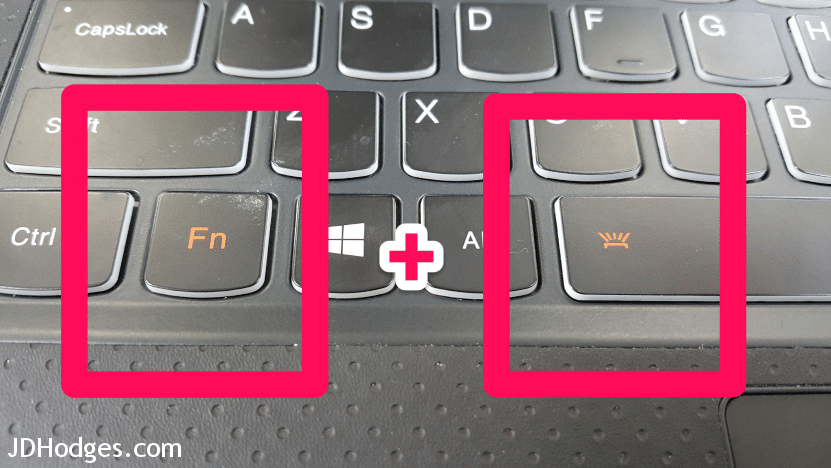
Fn + Spacebar
Top Search Terms:
- lenovo yoga keyboard backlight (213)
- lenovo yoga 2 keyboard backlight (207)
- backlit keyboard lenovo yoga how to turn on (136)
- keyboard lighting control (130)
- turn on backlit keyboard lenovo yoga 2 (127)
- lenovo yoga keyboard light (117)
- lenovo yoga 2 backlit keyboard how to turn on (117)
- lenovo yoga backlit keyboard (103)
- keyboard light lenovo yoga (99)
- lenovo yoga 2 pro backlit keyboard turn on (90)
THANK YOU!!! THANK YOU!!! THANK YOU!!! I HAVE BEEN TRYING TO FIGURE OUT HOW TO TURN ON THE BACKLIGHT TO THIS KEYPAD AND YOU HAD THE INFORMATION RIGHT THERE!!! HEAVY, HEAVY SIGH!! I TRIED EVERYTHING, LOOKING IN THE ONLINE MANUAL, CALLING SOME 3RD PARTY TECH FOLKS AND NOTHING! A SIMPLE Fn + SPACE BAR AND THE HEAVENS OPENED UP FOR ME!! MANY THANKS!!
Hi Stephanie,
Thank you for your very nice comment, I am glad my page helped!
Enjoy your nice Yoga laptop and have a great week Stephanie 🙂
-J.D.
thank you so much for posting this solution,I went through everything and i couldn’t figure it out,who new it was this simple. Thank you so much you have been a real life saver… have a wonderful day !!!
Hi Petra,
Thank you for your nice comment. I am very happy that my backlight tip was helpful 🙂
Have a great week and please visit again!
-J.D.
YES, your comment is very helpfut I couldn’t figure out how to turn the lighting on for the keyboard either so I returned the 740 and upgraded to the 940. I couldn’t find the switch on the 940 either until I did a search again which I had done before.
WAHLAH!! You solved my frustration, Thank You JD (that is my sweethearts initials)
Im 75 and she is 77. We have been a pair for going on 26 years and proud of it.
Keep up the good work… and God Bless You and yours!
Dear Steer,
Thank you so much for your wonderful comment! It made me smile to hear about your success. 🙂 I am very glad you upgraded to the Lenovo 940 and that you are enjoying using the keyboard backlight. 🙂
I hope you and your lovely sweetheart have a wonderful week!
With much happiness,
-J.D.
Oh man, I second this. Thanks for posting, I’ve been expecting something convoluted like getting the screen autorotate to work so I was overthinking it.
Hi Cari,
Thanks you for your comment 🙂 Sorry it took me so long to respond.
Have a great week and enjoy your Lenovo laptop!
-J.D.
Ditto everything Stephanie said!
Hi Cynthia,
Thank you and enjoy your nice Lenovo laptop!
Best regards,
-J.D.
OMG!!! I have a new YOGA computer and it worked!!!!!!!!!! I am so excited!!!! Thank you!!!!!
I have to give a Big Thank You as well!
Hoping you had the Best of Holidays!
Ditto, ditto. Forever grateful!
Cheers, Mike
Thank you very much. 🙂
Dear Edward,
You are very welcome! Thank you for your kind comment and have a GREAT week 🙂
Best regards,
-J.D.
Thank you!! Just purchased a new Yoga and was scratching my head how to backlight the keyboard.
Lynn
Hi Lynn,
Thank you for your nice comment! I am glad my post helped 🙂
Which Yoga model do you have and how do you like it?
-J.D.
You solved it for me. Awesome look all lite up… now I can work in the dark.
Thanks for commenting Pete, I’m glad my page helped 🙂 Have a great week and enjoy your nice Lenovo Yoga laptop!
Best regards,
-J.D.
Hey, thanks! I was also confused about how to turn on the backlight and was even worried that it didn’t ship with one! Thanks to you, now I too can work in the dark and still see what I’m typing! I love this keyboard, it is awesome to type on!
Hi Applemsith, I am glad to hear that my page helped 🙂
Enjoy your nice backlit Yoga keyboard!
Omg thank you so much
Hi Felisha,
Thank you for your nice comment 🙂 Enjoy your nice Yoha laptop and have a great week!
Best regards,
-J.D.
Thank you!! Just what I needed. I never would have found it just by poking around.
Hi Molly,
Thank you for your nice comment, I am glad that the instructions helped!
Enjoy your nice Lenovo laptop and have a great week 🙂
Best regards,
-J.D.
Thank you! I say the little lit key on the space key and I was like (what… the space key is SPACE…). THANK YOU!
Hi Elijah,
You are very welcome, I am glad that the instructions helped!
Enjoy your nice laptop and have a great week 🙂
Best regards,
-J.D.
Just thanks!
You are very welcome Chad, have a great week!
–J.D.
The fn and space bar didn’t work for me. This is frustrating as I do a lot of my work at night and need the back-lit function. Can you please help? I just purchased my Lenovo ideapad Yoga 2 Ultrabook off of Ebay and I am really hoping there isn’t something wrong with the computer.
Sorry for the late reply, Crystal. The big thing to know is that my post was about the ThinkPad Yoga line, and not every Yoga or IdeaPad Yoga shipped with a backlit keyboard. If yours really does have the backlit hardware, then I would check Lenovo hotkey software and the BIOS, but if the keyboard was a non-backlit option no shortcut will turn it on.
Awesome….I was about to call the guy who sold this Yoga 2 pro and tell him it was faulty. now I am able to type this in the dark…lol. thanks heaps.
On another note has anyone had issues with a flickering screen with these? mine (6mths old and bought from a second hand trader) flickers.
Also how come the tent display function on mine does not flip the screen in tent mode. It flips in tablet mode but not in tent….any ideas?
Hi Ross,
Thank you for your nice comment!
I am very glad that your keyboard backlight is getting some good use now 🙂
I have not encountered flickering on a Yoga yet, but I have on some other laptops. Have you checked the ambient light setting?
https://forums.lenovo.com/t5/ThinkPad-Edge-S-Series-Knowledge/Random-changes-in-screen-brightness-every-few-minutes-in-Windows/ta-p/915291
https://forums.lenovo.com/t5/Idea-Windows-based-Tablets-and/Yoga-2-Pro-Auto-brightness-feature-and-how-to-disable-in-Windows/ta-p/1294763
if that does not resolve the issue, it looks some other users are having similar flickering issues:
https://forums.lenovo.com/t5/Idea-Windows-based-Tablets-and/Screen-Flicker-Keyboard-Backlight-Y2P/td-p/1281321
The tent issue seems particularly perplexing since it does flip in tablet mode! Here are some people discussing the issue, https://forums.lenovo.com/t5/Idea-Windows-based-Tablets-and/Yoga-2-Pro-Tent-Mode-Mode-Switch-Issues/td-p/1317619 but I did not see a particular solution 🙁
Please keep us posted!
Best regards,
-J.D.
JD
Thanks for the info. Different question. How do you wake up a ThinkPad Yoga in tablet mode? I have tried everything. It doesn’t do much good to have a tablet for note taking if you need to unfold it to wake it up>
Thanks
Sorry for the late reply, Bob. I am not sure on that tablet mode wake behavior specifically, because this post was only about the backlight shortcut. On the units I used, the power button was the normal wake method in tablet mode, so I would look at BIOS and Lenovo driver updates first.
My friends have this computer and when they press FN then space, there light turns on but when i do it it does not. When my computer shuts down then turns on again, the keyboard lights up though. How can i fix it so when i press FN and space i can work in the dark.
Sorry for the late reply, RVW. If the keyboard lights briefly during startup, that at least suggests the backlight hardware is there. In that case I would look at Lenovo hotkey software or BIOS settings, because Fn plus Space should toggle it once Windows is loaded.
THANK YOU FOR THE SIMPLE BACKLIGHT KEYBOARD TIP – DIDN’T THINK I COULD INCREASE MY PRODUCTIVITY ANY MORE!!
No problem! Glad I could help!! 👍😀
Your guidance made this sooo………… simple
Thanks !!!
Hi bob. I’m so glad that I was able to help you. Thanks for the nice comment!
Have a great day!! 👍😀
this is on lenovo yoga 14, right? I was checking the user reviews on lenovo US and one dude said that this doesn’t have a backlit keyboard. I couldn’t trust the images there because they’ve included some of thinkpad yoga 12’s also. thanks in advance. I’m interested in buying the thinkpad yoga 14 but lenovo didn’t release it even now (JAN 2105) in my country(UAE, Dubai). I’m planning to get it by a friend from US. also, if you can give me any advice, It’d be awesome! Thanx again!
Sorry for the late reply, Hemu. My post was about the ThinkPad Yoga model, not the regular Yoga 14, so I would not assume the keyboard spec is the same. Lenovo sold some of these with and without backlit keyboards, so I would verify the exact part number before buying.
Thanks a fricking ton!
No prob! 👍
p.s. If you hit F+Space again, it lights up even brighter!
Hello,
I’ll add my thanks to those who have posted theirs. Have been going bonkers trying to activate the lighted keyboard on my new Levovo Yoga2 laptop …my third Lenovo, by the way. Love them. They are like good, sturdy, well-designed camping equipment or workshop tools… elegant and well-made.
Fn space. So simple. (sigh) Why oh why don’t these things come with some basic information.
If you wouldn’t mind hearing about another problem: I have a Samsung auxiliary monitor. My old Lenovo has a connection in place for attaching it, but this new Lenovo does not, so I purchased a j5create VGA USB display adapter JUA210 … USB connection on one end and monitor connection on the other. There is only one adapter that fits the monitor. Everything fits fine. I downloaded the driver from the Create website and … no joy. all I get is the “check signal cable” box dancing across the monitor.
I’m a senior who came late to this technology, and while I’ve learned a lot by rote, I’m not at all intuitive about it.
Can you help me? Many many thanks for your attention.
big thanks, even works on the yoga pro 3!
Hi Mark,
Thanks you for your comment 🙂 I am very happy to hear that the tip works on your Yoga 3 Pro as well!
Have a great week and enjoy your nice laptop!
-J.D.
PS I saw your email included ‘solarpower’ in it, do you deal with solar energy? We live off the grid and are big fans of solar energy 🙂
Thank you! can’t believe I couldn’t find this info on Lenovo’s web site
My pleasure Bob!
Thank you for your nice comment and have a great week 🙂
Best regards,
-J.D.
THANK YOU!!!!!!!!!!!!!!!!!!!!!!!!!!!!!!!!!!!!!!!!!!!!!!!!!!!!!!!!!! Now working late on school work as my kids are trying to go to sleep is my easier!!!!!!!!! This will save on a lot of rush work!
You are very welcome Kyle!!! Enjoy your nice laptop and please accept my best wishes to you and your family 🙂
PS I agree 100%, backlit keyboards are AMAZING for not disturbing the kiddos or spouse… it is simply splendid not to have to turn on a bright lamp just to see the keyboard!
Thanks so much, JDH!
No problem! Glad I could help. Have a great day!! 👍😀
THANK YOU!
I’ve been looking for this feature. Great that you took the effort to post something about it.
Hi Wouter,
I am glad my page helped 🙂 Thank you for your kind comment!
Best regards,
-J.D.
And there was light! Thank you for your information to lighting my keyboard, my new computer!
Hi Michael,
Thank you for your nice comment, I am glad my tip helped 🙂 Enjoy your awesome new computer and the backlit keyboard!
Best regards,
-J.D.
excellent. thanks!
Glad I could help 👍
Thank you so much! Your solution has made my job so much more pleasant!
No problem! Glad I could help!! 👍😀
Does the i in ThinkPad light up on all ThinkPad’s or just on the Yoga’s?
Sorry for the late reply, Nick. The lit i is common on many ThinkPads, but not every single ThinkPad and generation handled it the same way. I would treat that as model-specific rather than universal.
sooooo happy right now like omgeeeeee this works awesome! on yoga 3 not pro 14”maybe all Lenovo same!
Glad I could help 👍
OMG. Looked everywhere for this simple answer. Thank you so much.
No problem. Glad I could help!! 👍
Us there anyway to dim the brightness to aid the mediocre battery life.
Sorry for the late reply, Neil. On many ThinkPads Fn plus Space cycles the keyboard light through off, low, and high, so yes, there is usually a dimmer level rather than just on and off.
Is there any way to dim the backlit KB brightness, to aid with the mediocre battery life?
Sorry for the late reply, Neil. On many ThinkPads Fn plus Space cycles the keyboard light through off, low, and high, so yes, there is usually a dimmer level rather than just on and off.
I tried selecting Fn and hitting the space bar… no light 🙁
fn + space is not working on my g4080 laptop.can you please help me.Thanks
Sorry for the late reply, Steve. Your G4080 is a different line from the ThinkPad Yoga, so the shortcut only helps if that exact model actually came with a backlit keyboard. I would first confirm the hardware spec, because no software fix can add the light if the keyboard itself lacks it.
Yeah, so, I’ve spent the last ten minutes searching the control panel, the search bar, etc., because the backlit keyboard wasn’t working. I thought I’d ordered the wrong computer. Why they wouldn’t include this information in the start up guide is beyond me. THANK YOU!
Hi Casey, thank you for your nice comment 🙂
I am glad my tip was helpful. It is definitely crazy that they do not include instructions on how to turn on the backlight. Enjoy your cool laptop!
Best regards,
-J.D.
Does the backlight eventually turn itself off to preserve power? Does it use up much power? Should I get in the habit of turning it off when I don’t need it?
Sorry for the late reply, Craigellachie. It does use some power, but usually not a huge amount. I still turn it off when I do not need it, and on some models it will time out or dim on its own depending on settings.
Ditto to all the comments – thank you so much! It’s soooo much easier typing in the dark with the backlit keyboard. My life is so much easier now. I had noticed the keyboard would light up when the computer turned on but couldn’t figure out how to keep it backlit. You rock!
Hi Debbie. I’m glad that the tip helped. Thank you for the nice and positive comment!
Have a great day!! 👍😀
Whoop whoop! I have a Lenovo Yoga Pro and never could figure out how to turn on the backlight….wish these things were in the owners manual. Thank you sooooo much!!
Hi Shelby,
Thank you for your kind comment. You are very welcome and I am super happy my backlight tip helped! 🙂
Have a great week and enjoy that cool Yoga Pro laptop!
-J.D.
thank you so much yoga 3 is my dream computer and now I can play in the dark ya
Thank you for your nice comment, I’m very glad my tip helped! 🙂
Have a great week and enjoy that cool Yoga 3 laptop!
-J.D.
Thank you JD, your assistance is invaluable. Who would have ever guessed that it was this simple to turn on the backlighting to the keyboard for my Lenovo yoga ThinkPad. But it would have helped to have read the user manual. Nevertheless, a thousand thank yous for making it a seamless effort.
Dear Lazarus,
I’m so glad that I have been able to help you. Thanks for the nice comment!! 😀
Have a great day!! 👍
Thank oh so so much. 2 secs on google, click on your page and I have the solution to a question that has been hounding me forever! Bless you for sharing this tip!!
Hi Tsitsi,
Thank you for your kind comment 🙂
I am very glad that my tip worked for you!
Best regards,
-J.D.
Thanks! I just got mine and was hoping this could be done. 🙂
No prob. Glad I could help!
Have a great day!! 👍
legend! it’s been bugging me since I got it but you nailed it!
Thanks Jason! Have a great weekend and enjoy your awesome backlit keyboard 🙂
Seriously, thank you so much! I got this laptop from the university I started attending about 5 months ago and could not figure it out! None of the school tech people knew either! This is so cool and I can’t believe I didn’t think to look this up earlier! Thank you again!
Hi Hannah,
Thank you for your kind comment. I hope you have been enjoying the keyboard backlight, it is one of my favorite laptop features 🙂
Thanks again Hannah and I hope your 2016 is off to a great start!
Best regards,
-J.D.
Real thanks for taking the time to post this – just got Yoga 900 and it totally nails it – way to go!!!
Hi JJ,
I am very glad to hear this tip worked to turn the keyboard backlight on for your Yoga 900. 🙂
I hope your 2016 is off to a great start and enjoy your nice laptop!
Best regards,
-J.D.
Thank you so much!!! this was driving me nuts!!!
Hi Glen,
Thank you for your kind comment 🙂
You are very welcome, I am very glad you are able to utilize the Lenovo’s keyboard backlight now!
Best regards,
-J.D.
yoga 900 owner…worked great!
Hi Homewrecker,
Glad to hear the tip also works to turn the keyboard backlight on for the Yoga 900!
The Yoga 900 looks like a stellar laptop, a very nice upgrade over the Yoga 3 Pro. Enjoy that awesome laptop and thanks again for commenting. 🙂
Best regards,
-J.D.
It is my turn to say “Thank you, thank you, thank you!”. The solution is so simple but yet I could not get it by myself. I noticed the simbol on the Space Bar button but I didn’t occur to me that I had to use the Fn key to activate it! Again, thank you very much!
Hi Encho,
I am very glad the solution worked for you!
I hope your 2016 is off to a great start and thank you for your nice comment 🙂
Best regards,
-J.D.
Oh man thank you soo much, My son has a new airbook and he had a beautifully lit keypad and I said “I know my keypad lights up because I see it when I start my machine”
Found this message board and shazam there it is.
I wonder how many other features we are missing out on????
Do you have any other tips that may be hiding within the machine that we could use???
Hi Tom,
Thank you for your nice comment! Could you yell me your exact Lenovo model? I will try to find something else cool for you once I know the exact model 🙂
I hope your 2016 is off to a great start and that you and your son enjoy your nice laptops!
Best regards,
-J.D.
Thank you!! My computer help couldn’t help me but you did.
Hi Deb,
Thank you for your nice comment 🙂
I am very glad I could be of help, enjoy your nice Lenovo and the backlit keyboard!
Best regards,
-J.D.
Thanks for this post. I figured out how to activate backlight. I have another query
I recently purchased IDEAPAD 500 but if I touch the LEFT side of the keyboard and plaM rest I feel warm. Right side is very cool. Moreover, if I touch near the ventilation holes on left side, it is hot.
I would like to know whether this is normal.
Sorry for the late reply, Anand. Warm on the left side near the vent is pretty normal, because that is usually where the CPU cooling path is. If it is merely warm I would not worry, but if it becomes painfully hot or the fan is screaming constantly then I would inspect airflow and dust.
Posted for over a year and still helping many of us!! Thank you very much for your clear explanation. As I usually have my fingers over the keyboard I had overlooked this feature. I had tried all of the top and side function options… never occurred to me it was right under my fingers. 🙂
Hi Sergio! Thank you for your nice comment 🙂
I am very glad you are now able to enjoy the backlight on your Lenovo!
Have a great day,
-J.D.
Hi! I have a Lenovo Yoga 2 and the Fn plus spacebar does not work;( Any ideas? Thank you! ~Lori
Sorry for the late reply, Lori. The first thing I would check is whether your Yoga 2 actually has the backlit keyboard option, because not all of them did. If it does, then Lenovo hotkey software and BIOS settings are the next places I would look.
Another latecomer to the Yoga 3 Pro game. Your hint was the 1st on the Bing search. Guess I didn’t suffer as long as some others.
Thank you so much couldn’t find my user manual and this helped a lot!!!
Hi Mikaela,
Thank you for your kind comment. I am very glad this backlight tip worked for you on your Lenovo!
Best regards,
-J.D.
Thank you! Just bought the Yoga 700 last week and wanted to turn off backlight if not needed while on battery – like so many others posted, I was looking all over under settings, etc. and couldn’t find it anywhere. How simple!! Added bonus, it’s available on my work laptop too (ThinkPad) and I didn’t know it! Thank you!!!
Dear Elaine,
You are very welcome. Thank you for taking the time to comment and have a GREAT week! 🙂
Best regards,
-J.D.
Hi there,
I got excited to see all the success and simple this is as electronic stuff hates me. I eagerly held down Fn and the space bar together and no lights 🙁 We have no lights at the moment due to a power failure and working by candlelight so I did try it a few time but no luck 🙁 (am not surprised am jinxed, I tell you)
IS there possible another way? Am using a Lenovo Think Pad
Sorry for the late reply, Zanie. If it is a true ThinkPad model with a backlit keyboard, Fn plus Space is still the normal shortcut. If nothing happens at all, either the hotkey software is missing or the machine may not actually have the backlit keyboard option.
how to switch on my laptop keyboard backlight ?
these function available or not in Dell 3558 intel i3- 5015U/ 8 GB/ 1TB/ 15.6 inch/windows 10/ Black
Sorry for the late reply, Pragash. This post was about Lenovo ThinkPad Yogas, not Dell laptops, so I cannot say from the post whether your Dell 3558 has that hardware. The first thing to verify is whether that exact Dell configuration even came with a backlit keyboard.
Thanks so much!!!!!!!!!!!!!!! Never in a million years would i have known or figured out how to get the keyboard to stop switching off its light shortly after the computer starts up. have been having eyestrain from typing in a darkroom, so this makes a big difference. Your photos and instructions were clearer than on manufacturer’s sites.
Hi krys. I’m so glad that I could help. Thanks for the nice and positive comment!
Enjoy using your laptop. Have a great day!! 👍😀
Do you happen to know how to change the setting that turns the keyboard light on by default whenever the computer turns on? I have a P40 yoga and whenever I power it on the keyboard light comes on. I can turn it off each time but would prefer it to stay off by default. Any tips?
Jon, I would check Lenovo Vantage or the BIOS first, because some ThinkPads have a keyboard illumination behavior setting there. I am not sure every P40 Yoga lets you change the default state, but that is where I would start.
Hi
I don’t have a light symbol on my Yoga 500, how do I turn the keyboard backlight on please??????
Sorry for the late reply, Alan. If there is no backlight icon on the key and the shortcut does nothing, there is a decent chance your Yoga 500 was sold without the backlit keyboard option. On these machines the shortcut only works if the hardware is actually present.
Your the first person, after about a half hour of searching google to finally explain how it works on the yoga 14. Thank you so much, this feature was something that made me wanna get the yoga 14 and I really wanted to learn how to use it. Very much appreciated. Please continue with teaching us how to use this cool laptop. Thank you!
Hi Hector. I’m so glad that the tip helped and that I was able to help you. Thanks for the nice and positive comment! I’ll be sure to keep on giving you guys some tips.
Enjoy using your laptop. Have a great day!! 👍😀
Thank You! Had a yoga 900 for 6 months and never could figure out how to turn on the back lights! Thank a bunch for this post!
Hi Jeff. I’m so glad that I could help you. Enjoy using your laptop!
Have a great day!! 👍
I read the entire manual and searched their site couldn’t find the keyboard backlighting enable. Thanks!
No problem! 👍
I’ve had my Lenovo Yoga 12 for over a year now (purchased in summer 2016) and JUST found out how to get the keyboard backlit using your page. Thank you!!!
Hi Jess!
Thank you for your nice comment. I am VERY happy that you were able to enable your keyboard backlight 🙂
Enjoy your nice laptop and its backlit keyboard!
Best regards,
-J.D.
I too have had my Yoga 14 for a year, and could not figure out how to turn this on…. Thank You!
Glad I could help! Have a great day!! 👍😀
Thank you so much – I’ve had my Lenovo for over a year and this has helped a lot.
No prob! Glad I could help. 👍
very helpful and first answer to pop up from google.
Glad I could help! Enjoy using your laptop. 👍
This was super helpful – even years after you published it. Thank you!
Excellent, Joe!
I am very glad this tip was helpful to you 🙂
Enjoy your nice ThinkPad keyboard backlight and have a GREAT week!
-J.D.
thank you soo much
Hi Akansha,
You are very welcome. Have a GREAT weekend!
Best regards,
-J.D.
Ditto all the super appreciative THANK YOUS!!!!
I’ve developed new sleeping habits for some reason and now find myself most productive between 3:30 am and 9 am or when I work in the afternoon, I need to do so in a darker or dimly light room and the lack of light on the all black keyboard was killing me!!!
You have probably provided more of a service to more people than you could possibly know!!!
Dear Heather,
I’m so glad that I was able to help. Thanks for the nice comment! Try to get some sleep. 😉
Enjoy using your laptop. Have a great day!! 👍
Thanks
You are very welcome! 🙂
Thank you! You explained it quickly. So easy, yet obscure.
Hi Christopher, I’m so glad that the tip helped and that I was able to help you. Thanks for the nice and positive comment!
Enjoy using your laptop. Have a great day!! 👍
Amazing. This isn’t really a reason I purchased this laptop, but I’m super happy it came with the backlight because I’m a night owl. A thing I didn’t know I needed! Searched all through the laptop settings typing in “keyboard” and “backlight” to no avail. Google was the next step. Thanks to this post, didn’t take me long. Have only had this laptop for a day.
Hi L. I’m so glad I could help you. Enjoy using your laptop!
Have a great day!! 👍😀
Thanks for the help. FINALLY I can see the keyboard at night.
Glad I could help. Enjoy using your laptop!! 👍😀
Thanks for the help !! FINALLY I can now see the keyboard at night.
No prob! Enjoy using your laptop!! 👍
Thank you so much!!!
Glad I could help! Have a great day!! 👍😀
Thank You!! I am setting up my new laptop in a dark room and could not figure this out. I went to the keyboard settings… nope… I went to the tips and tricks and went through them all… nope I continued all kinds of combinations to try to hold down the spacebar with that little rainbow light and I was not able to realize “FUNCTION” FN plus the light… gheesh. Again, THANK YOU!!
Hi K. I’m so glad that I could help! Thanks for the nice comment.
Enjoy using your laptop and have a great day!! 👍😀
awesome Thanks
No prob! 👍
Does anybody know how to set the keyboard backlight to always ON? I love the Fn + space ability, but it’s a minor annoyance to do that essentially every time I open my laptop. Thanks
Lenovo ThinkPad X1 Carbon
Clay, on many ThinkPads there is no permanent always-on setting, and Fn plus Space just toggles the current state. I would still check Lenovo Vantage or BIOS, but I would not be surprised if it has to be re-enabled after wakes or reboots.
Thanks, JD. Got the keyboard backlighting turned back on.
Excellent, Dave!
Enjoy your backlit keyboard and have a GREAT weekend!
Best regards,
-J.D.
Thank you!
No prob! I’m glad I was able to help.
Have a great day! 👍😀
J. D. is there any chance of a backlit keyboard on a 1st gen Yoga 11e Type 20D9? I have searched all over and can’t find any info on one for these machines.
Percy, I am not sure about that exact 11e configuration, but many of the 11e education models were sold without backlit keyboards. If the spec sheet and keycaps do not mention backlighting, it is probably not there.