Dell Inspiron 11 3000 SSD upgrade
The Dell Inspiron 11 3000 series is a lovely laptop at a very nice price (~$350 USD). One of the few drawbacks is the slow HDD. Thankfully, that is easily remedied with an SSD upgrade!
SSD Upgrade
The photos below show how I upgraded my Inspiron 11 3147 with a 7mm Samsung 1TB SSD. Of course the same steps will work for smaller capacity SSDs [128GB, 256GB, 512GB] as well 🙂
Memory Upgrade
While you have the machine open, you may also want to upgrade your Inspiron 11 to 8GB of DDR3L RAM for around $54 for Crucial memory with a lifetime warranty.
A Much More Responsive Laptop!
With a nice SSD and RAM upgrade, my 3147 has been much more responsive in virtually all respects. Happy computing! 🙂
-
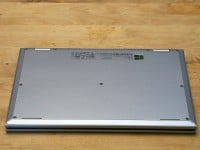
- Before removing screws
-
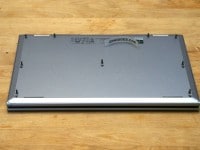
- With screws removed
-
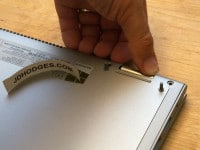
- Gently opening the Inspiron 11 3000 case
-
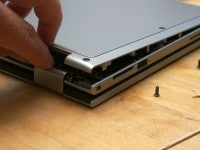
- Continuing to open the case
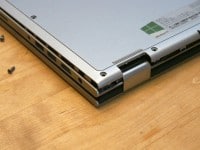
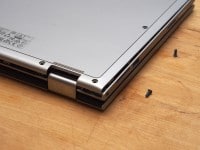
-
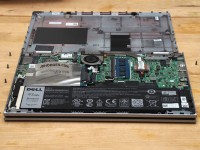
- View of the motherboard with the bottom portion of the case removed
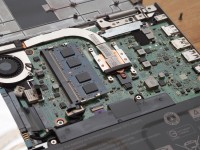
-
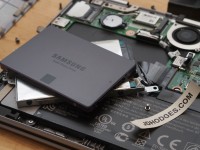
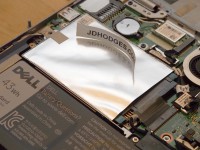
- SSD before installation
-
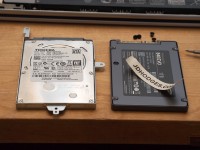
- 7mm 500GB HDD vs 7mm 1TB SSD
-
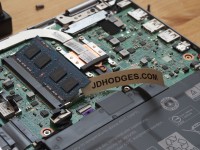
- 8GB of DDR3L RAM is compatible with this model!
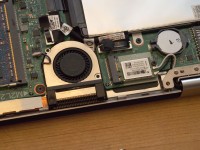
-
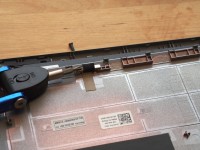
- Showing the clips that hold the cover on
If you have a 3147 or 3148 2-in-1 touch Dell, I hope you utilize these instructions to upgrade to a nice SSD. The performance difference is quite astounding!
- dell inspiron 11 3000 hard drive upgrade (7)
- inspiron 11 3000 memory upgrade (5)
- dell inspiron 11 3000 series 2-in-1 ssd (5)
- dell inspiron 11 3000 ssd (5)
- dell inspiron 11 3000 series upgrades (4)
- https://www.jdhodges.com/blog/dell-inspiron-11-3000-ssd-upgrade/ (4)
- inspiron 11 3000 series ssd (4)
- dell inspiron 14 3000 series upgrade ssd (3)
- inspiron 11 3000 series upgrade (3)
- dell inspiron 11 3000 upgrade (3)
Is is comparable with dell 3148?
Hi Ishaan,
Yes, very comparable and virtually identical. The upgrade steps will be exactly the same>
Best regards,
-J.D.
I’m thinking of getting a new one of these and upgrading the drive right out of the box. Can you advise me on how you transferred the operating system and drivers over? Does Dell provide support for that?
Sorry for the late reply, Thomas. The cleanest path was cloning the factory drive to the SSD before swapping it out. Dell did not really provide a magic transfer tool for that, so I would image or clone the original drive first.
So how do you transfer the OS to the new SSD?
Sorry for the late reply, Annuar. I transferred the OS by cloning the original drive to the new SSD before the swap. That is much easier than trying to recreate the factory setup afterward.
I tried installing an SSD into an Dell Inspiron 11 3000 (i3) running Windows 10. I used Samsung 850 EVO SSD with very strange results.
I used the Samsung migration software to clone the original OS hard drive on to the SSD. Everything went fine until Windows 10 tried to install updates. The update would install, the system would restart and then would get stuck at the Dell logo, try again, and then go to a blank dimly lit screen. Attempting to turn on and off the computer manually would not work. Only if I went through an exact sequence that Dell gave me three times, would the system go into repair mode.
Once in repair mode, I could do a system restore. When I did a system restore, I could recover to the point before the updates. However, as soon as Windows 10 did its mandatory update, the system refused to boot the next time it started.
I went through this half a dozen times.
When I put the original drive back in the system, it took the updates and everything was fine.
If I then copied the OS over to the Samsung SSD and installed the SSD in to the system would run perfectly until the next time Windows 10 decided to update itself and I would again be with a system I had to restore.
This is 100% reproducible. I contacted Dell, Microsoft and Samsung support. Dell said it was a problem with the SSD. Samsung said it was a problem with the hard drive controller. Microsoft said that the blocked updates was probably being caused by some non-Microsoft software that the OEM installed on my system and I should use msconfig to prevent any non-Microsoft programs from running when the OS boots after an update, but going through those steps did not prevent the lockup after an update.
So, unfortunately, while it is physically easy to switch an HDD with an SSD with a screwdriver, it doesn’t mean that it will work. I put about 80-90 hours into trying to get mine to work with an SSD until I just gave up, concluding that the technology from the vendors is still immature and not suitable if you need a dependable computer. If I purchased another laptop and wanted an SSD, I would only get one that has been installed by the manufacturer, like an Apple MacBook Air, because all the components would have been tested together for reliability.
Sorry for the late reply, C. That is a strange one, and at that point I would honestly try a clean install on the SSD rather than keep relying on the clone. Since the original drive takes the updates fine, the cloned boot setup may be what Windows 10 is choking on.
Will this work on a 3157?
thanks-
J
Sorry for the late reply, Jason. I am not sure about the 3157 specifically, but if it still has the same 2.5 inch SATA drive layout the basic idea is similar. I would check the service manual or open it carefully before ordering parts.
I upgraded to a Crucial 300 525GB SSD.
Original HD was 80Mbs
SSD 250 Mbs
Should be 540 Mbs
Cant for the life of me work out why
Sorry for the late reply, Michael. The rated top speed on the SSD is not always what the laptop will deliver, because the controller and interface in the machine can bottleneck it. Even 250 MB per second is still a big jump from the stock hard drive.
I placed a 7mm SSD with 256GB and found a Dell AC WiFi chip for 27 dollars. The SSD provided awesome performance increases. I had a larger spare 9mm SSD but it did not fit. So if ordering, 7mm is a must. The AC WiFi chip increased WiFi range drastically, I am pulling 50Mbps from 3rd room bedroom where prior the connectivity was iffy. It is the same WiFi chip used in the 7000 series 2n. So for 250 dollars for a floor model sale plus another 150 dollars of upgrades, I have a nice little laptop. So impressed with the portability, I did the same thing for my daughter who is in college. Only difference, I went with a 5000 series 2n1 to get the back lit keyboard.
Thanks for the info!!!
My pleasure RJ. Thank you for your nice comment and enjoy your Dell 🙂
I have the 3147, and Dell rep said it could only hold 4GB RAM. If I upgrade to an SSD, I’ll be able to upgrade RAM as well? Is it dependent on the SSD I install?
Hello and thank you for the great question Gary!
On my 3147, 8GB of RAM worked perfectly. You should be able to duplicate that on your 3147 if you use a 8GB of DDR3L SODIMM and you have a 64 bit OS installed. Also, the SSD is totally independent and will not affect the memory (RAM) capacity whatsoever.
Best regards,
-J.D.
I followed your instructions exactly, other than I couldn’t afford a 1tb SSD and went with a 256meg, and my 3148 is MUCH faster. Thanks.
Glad I could help! 👍
Hi. JDH.
I upgraded the same notebook with a 240 Kingston. I upgraded to 8 gb ram. But the eficiency it’s not rise up enough. Read sequential only 283 mb-sec. Write sequential only 81 Mb-sec. I did everything recomended online to get a better situation but it didn’t work.
Have you ran cristal disk mark on yours or another similar utility???
Thx.
Hi Ramiro!
Congratulations on your upgrade and thank you for your comment.
Those speeds do seem slow, especially the sequential write. Which 240 Kingston do you have? They seem to offer a few different models…
If I were to guess, some of the slowness may be due the Inspiron 11 being a relatively entry level system (CPU, RAM etc.) but the majority of the slowness I would attribute to the particular 240 Kingston SSD. Specifically, I believe my write speeds with a Samsung were in the 200-300 MB/s sec range and I believe the read speeds were around 400 MB/s+. I no longer have the machine or I would retest to be sure! If any other readers have experience, please share.
Kingston
http://ssd.userbenchmark.com/SpeedTest/137815/KINGSTON-SUV400S37240G
http://ssd.userbenchmark.com/Kingston-SSDNow-V300-240GB/Rating/1817
Samsung
http://ssd.userbenchmark.com/Samsung-850-Evo-250GB/Rating/2977
Good job on the upgrade and thank you for bringing up the slow(er) write speeds with the 240 Kingston SSD. Hopefully it still boots faster for you and offers a performance boost versus the normal HDD.
Best regards,
-J.D.
I just got a Dell Inspiron 11 3000 series laptop..is it compatible? I know nothing of PCs..
Hi Olivia,
Thank you for your question. Yes, the Inspiron 11 3000 is fully compatible with SSDs. A new high-speed SSD makes for a great upgrade!
Have a great day and enjoy your nice laptop 🙂
-J.D.
Silly question but novice user, do I need to clone the old SSD to the new or can I just swap out? Do I need to do something to ensure Windows 10 transfers over to the new SSD?
Lisa, you need either a clone of the old drive or a fresh Windows install, because Windows will not just follow the hardware to the new SSD on its own. If you want the easiest transition, cloning is the simpler route.
“Just” purchased Inspiron 11 3000, but its a newer model 3168, would like to bump the performance up,since it only has 4 mg ram & 32g hd would your conversions apply to this model as well? Dell specs. claim only 4mg ram available……..MB compatibility issues, this unit still uses the DDR3 ram vs the HOT DELL 3180 w/ it’s DDR4 & 1T HD setup
Ralph, the 3168 is a newer and different animal from the 3147 and 3148 in my post. Many of the 32GB storage models used soldered eMMC, so I would not assume the same SSD conversion applies.
I just got the Dell Inspiron 11 3000 2-in-1 Convertible Touchscreen Laptop/Tablet PC with 4GB DDR4 and a 32GB eMMC SSD. I’ve upgraded several previous machines with SSD, but an eMMC SSD is a strange beast to me. Do you know before I start prying things open if the eMMC SSD is soldered into the board or if there is an open SATA slot inside for a higher capacity SSD?
thanks!
Brian, on those 32GB eMMC models the storage is often soldered to the board, which is very different from the 2.5 inch SATA setup in my post. I would check the service manual before opening it, because there may not be a normal internal SSD swap available.
If I purchased a dell inspiron 11 3000 series and wanted to immediate upgrade to the ssd would i choose the EMMC or the hard drive option?
Thank you!
Dear Reny,
You would want to purchased the hard drive option. That will insure that you have a space for a full 2.5″ SATA SSD 🙂
Best regards,
-J.D.
I have a Dell Inspiron 3000 Model 3157 with 128 Gb SSD and 4 Gb DDR3L 1600MHz Memory. I would like to upgrade as you have done in the above example. Would this same upgrade work with this model???
I appreciate your posting and replies. Thank you, Ian Hall
Robert, I am not sure about the 3157 specifically, but if it has the same 2.5 inch SATA drive and socketed DDR3L memory then the concept is similar. I would still verify the internals before buying parts, because Dell changed these small 3000 series models a lot.
Hi Brother I want to install ssd on my laptop 3000 series with my hdd that is 500gb. Can I install both 240gb ssd nd 500gb hdd at the same time?
Dear Saif,
Thank you for your question!
The Inspiron 11 only has one storage slot/bay, so you would need to choose which drive you want and install only that one.
I recommend a SSD and you can now find 500GB+ SSDs for a very nice price on Amazon! (usually less than $70 USD)
Thanks and have a GREAT weekend!
Best regards,
-J.D.