How to Allocate VRAM on AMD Strix Halo for LLMs and AI Workloads
If you have a Ryzen AI Max+ 395 (Strix Halo) system with 128GB of RAM and you’re wondering why your local LLM host (be it LM Studio, Ollama, or whatever) can’t see most of that memory, this is the fix. AMD’s unified memory architecture means your CPU and GPU share the same physical RAM, but Windows needs to be told how much of it the GPU is allowed to use. By default, it’s VERY conservative. More info below and how to change that.*
*Just FYI if you want max performance on LMs and max RAM allocation, Linux is going to be a better OS for you than Windows. However, if you just need to test out some models and need Windows, the steps for more VRAM allocation are very simple and are listed below!
What Strix Halo VRAM Allocation Actually Does
Unlike a discrete GPU with its own dedicated VRAM chips, Strix Halo uses a unified memory architecture (UMA). Your 128GB of DDR5 serves both the CPU and the integrated Radeon 8060S GPU. The “VRAM allocation” setting controls how much of that shared pool the GPU is allowed to claim as dedicated graphics memory.
This matters because tools like LM Studio, Ollama, and llama.cpp check how much dedicated GPU memory is available before deciding whether a model will fit. If Windows reports minimal amounts of dedicated VRAM or variable VRAM allocation, your 70B parameter model may not even attempt to load on the GPU, even though you have 128GB of perfectly capable memory sitting right there (or it may try to load and bring your system to a crawl b/c its swapping to disk/SSD). Changing this one setting unlocks the hardware you already paid for.
How to Allocate VRAM in AMD Adrenalin on Windows
Open AMD Software: Adrenalin Edition, then navigate to:
Performance > Tuning > System > Variable Graphics Memory
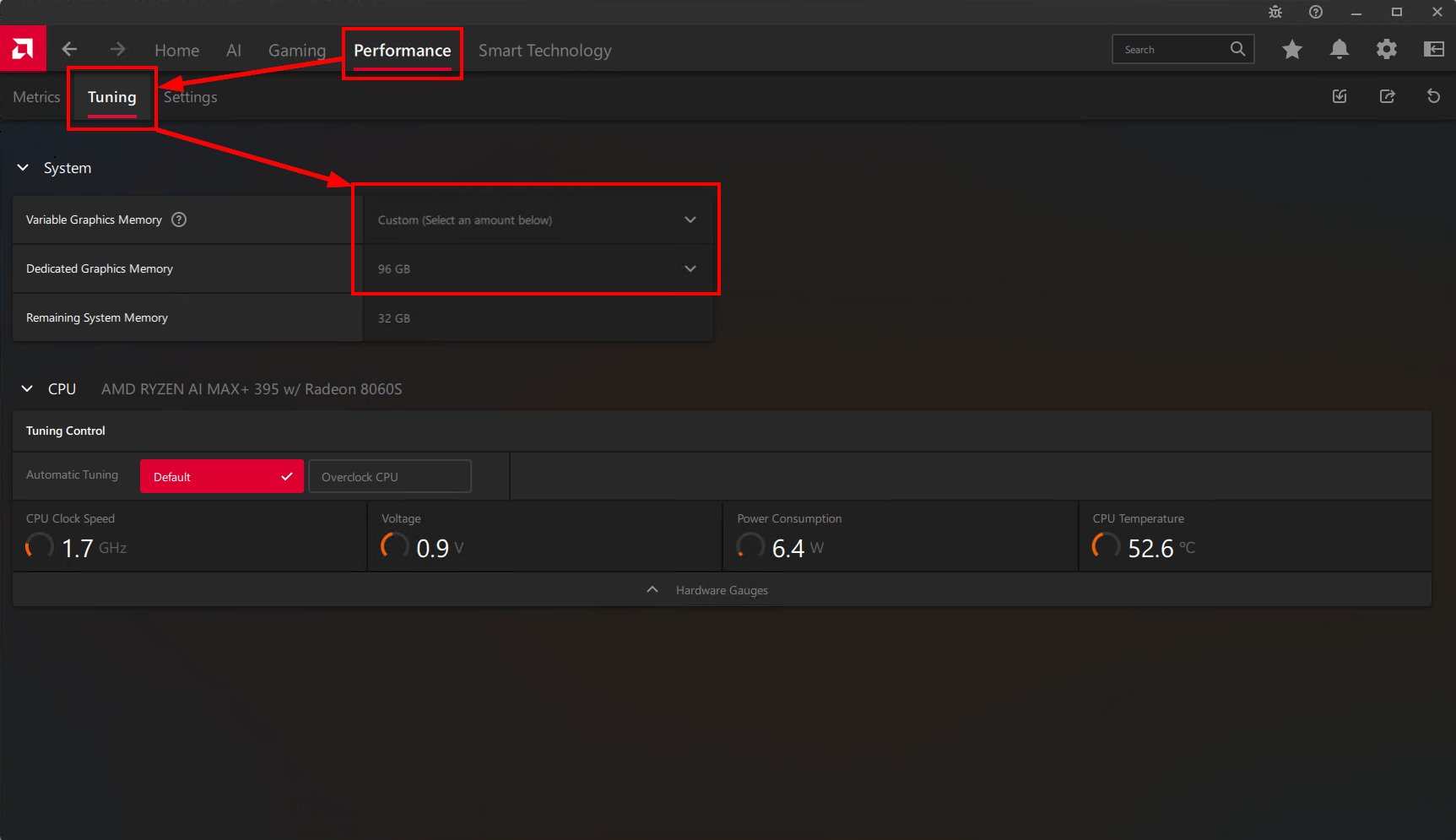
You’ll see a dropdown with Low, Medium, High, and Custom presets. On a 128GB system, here’s roughly what each one gives you:
| Preset | Dedicated GPU Memory | Remaining System RAM | Best For |
|---|---|---|---|
| Low | ~16 GB | ~112 GB | Desktop use, no AI |
| Medium | ~32 GB | ~96 GB | Gaming, light model testing |
| High | ~64 GB | ~64 GB | Mid-size LLMs (up to ~30B Q4) and gaming |
| Custom (96 GB) | 96 GB | 32 GB | Large LLMs (70B+ Q4), image gen, multiple models, etc. |
After changing your VRAM allocation in Adrenalin, you must reboot before the new setting takes effect. This is a BIOS-level memory reallocation, not a hot-swappable driver setting. Select Custom, set it to 96 GB (or whatever split works for your use case), and restart.
Reserving VRAM only makes the memory available. Your inference tool still needs to be configured to use it. In LM Studio, confirm GPU offload is set to max or that auto offload is placing the model on GPU. In Ollama, run ollama ps after loading a model to verify it landed on GPU, not CPU. Without this step, your model may still run in system RAM regardless of your VRAM allocation.

Make sure to set “GPU Offload” is set to the max setting (this was current recently but UI’s change frequently) You can also see some of my default first questions I ask a local LM 🏈😉
How Much VRAM Should You Allocate?
The right split depends on what you’re doing:
- Casual use or gaming only: Medium (32 GB) is plenty. Most games don’t need more, and you keep lots of system RAM for everything else.
- Running local LLMs: Custom at 96 GB. This is the sweet spot on a 128GB system. You get enough VRAM to load a 70B Q4 model comfortably, and 32 GB of system RAM is more than enough for Windows and your apps. I run this daily and Windows handles the split without issues.
- Mixed AI and productivity: High (64 GB) or Custom at 64-96 GB depending on your typical model sizes. If you mostly run 7B-13B models, 64 GB is overkill but gives you headroom or you can run multiple LM servers or models.
The key insight: this is the same physical RAM either way. You’re not losing anything permanently. You’re telling the GPU driver how much memory it’s allowed to claim. Change it back anytime with another reboot.
I had mine set for 32GB system and 96GB VRAM, but will be switching to 64GB/64GB b/c I was running out of RAM for VM (virtual machine) hosting!
For Maximum Performance, Use Linux
The Windows Adrenalin method is the easiest way to get started, and it works well for quickly testing models, running LM Studio, or experimenting with Ollama. I use it all the time. But if you want to squeeze every last bit of performance out of your Strix Halo chip, Linux with ROCm gives you deeper control.
On Linux, there’s no Adrenalin UI. Instead, you set kernel boot parameters like amdgpu.gttsize to control how much system memory the GPU can access. You can also keep the BIOS UMA carve-out small (Auto or 4-8 GB) and let the GTT shared pool handle the heavy lifting, which is more flexible than the Windows approach.
Good starting points if you go the Linux route:
- Jeff Geerling’s VRAM allocation guide for AMD APUs
- Gygeek’s Framework Strix Halo LLM Setup on GitHub
- AMD’s official ROCm optimization docs for Strix Halo
Note that the kernel parameter names and values have changed across kernel versions, so check the latest guidance for your distro. Kernel 6.12+ is generally recommended for full Strix Halo support.
What I Actually Run on This Setup
My daily driver is a Framework Desktop with the Ryzen AI Max+ 395 and 128GB of RAM, with Variable Graphics Memory set to Custom at 96 GB. On Windows, I use LM Studio and Ollama for local LLM inference and tool calling. Models up to 70B Q4 load and run without issues. The 32 GB left for Windows is more than enough for my workflow, even with a browser, VS Code, and multiple terminals open.
When I need more GPU horsepower than the integrated Radeon 8060S can provide, I plug in a Gigabyte AORUS RTX 5090 AI BOX over a single cable and offload image generation or larger inference tasks to the dedicated GPU. The two work well together: large models on the Framework’s 96 GB VRAM pool, compute-heavy tasks on the 5090’s 32 GB of GDDR7.
Compared to Apple Silicon machines that also use unified memory, the Strix Halo setup gives you significantly more total memory (128 GB vs 36-48 GB on most MacBooks) and the flexibility to pair it with an external GPU when needed. The tradeoff is that Apple’s memory bandwidth is higher per-chip, but the raw capacity advantage of 128 GB at this price point is hard to argue with for local AI work.
FAQ
Does this setting survive Windows updates?
Yes. The Variable Graphics Memory setting persists across Windows updates and driver updates. It’s stored at the BIOS/firmware level, not in the driver.
Is the BIOS UMA Frame Buffer Size the same thing?
Related but not identical. The BIOS UMA setting is a minimum guaranteed carve-out at boot. Adrenalin’s Variable Graphics Memory builds on top of it. For most users, leave the BIOS at Auto and control everything through Adrenalin. On Linux, keep BIOS UMA small and use kernel parameters instead.
Can I allocate all 128 GB to the GPU?
Technically the max is around 120 GB (on linux) and I am not familiar how to get that far with Windows.