Quicken Categorizing Downloaded Transactions Incorrectly? Here’s the Real Fix.
TL;DR: Quicken’s auto-categorization guesses categories based on payee names and often gets them wrong. The fix: disable auto-categorization in Preferences, then set up Renaming Rules and Memorized Payee List entries so Quicken categorizes based on your explicit rules instead of its own guessing. Takes about 60 seconds per vendor.
The Problem
If you use Quicken Classic for Windows to manage your finances, you’ve probably run into this: you download transactions from your bank, and Quicken helpfully assigns categories to them. The problem? It gets them wrong. A lot.
In my case, a local gas station called “Signal Food Store”and similar kept getting tagged as “Groceries” likely because Quicken saw the word “Food” in the payee name and made an assumption. It’s not a grocery store. It’s a gas station. Every single download, I would had to manually fix it.
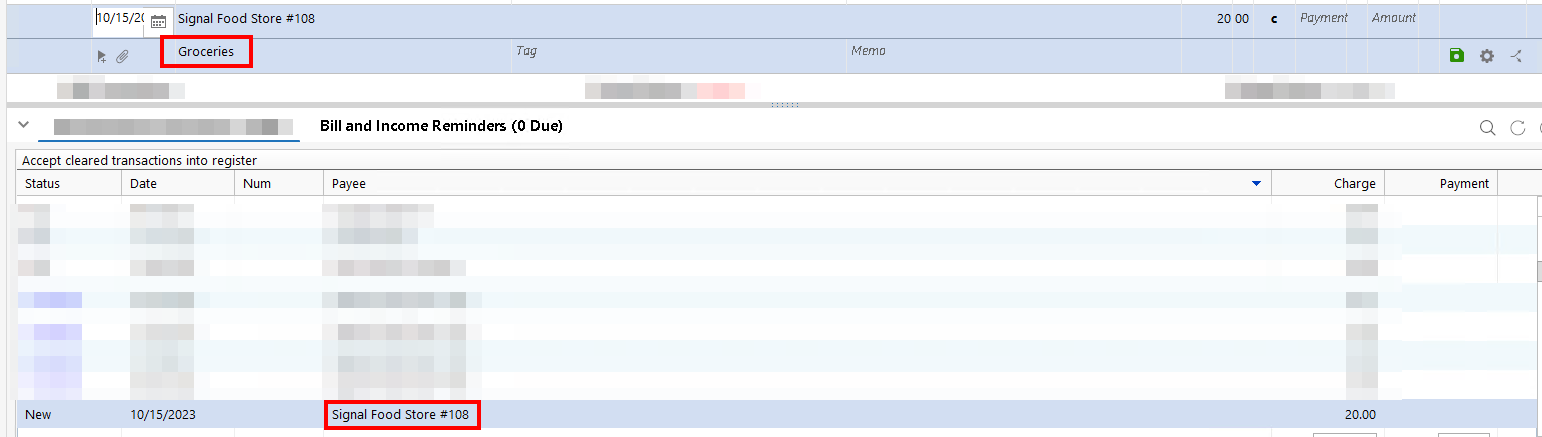
Other common examples of Quicken getting categories wrong:
- Walmart or Costco purchases categorized as “Groceries” when they were household supplies or gas
- A coffee shop tagged as “Restaurant” instead of “Dining”
- Payee names getting mangled into something unrecognizable (your local shop renamed to a national chain)
- The same wrong category showing up every single download, no matter how many times you fix it
That last one is the real frustration. You fix it, download again next month, and it’s wrong again. Quicken doesn’t learn from your corrections unless you tell it to, and the way you tell it isn’t obvious.
Why This Happens
Quicken has a built-in auto-categorization engine that pattern-matches payee names against an internal database. When your bank sends a transaction with a payee name, Quicken does the following in order:
- Renaming Rules run first. These clean up the payee name (normalizing “SIGNAL FOOD STORE #108 ANYTOWN TX” into “Signal Food Store”).
- Memorized Payee List is checked next. If the cleaned-up payee name matches an entry, Quicken uses that entry’s category.
- Auto-categorization kicks in only if neither of the above matched. This is where Quicken guesses based on keywords in the payee name and SIC codes from your bank.
The key insight: Quicken’s guessing engine is the fallback, not the primary system. If you set up steps 1 and 2 correctly, the guessing engine never runs for that payee. Most people don’t know this pipeline exists, so they just keep manually fixing categories after every download.
The Fix: 3 Steps, About 60 Seconds Each
This applies to Quicken Classic for Windows (Deluxe, Premier, and Home & Business). The menu paths are slightly different on Quicken for Mac.
⭐Step 1: Disable Auto-Categorization⭐
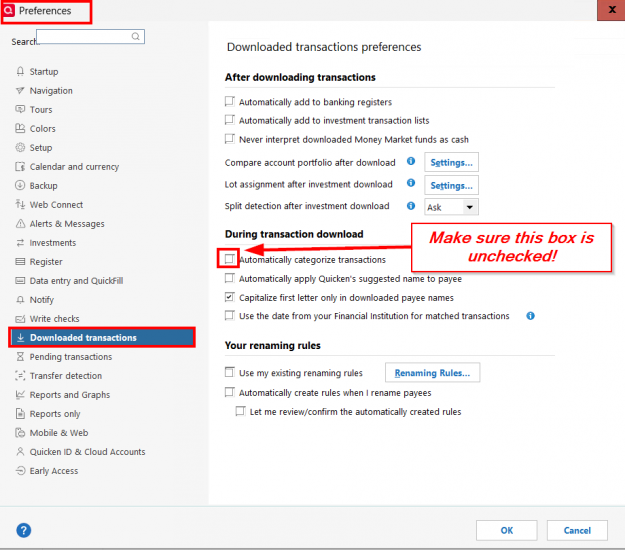
Go to Edit > Preferences and select “Downloaded transactions” from the left sidebar. Under “During transaction download,” uncheck “Automatically categorize transactions.”
This kills the guessing entirely. Transactions that don’t match a renaming rule or memorized payee will come in uncategorized instead of miscategorized. Uncategorized is better than wrong, because you’ll actually notice it and fix it once, properly.
Step 2: Create a Renaming Rule
Go to Tools > Renaming Rules. Create a new rule:
- If payee contains: “Signal Food Store”
- Rename to: “Signal Food Store”
This normalizes all the location-specific variants (Signal Food Store #108, SIGNAL FOOD STORE #108 ANYTOWN TX, etc.) into one clean, consistent payee name. The renaming rule is what makes step 3 work reliably.
Step 3: Create a Memorized Payee Entry
Go to Tools > Memorized Payee List (or press Ctrl+T). Click “New” and create an entry:
- Payee: “Signal Food Store” (must match the renamed output from step 2)
- Category: “Auto:Fuel” (or whatever category you actually want)
Now Quicken will categorize it right every time, based on your explicit rule instead of its own guessing.
One More Setting to Check
While you’re in Edit > Preferences > Downloaded transactions, also look at “Automatically apply Quicken’s suggested name to Payee.” This setting lets Quicken rename payees using its internal database, which can lead to bizarre results (like “Brown Dog Coffee Co” becoming “Dog.com”). If you’re setting up your own renaming rules, uncheck this too and let your rules handle it.
If you’ve been battling unexpected Quicken behavior with downloaded transactions before, this is the same family of problems: Quicken trying to be helpful in ways that create more work for you.
If It Still Keeps Happening
If you’ve done everything above and a specific payee still gets the wrong category, check these:
- Existing bad memorized payee: There might be an old entry in your Memorized Payee List with the wrong category already saved. Open Tools > Memorized Payee List, find the payee, and either edit or delete it.
- Conflicting renaming rule: A broader rule might be catching the payee before your specific rule does. Rules are processed in order, and the first match wins.
- Per-account settings: Some account-level download settings can override global preferences. Check the account’s Edit Account Details > Online Services tab.
Edge Case: Same Store, Different Categories
What about stores like Costco or Walmart where you might buy groceries one trip and auto parts the next? Quicken’s memorized payee system assigns one category per payee, so this is a genuine limitation. Your options:
- Pick the category you use most often for that store and manually adjust the exceptions
- Use Quicken’s split transaction feature to divide a single purchase across multiple categories
- Accept that 90% correct is better than 100% wrong
For most people, setting the memorized payee to the most common category and fixing the occasional exception is far less work than fixing every single transaction.
Does This Fix Old Transactions?
No. Changes to Preferences, Renaming Rules, and Memorized Payees only affect future downloads. If you have years of transactions already categorized as “Groceries” that should be “Auto:Fuel,” you’ll need to fix those manually. The good news: once you set up the rules, you’ll never have to do it again for that payee.
If you need to clean up a lot of old transactions at once, Quicken’s Find & Replace (Ctrl+H) can bulk-change categories. Search for the payee name, filter by the wrong category, and replace. Similar to how recovering a corrupt Quicken file requires some cleanup work upfront but saves you headaches down the road.
Bottom Line
Quicken’s auto-categorization is well-intentioned but dumb. It doesn’t learn from your corrections, and it will keep making the same mistakes forever unless you take control of the pipeline. Disable the guessing, set up your own Renaming Rules and Memorized Payees, and you’ll spend a lot less time fixing categories every month.
The whole setup takes about 60 seconds per vendor. For the handful of stores you visit regularly, that’s maybe 10-15 minutes of one-time setup to save yourself years of monthly frustration.
Sources and Further Reading
- Downloaded Transactions Are Automatically Assigned a Category – Quicken’s official explanation of auto-categorization
- How To Create and Edit Renaming Rules in Quicken for Windows – Official step-by-step for renaming rules
- Working with Memorized Payees in Quicken – Official guide to memorized payee list
Information in this post was accurate at the time of writing. Software updates, product revisions, and policy changes happen. If something here doesn’t match what you’re seeing, drop a comment and I’ll update the post.