Dell WD19TBS Mouse Lag: Firmware Update Fixed Every Device
TL;DR: If you’re chasing WD19TBS mouse lag, try the Dell Dock Firmware Update Utility before anything else. My dock was stuttering on every device I plugged in: a Dell laptop, a Samsung Galaxy S23 Ultra, a MacBook, and my Lenovo Legion 7. Running the utility fixed it. The updater showed only one component actually changed: the dock’s embedded controller, 01.01.00.14 to 01.01.00.15. The mouse cursor stopped stuttering! 💪
The Issues
Any device I connected to my Dell thunderbolt dock would have mouse issues. Lag, hiccups and almost like the mouse was drunk. Those little micro-freezes and where the pointer skips a few pixels, then teleports. Potentially worse when a second monitor was attached or during heavy USB traffic. If that sounds like your setup, you’re in the right post. The same stutter showed up on every device I connected through the WD19TBS. Multiple operating systems and different host controllers, all behaving the same way behind the same dock. When every host behaves identically, the shared variable is the dock. 💯
Confirm You Actually Have a WD19TBS
Dell makes a confusing lineup of docks with similar names. If you grabbed the wrong driver you mind waste time on something that won’t work. Here’s how to check your dock model:
- Authoritative: flip the dock over and read the sticker on the bottom. The Regulatory Model for the WD19TBS is
K20A002. The Service Tag is a short alphanumeric string right above it. That sticker is the ID I trust; everything else is a guess. - Secondary cues: a single Thunderbolt cable with the lightning bolt symbol near the connector, no 3.5 mm headphone jack on the dock (the WD19TBS drops it; the plain WD19 has it), and a 180 W power brick.
Common siblings you do not want to confuse it with: WD19, WD19S, WD19TB (the predecessor), WD19DC/DCS (the dual-cable Precision variant), WD22TB4 (the successor with a Thunderbolt 4 cable).
Quick Checks Before You Flash Anything
Do these first. Each one takes two minutes and has cleared the same symptom for other people on dock forums.
- Power supply. The WD19TBS ships with a 180 W Dell brick. The plug fits several Dell adapters, including lower-wattage ones that can produce symptoms that look a lot like a firmware issue. The barrel should read
180 W. If yours says 130 W or 90 W, that’s your first suspect. - Attached Thunderbolt cable. Inspect the short built-in cable where it exits the dock and where it meets the host connector. Pinched, frayed, or loose at the connector means replace the dock or at minimum diagnose with a known-good peripheral first.
- BONUS: Power drain reset. Unplug the dock from power, disconnect every host and peripheral, then hold the dock’s power button down for about 15 seconds. Plug it back in. A surprising number of reports clear after this with no firmware work at all. 🤷
If none of those change the symptom, the firmware update is the next step!
These things did NOT work:
For anyone searching after everything obvious has already failed:
- Swapped mice (wireless and wired).
- Unplugged the second monitor.
- Swapped the host laptop entirely.
The Fix for WD19TBS Mouse Lag: Update the Dock Firmware
You do not need a Dell laptop for this. The Dell Dock Firmware Update Utility is a standalone Windows executable. I ran it from my Lenovo Legion 7 and it ran fine from a non-Dell host!
- Go to Dell’s WD19TBS Drivers & Downloads page.
- Set the operating system filter to Windows 10, 64-bit (or Windows 11 if that’s what you have). Under All available drivers, find Dell Dock WD19A/WD22TB4 Firmware Update Utility. Check its box and hit Download Selected.
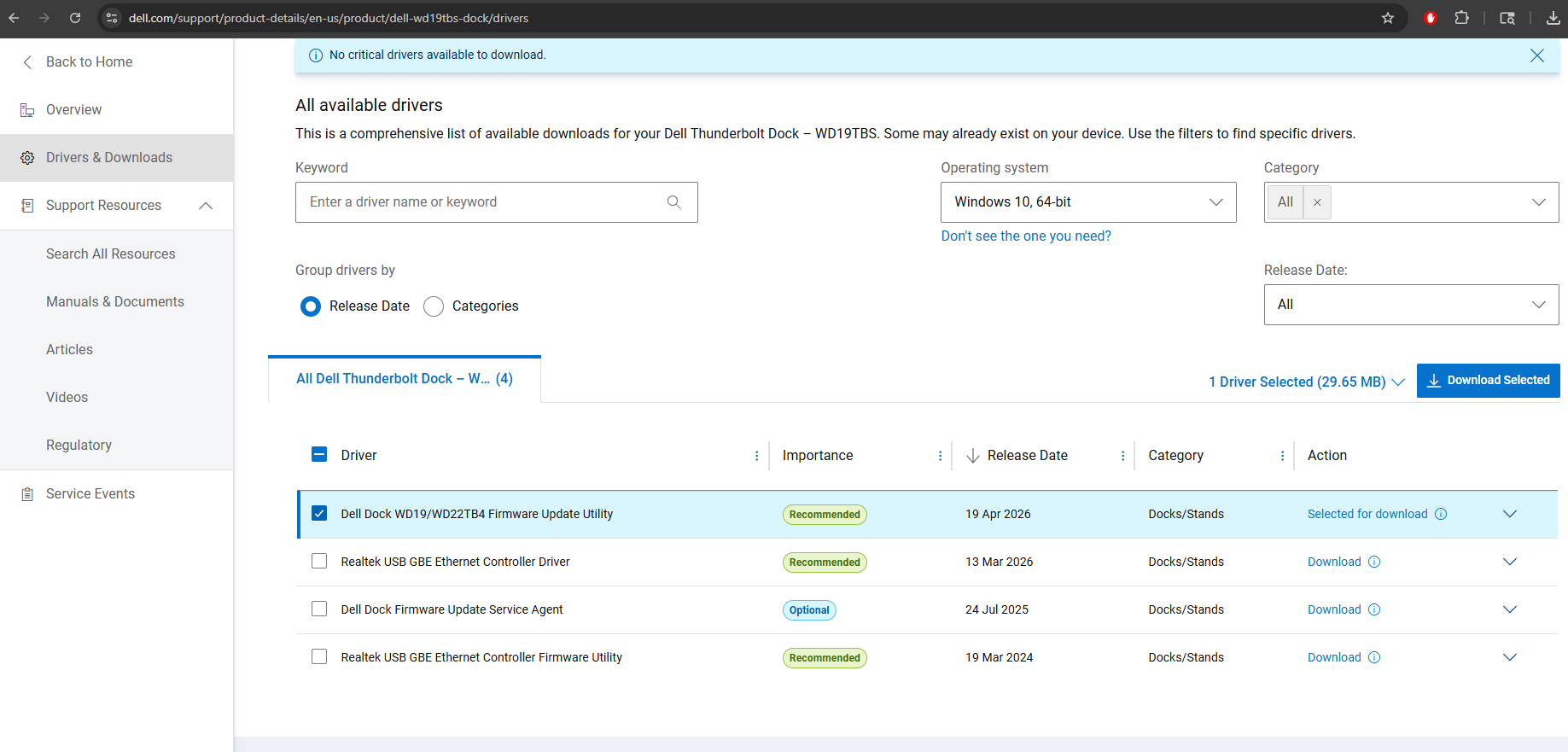
Dell lists several other items on this page: a Realtek USB GBE Ethernet driver, a Dell Dock Firmware Update Service Agent, and a Realtek USB GBE firmware utility. I did not install any of those to fix this b/c I think everything was already up to date.. If you prefer the belt-and-suspenders approach you can install them later; they are not what cleared the lag on my unit.
- Connect the WD19TBS to the Windows machine and make sure the dock’s 180W power brick is plugged in (the utility will refuse to flash on battery alone).
- Run the downloaded
.exe. You’ll land on a confirmation screen that reads your dock’s current firmware and tells you exactly what’s about to change.
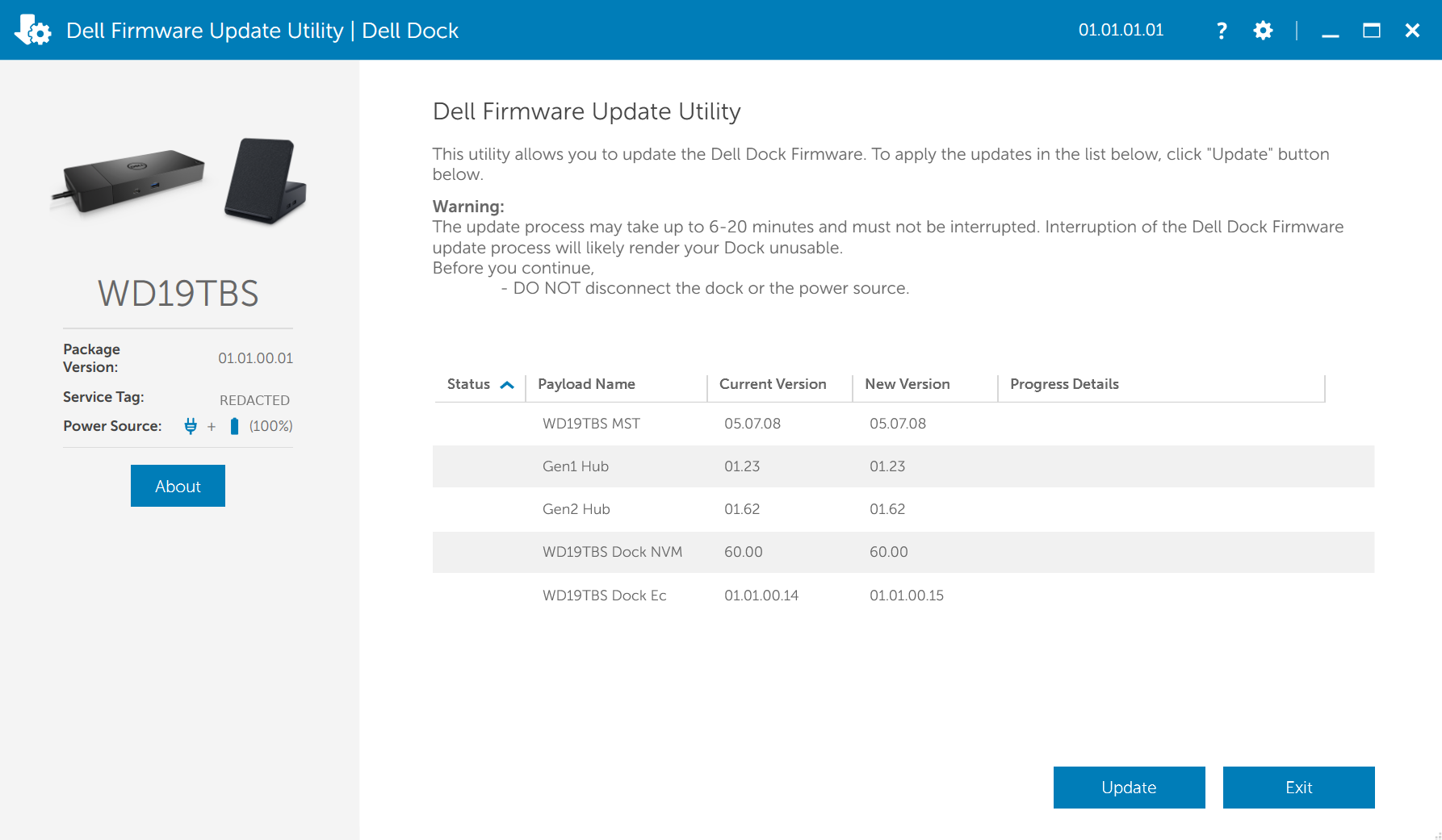
Dell’s own warning on the utility: the update can take 6 to 20 minutes and must not be interrupted. Do not disconnect the dock, do not unplug the power, do not let the host go to sleep. An interrupted flash can brick the dock.
- Click Update. Walk away. Come back in ~10 minutes.
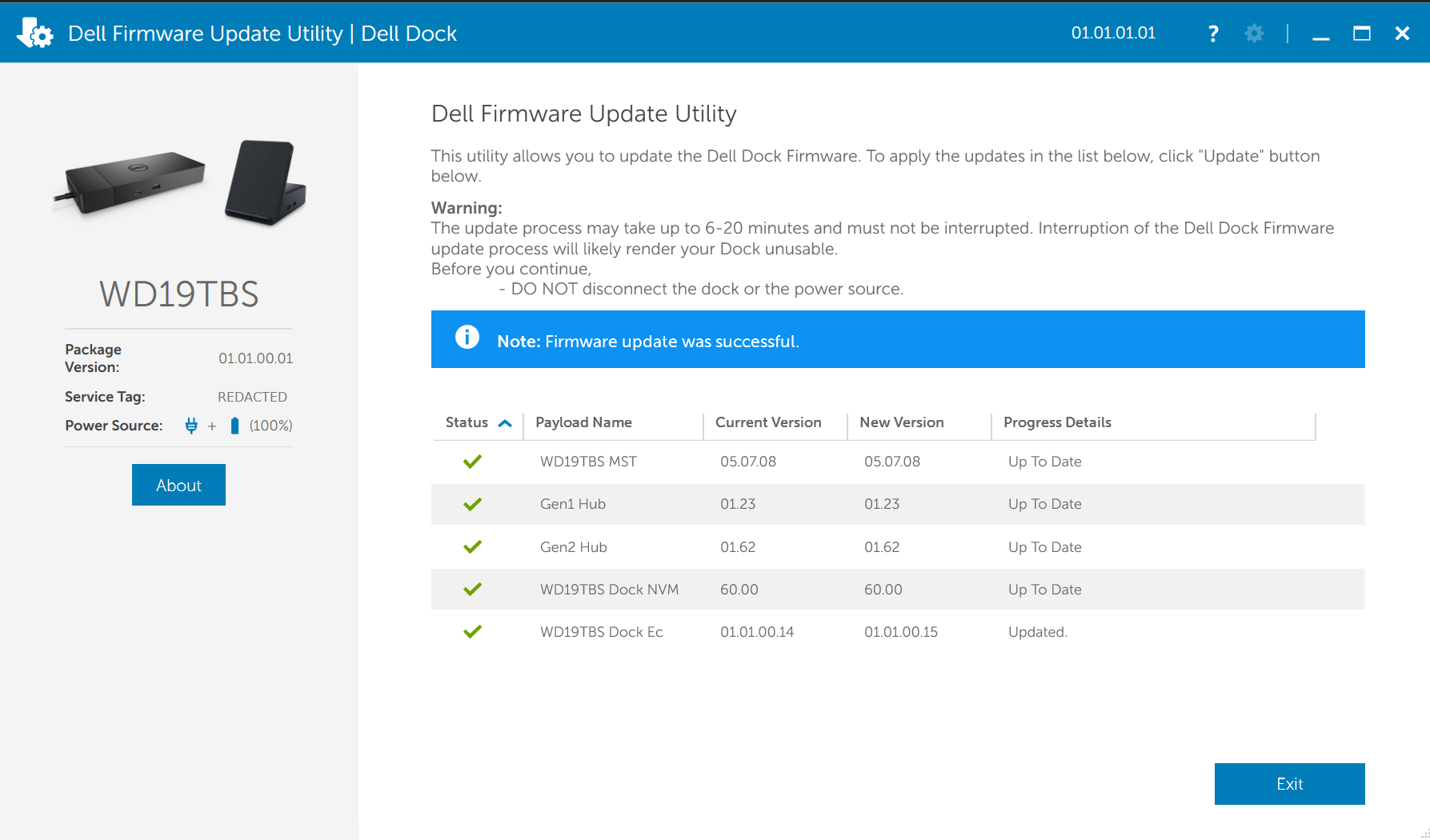
- You’re done when every row has a green check and the banner reads Note: Firmware update was successful.
What Actually Changed
This is the interesting part. Of the five firmware payloads the utility reports on, four were already current. Only one moved:
| Component | Before | After | Changed? |
|---|---|---|---|
| WD19TBS MST (DisplayPort multiplexer) | 05.07.08 | 05.07.08 | No |
| Gen1 Hub | 01.23 | 01.23 | No |
| Gen2 Hub | 01.62 | 01.62 | No |
| WD19TBS Dock NVM | 60.00 | 60.00 | No |
| WD19TBS Dock EC | 01.01.00.14 | 01.01.00.15 | Yes |
A single point revision on the dock’s embedded controller. The EC is the little microcontroller that manages the dock’s housekeeping: power negotiation, USB routing, signaling between the Thunderbolt chipset and everything hanging off it. When it glitches, the symptoms can look a lot like host-side driver problems. A version bump there lines up with when the cursor cleaned up on my test devices.
Verify It Worked
I tested with the same peripherals that had been lagging: the same mouse, the same wireless receiver placement, the same second monitor, the same host laptops. Cursor stays smooth across a full workday of tabs, meetings, and remote desktop.
Still Laggy? Rule These Out
- 180 W power brick, again. If you answered yes earlier but used an aftermarket or borrowed Dell adapter, double-check the label reads 180 W. Underpowered bricks physically fit.
- USB port allocation. If your wireless mouse receiver is on the same side of the dock as a webcam or external SSD, move the receiver to the opposite side. That separates it from the USB bus the high-bandwidth device is on.
- Windows 11 24H2 mouse stutter. If you’re on Windows 11 24H2 and your cursor still stutters on laptop screens too (not just through the dock), that may be a separate Windows 11 24H2 issue that the firmware update above won’t touch.
- Intel VT-d. At least one Dell community report fixed USB mouse freezes by disabling VT-d in BIOS. Try this last, and only if you’re comfortable in BIOS settings, since it can affect other things.
Bottom Line
The WD19TBS is a workhorse. They are frequently available for a VERY reasonable price used on Amazon or eBay etc. I bought three for my by business and I knew ahead of time if I encountered any issues that the #1 thing to try on them is firmware updates. Thankfully it was quick and painless!
If yours has gone flaky or you just picked one up, don’t assume 100% it’s worn out/broken/buggy: run the firmware utility from any Windows machine, give it a few minutes, and see if the lag clears. That’s what worked on mine. I hope it works on yours too! 👍👍