Codex CLI feature protip /statusline
TL;DR: There are a few ways to check your ChatGPT Codex usage, including: the web analytics page (covered in yesterday’s post) and the Codex CLI’s own status line, which can put live 5-hour and weekly percentages right at the bottom of your terminal session. The CLI method is easy to miss if you don’t have it enabled, thankfully it is super easy and configurable with the slash command /statusline.
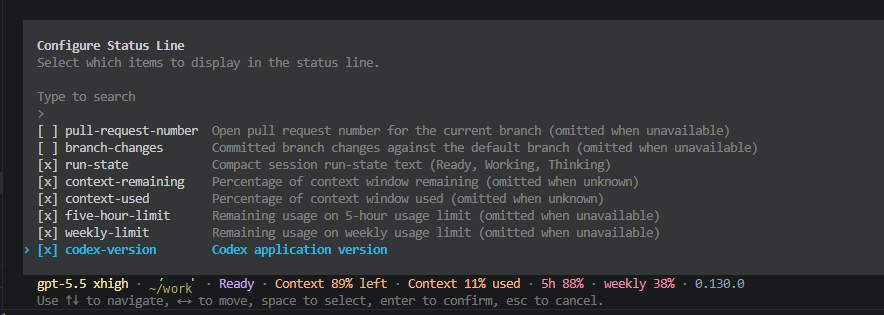
/statusline menu. Toggle the items you want, then press Enter to save. The preview at the bottom shows the resulting status line live.What Exactly Is the Codex CLI Status Line?
It is a single text line that Codex CLI renders at the bottom of your interactive session. You can enable a variety of features but for usage tracking, the useful part is this: there are two opt-in items called five-hour-limit and weekly-limit that show your remaining quota as a percentage, refreshed as you go. That means fewer trips (or maybe never) to the analytics page while you are working.
How To Turn On the 5-Hour and Weekly Indicators?
- Open Codex CLI in your terminal. By running
codex - At the prompt, type
/statuslineand hit Enter. The “Configure Status Line” menu opens. - Use the arrow keys to navigate. Spacebar toggles the
[ ]checkbox for each item. Toggle on at minimum five-hour-limit and weekly-limit. - Press Enter to save. If you Esc out without pressing Enter, your changes are discarded.
That last step trip might trip people up. The menu does not auto-save when you toggle. You have to confirm with Enter, the same key you used to open the menu. Once saved, the new status line is live immediately at the bottom of your Codex session.
If you prefer config-as-code over a TUI, the same items can be set in ~/.codex/config.toml under tui.status_line. The slash-command menu is just the friendly front end for that config. 👍
What Each Item on the Menu Does
| Item | What it shows |
|---|---|
run-state |
Ready, Working, or Thinking |
context-remaining |
Percentage of context window remaining |
context-used |
Percentage of context window used |
five-hour-limit |
Remaining usage on the 5-hour bucket |
weekly-limit |
Remaining usage on the weekly bucket |
codex-version |
Codex application version (mine is 0.130.0) |
pull-request-number |
Open PR number for the current branch, when one exists |
branch-changes |
Committed branch changes against the default branch |
The PR-related items only render when they apply, so they do not clutter the line on non-git sessions.
The status line shows live percentages but not the reset timestamps or your credit balance. For “when does my window roll over” and “do I have credits banked,” use the web analytics page. The linked walkthrough also covers the rate card numbers for Plus and Pro. And if GPT-6 Astra just emptied your 5-hour bucket in one shot, that post now has a section on the Astra effect with the September 2026 numbers.
Some Cool Aspects of the Web Usage Analytics Page
The CLI status line is a quick glance tool. Super handy for keeping current status in view but not great for trends etc, the web page at https://chatgpt.com/codex/cloud/settings/analytics has a lot more stuff:
- Exact reset timestamps for both buckets, such as “Resets 10:16 PM”
- Credits remaining balance and a button to top up
- The upgrade prompt and pricing shown on the analytics page
- Usage breakdown by client (CLI, Extension, Cloud, Code review)