How to Drag Files into Claude Code in VS Code (Paste with Context)
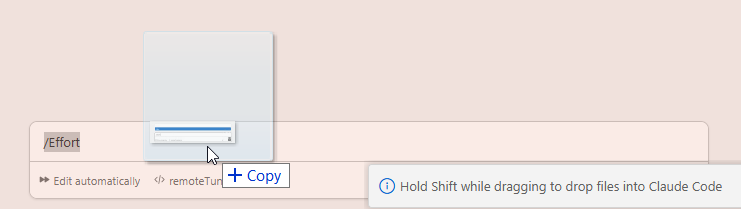
TL;DR: In the Claude Code VS Code extension, hold Shift while dragging a file from the Explorer panel into the Claude Code prompt box. This attaches the file as context so Claude can read and reference it directly. Without Shift, VS Code just opens the file in a new tab.
What Is Paste with Context?
When you’re working with Claude Code in VS Code, Claude can only see files that you explicitly reference. Shift+drag is the most visual, intuitive way to say “hey, look at this file.” You literally drag it from the file explorer into the chat.
Once attached, the file’s contents become part of your prompt context. Claude can read the full file, reference specific lines, and make informed suggestions based on what’s actually in the code rather than guessing.
How to Do It
- Open the VS Code Explorer panel (Ctrl+Shift+E) so you can see your files.
- Make sure Claude Code is open in the sidebar or as a tab.
- Hold Shift on your keyboard.
- Click and drag a file from the Explorer into the Claude Code prompt area.
- You’ll see a “Drop to attach as context” overlay. Release the file.
- The file appears as an attachment in your prompt. Click the X on any attachment to remove it.
That’s it. Type your question or instruction and hit Enter. Claude will have the full file contents available when responding.
Why Shift Is Required
Without holding Shift, dragging a file in VS Code does what VS Code normally does: opens it in a new editor tab. The Shift key modifier overrides this default behavior and tells VS Code to pass the file to the Claude Code extension as a context attachment instead.
This is a VS Code convention, not something unique to Claude Code. Other extensions that accept file drops also use modifier keys to distinguish between “open this file” and “do something else with it.”
Other Ways to Add File Context
Shift+drag isn’t the only way to give Claude file context. Here are the alternatives:
- @filename mentions: Type
@in the prompt followed by a filename. Claude Code has fuzzy matching, so@serverwill findserver.py. This is probably the most commonly used method. - Alt+K (Windows/Linux) / Option+K (Mac): With text selected in your editor, press this shortcut to insert an @-mention that includes the file path and the specific line numbers of your selection. This is the most precise option when you want Claude to look at a specific section.
/addcommand: Type/addfollowed by a file path to add it to the conversation context.- ⭐Copy + paste code: You can always just copy code from your editor/directory/explorer windows and paste it into the Claude Code prompt. I actually really like this method.⭐
Known Issues
Fair warning: Shift+drag has been intermittently broken in the VS Code extension since around January 2026 (v2.1.6). Multiple users have reported that the drag overlay doesn’t appear or that dropping the file does nothing, particularly when Claude Code is running in the sidebar. The issue seems more common on Remote-SSH setups.
There are several open GitHub issues tracking this:
- #25128: Drag and drop not working in VS Code extension chat panel
- #8363: Drag-and-drop from file explorer doesn’t work anymore
If it’s not working for you: Use @filename mentions or Alt+K instead. They’re more reliable and equally effective. You’ll get the same file context either way.
Disclaimer: Claude Code updates frequently, often weekly. The drag-and-drop behavior, UI, and workarounds may change between versions. This post reflects the state as of March 2026 (v2.1.76+). Check the official changelog and VS Code extension docs for the latest information.
Bottom Line
Shift+drag is the most visual way to add file context to Claude Code in VS Code. When it works, it’s satisfying: just grab a file and toss it into the chat. When it doesn’t, @filename and Alt+K are your reliable fallbacks. And good ol’ selecting the files, copying, and pasting is also a tried and true method. 💪
The key thing to remember: Claude can only help with code it can see. The more context you give it, whether by dragging, @-mentioning, or pasting, the better its suggestions will be.
Working with large files in Claude Code? A good 4K monitor makes a huge difference when you need to see your code and Claude’s output side by side. See my full workstation setup.
For more Claude Code tips, check out my guide to Claude AI custom instructions, the ultimate Claude Code workstation setup, and my fix for CTRL+V not working in Claude Code CLI.