Tag Archives: vs-code

Claude Code “Prompt Cache Has Likely Expired” (What It Means)
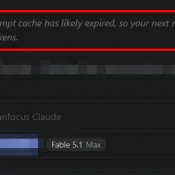
Claude Code VS Code panel showing Idle 1h 49m, the prompt cache has likely expired, re-cache about 586k tokens, with a red cache clock in the footer

Summary: Claude Code’s “prompt cache has likely expired” notice means your session sat idle longer than the prompt cache lasts. As of Sep 2026, by default, that’s 1 hour on Pro or Max while you’re within your included usage, and 5 minutes if you’re using an API key, a cloud provider, or usage credits. Your conversation is still there, but your next message will likely re-process all of it once. That turn can be slower and cost you a LOT
How to Drag Files into Claude Code in VS Code (Paste with Context)

TL;DR: In the Claude Code VS Code extension, hold Shift while dragging a file from the Explorer panel into the Claude Code prompt box. This attaches the file as context so Claude can read and reference it directly. Without Shift, VS Code just opens the file in a new tab. Hold Shift and drag a file into the prompt. The “Hold Shift while dragging to drop files into Claude Code” tooltip confirms you’re doing it right. What Is Paste with

How to Change Claude Code Effort Levels in VS Code (/effort)

TL;DR: In the Claude Code VS Code extension, type /effort in the prompt box and press Enter to cycle through four reasoning levels: Low, Medium, High, and Max. Each level controls how deeply Claude thinks, how many tool calls it makes, and how many tokens it burns. On Windows, it’s just /effort, Enter, done. The effort level picker in Claude Code for VS Code. This shows Max with all four dots lit up. What Are Effort Levels? Effort levels control