Archive for category computer tips
Alienware M11x Netbook Specs
Posted by J.D. in Ask J.D., computer tips on January 29th, 2010
Photo of ports and basic features (scroll down for full specs)
Updated: 2010.Feb.2nd with SIM card info and revised port list.
Full specifications:
OS: Windows 7
Processor:
Intel® Pentium® Dual Core – SU4100 1.3Ghz 2MB Cache – 800 MHz FSB [base model]
Intel® Coreâ„¢ 2 Duo Processor – SU7300 – 1.3Ghz 3MB Cache – 800 MHz FSB [upgrade]
Chipset: Mobile Intel® GS45 Express Chipset
Memory: DDR3 1066 MHz SODIMMs – 2Gb min and 8Gb max (thus 2 SODIMM slots)
Hard Drive:
160 GB, 5400 rpm [base model]
250 GB, 7200 rpm
320 GB, 7200 rpm
500 GB, 7200 rpm
250 GB SSD
500GB SSD [available later? Source: sina.com]
LCD:
11.6– inch WLED 1366×768 (COLOR TFT/HD LCD)
Approx 10.1″ width x 5.7 “height
Video:
Switchable between Integrated Intel® GMA 4500MHD and NVIDIA® GeForce® GT 335M discrete
Integrated: 384 MB shared
Discrete: 1 GB DDR3
Camera: 1.3 Megapixel webcam (front facing, above bezel)
Audio: Realtek ALC665
Media:
External Only (no internal DVD/BluRay)
Bluetooth: Foxconn Bluetooth V2.1+EDR (Broadcom chipset)
WAN: ?SIM card reader? Source:Â IGN
NIC:
10/100Mbps, Atheros AR8132 LAN Controller
I/O:
3-in-1 card reader
VGA port
RJ-45 Jack for LAN(10/100)
HDMI port
Display port
USB(x3)
IEEE1394a
Microphone-in
Two Headphone-out jacks
Expresscard 34mm? (not certain)
A/C:
65 Watt AC Adapter (Small)
Battery:
8 cell lithium ion 63WHr
Battery Life:
Estimated 6.5 hours
Price:
Starting at $799 (Source: Engadget)
Weight:
1.99 kg (4.39 lb) with 8-cell battery
Keyboard:
Illuminated (can change colors?)
Dimensions:
Height : 32.7 mm (1.29 inches)
Width : 285.7 mm (11.25 inches)
Depth : 233.3 mm (9.19 inches)
Source for much of the specs:Â NoteBookReview Forum threads
Dell M4400 display models
Posted by J.D. in Ask J.D., computer tips on December 13th, 2009
First order:
X864C Module, Liquid Crystal Display 15.4WX+, WLED, Lg Philips Lcd Maybach/Avia
Second order:
U609C Module, Liquid Crystal Display 15.4WX+, WLED, Au Optronics Corp, Maybach/Avia
Both are matte anti-glare displays
.
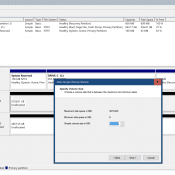
Delete EISA Hidden Recovery or Diagnostic Partition? [solved]
Posted by J.D. in Ask J.D., computer tips on December 13th, 2009
Q. I have a hard drive from an IBM thinkpad and I can’t get one of the partitions deleted, can you help?
A. This is how I deleted one on Windows XP, this includes some steps showing different parameters and help for the diskpart utility:
Microsoft Windows XP [Version 5.1.2600]
(C) Copyright 1985-2001 Microsoft Corp.
C:\Documents and Settings\User>diskpart
Microsoft DiskPart version 5.1.3565
Copyright (C) 1999-2003 Microsoft Corporation.
On computer: M4400
DISKPART> list
Microsoft DiskPart version 5.1.3565
DISKÂ Â Â Â Â Â Â - Prints out a list of disks.
PARTITIONÂ Â - Prints out a list of partitions on the current disk.
VOLUMEÂ Â Â Â Â - Print a list of volumes.
DISKPART> list disk
Disk ### Status     Size    Free    Dyn Gpt
--------Â ----------Â -------Â -------Â ---Â ---
Disk 0   Online       75 GB     0 B
Disk 1   Online      466 GB     0 B
Disk 3   Online      149 GB  145 GB
DISKPART> select disk 3
Disk 3 is now the selected disk.
DISKPART> list volume
Volume ### Ltr Label       Fs    Type       Size    Status    Info
----------Â ---Â -----------Â -----Â ----------Â -------Â ---------Â --------
Volume 0Â Â Â Â EÂ Â Â Â Â Â Â Â Â Â Â Â Â Â Â Â Â Â Â Â Â Â DVD-ROMÂ Â Â Â Â Â Â Â 0 B
Volume 1    C  OS          NTFS  Partition    74 GB Healthy   System
Volume 2    D  DATA        NTFS  Partition   466 GB Healthy   Pagefile
DISKPART> list partition
Partition ### Type             Size    Offset
-------------Â ----------------Â -------Â -------
Partition 1Â Â Â OEMÂ Â Â Â Â Â Â Â Â Â Â Â Â Â 4393 MBÂ Â Â 33 GB
DISKPART> select partition 1
Partition 1 is now the selected partition.
DISKPART> list
Microsoft DiskPart version 5.1.3565
DISKÂ Â Â Â Â Â Â - Prints out a list of disks.
PARTITIONÂ Â - Prints out a list of partitions on the current disk.
VOLUMEÂ Â Â Â Â - Print a list of volumes.
DISKPART> list partition
Partition ### Type             Size    Offset
-------------Â ----------------Â -------Â -------
* Partition 1Â Â Â OEMÂ Â Â Â Â Â Â Â Â Â Â Â Â Â 4393 MBÂ Â Â 33 GB
DISKPART> help
Microsoft DiskPart version 5.1.3565
ADDÂ Â Â Â Â Â Â Â - Add a mirror to a simple volume.
ACTIVEÂ Â Â Â Â - Marks the current basic partition as an active boot partition.
ASSIGNÂ Â Â Â Â - Assign a drive letter or mount point to the selected volume.
BREAKÂ Â Â Â Â Â - Break a mirror set.
CLEANÂ Â Â Â Â Â - Clear the configuration information, or all information, off the
disk.
CONVERTÂ Â Â Â - Converts between different disk formats.
CREATEÂ Â Â Â Â - Create a volume or partition.
DELETEÂ Â Â Â Â - Delete an object.
DETAILÂ Â Â Â Â - Provide details about an object.
EXITÂ Â Â Â Â Â Â - Exit DiskPart
EXTENDÂ Â Â Â Â - Extend a volume.
HELPÂ Â Â Â Â Â Â - Prints a list of commands.
IMPORTÂ Â Â Â Â - Imports a disk group.
LISTÂ Â Â Â Â Â Â - Prints out a list of objects.
INACTIVEÂ Â Â - Marks the current basic partition as an inactive partition.
ONLINEÂ Â Â Â Â - Online a disk that is currently marked as offline.
REMÂ Â Â Â Â Â Â Â - Does nothing. Used to comment scripts.
REMOVEÂ Â Â Â Â - Remove a drive letter or mount point assignment.
REPAIRÂ Â Â Â Â - Repair a RAID-5 volume.
RESCANÂ Â Â Â Â - Rescan the computer looking for disks and volumes.
RETAINÂ Â Â Â Â - Place a retainer partition under a simple volume.
SELECTÂ Â Â Â Â - Move the focus to an object.
DISKPART> list partition
Partition ### Type             Size    Offset
-------------Â ----------------Â -------Â -------
* Partition 1Â Â Â OEMÂ Â Â Â Â Â Â Â Â Â Â Â Â Â 4393 MBÂ Â Â 33 GB
DISKPART> delete partition 1
The arguments you specified for this command are not valid.
DISKPART> delete partition
The selected partition may be neccessary to the operation of your computer, and
may not be deleted.
DISKPART> list volume
Volume ### Ltr Label       Fs    Type       Size    Status    Info
----------Â ---Â -----------Â -----Â ----------Â -------Â ---------Â --------
Volume 0Â Â Â Â EÂ Â Â Â Â Â Â Â Â Â Â Â Â Â Â Â Â Â Â Â Â Â DVD-ROMÂ Â Â Â Â Â Â Â 0 B
Volume 1    C  OS          NTFS  Partition    74 GB Healthy   System
Volume 2    D  DATA        NTFS  Partition   466 GB Healthy   Pagefile
DISKPART> list partition
Partition ### Type             Size    Offset
-------------Â ----------------Â -------Â -------
* Partition 1Â Â Â OEMÂ Â Â Â Â Â Â Â Â Â Â Â Â Â 4393 MBÂ Â Â 33 GB
DISKPART> delete partition override
DiskPart successfully deleted the selected partition.
DISKPART> exit
Leaving DiskPart...
C:\Documents and Settings\User>
I hope this helps!
What does a firewall do? ANSWER
Posted by J.D. in Ask J.D., computer tips, tech tips on December 7th, 2009
Question. Thank you for the help…my firewall is enabled. Does this keep hackers from seeing what I’m doing with online banking, etc? (Just curious) What exactly does a firewally do?
Answer. Here is a simplified explanation of firewalls as they relate to your personal computer:
A firewall’s main purpose is to provide a barrier between the internet and your computer. Specifically, a firewall is supposed to only allow approved applications to transmit and receive data from your computer to the internet and vice versa.
This helps to prevent external attacks (an attack from the internet, targeted at your computer) as well as internal exploits (malicious software [spyware/virus etc.]on your computer trying to transmit data out to the internet).
The firewall’s job is to deny any unauthorized connections, and allow authorized connections.
There is certainly a correlation between firewalls and protected online banking, but really the primary protection for online banking is a secure encrypted connection (SSL) between your web browser and the bank’s server. Since the data is encrypted, even if the data is intercepted midstream (somewhere between your computer and the bank’s server) it should be safe because the data is encrypted.
In your case you are using both the Windows Firewall and your router has firewall capabilities as well.
I hope this helps!
-JD
PS here are a couple links with more info:
http://www.vicomsoft.com/knowledge/reference/firewalls1.html#2
http://en.wikipedia.org/wiki/Personal_firewall
How to remote control PocketPC / Windows Mobile devices
Posted by J.D. in Ask J.D., computer tips on December 4th, 2009
Here are some apps that allow you to remote control your Pocket PC or Windows Mobile device:
- MyMobiler – program that allows you to do a LOT of stuff on your mobile using your PCÂ (desktop or laptop)…
- View your mobile screen on your desktop.
- Control your mobile by using desktop keyboard and mouse.
- Copy/Cut/Paste text between mobile and desktop.
- Capture mobile screen.
- Drag and drop files to your mobile.
- Support ActiveSync / IP Connection
- Support Mobile Explorer (File Browse)
- PocketPC VNC Server – allows you to run a VNC server ON your PocketPC, then you can connect via another computer using a VNC client.
I use these types of apps to quickly install new apps, or do any sort of typing intensive task. Another example task is using these apps to remotely play music etc. on the mobile (i.e. put the mobile by your stereo, control the music on any computer that has wifi).
Mobile phone downloading (torrents, NZBs, more…)
Posted by J.D. in Ask J.D., computer tips on December 2nd, 2009
I was curious about what types of mobile downloading tools for cell phones (mobile phones) are out there, so here is a short list of what I’ve found so far:
Windows Mobile / PocketPC downloading tools
- wmTorrent – torrent client for Windows Mobile
- NZB Mobile – newsgroup client for downloading files from NZB
- Features: NZB file support, SSL Support, Multi server configuration, File Explorer integration to handle NZB files, logging, Finger-friendly UI, detailed post info with file extension display, dultiple connections for faster downloading, download queue saving, Auto-Reconnect, Decoding yEnc/UUE support, Cyclic Redundancy Check (CRC), Supports QVGA, VGA and WVGA
- Requirements: Windows Mobile 5, 6, 6.1, 6.5 (with touchscreen), .Net Compact Framework 2.0 or higher (Pre-Installed on Windows Mobile 6), Requires Usenet Account
- Pocket RAR (load link and then scroll down for the download link) – mobile version of WinRAR, allows you to RAR (compress) and UNRAR (decompress) files on the good. Useful for extracting torrents or NZB files that result in a RAR download.
- Fennec for Windows Mobile – a browser similar to FireFox, except optimized for Windows Mobile
Android based tools
- Torrent Droid (aka BarTor) – is an app to scan a barcode (via cameraphone), run the results through a torrent search engine (example: btjunkie) and then queue the resulting torrent as a download on a Windows based uTorrent client (via webUI). Support forum and manual available here. The app appears to be available on the Android marketplace.
- NZBdroid – “Queues .nzb files to your ‘Net-accessible SABnzbd+ install when clicking on them from Android’s browser. Works with any DIRECT LINKS to .nzb files. Requires SABnzbd+ 0.4.9 or higher.”
iPhone
(to be added)
Others
(to be added)
Why I researched this:
Samantha and I will soon be getting our first smart phones: a HTC Touch Pro and a HTC Mogul PPC-6800. We’ll be using them via Wifi only for web browsing and other data apps. We have an unlimited data plan (Alltel, now carried over to Verizon) and a wifi router to share the connection with our phones and our laptops.
Cell phone plans
I personally can’t stand the extremely high cost of smartphone plans (often $100+ per month) and the limited data (5GB-10GB a month). So we stick with simple voice plans: Samantha’s plan is $12 (voice + text) and mine is $30, add to that the unlimited data card is $60, so in the end we come out at $92 a month, I believe that is slightly lower than many single smartphone plans (like AT&T with iPhone) plus our laptops can use the same data plan that our smartphones do…
The drawback of course is that we have to have the pocketsize router with us. However, this doesn’t really bother me as the routers works very well in our car and it can even be battery powered in a backpack etc. Also, most places that we actually stop (in a city) have free wifi available if we don’t want to use the router.
Sony VAIO Z Series Notebook Model Numbers
Posted by J.D. in Ask J.D., computer tips on October 2nd, 2009
The Sony VAIO Z series laptop is one of the best laptops ever made:
- absolutely gorgeous screen (one of the best laptop screens I’ve ever seen)
- LED based backlight
- excellent color gamut
- bright and saturated like a glossy screen but NON-REFLECTIVE like a matte screen!!!
- durable screen (with a protective coating)
- decent resolution options
- lightweight
- powerful (dual core, 2GHz+)
- plenty of storage (can support dual SSDs, HD, or potentially a combination)
- upgradeable (memory, CPU, storage, [but you void the warranty with the last two]
- stylish
- somewhat reasonably priced (especially if refurbished or on sale)
However, Sony has a convoluted naming scheme. The model numbers are all VGN-Z999 where[999] is a three digit number, sometimes followed by more letters. It makes it very difficult to search for Z series laptops on eBay and other places like that. So here, for reference, is a partial list of VAIO Z series model numbers with some descriptions:
- VGN-Z31WN/B
- VGN-Z31VN/X
- VGN-Z31MN/B
- VGN-Z21ZN/X
- VGN-Z790 CTO “configure to order”
- VGN-Z720D/B
- Intel® Core™ 2 Duo P8700 (2.53GHz)
Genuine Windows Vista® Business
Features: 13.1″ LCD, 4GB RAM, 320GB HDD, NVIDIA graphics, CD/DVD R/W, Verizon Mobile Broadband, Hybrid Graphics
- Intel® Core™ 2 Duo P8700 (2.53GHz)
- VGN-Z790DLX
- Intel® Core™ 2 Duo P9700 (2.80GHz)
Genuine Windows Vista® Business
Features: 13.1″ LCD, 4GB RAM, 320GB HDD, NVIDIA graphics, Blu-ray Discâ„¢/CD/DVD R/W, Verizon Mobile Broadband, Hybrid Graphics
- Intel® Core™ 2 Duo P9700 (2.80GHz)
- VGN-Z790DKX
- Intel® Core™ 2 Duo P8800 (2.66GHz)
Genuine Windows Vista® Business
Features: 13.1″ LCD, 6GB RAM, 128GB SSD, NVIDIA graphics, CD/DVD R/W, Verizon Mobile Broadband, Hybrid Graphics
- Intel® Core™ 2 Duo P8800 (2.66GHz)
If you’re looking to buy a Z, I hope this helps you out!
Access XP share without password, from Vista
Posted by J.D. in Ask J.D., computer tips, tech tips on September 25th, 2009
Question: Tonight I was trying to access, via Vista, a folder that was shared from a Windows XP Pro machine. I kept getting a username/password prompt, but there isn’t a password set on any of users! How can I access the folder?
Answer: by default Windows XP Professional won’t allow network users shared folder access without a password. So here’s how to allow network access using a blank password:
First, on the XP computer that is sharing the folder make sure you have both the appropriate “Sharing/Permissions” and the “Security” settings set for the folder. To check those, right click on folder and check those two tabs (also make sure “Simple Folder Sharing” isn’t turned on or those tabs won’t be visible).
Next:
- Go to the start menu and select the “Run” option, and then type gpedit.msc and click “OK”
- Navigate to Computer Configuration / Windows Settings / Security Settings / Local Policies / Security Options
- Double click on Accounts: Limit local account use of blank passwords to console login only.
- Select the option next to Disabled and click “OK”
This worked for me, so I hope this helps you too!


Recent Comments