Tag Archives: vmware

VMWare workstation player download [SOLVED] 2026

โš ๏ธ Major Update (Feb 2026): VMware Workstation Player has been discontinued. Read below for what happened and what to use instead. QUESTION: I need to download VMware Workstation Player, but I can’t find it anywhere. Does anyone know where to get it? ANSWER: VMware Workstation Player no longer exists as a standalone product. Broadcom discontinued it in May 2024, and version 17.x reached end-of-life on November 17, 2025. No more updates, no more downloads from official sources. The good news? VMware Workstation Pro is now

2026 VMWare Workstation Pro 17 download [SOLVED]

Update (Feb 2026):ย The original download link below no longer works and has been removed. Since Broadcom acquired VMware, a LOT has changed. Here’s the updated info: The Big News: VMware Workstation Pro is Now FREE VMware Workstation Pro no longer requires a license key. It’s free for commercial, educational, and personal use. When you install it, you’ll be asked for a license key โ€” just click Finish to skip it. The latest version is 17.6.4 (Broadcom is also introducing a new naming convention: 25H2). Direct Downloads

How to sync time on Windows 10 VM after pause/resume

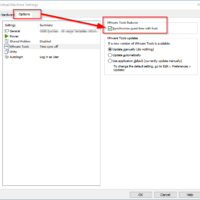
Recently after restoring a paused VMWare Workstation Windows 10 VM, the VM guest had an incorrect system time. After a bit of checking through options, I was able to get the time updated/synced correctly and it did not even require a pause/resume or reboot ๐Ÿ‘๐Ÿ˜ƒ Here is where you can enable automatic time sync between host and guest: Player -> Manage -> Virtual Machine SettingsOptions -> VMware Tools features -> Synchronize guest time with host I hope this helps you

Unable to open kernel device ‘\\.\VMCIDev\VMX’: The operation completed successfully.

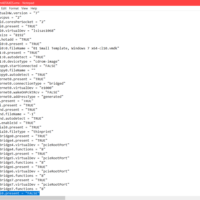
If you encounter the following error message: Unable to open kernel device ‘\.\VMCIDev\VMX’: The operation completed successfully. Did you reboot after installing VMware Workstation? Module ‘DevicePowerOn’ power on failed. Failed to start the virtual machine. You may want to try editing the VMX file for your virtual machine and changing this variable from true to false: vmci0.present = “false” (it was the located on the last line in my VMX) After making this change, I was able to successfully boot

Neverware CloudReady VM (for VMWare/VirtualBox) [FREE]

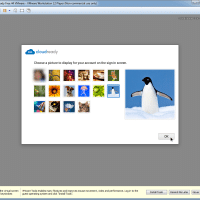
Recently several tech sites ran article about using Neverware’s customized version of Chrome OS to turn old PC hardware into Chromebooks. That is of course very cool ๐Ÿ™‚ However, would like to be able to easily test Chrome OS on modern (relatively) high-end hardware. Preferably without having to dual boot. Virtual machines to the rescue! Here is the download link for Neverware’s VM, it works with both VMware and VirtualBox: http://go.neverware.com/freeVM44 Here are screenshots I took of the installation process

VMWare Tools font size problem [SOLVED]

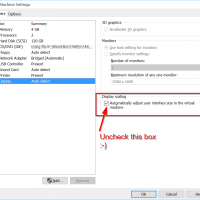
Q. Please help, every time I try to set my VM font size to the right size, VMWare gives me this message: VMware Tools has modified the user interface size settings. You must log off to apply these changes. Close all applications and press OK to log off now, or press Cancel to log off later. It then promptly resets the size to the size that I do not want. ๐Ÿ™ Do you know how I can fix this?! -Waylon

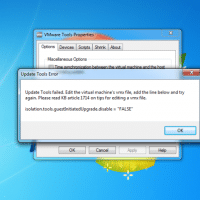
Updating VMware Tools fails [SOLVED] isolation.tools.guestInitiatedUpgrade.disable = “FALSE”

Updating VMware Tools fails with the error: Update Tools failed. Edit the virtual machine’s vmx fileย (2007298) Symptoms You are unable to update VMware Tools. Updating VMware Tools fails. You see the error: Update Tools failed. Edit the virtual machine’s vmx file, add the line below and try again. Please read KB article 1714 on tips for editing a vmx file. isolation.tools.guestInitiatedUpgrade.disable = “FALSE” To resolve this issue, enable VMware Tools updates from within the guest by updating the virtual machine

« Older Entries