Tag Archives: keyboard

Corsair Galleon 100 SD: Left Shift Key Triggers Caps Lock (Fix Available)
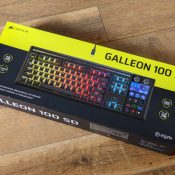
I recently picked up the Corsair Galleon 100 SD, Corsair’s new mechanical gaming keyboard with integrated Stream Deck LCD keys. I covered the full setup and first impressions in my earlier review. On paper, it’s a compelling product: Cherry MX-style switches, per-key RGB, and Stream Deck functionality built right into the keyboard. In practice, mine shipped with a defect that made it nearly unusable for serious work. Update (April 7, 2026) Corsair has published public beta firmware v1.4.75 for the

How Do You Set Up the Corsair Galleon 100 SD Keyboard?

The Galleon 100 SD is Corsair’s mechanical keyboard with a built-in Elgato Stream Deck where the numpad would normally be. It’s a slick piece of hardware, but the setup involves a few steps that aren’t immediately obvious out of the box. Here’s what the process looked like for me. Step 1: Connect Both USB-C Cables This is the first thing that caught me off guard. The Galleon 100 SD requires two USB-C to USB-A cables, not one. Both plug into

Best inexpensive bluetooth keyboard for Mac [SOLVED]

Q. I have the iMac 27″ which was a hand-me-down from my parents. It is a nice comptuer but they didn’t have the original keyboard for it anymore so I have just been using a random PC USB keyboard and it is okay buy not great. Any recommendations for a really good but really cheap bluetooth/wireless keyboard for my Mac? Yours, -Tracy (poor college student) A. Hi Tracy! I was in a similar situations recently and I think I know just

NUC cannot enter BIOS/UEFI [SOLVED]

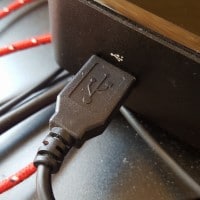
Q. Help! I have a new little Intel NUC computer and I can’t get it to enter the BIOS 🙁 I have a monitor hooked up with HDMI and a keyboard via USB. I checked the keyboard on another computer and it works great, but on the NUC I can never get it to enter the BIOS in time on bootup! Please help! -Richard A. Hi Richard, is that keyboard connected to the back of the NUC? If not, you probably

Replace keyboard on ASUS Q200E/S200E/X202E

A nice reader recently asked for help on how to replace the keyboard on an ASUS X202E notebook. While I have some photos on the initial disassembly process, I did not have photos of the rest of the process. A significant amount of searching did not yield a complete guide to the process 🙁 However, I did find some good instructions for similar ASUS models so I am compiling that information here: Laptop replacement keyboard (without frame) for ASUS Q200

Keyboard not working Windows 7 [solved]

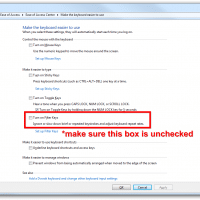
Q. My keyboard just stopped working and I have tried plugging in other USB keyboards to no avail 🙁 any suggestions? -Steve A. Check and see if ‘Filter Keys’ is enabled! Use your mouse to: Click the Start Button Select ‘Control Pane’ Select ‘East of Access’ Select ‘Easy of Access Center’ Select ‘Make the keyboard easier to use’ Uncheck the ‘Turn on Filter Keys’ box Hopefully that will help 🙂 Followup from Steve: That worked. Thank you! More info: Top

Adjust XBMC OpenELEC volume via keyboard? [+/-]

It took me a bit of key pressing to finally figure out how to control the volume on my fresh OpenELEC XBMC installation via keyboard. Eventually, I found that a default OpenELEC XBMC installation uses the + and – keys (plus and minus keys) to adjust the volume UP and volume DOWN. Hopefully this tip will save you some time and allow you to enjoy the perfect volume for your movies and TV shows 🙂 PS after my trial and error

Lenovo ThinkPad Yoga, Fn key fix w/function lock

Updated for 2023: The Lenovo ThinkPad Yoga defaults to having all the function (F1-F12) keys perform their alternate behavior (media controls, brightness, etc.) and not their traditional ‘function’ key behavior. For example, if you want to refresh a web page by pressing F5 you must simultaneously press and hold the Fn key, otherwise the key will function as ‘decrease brightness’ . What is even more annoying to me is trying to close a tab by pressing Ctrl+F4 (and it not

« Older Entries