Category Archives: computer tips

Lenovo ThinkPad X220 Service Manual PDF

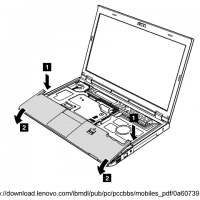
I love my Lenovo X220, it truly is a superb computing machine 🙂 If you are going to add an mSATA drive or other somewhat in-depth upgrades, you may want to checkout the service manual for the X220. It is comprehensive and nicely formatted. Color photos would be nice but the black and white diagrams are sufficient. Official Lenovo X220 service manual: dl link as of 2012.01.17 Service manual rating: 4.5/5 stars (one of the better service manuals I have used!) [starreview

Download Windows drivers for Western Digital USB 3.0 PCI Express card

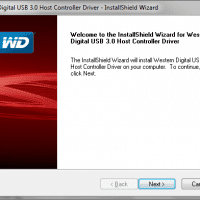
Question. From Storage Nut: Hello, I have a new desktop PC and I recently installed Windows 7 Ultimate on it. My next step was to add a snazzy new Western Digital PCIe (PCI-Express) USB 3.0 card. I can’t find the driver disk and, unfortunately, Win7 x64 can’t seem to find the driver nor can stinkin’ Windows Update?! I checked the western digital site too and struck out, I don’t think it is even listed?! So you’re my last best hope, to

Tip: shock protection unnecessary if you have a SSD!

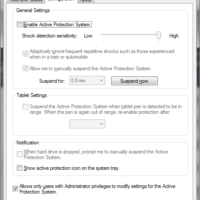
The Lenovo X220 ThinkPad, as well as many Dell & HP laptops, ship with a form of anti-shock protection enabled by default. This is great if your laptop has a conventional hard drive that can be easily damaged by a fall or drop. The laptop is smart enough to pause disk activity and ‘park’ the head (or other similar techniques) to prevent disk damage. However, if your laptop is exclusively using a SSD (solid state drive) then that protection is

Using iTunes with Android devices

After transitioning away from iOS devices, I still have iTunes as my main music management software. So, I have been looking into some solutions for interfacing iTunes and Android. Thankfully with the right software they can play together pretty nicely 🙂 Top 5 Android Apps to Sync iTunes on Androidhttp://androidflip.com/top-5-android-apps-to-sync-itunes-on-android/DoubleTwist is a free media player app which rivals the default player of Android phones. The app not only play music files like audio/video in a clean user interface but also…

Monitoring Apache2 bandwidth usage by individual VirtualHosts

At Weblogs.us we have been going through bandwidth at a fast pace lately. We use Apache2 as our web server,  and while we have some rough bandwidth monitoring tools, we could really use a more granular view of bandwidth usage. The ideal solution for us would be a time configurable view (i.e. hour, day, month, year) of bandwidth usage on a per VirtualHost basis. While researching solutions these were the most useful links I found: Apache Virtual Host Bandwidth Monitoring

Lenovo X220 ThinkPad Long Term User Review

This is a placeholder  for additional content as the review is added to… X220 purchase date: 2011.12.17 Specs: Processor Intel Core i7-2640M Processor (2.8GHz, turbo 3.5GHz, 4MB L3, 1333MHz FSB) Operating System Pre-installed Windows 7 Professional 64 – English Keyboard/Pointing Device UltraNav (TrackPoint and TouchPad) Total Memory 8GB PC3-10600 DDR3 1333MHz SDRAM SODIMM Memory (2 DIMM). Hard Drive 320GB, 7200RPM Serial ATA 2.5″ Hard Drive Display USB 3.0 12.5” Premium HD WXGA (1366 X 768) LED (IPS Panel) Yes Graphics Intel? HD Graphics

Easily copy a bunch of links from a webpage

If you ever need to copy a bunch of links for a project it can be very tedious to right click ever single link and select “Copy link address” then paste that into notepad (or wherever you are storing the links) over and over 🙁 Thankfully there are some simple, and free, plugins to help make this task MUCH easier: Copy Multiple Links to Clipboard with Link2Cliphttp://www.nirmaltv.com/2010/05/10/copy-multiple-links-to-clipboard-with-link2clip/About the Blog NirmalTV.COM is a daily updated technology blog which was founded in

Swap the Lenovo X220/X230 ThinkPad Ctrl and Fn keys

 Thank goodness you can swap the ctrl and fn keys on the X220/X230! Just go into the BIOS (press F1 at boot) and adjust the Keyboard/Mouse settings 🙂 Step-by-step instructions: Turn on the laptop, Wait for the ThinkPad screen, and then press F1. Enter BIOS Navigate to the Config screen using the  arrow keys Choose Keyboard/Mouse Set Fn and Ctrl Key swap to enabled. Press the Esc (escape) key and go to the Restart screen Choose Exit Saving Changes Top Search Terms:lenovo

« Older Entries Recent Entries »