How to Change Claude Code Effort Levels in VS Code (/effort)
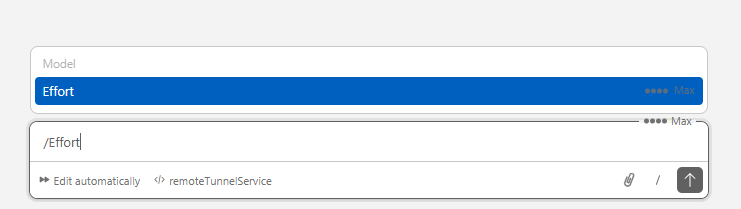
TL;DR: In the Claude Code VS Code extension, type /effort in the prompt box and press Enter to cycle through four reasoning levels: Low, Medium, High, and Max. Each level controls how deeply Claude thinks, how many tool calls it makes, and how many tokens it burns. On Windows, it’s just /effort, Enter, done.
What Are Effort Levels?
Effort levels control how much “thinking” Claude does before it responds. Higher effort means deeper reasoning, more thorough tool exploration, and more tokens consumed. Lower effort means faster, terser responses that skip unnecessary analysis.
This was introduced alongside the Claude 4.6 models (Opus and Sonnet) as part of Anthropic’s adaptive thinking system. Instead of Claude always thinking at full intensity regardless of whether you asked it to rename a variable or redesign your architecture, you can now tell it how hard to try.
The Four Levels
| Level | Indicator | What It Does |
|---|---|---|
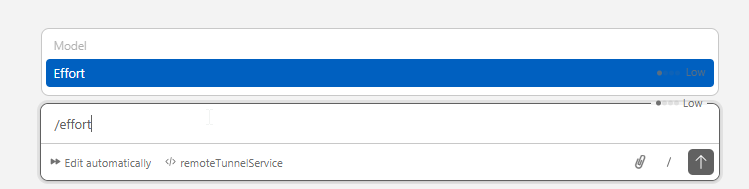
| Low | ● | Skips thinking for most requests. Fewer tool calls. Terse confirmations. Roughly 3x token savings vs. High. Best for simple, mechanical tasks. |
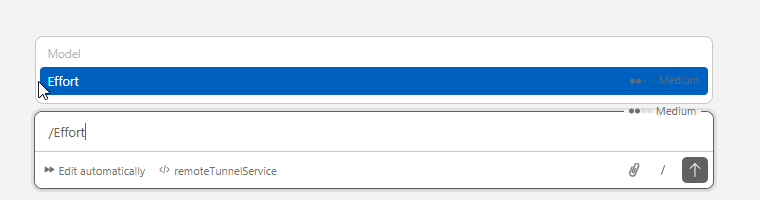
| Medium | ●● | Balanced approach. May skip thinking for very simple queries. Explains plans before acting. This is the default for Opus 4.6 on Max and Team plans. |
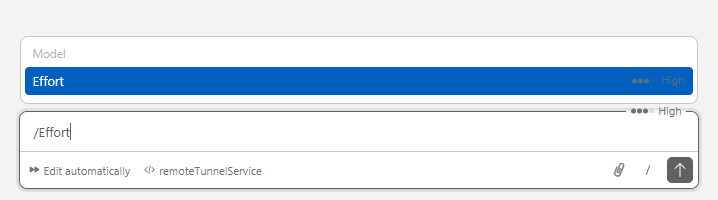
| High | ●●● | Deep reasoning on almost every request. Full tool exploration. Complex analysis. This is what you’d use for debugging or architecture work. |
| Max | ●●●● | No constraints on token spending. Claude thinks extensively on everything, even simple tasks. Opus 4.6 only; errors on other models. Does not persist across sessions. |
How to Change Effort Levels
The quickest way on Windows (or any OS): type /effort in the Claude Code prompt box and press Enter. Each press cycles to the next level.
There are actually several ways to set effort:
/effortcommand: Type it in the prompt. You can also specify directly:/effort low,/effort high,/effort max, or/effort auto(resets to default)./modelpicker: Open the model selector, then use the left/right arrow keys to adjust the effort slider.--effortCLI flag: Launch withclaude --effort lowto set it for the entire session.- Environment variable: Set
CLAUDE_CODE_EFFORT_LEVEL=mediumin your shell profile for all sessions. - Settings file: Add
"effortLevel": "medium"to your Claude Code settings JSON. - “ultrathink” keyword: Type the word “ultrathink” in any prompt to temporarily boost to High effort for that single response.
⭐A note on VS Code + Windows: In my experience, typing a specific level like /effort low doesn’t always register in the VS Code extension on Windows. The reliable method is just /effort followed by Enter, which cycles through the levels every time. If the direct syntax isn’t working for you, stick with the cycling approach.⭐
When to Use Each Level
Here’s how I think about it in practice:
- Low: File renames, simple greps, “what does this function do?”, running a build command. Anything where Claude just needs to execute, not think.
- Medium: General coding tasks, writing functions, small refactors, reviewing a file. The sweet spot for daily work and the reason Anthropic made it the default.
- High: Complex debugging, multi-file refactors, code review, explaining tricky logic, architecture questions. When you need Claude to actually reason through the problem.
- Max: The hardest problems: designing a system from scratch, untangling deeply nested bugs, analyzing complex algorithms. Use sparingly. It burns tokens fast, and it doesn’t persist across sessions for a reason.
Why This Matters for Your Wallet/Usage Limits
If you’re on a metered plan (API usage or Team billing), effort levels directly affect your costs. Low effort uses roughly one-third the tokens of High for simple tasks. If you’re burning through your Claude Code usage doing mundane file operations at High effort, you’re literally paying 3x more than you need to.
Even on the Max subscription plan (which includes significant usage), lower effort means faster responses. Claude doesn’t need to write a dissertation when you ask it to rename a variable.
Things to Know
- Max is Opus-only. If you try to set Max effort on Sonnet 4.6 or Haiku, you’ll get an error. It only works with Claude Opus 4.6.
/effort autoresets to your model’s default effort level. For Opus 4.6, that’s Medium.- You can change effort mid-conversation. As of v2.1.70,
/effortworks even while Claude is actively responding. - The “ultrathink” keyword is a per-turn override. It bumps effort to High for just the next response, then goes back to whatever you had set.
Disclaimer: Claude Code updates frequently, often weekly. The effort level UI, available options, and default behavior may change between versions. This post reflects the state as of March 2026 (v2.1.76+). Check the official changelog and model configuration docs for the latest information.
Bottom Line
Medium is the sweet spot for most “norma” work. It’s the default for a reason: Anthropic tuned it to balance quality and cost for everyday coding. Use /effort to dial up when you’re stuck on something hard, and dial down when you’re doing mechanical work. Your token budget (and your patience) will thank you.
HOWEVER, if I’m near my usage reset date/time and I have a ton of tokens/usage left I’ll definitely crank it up hight and just enjoy the higher quality. 💪 https://claude.ai/settings/usage
Also, if I’m dealing with complex coding issues or extremely difficult problems I definitely increase the reasoning/thinking level 💯
Running Claude at high effort levels means longer sessions. I rely on a Keychron K2 Pro and a good ergonomic chair for comfort. See my full workstation setup.
If you’re getting into Claude Code, you might also want to check out my guide to Claude AI custom instructions and the ultimate Claude Code workstation setup. And if your Ctrl+V paste isn’t working right, I’ve got a fix for that too.