[SOLVED] Moto G 3rd Gen (2015) SD card not accessible via USB
If you have a Motorola G3 (2015) phone with Android 6.0 and a microsd card installed, you may find that the card is inaccessible via USB/PC:
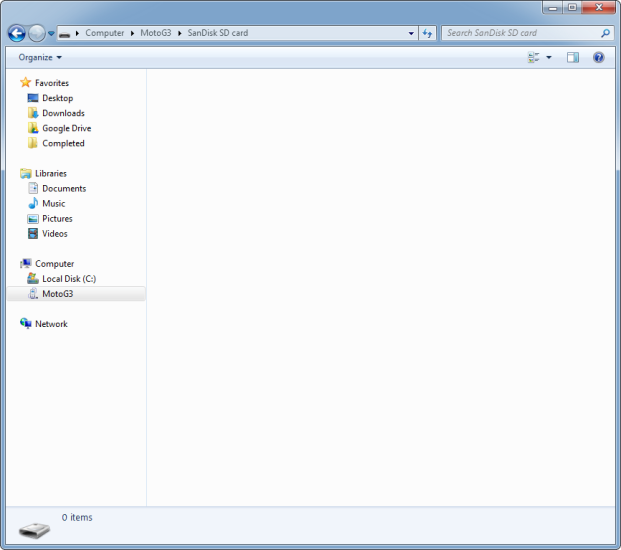
SD card contents not available
Here is how to fix it:
- Go to Settings, Apps, 3-dot menu, select Show System (to show system apps)
- Scroll down thru apps to External Storage, select that, pick Storage, pick Clear Data (which also clears the Cache).
- Go back to the app list and do the same for Media Storage, as you did for External Storage.
- Reboot phone.
Thanks to p-c-x for the solution!
Voila, after connecting USB and selecting MTP from your phone, your microSD card should now be fully accessible:
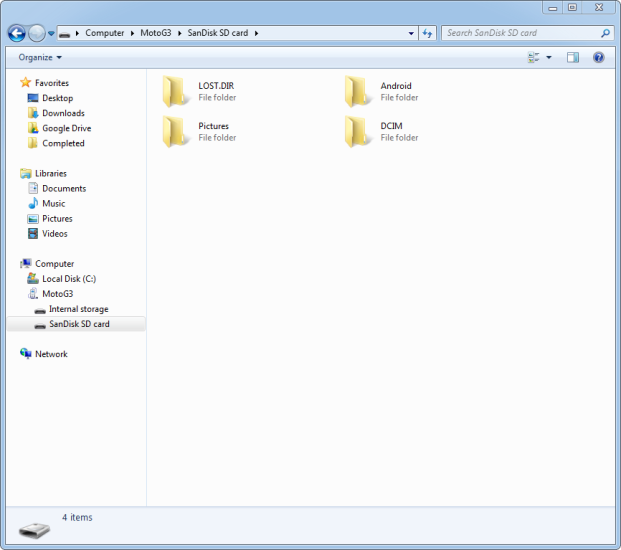
Contents now accessible! 🙂
Top Search Terms:
- sd card for moto g (1)
Hi, yes tried this but when I open Moto G from laptop it only offers internal storage option, can’t get to external SD card even though through phone settings – storage and USB it is there.
Any suggestions?
Thanks
Hey Ethan, if the SD card isn’t showing as a separate drive when browsing from your laptop, double-check that your phone’s USB connection mode is set to “File Transfer” (MTP) and not “Charging only” or “PTP.” On the Moto G3, pull down the notification shade after connecting USB and tap the connection type notification to switch to MTP. After trying the steps in the post (clearing External Storage and Media Storage app data and rebooting), the SD card should appear as a separate entry when you open the phone from File Explorer on your laptop.