How to Fix the VMware Workstation “mksSandbox” Crash (ISBRendererComm Error)
Have you ever been working in a VM, everything’s fine, then dialog pops up like this:
VMware Workstation unrecoverable error: (mks) ISBRendererComm: Lost connection to mksSandbox (3796)
After that your VM is crashed and is powered off. Whatever you were in the middle of, gone with it. You start it back up, it runs for a bit, then it might crash again. 😢 Very not cool!
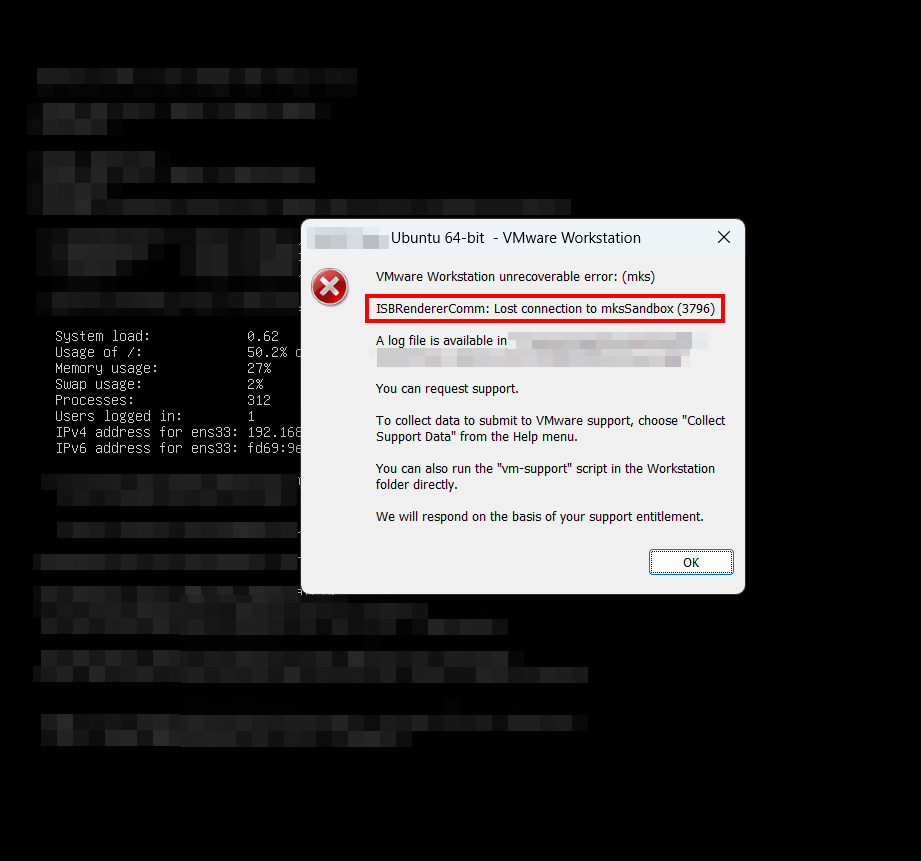
This happened to me on a Framework Desktop system with AMD CPU, Ubuntu 24.04 guest, Windows 11 host, VMware Workstation 17.6, thankfully just a testbed system. Thankfully, for my purposes, there was a very quick easy way to avoid having this happen and I haven’t seen the crash since.
What is crashing?
mksSandbox.exe is VMware’s graphics renderer. It runs on the Windows host, not inside your VM. Its job is to draw the VM’s screen into the console window using your host’s GPU. When that process dies, VMware can’t recover the render session and kills the whole VM to be safe.
A couple things worth knowing before you start debugging the wrong thing:
Your Linux guest is fine. If you check journalctl after a crash you’ll find clean logs, no kernel panics, no OOM, nothing. The guest never did anything wrong. The host killed it as per the scary and not very helpful dialog box above.
And the renderer only matters when the console window is open. If nothing is asking VMware to draw the VM’s screen, mksSandbox.exe doesn’t even run, so it can’t take anything down with it.
The number in the dialog (3796, 3850, 2878, whatever) is just the Windows PID of the copy of mksSandbox.exe that died this time. It’s different every crash, so don’t get hung up on whether your number matches a forum thread. The fix is the same regardless.
The fix, ranked by effort
1. Run the VM headless (the cheap, permanent fix for SSH-only setups)
If you only ever touch this VM over SSH, you don’t need the console window. So don’t open it.
Click the X on the VM’s tab in VMware Workstation. You’ll get this dialog:
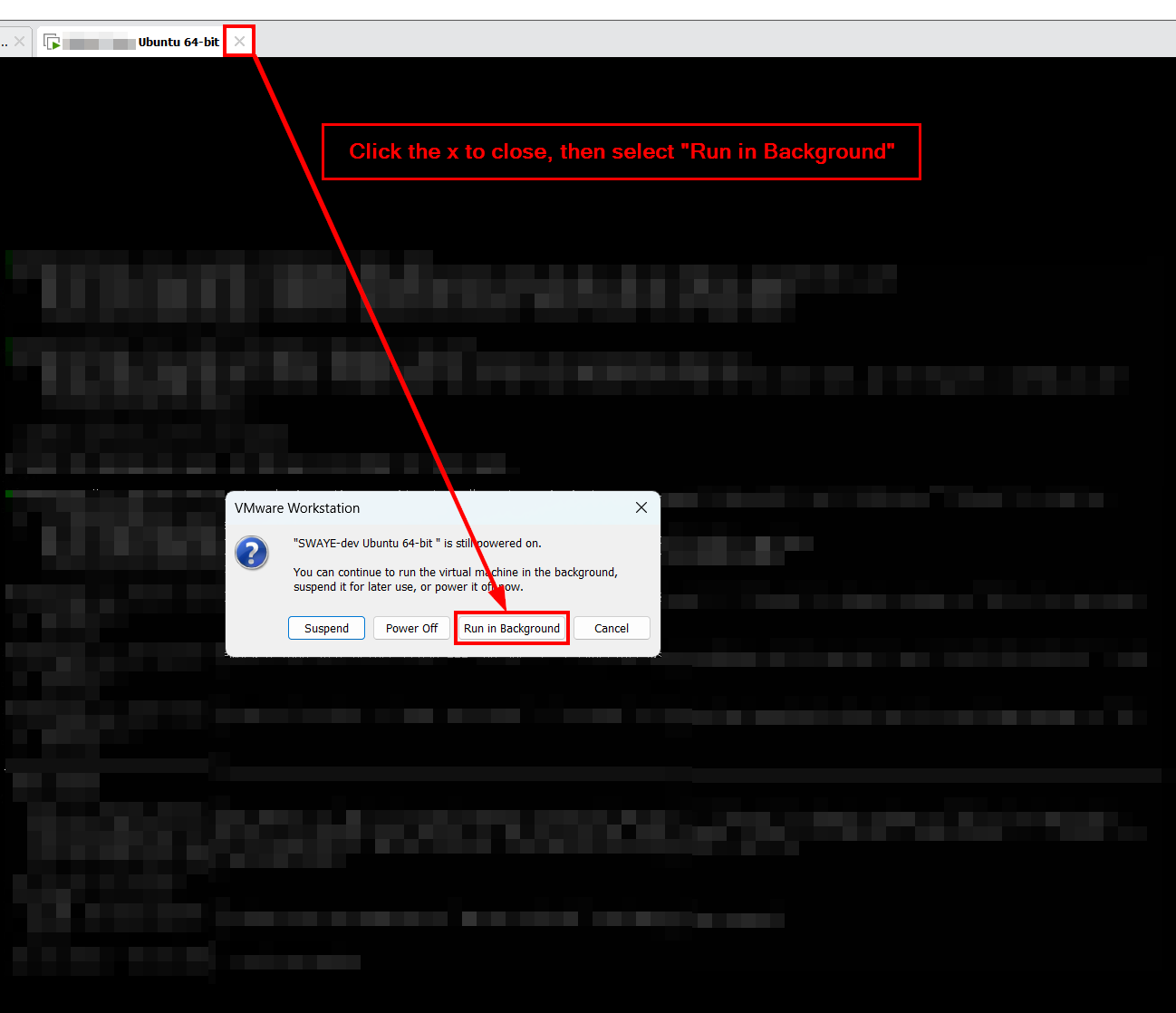
Pick Run in Background. The VM stays powered on, SSH keeps working, the console window goes away, and mksSandbox.exe exits. No renderer, no crash.
If you’d rather start headless from a cold boot, use vmrun:
"C:\Program Files (x86)\VMware\VMware Workstation\vmrun.exe" start "C:\Users\You\Documents\VMs\Your VM\Your VM.vmx" noguinogui is the whole thing. The VM powers on without attaching a console, so the renderer never starts.
Heads up: if you later double-click the VM in the Library pane to peek at the screen, the renderer wakes back up and you’re vulnerable again until you close the tab.
2. Turn off 3D acceleration
If you actually use the console (graphical apps in the VM, or you just like watching the boot scroll past), the next-cheapest move is killing 3D acceleration.
Power the VM off, open Settings, go to Display, uncheck Accelerate 3D graphics. Save and boot. VMware falls back to a software renderer that doesn’t talk to your host GPU driver at all.
It should do the trick permanently and is essential if you can’t go the headless option 1.
3. Force software rendering in the .vmx file
Another option on top of option 2. Power the VM off, open its .vmx file in a text editor, add:
mks.enableGLRenderer = "FALSE"Save, power back on. This pins VMware to the software renderer one level deeper than the GUI checkbox, in case something flips that checkbox back on without telling you. If you’re already in the habit of working with .vmx files etc for side channel mitigations, this is one more line to remember.
4. A few other host side options
Sometimes the crash keeps coming even with 3D acceleration off. Reports of these helping:
- Turn off Windows Memory Integrity / Core Isolation (Settings > Privacy & Security > Windows Security > Device Security > Core Isolation).
- Update the host GPU driver to the latest stable, or roll back if the crashes started right after a driver update.
- Downgrade VMware Workstation from 17.6.x to 17.5.2. That fixed it for several people on the Broadcom community thread.
I haven’t needed any of these other b/c option 1 made the crash unreachable on my setup and it works for my purposes. Hopefully you have good luck with the options listed and I hope you have happy computing ahead! 🙏
PS Things NOT to do 😅
Don’t reinstall the guest OS. Don’t burn an afternoon digging through guest journalctl for a Linux bug that isn’t there. The VM image is fine and it’s just a HOST/VMWare issue. ✅
If you’re running VMware Workstation for other stuff, my guide on upgrading a Windows 10 VM to Windows 11 in VMware is over here. Different problem, same product. I hope option 1 works on your setup too, or whichever option you choose!