How to Enable the File Gallery in WAN2GP/WanGP [SOLVED]
Quick Fix: How to Enable the File Gallery in WanGP
If you’ve been using WAN2GP/WanGP (specifically v9.81 by DeepBeepMeep), you know it’s a powerful tool for generation—but managing your outputs can be a hassle if the Gallery tab is missing.
I recently ran into an issue where the File Gallery plugin seemed to be installed, but the actual “Gallery” tab was nowhere to be found in the top menu. After a bit of troubleshooting, I found the fix is incredibly simple.
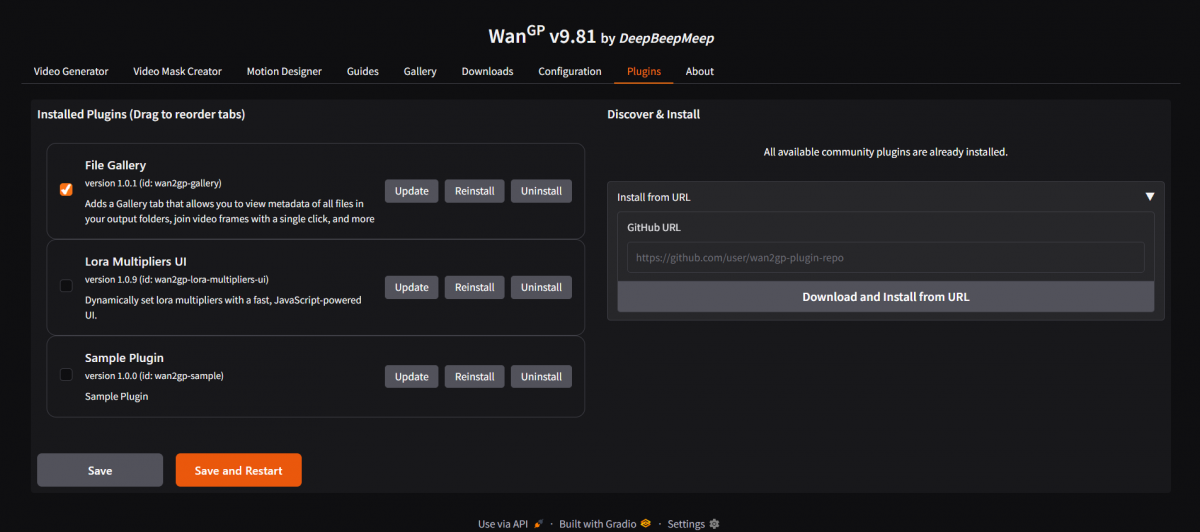
Here is the quick guide to getting your Gallery tab back so you can view metadata, join frames, and manage your output folders easily. (screenshot above shows plugin settings and also shows that there is a Gallery tab after the solution below)
The Solution
If your dashboard looks like it’s missing the Gallery option, follow these exact steps:
- Navigate to the Plugins Tab: Open your WanGP interface and click on the Plugins tab in the main navigation bar.
- Locate the Plugin: Look for the File Gallery entry in the “Installed Plugins” list (ID:
wan2gp-gallery). - Trigger a Reinstall: Even if it looks like it is already there, click the Reinstall button. This forces the application to re-register the plugin hooks.
- Save and Restart: This is the most important step. Go to the bottom of the screen and click the orange Save and Restart button.
The Result
Once WanGP reloads, look at the top navigation bar. You should now see the Gallery tab appear between “Guides” and “Downloads.”
You can now verify the plugin is active by checking the box next to “File Gallery” in the plugins list, just like in the screenshot above. Now you have full access to view file metadata and manage your renders/generations without digging through folders and files.