Sharing clipboard & data between various computers and Android phones
Some of these tips/apps have been very helpful to me so I thought I would share the links here 🙂
Share Clipboard Between Computers: Windows, Linux and Machttp://www.ampercent.com/share-clipboard-between-computers-windows-mac-linux/10822/The problem of sharing clipboard data across multiple computers and operating systems becomes more complex, when you do not have an internet connection. Precisely, it becomes…
Super useful tool for sharing clipboard text between computers using Google Chrome! Chrome – Clipboard Sync
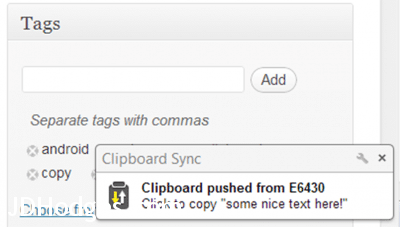
The notification that pops up when text has been copied and pushed

How to Break Down the Barrier Between Your Android and Computerhttp://lifehacker.com/5656214/how-to-break-down-the-barrier-between-your-android-and-computerEven though Android allows for removable SD card storage, and is a lot more open than the iPhone when it comes to file storage, very few people carry a USB cable or micro-SD…
[end]
Top Search Terms:
- share clipboard between android devices (2)
- android clipboard sharing (1)
- android mac clipboard sharing (1)
- clipboard sync between computers (1)
- mac clipboard sync share (1)
- share clipboard android (1)
- shareclipboard between computers through usb (1)
- sharing clip board with android phone (1)
For Mozilla Firefox I use the “Share Backported” add-on extension in conjunction with a web-based Microsoft Outlook.Live.com email account. You never actually “send” and “receive” emails through email servers. Due to a potential hacking vulnerability, I only host the Outlook.live.com session inside of a virtual machine. Use plain text if you’re really paranoid.
In Firefox, open Add-ons from the Tools menu.
Click on Extensions and search for “share backported”. It should be the first download option.
Install Share Backported.
Click on its toolbar icon (the black paper airplane), and select the lowest left icon from the drop-down menu, which looks like a typical email icon.
A new “stays-on-top” screen will open up to Microsoft’s Outlook.live.com’s website. Set up your account, taking note of the IMAP server settings and the password you selected.
Duplicate these IMAP settings in a new email account on your existing email client in the computer that you’ll want to share clipboard pastings to (recipient). It could be the computer you are either copying from or pasting to, or both.
Log in to your Outlook.live.com account.
Be prepared for a spam challenge, where Microsoft locks you out of your Outlook.live.com account until you authenticate by replying with a security code texted to a cell phone.
From now on, whenever you click both the Share Backported icon and the email icon in the drop-down menu, it will open a new window to your Outlook.live.com account. When the email screen opens, it will automatically load both whatever you have selected (highlighted) from the web page your Firefox browser was set to, as well as the URL for that web page, into an email message field (it takes a few seconds over Tor, so be patient). You can either discard or modify this “capture”, and your changes will automatically be saved the next time the draft-saving function iterates.
Notice, however, that a draft of whatever was previously loaded will be saved in your Live drafts folder, and that when your recipient computer’s email client syncs its draft folder, the same will show up there. To “save” a draft, simply copy or move it to the folder of your choice. This same action will take place on all of your computers logged into your Outlook.live.com session. This way you avoid the hassle of either “sending” or receiving any actual emails to either yourself or others through email servers (presuming that they too are logged into the same Outlook.live.com account, and are likewise folder-synced).
In order to permanently save any of these drafts on your recipient computer, COPY them from your Outlook.live.com account to a either a folder in another email account, or to a local folder. *If you drag or otherwise MOVE them, they will be permanently removed from the Outlook.live.com account,* and hence, they will be inaccessible to any other email clients logged into the Outlook.live.com account, unless and until they are copied back to this account.
To avoid opening more than one Outlook Live window, simply select “Email message” from the “New” drop-down menu in Firefox’s open Outlook.live client, and paste whatever from wherever, modifying it as appropriate, and then storing it as a draft, and so on; lather, rinse, repeat.