TurboTax Adding Rental Property Depreciation to the WRONG State Return
TL;DR: If you file in multiple states and have rental property in TurboTax Desktop, check your Asset Entry Worksheets. TurboTax may silently add state depreciation entries for every state on your return, not just the state where the property actually exists. The fix: go to the Asset Entry Worksheet, scroll to the State Depreciation section, and set “Include asset in state return” to No for any state where the property is not located.
The Problem
I have a commercial rental property in Missouri. I also file a nonresident return for Oklahoma. While reviewing my state returns before filing, I noticed something wrong: TurboTax had added a depreciation deduction of several hundred dollars to my Oklahoma return for a property that has absolutely nothing to do with Oklahoma.
No warning, no prompt, no confirmation dialog. TurboTax just did it. If I hadn’t been manually reviewing each state return line by line, I never would have caught it. That phantom deduction would have incorrectly reduced my OK taxable income. 😤
Why It Happens
When you create a rental property asset in TurboTax Desktop, the software generates State Depreciation entries in the Asset Entry Worksheet (labeled “Asset Wks” in Forms view) for every state on your return. By default, “Include asset in state return” (line q) is set to Yes for all states.
If you only file in one state, you’ll never notice this. But if you’re a multi-state filer, TurboTax applies the depreciation deduction across all state returns indiscriminately. There is no scenario where depreciation for a Missouri property belongs on an Oklahoma return. This is a bug, not a feature.
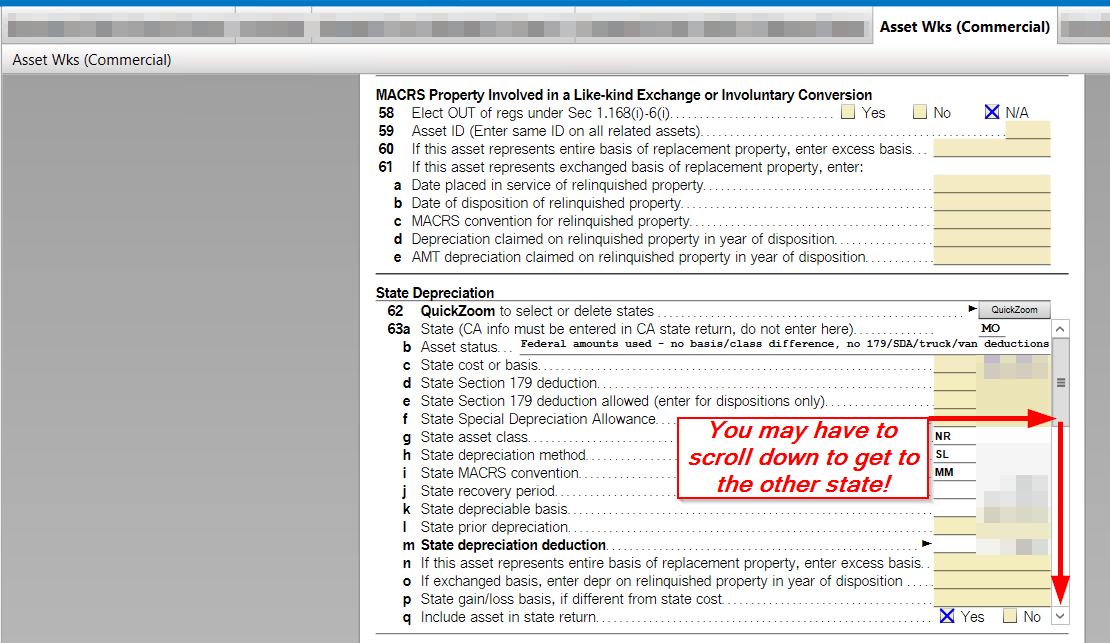
The tricky part: the State Depreciation section may contain entries for multiple states, but you have to scroll down to see them. The second or third state entry might be completely off-screen.
The Fix
Here’s how to correct this:
- Open your return in TurboTax Desktop and switch to Forms view.
- In the left panel, find your rental property’s Asset Entry Worksheet. It’ll be labeled something like “Asset Wks (Commercial)” or “Asset Wks (Residential)” depending on your property type.
- Scroll down to the State Depreciation section.
- Keep scrolling. If you file in multiple states, there will be a separate state entry for each one. The state you need to fix might not be visible without scrolling. 👇
- For each state where the property does not exist, find line q (“Include asset in state return”) and check No.
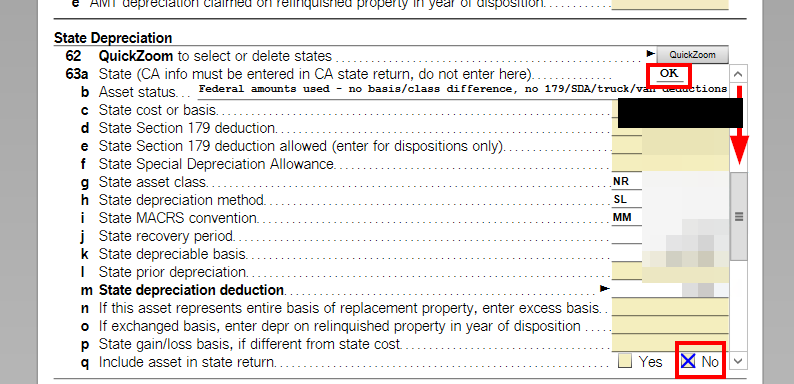
Once you set line q to No, TurboTax will stop applying that property’s depreciation to that state’s return. Repeat for any other irrelevant states on your return.
Bottom Line
This is a silent issue that could cost you money (incorrect deductions that might trigger questions from the state) or cause you to underreport in states where you actually owe. If you file in multiple states and have rental property assets in TurboTax Desktop, take five minutes to review the State Depreciation section of every Asset Entry Worksheet before you file.
If you want a solid reference for rental property deductions (so you’re not relying solely on TurboTax to get it right), I recommend picking up Every Landlord’s Tax Deduction Guide. It’s the go-to book for landlord tax rules, updated annually.
Catch it before the IRS (or your state revenue department) does. ✅
If you’ve run into this same issue, drop a comment below. And if you’re fighting other TurboTax quirks, check out my post on the Schedule E rental income disappearing bug as well.
Disclaimer: This post describes a software behavior I encountered in my own tax return. It is not tax, legal, or financial advice. Every tax situation is different. Consult a qualified tax professional for guidance specific to your circumstances.