How Do You Set Up the Corsair Galleon 100 SD Keyboard?
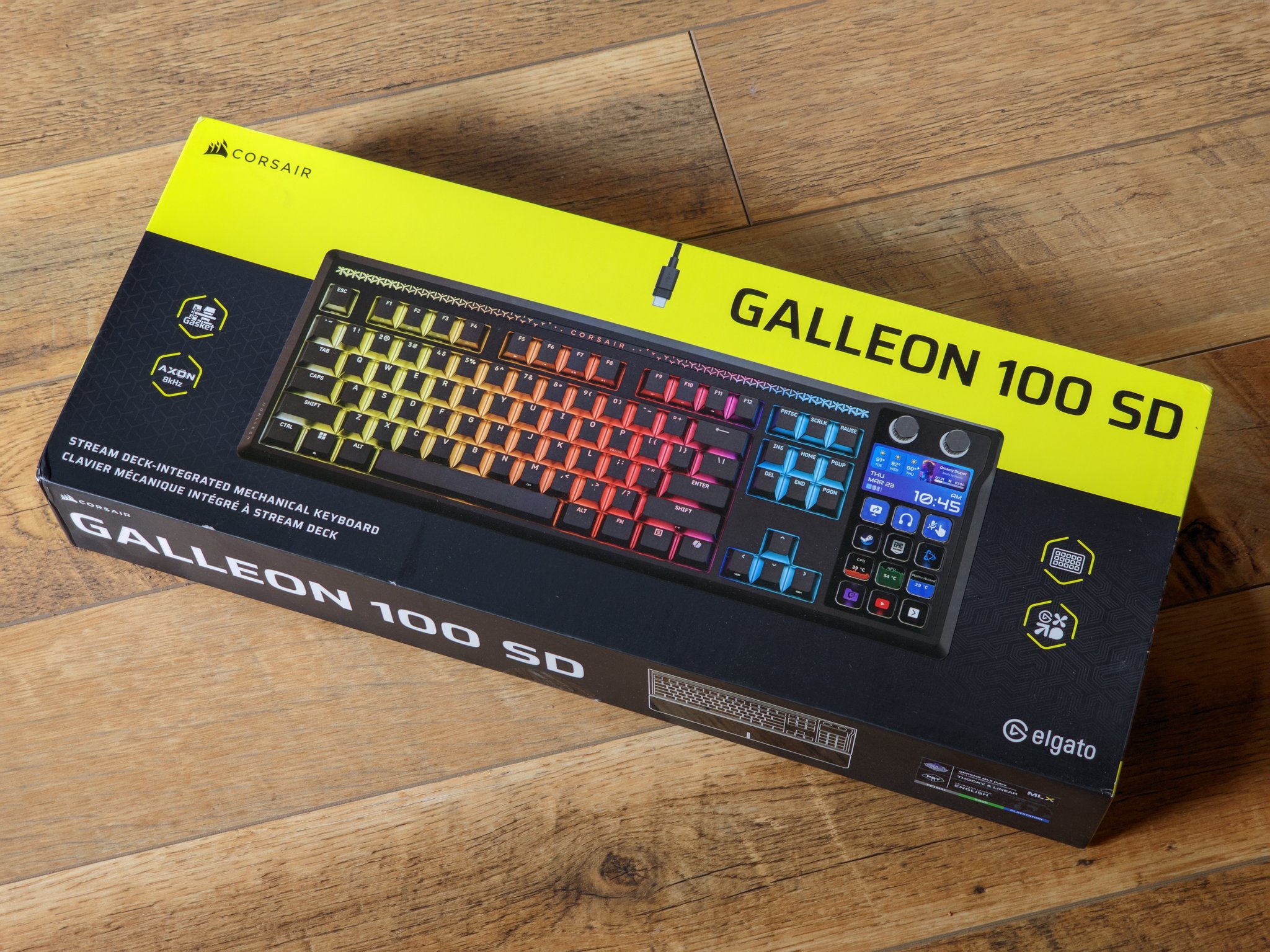
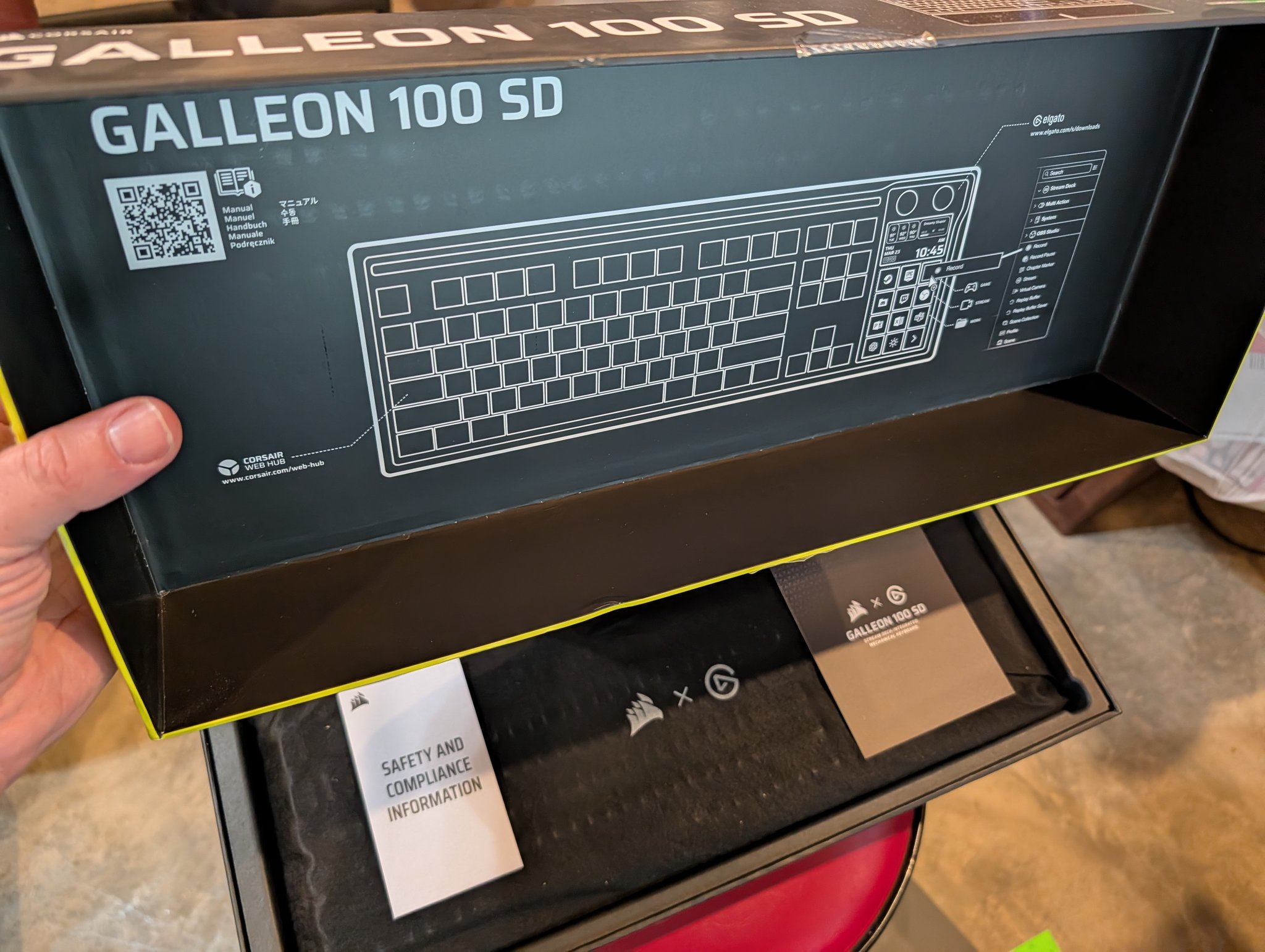
The Galleon 100 SD is Corsair’s mechanical keyboard with a built-in Elgato Stream Deck where the numpad would normally be. It’s a slick piece of hardware, but the setup involves a few steps that aren’t immediately obvious out of the box. Here’s what the process looked like for me.
Step 1: Connect Both USB-C Cables
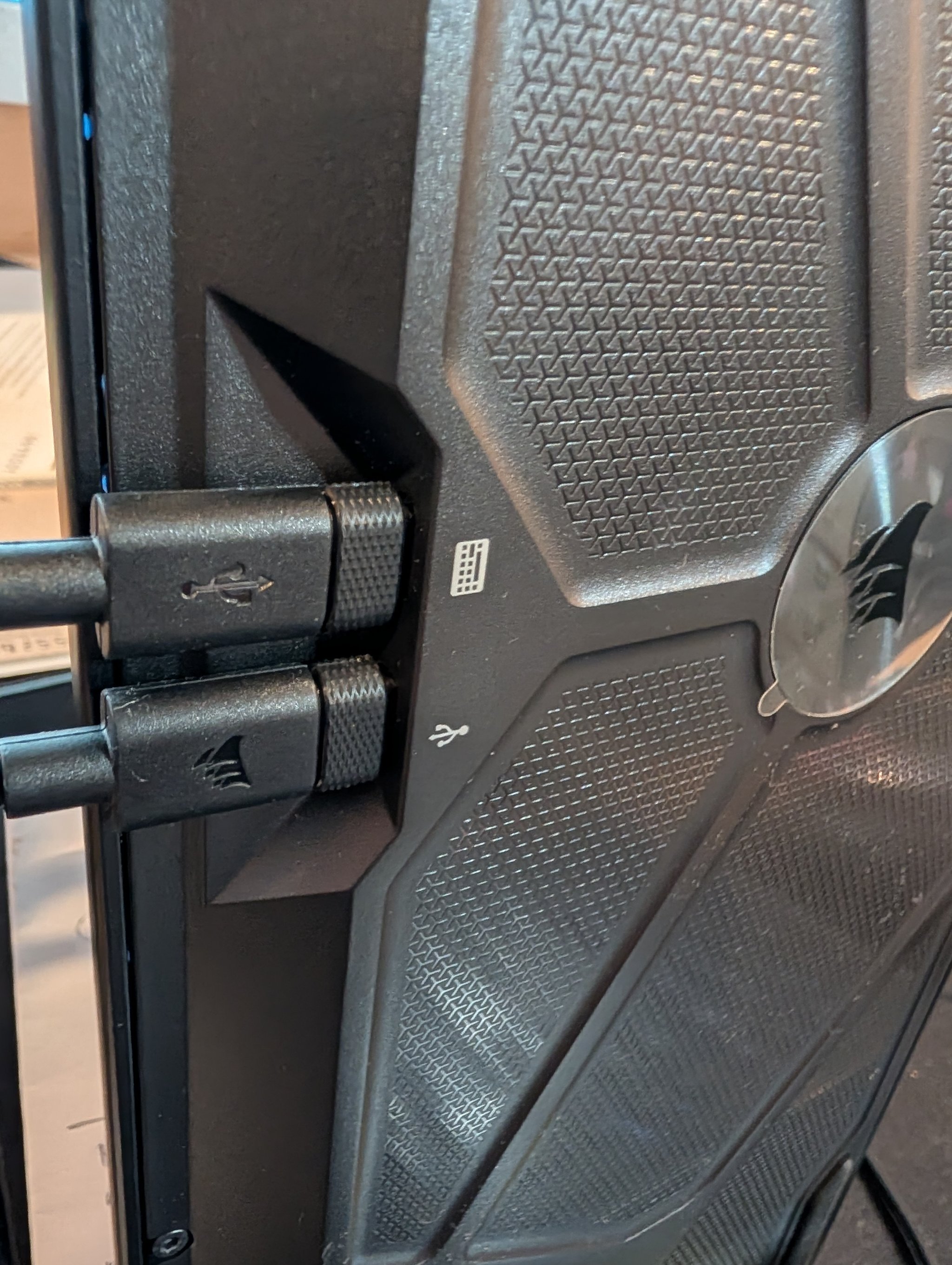
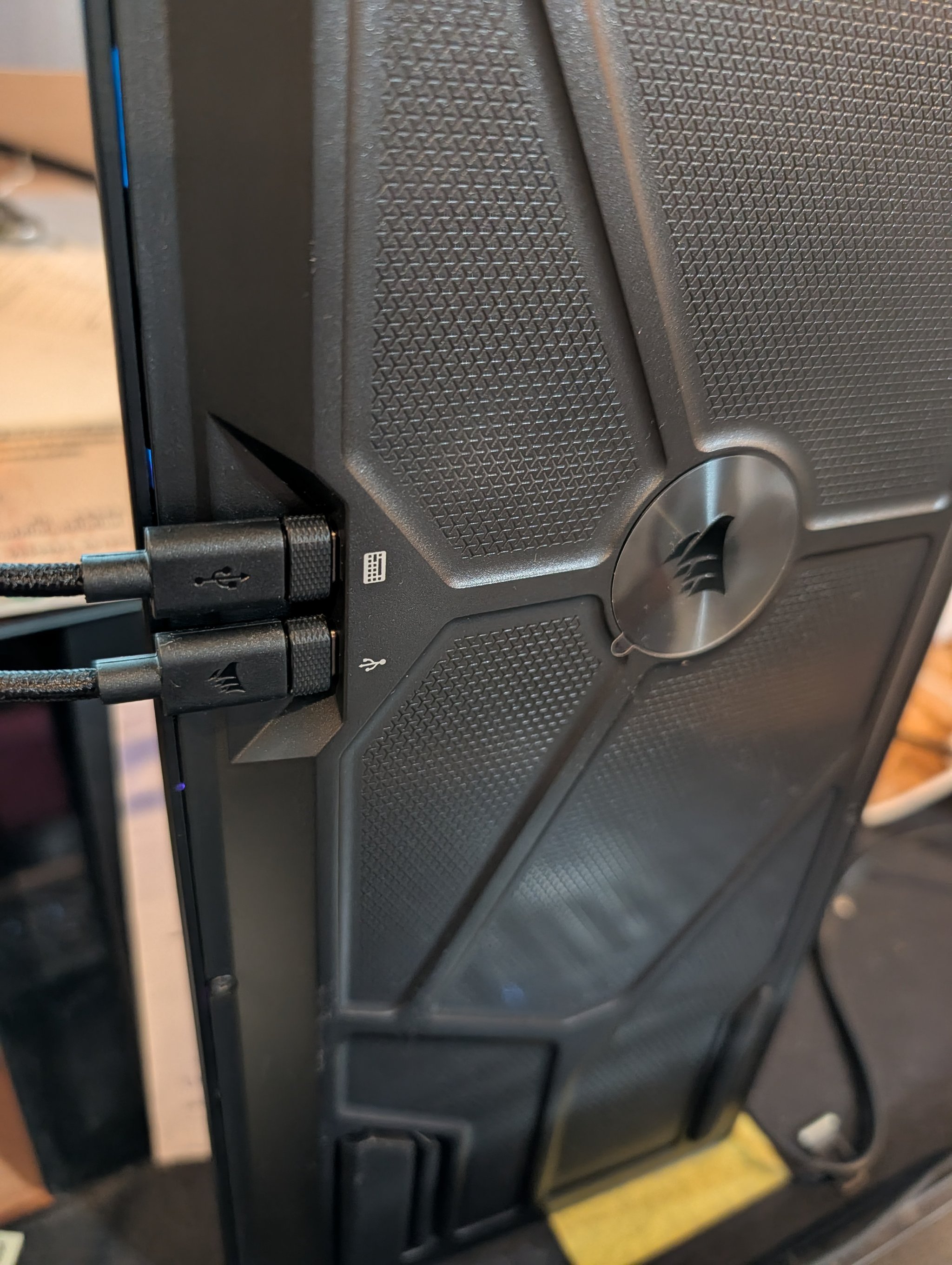
This is the first thing that caught me off guard. The Galleon 100 SD requires two USB-C to USB-A cables, not one. Both plug into the back of the keyboard. Looking at the back panel, you’ll see three USB-C ports with small icons next to them:
- Keyboard icon port — this handles the keyboard functions
- Corsair sails icon port — this handles the Stream Deck / upstream data
- USB passthrough port — this is for plugging in other USB devices (like a mouse) through the keyboard
You need to connect the keyboard port and the Corsair sails port to your PC. The two braided USB-C to USB-A cables are included in the box.
Note: Corsair’s official documentation says to plug directly into your PC and not through a USB hub or dock. I actually had mine connected through a hub and everything worked fine… firmware update included, but your mileage may vary. If you run into issues, try a direct connection first.
Step 2: Update the Firmware via Corsair Web Hub
Before you do anything else, update the keyboard firmware. Corsair uses a browser-based tool called Web Hub instead of a traditional desktop app — no software to install for the keyboard side.
- Go to corsair.com/web-hub in Chrome
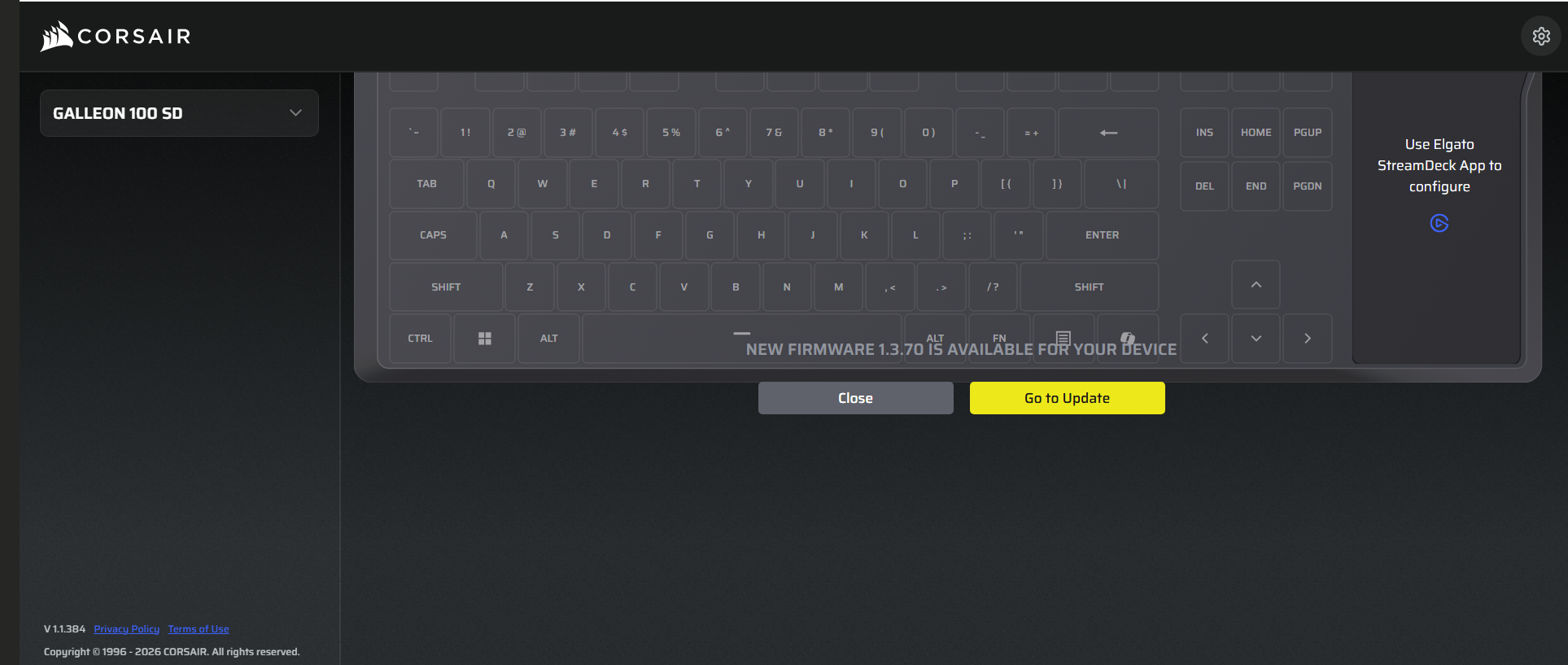
- The Web Hub should detect your Galleon 100 SD automatically
- If a firmware update is available, you’ll see a banner prompting you to update. Click Go to Update
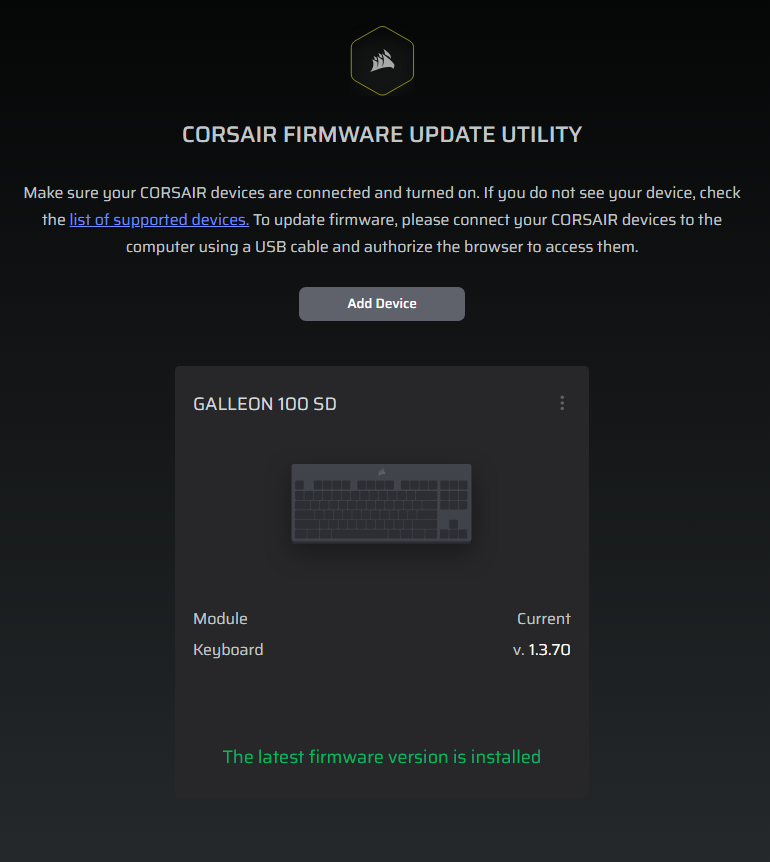
- This takes you to the Corsair Firmware Update Utility
- Click Add Device and authorize the browser to access your keyboard
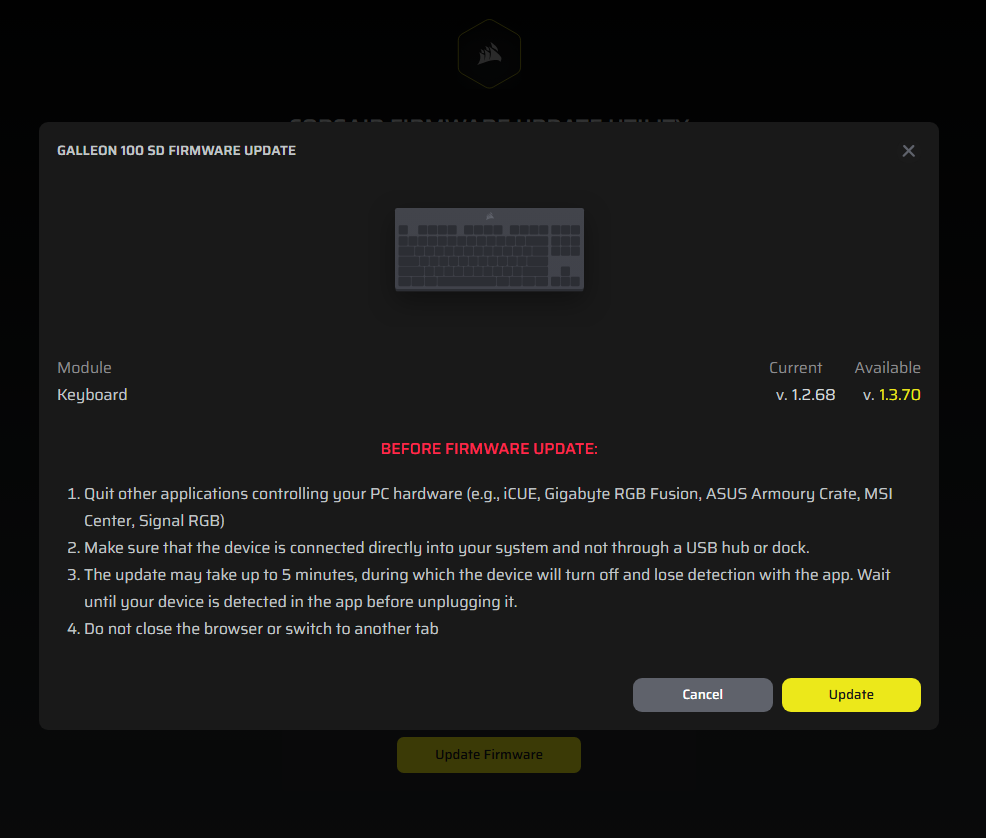
- It should show your Galleon 100 SD with the current firmware version and the available update
- Click Update and wait. When I first set up mine, it went from v1.2.68 to v1.3.70 (you may see a newer version available)
Corsair has since released beta firmware v1.4.75, which addresses a left Shift / Caps Lock defect affecting some units. If you are experiencing that issue, see my detailed writeup and fix walkthrough. The beta firmware requires a manual install (download .bin file from Corsair’s support page and upload it through the firmware updater).
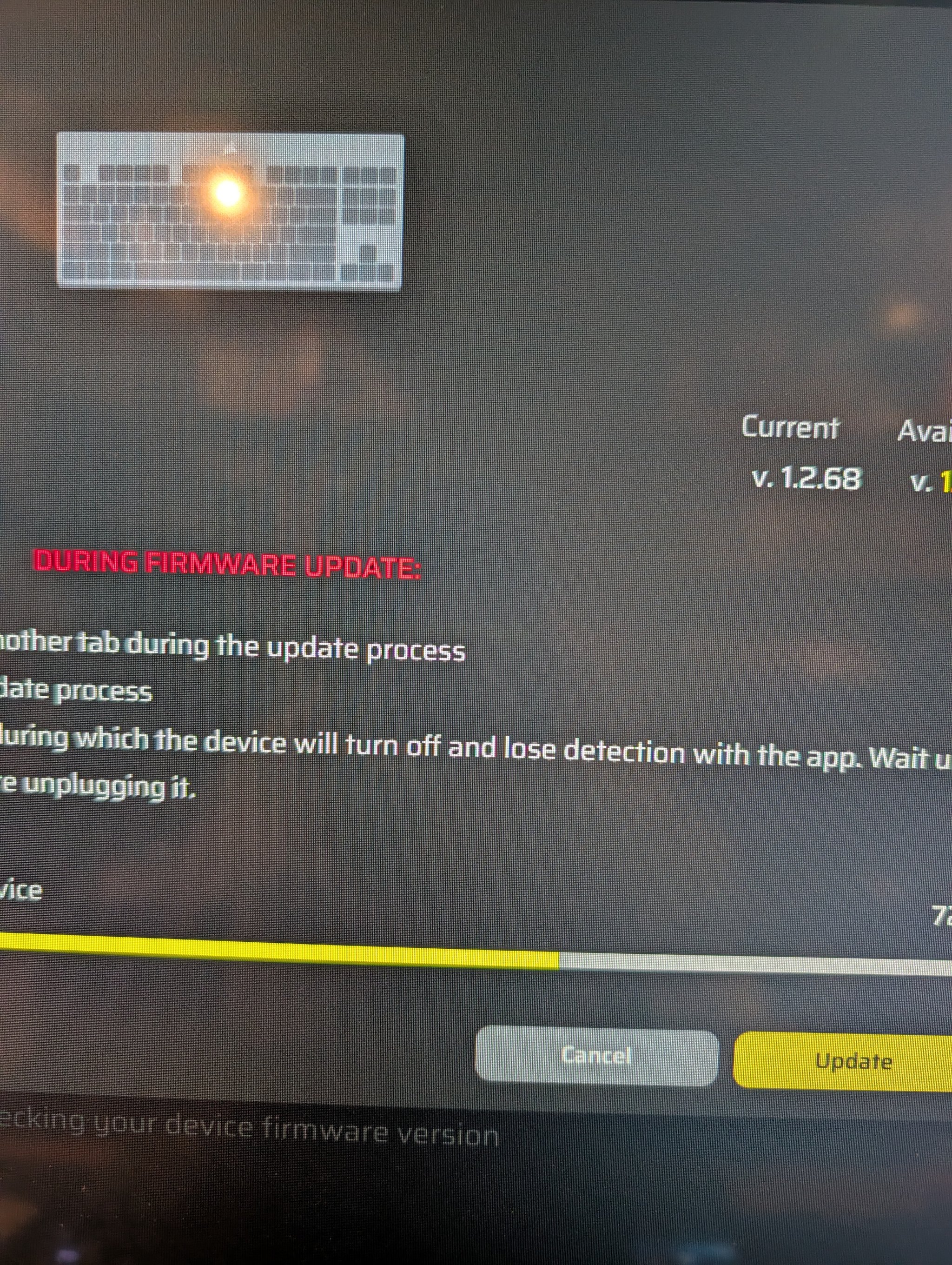
The update took a couple of minutes. The keyboard will go dark and lose connection briefly during the process — that’s normal. Don’t unplug it or close the browser tab.
If the firmware update fails, Corsair provides a recovery method: disconnect the USB cable, press and hold the B + L keys, reconnect the cable while still holding those keys, wait for the keyboard lights to come back on, and then run the firmware update again.
Step 3: Install the Elgato Stream Deck App
The keyboard side is managed through the browser-based Web Hub, but the Stream Deck side (the 12 LCD keys, two dials, and 5-inch screen on the right) is managed through the Elgato Stream Deck desktop app. These are two separate pieces of software.
Download the Stream Deck app from: elgato.com/s/downloads
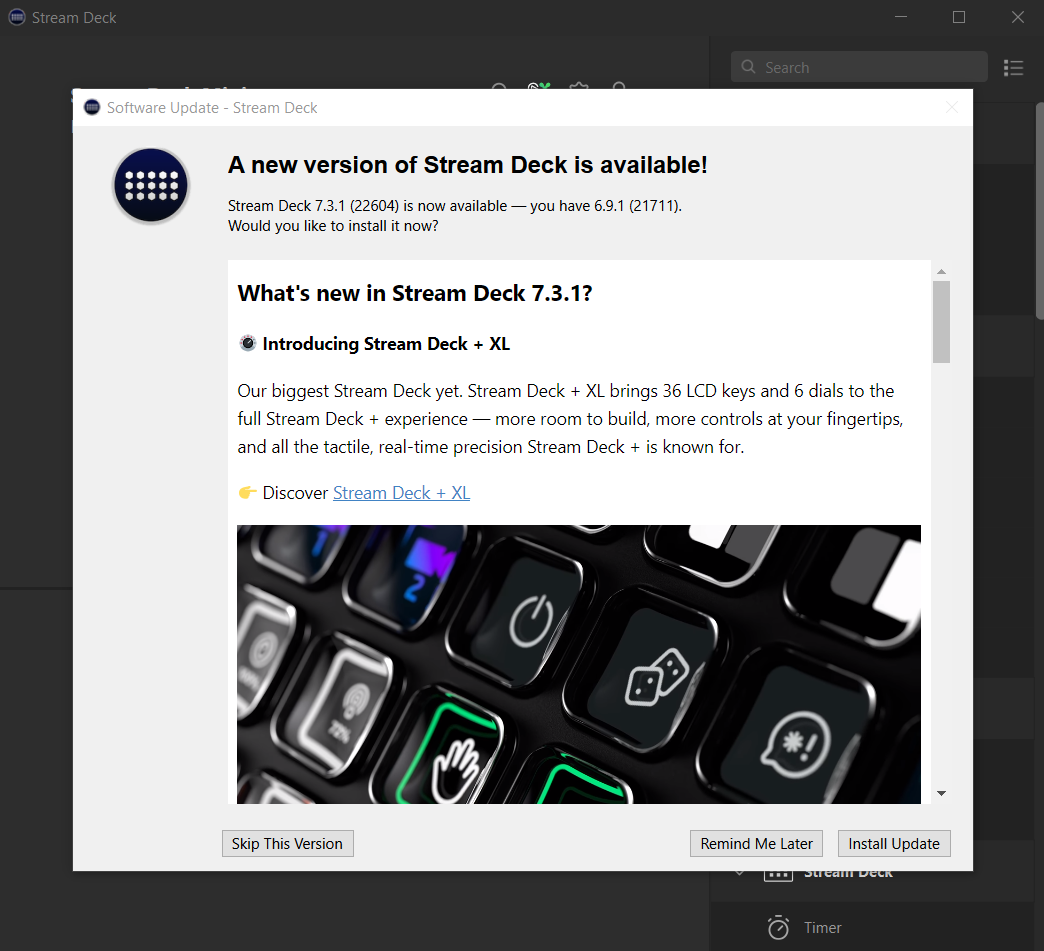
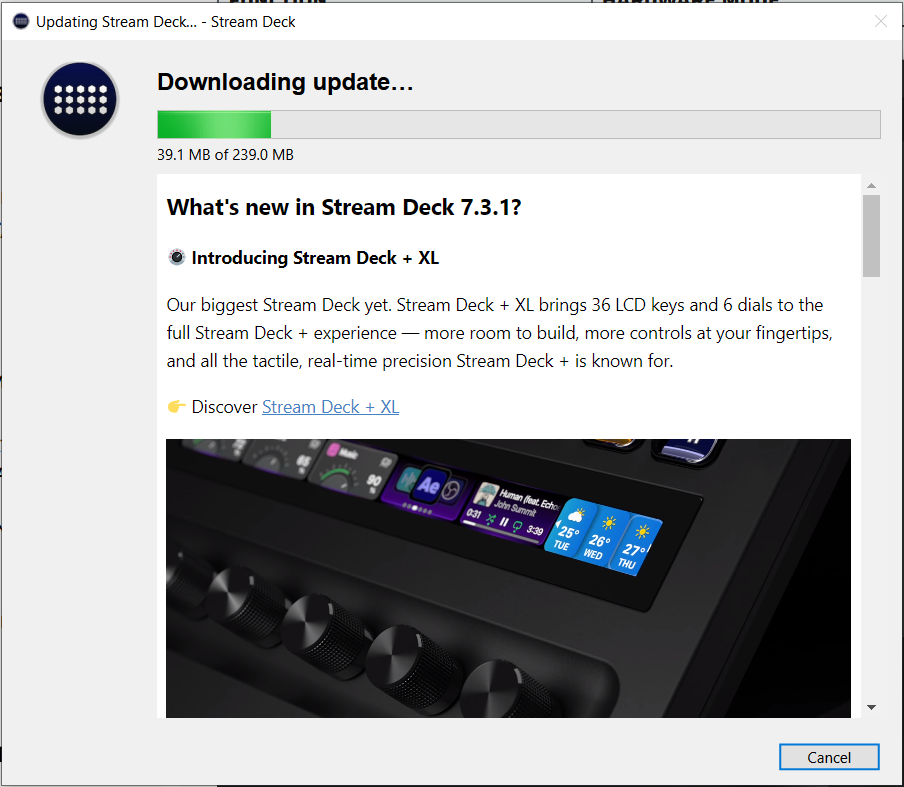
Gotcha I ran into: If you already have an older version of the Stream Deck app installed, it may prompt you to update from within the app. When I tried this, the in-app update didn’t work — it just failed silently. What did work was downloading the latest installer directly from Elgato’s site and running it fresh. My version went from 6.9.1 to 7.3.1.
Step 4: Update the Stream Deck Firmware (Yes, There’s a Second One)
Here’s something that isn’t obvious: the Galleon 100 SD has two separate firmware updates. The one in Step 2 covers the keyboard module through Corsair’s Web Hub. But the Stream Deck module has its own firmware, and it updates through the Stream Deck app.
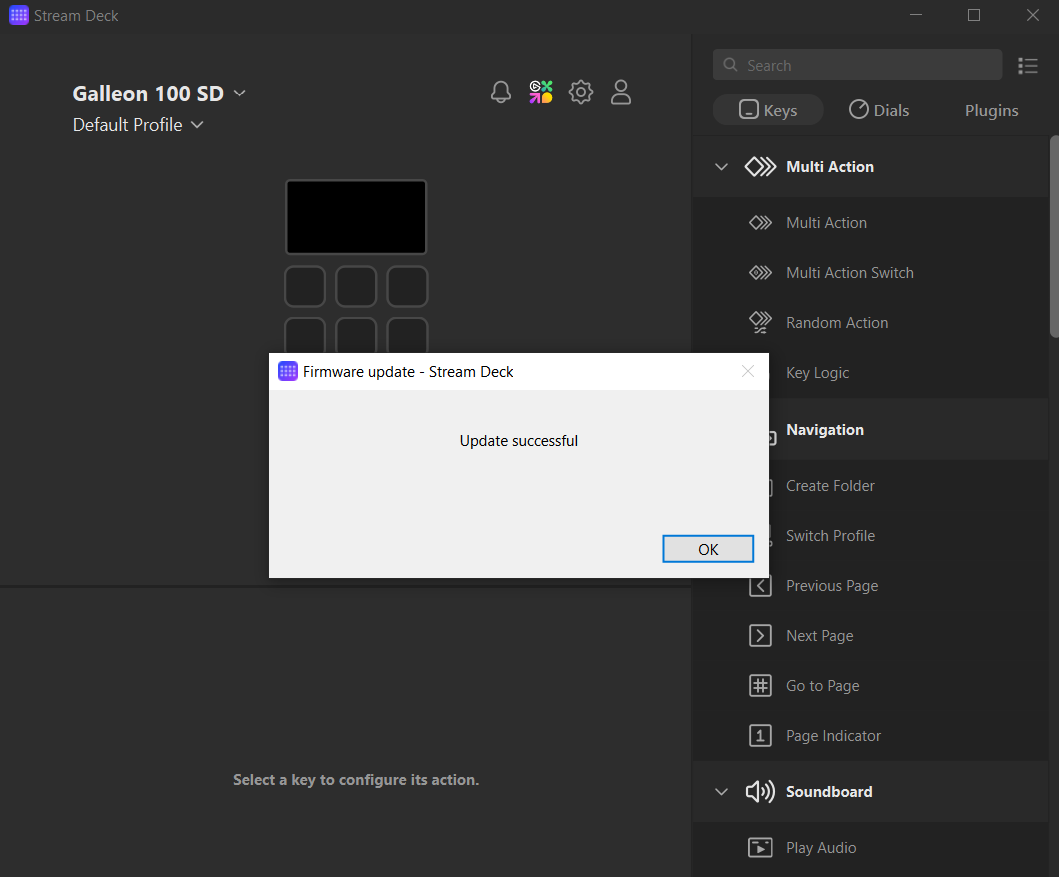
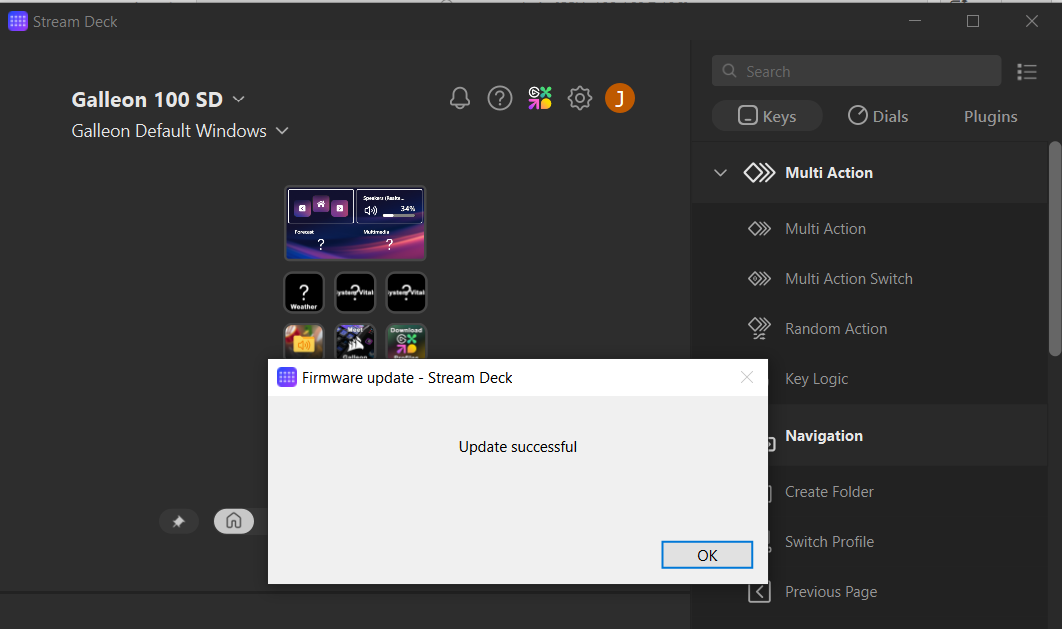
Once the Stream Deck app is installed and detects your Galleon 100 SD, it should prompt you to update the Stream Deck firmware automatically. Let it run — it only takes a minute or so. You’ll see an “Update successful” confirmation when it’s done.
Step 5: Verify Everything
Once both firmware updates are done and the Stream Deck app is installed, go back to the Corsair Web Hub and the Firmware Update Utility to confirm the keyboard side is current. You should see a green “The latest firmware version is installed” message. The Stream Deck app will show your Galleon 100 SD in the device dropdown with no update banners.
From the Web Hub you can now customize key assignments, lighting effects, macros, Game Mode settings, and more. The Stream Deck app handles everything on the LCD key / dial / screen side — profiles, plugins, actions, icons, and so on.
What the Stream Deck Section Actually Does
Out of the box without the Stream Deck app running, the LCD keys default to a shortcuts mode (media controls, mic mute, polling rate, theme switching) and a numpad mode that you can toggle between using the left dial. Once the Stream Deck app is installed, you get the full Elgato Stream Deck experience — drag-and-drop actions, folders, multi-actions, plugins from the Elgato Marketplace, and Smart Profiles that switch automatically based on which app is in focus.
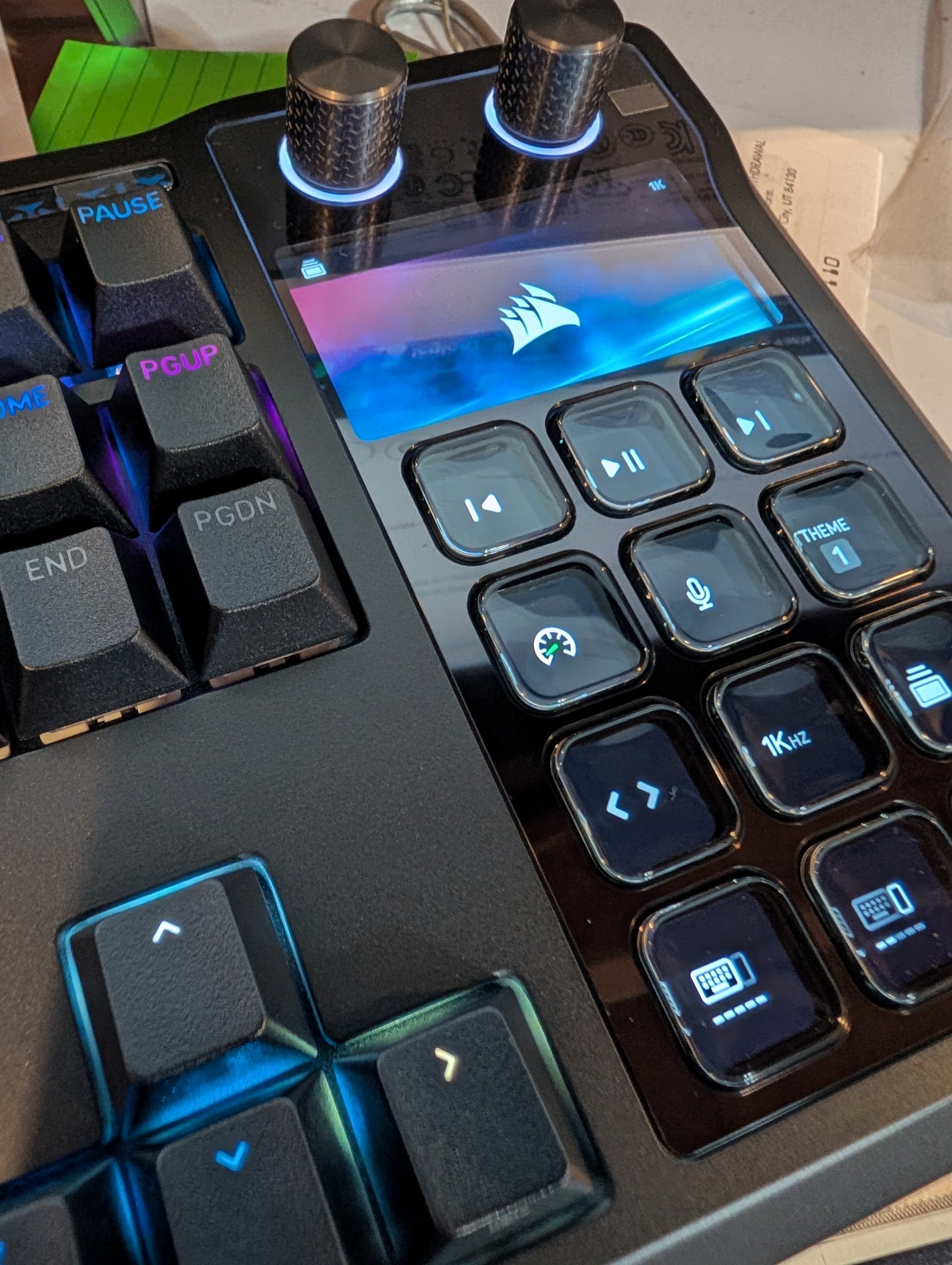
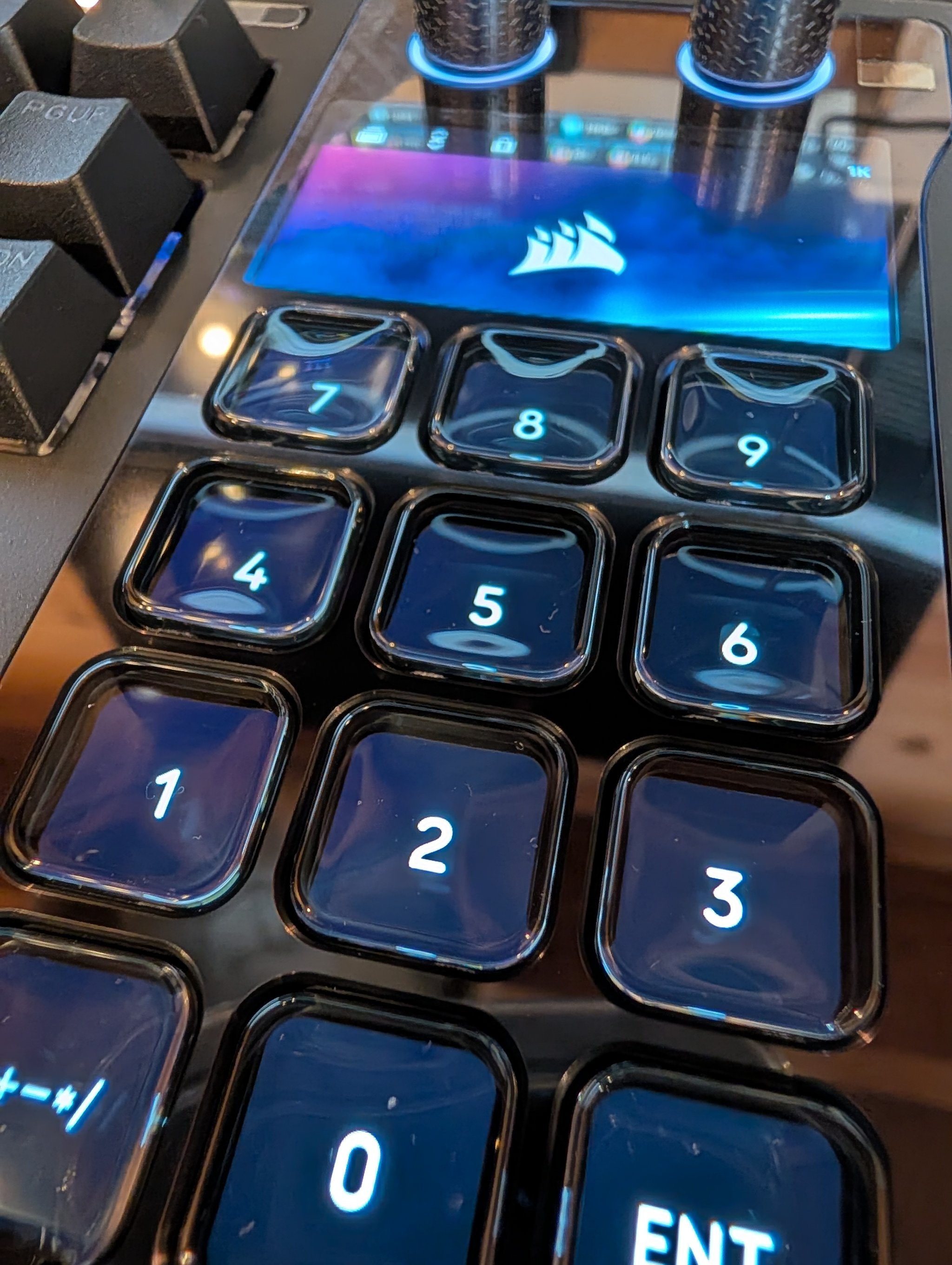
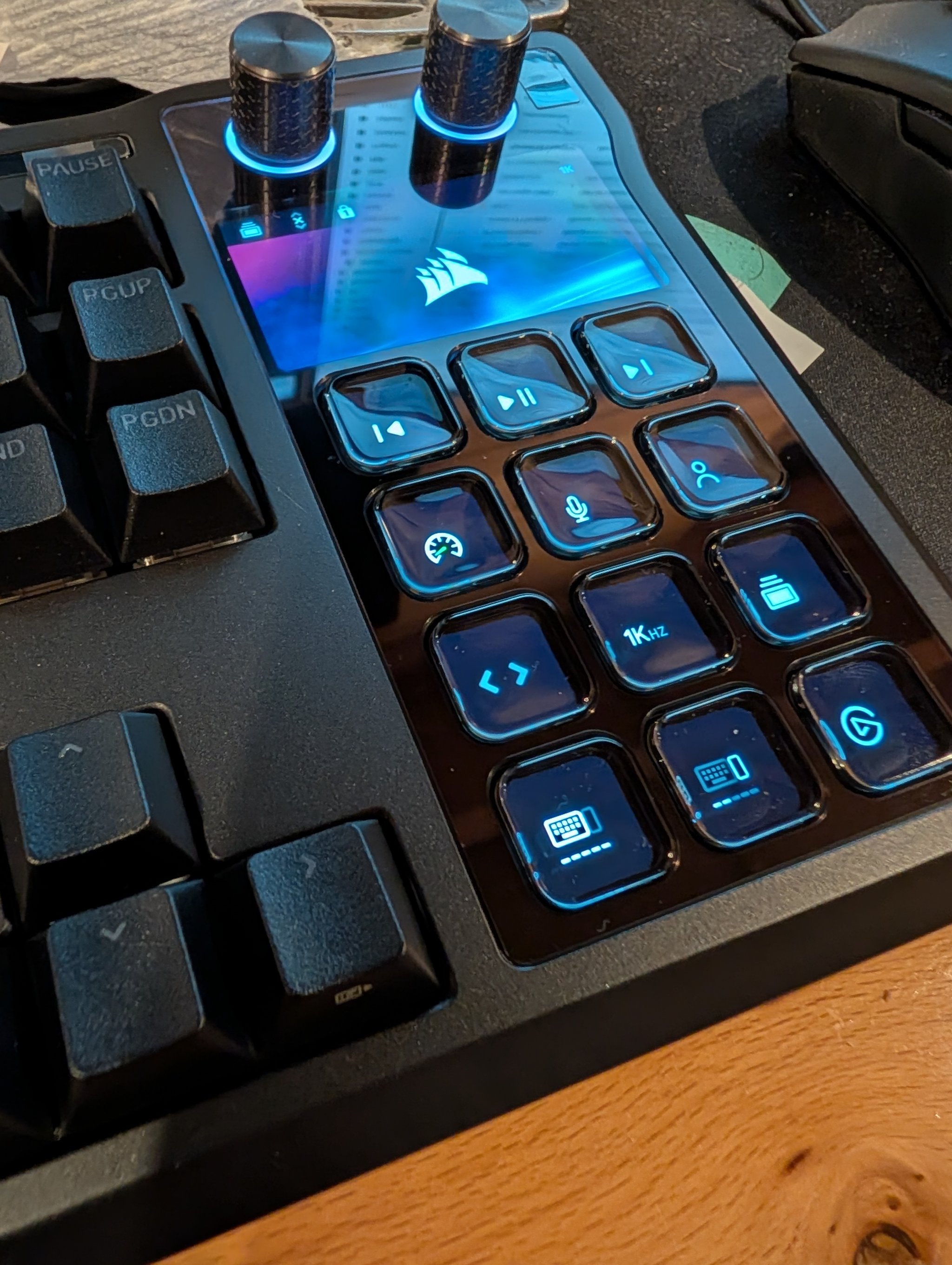
I haven’t done a ton of customization yet (it’s still the first day) but my plan is to set up shortcuts for app launchers and development tools, but the default profile is already useful for media controls and quick-access settings.
Quick Reference: The Three Ports and Two Apps
| What | Where |
|---|---|
| Keyboard functions port | USB-C back panel (keyboard icon) |
| Stream Deck / upstream port | USB-C back panel (Corsair sails icon) |
| USB passthrough port | USB-C back panel (USB icon) |
| Keyboard customization | Corsair Web Hub (browser, no install) |
| Firmware updates | Corsair Firmware Updater (browser) |
| Stream Deck customization | Elgato Stream Deck app (desktop app) |
If It’s Not Working
- Web Hub doesn’t detect the keyboard: Make sure both USB cables are connected. Try a different browser (Chrome works best). Try plugging directly into your PC instead of through a hub.
- Firmware update fails: Use the B + L key recovery method described above.
- Stream Deck app won’t update: Skip the in-app updater and download the full installer from Elgato’s downloads page.
- LCD keys are blank or unresponsive: The Stream Deck side requires the Corsair sails port to be connected — if only the keyboard port is plugged in, the LCD panel won’t work.
- Factory reset: Hold ESC for two seconds while the keyboard is plugged in to wipe onboard profiles and restore defaults.
Bottom Line
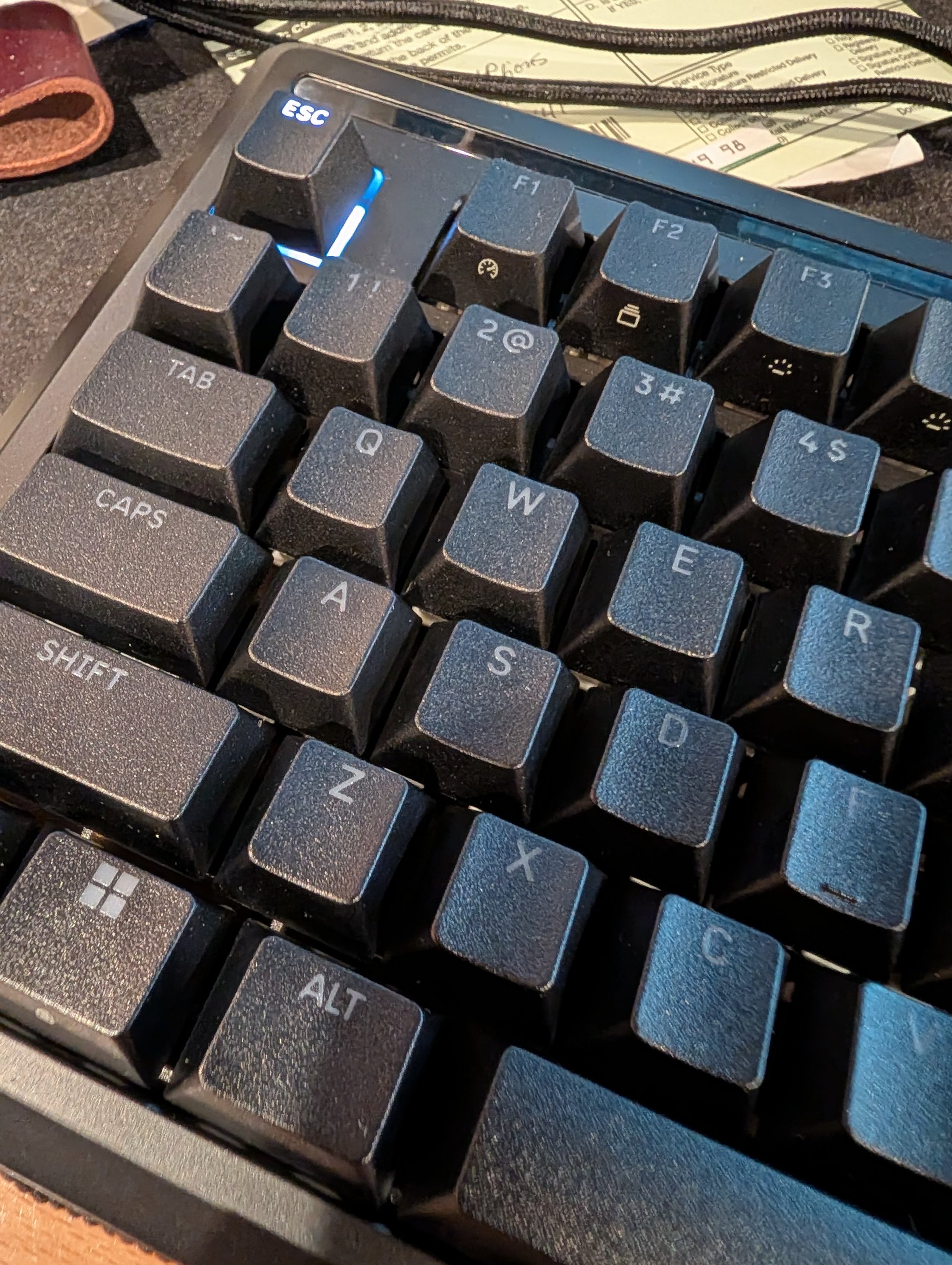
The Corsair Galleon 100 SD is a premium mechanical keyboard with a genuinely useful built-in Stream Deck. The setup process isn’t difficult, but it does require two USB cables, two separate firmware updates (one for the keyboard, one for the Stream Deck), and a separate desktop app for the Stream Deck, so expect about 15-20 minutes of setup before everything is fully operational. Once it’s done, you’ve got a solid keyboard with 12 programmable LCD keys, two dials, and a 5-inch display right where the numpad used to be.
Check the current price of the Corsair Galleon 100 SD on Amazon
This article is based on my personal experience setting up this keyboard and is intended for informational purposes only.