Gmail to Claude: Line Breaks Disappear on Paste (Fix)
TL;DR: When you copy text from Gmail and paste it into Claude (or Claude Code), all your line breaks disappear and the text runs together into one giant wall of text. The fix: right-click and choose “Paste as plain text” (or press Ctrl+Shift+V on Windows/Linux, Cmd+Shift+V on Mac). Your line breaks will be preserved.
The Problem
You’re working in Claude and need to paste an email from Gmail. You copy the text, hit Ctrl+V, and… all your carefully formatted paragraphs collapse into a single unreadable block. No line breaks, no paragraph spacing, just a wall of text.
No error message, no warning. Claude just silently eats your formatting. 😤
This is especially frustrating when you’re pasting multi-paragraph emails, code snippets from email threads, or structured lists. The context you’re trying to give Claude becomes incomprehensible.
Why It Happens
When you copy text from Gmail, your clipboard actually stores two versions of the content simultaneously:
- HTML version (rich text with formatting tags)
- Plain text version (just the characters and line breaks)
Gmail structures its emails using HTML <div> and <p> tags for line breaks rather than literal newline characters. When you do a normal Ctrl+V paste, the browser sends the HTML version to Claude’s input field. Claude’s paste handler strips the HTML tags but doesn’t always convert those block element boundaries (</div>, </p>) into line breaks. The structural meaning of “new paragraph here” gets lost in translation.
The plain text version on your clipboard, on the other hand, already has proper newline characters baked in by your browser. That’s why “Paste as plain text” works: it bypasses the HTML entirely and uses the clean plain text copy instead.
The Fix
Instead of Ctrl+V, do one of these:
- Right-click in Claude’s input box and select “Paste as plain text”
- Press Ctrl+Shift+V (Windows/Linux) or Cmd+Shift+V (Mac)
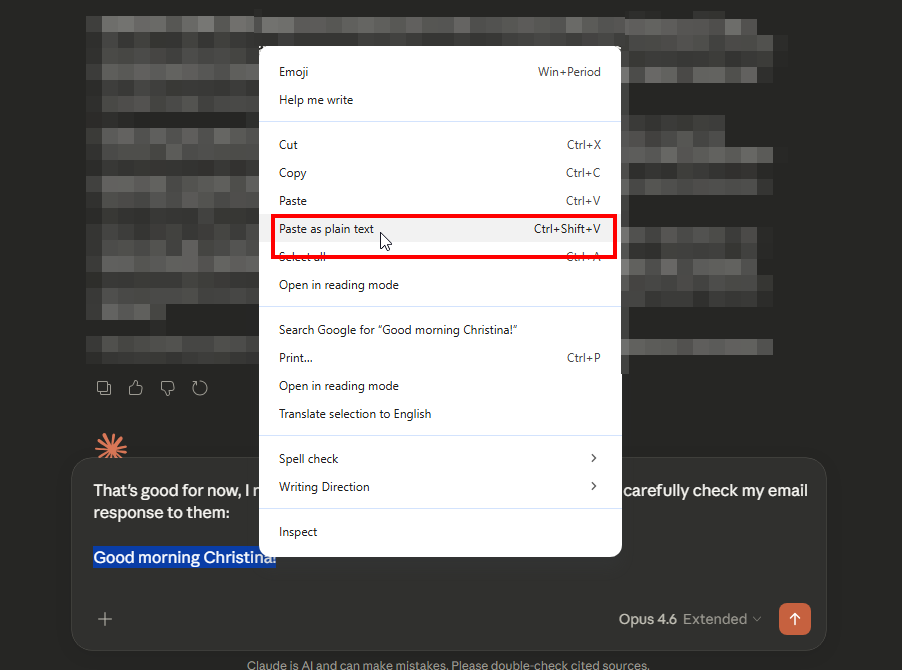
That’s it. Your line breaks, paragraph spacing, and list structure will come through intact. ✅
Other Workarounds
If Ctrl+Shift+V isn’t sticking in your muscle memory, here are a few alternatives:
- Notepad intermediary: Paste into Notepad first, then copy from Notepad and paste into Claude. Notepad strips all HTML and gives you clean plain text.
- Browser extensions: Extensions like “Auto Clipboard Plain Text” can force all pastes to use plain text by default, so Ctrl+V just works.
- AutoHotkey (Windows): You can remap Ctrl+V to always paste as plain text system-wide if this annoys you enough.
Not Just Gmail, Not Just Claude
This same issue can happen when pasting from Outlook Web, Yahoo Mail, Google Docs, or really any source that puts HTML on the clipboard. And it’s not unique to Claude: ChatGPT, Slack, and other web apps with rich text input fields can all exhibit the same behavior. The root cause is how web apps handle the HTML clipboard data during paste, not anything specific to the email client or AI tool.
That said, Gmail + Claude is one of the most common combinations where people hit this, so it’s worth knowing the fix.
Bottom Line
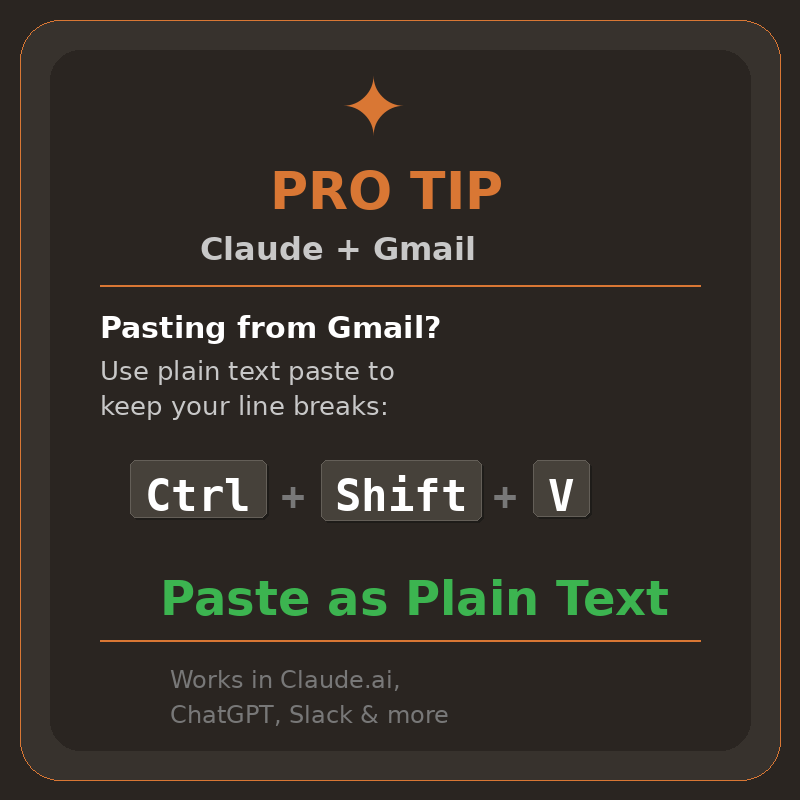
Train your fingers: Ctrl+Shift+V instead of Ctrl+V when pasting from email into Claude (or any AI chat tool, honestly). It takes about a day to build the habit, and you’ll never fight a wall-of-text paste again.
If you want to take it a step further, grab a keyboard shortcut sticker for your laptop. They’re cheap and surprisingly handy for building muscle memory on shortcuts like this one.
If you’re running into other Claude quirks, check out my post on CTRL+V not working in Claude Code and my guide to Claude AI custom instructions.
Got a different paste issue or workaround? Drop it in the comments below. 👇