Claude Reached Its Tool-Use Limit for This Turn: What It Means and How to Fix It
TL;DR: This message means Claude hit its per-turn cap on tool calls (around 10-20 actions like web searches, file reads, or connected service requests). Click “Continue” and it picks up right where it left off. No work is lost. 👍
What Does “Claude Reached Its Tool-Use Limit” Mean?
If you use Claude with any connected tools (Gmail, Google Drive, web search, MCP servers, code execution, etc.) you may have seen this banner pop up mid-conversation:
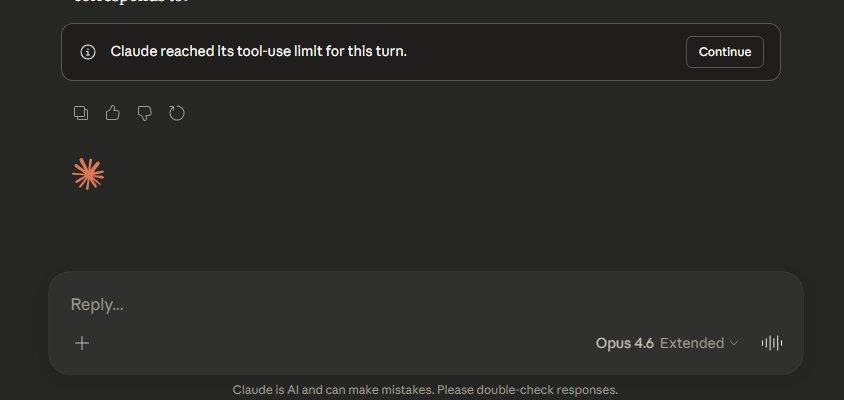
“Claude reached its tool-use limit for this turn.”
It sounds alarming. It’s not.
Claude has a per-turn cap on how many tool calls it can make in a single response. “Tools” here means any action Claude takes beyond just generating text: searching the web, reading a file from Google Drive, sending a Gmail draft, executing code, or calling any connected service. Each of those counts as one tool call.
When Claude hits the cap, it pauses and shows you that banner with a “Continue” button. That’s it. It’s a speed bump, not a wall.
This is not the same as your usage limit (the subscription quota that locks you out when you’ve sent too many messages). The tool-use limit is per-turn, resets every time you click Continue, and has nothing to do with how much of your plan you’ve used.
When Does This Happen?
You’ll hit it most often when you ask Claude to do something that requires many back-to-back actions in a single response:
- Research tasks that involve multiple web searches and page reads
- File-heavy operations like reading several Google Drive documents
- Complex MCP workflows where Claude chains together SSH commands, database queries, or API calls
- Multi-step tasks where Claude needs to search, read, analyze, and write all in one go
The more connected tools you have enabled, the more likely Claude is to hit the cap during complex tasks. In my experience, it usually kicks in somewhere around 10-20 tool calls into a single response turn.
Does Clicking “Continue” Lose Your Work?
No. This is the most common worry, and the answer is straightforward.
When you click Continue, Claude picks up exactly where it paused. Your conversation context is intact. Any partial work Claude was doing carries forward. The tool-use counter resets for the new turn, so Claude can make another batch of tool calls.
You might need to click Continue more than once for especially complex tasks. That’s normal.
What’s the Actual Limit?
Anthropic hasn’t published an official number for the claude.ai web app. Their API documentation references a default of 10 server-side iterations per request, which maps to roughly 10-20 tool calls before the pause triggers.
A few things worth noting:
- The limit appears to be the same across models. Whether you’re using Opus 4.6, Sonnet 4.6, or Haiku, the per-turn cap seems consistent. I haven’t been able to confirm any model-specific differences.
- Plan tier doesn’t seem to matter either. Free, Pro, and Max users all report hitting the same limit. Some Max plan users have requested tiered limits (more tool calls for higher-paying subscribers), but that hasn’t happened yet.
- Extended thinking mode doesn’t change it. The screenshot at the top of this post shows Opus 4.6 with Extended thinking enabled. Same limit.
- The limit may have been reduced recently. In early March 2026, multiple users reported that sessions which previously ran 60-80+ tool calls without interruption were suddenly hitting the limit after around 20 calls. Anthropic hasn’t commented on the change.
How to Reduce How Often You Hit It
You can’t raise the limit, but you can work with it:
- Break complex tasks into explicit steps. Instead of “Research X, analyze the results, draft a report, and format it,” try giving Claude one phase at a time. Fewer tool calls per turn means fewer interruptions.
- Trim your connected tools. Each connected service (Gmail, Drive, Slack, etc.) adds overhead. If you have 15 integrations enabled but only use 3 regularly, switch the rest to “On demand” mode in your tool settings. Claude will still find them when needed, but they won’t load into every conversation.
- Be specific in your prompts. Vague requests cause Claude to cast a wider net: more searches, more file reads, more tool calls. “Find the March 2026 budget spreadsheet in my Drive and summarize the Q1 totals” triggers fewer tools than “Look through my Drive and tell me about my finances.”
- Just click Continue. Seriously. It takes one click and about two seconds. For most people, this is the simplest path.
How Does This Compare to ChatGPT and Gemini?
Neither ChatGPT nor Gemini has an equivalent per-turn interruption in their consumer products. ChatGPT can make parallel function calls within a single turn without a visible cap, and Gemini’s tool calling doesn’t surface a similar pause-and-continue flow.
That said, all AI platforms have various rate limits and guardrails. Claude’s approach is more visible and interruptive, but it’s also more transparent: you know exactly when it paused and you’re in control of when it resumes. Whether that tradeoff is better or worse depends on your workflow.
Why Doesn’t Anthropic Just Remove the Limit?
Speculating here, but there are reasonable explanations. Each tool call costs compute. A single user prompt that triggers 200 web searches and file reads in one shot would be expensive to serve and could degrade performance for everyone. The per-turn cap is likely a resource management guardrail.
It’s also possible that the limit exists to keep Claude’s context window manageable. Every tool call and its results consume tokens. An uncapped tool loop could blow past context limits and cause actual data loss, which would be worse than a polite pause.
Bottom Line
“Claude reached its tool-use limit for this turn” looks scarier than it is. Click Continue. Your work is safe, your context is intact, and Claude picks up right where it left off. If you’re hitting it constantly, break your tasks into smaller steps or trim your connected tools. It’s a minor friction point in an otherwise capable system.
Information in this post was accurate at the time of writing. Software updates, product revisions, and policy changes happen. If something here doesn’t match what you’re seeing, drop a comment and I’ll update the post.