Claude Code /context Command: See Exactly Where Your Tokens Go
TL;DR: Type /context in Claude Code to see a full breakdown of where your context window tokens are being spent. It shows system overhead, MCP tools, memory files, conversation history, and free space. Use it to find bloated MCP servers, oversized CLAUDE.md files, and know when to run /compact.
What Is /context?
If you’ve ever had a Claude Code session start strong and then slowly degrade, the context window is probably the reason. Every message you send carries invisible overhead: system prompts, tool definitions, MCP server registrations, memory files, and skills all load into your context alongside your actual conversation.
The /context command makes all of that visible. Type it into the Claude Code prompt and you get a complete token-by-token breakdown of what’s consuming your context window. It was introduced in Claude Code v1.0.86 and has since been updated with actionable optimization suggestions.
What the Output Looks Like
Here’s real output from a working session:
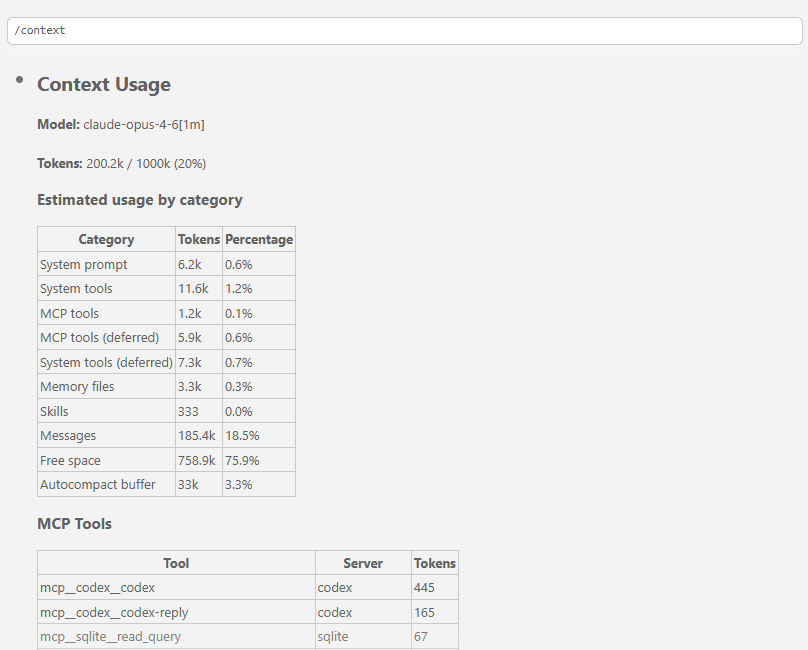
| Category | Tokens | Percentage |
|---|---|---|
| System prompt | 6.2k | 0.6% |
| System tools | 11.6k | 1.2% |
| MCP tools | 1.2k | 0.1% |
| MCP tools (deferred) | 5.9k | 0.6% |
| System tools (deferred) | 7.3k | 0.7% |
| Memory files | 3.3k | 0.3% |
| Skills | 333 | 0.0% |
| Messages | 185.4k | 18.5% |
| Free space | 758.9k | 75.9% |
| Autocompact buffer | 33k | 3.3% |
This session is running on Opus 4.6 with a 1M context window and is at 20% usage (200.2k of 1,000k tokens). Plenty of room. But not every session looks this healthy.
What Each Category Means
System prompt and System tools are fixed overhead from Claude Code itself. You can’t change these. They define how Claude Code behaves, what tools it has access to (file editing, search, bash), and how it should respond. Together they cost about 18k tokens in this example.
MCP tools are the token cost of your connected MCP servers. Each server registers its tool definitions on every single request, even when idle. The per-tool breakdown shows exactly how much each one costs, here are some examples:
| Tool | Server | Tokens |
|---|---|---|
| gmail_create_draft | Gmail | 820 |
| gmail_search_messages | Gmail | 660 |
| codex | codex | 445 |
| browser_take_screenshot | playwright | 370 |
| browser_fill_form | playwright | 254 |
| browser_click | playwright | 236 |
The Gmail MCP server alone accounts for a lot of tokens and can have up to seven or more tools. If you’re not using Gmail in a coding session, that’s wasted context. For a complete breakdown of every tool across four common MCP servers, see MCP Server Token Costs in Claude Code.
Deferred tools are tool definitions that have been moved out of the active context. When your MCP tools exceed a certain percentage of the context window, Claude Code automatically defers them and loads them on-demand via tool search. The “deferred” rows show how many tokens are saved this way.
Memory files include your CLAUDE.md files (project and global) and the first 200 lines of your auto-memory index. In this session, that’s 3.3k tokens:
| Type | Path | Tokens |
|---|---|---|
| User | ~/.claude/CLAUDE.md | 1.7k |
| AutoMem | ~/.claude/projects/…/memory/MEMORY.md | 1.6k |
If your CLAUDE.md is a sprawling document, this number grows fast. A 10k-token CLAUDE.md loads on every single message.
Skills are lightweight: just 333 tokens for four skill descriptions. Skills load their full content only when invoked, so they’re efficient by design.
Messages is your actual conversation history. At 185.4k tokens (18.5%), this session has had a fair amount of back-and-forth. This is the category that grows with every message and eventually triggers auto-compaction.
Free space is what’s left. 758.9k tokens of available context. This is the room Claude Code has to work with for your next messages, tool results, and file reads.
Autocompact buffer is a reserved zone (~33k tokens). When your messages grow large enough to encroach on this buffer, Claude Code automatically compacts your conversation history by summarizing earlier messages. You lose some detail from early in the conversation, but gain space to keep working.
How to Act on What You See
Running /context is diagnostic. Here’s what to do with the information.
Disconnect idle MCP servers. Run /mcp to see your connected servers. If you’re not using Playwright or Gmail in this session, disconnect them. Each idle server burns tokens on every request for tool definitions you’re not using.
Trim your CLAUDE.md. If your memory files are eating 5k+ tokens, review what’s actually in there. Move instructions that only apply to specific tasks into skills instead. Skills load on-demand; CLAUDE.md loads on every message.
Use /compact proactively. Don’t wait for auto-compaction to kick in. When /context shows your Messages category climbing above 60-70%, run /compact with a focus instruction like /compact Focus on the database migration steps. This gives you control over what gets preserved in the summary.
Use subagents for verbose operations. Subagents get their own separate context window. If you need to search through hundreds of files or process large outputs, delegate to a subagent instead of doing it in your main conversation.
Lower your tool search threshold. Set ENABLE_TOOL_SEARCH=auto:5 to defer tool definitions when they exceed 5% of context (default is 10%). This saves context by loading tools only when Claude Code actually needs them.
Prefer CLI tools over MCP servers. Tools like gh, aws, and gcloud can be called directly from the terminal without registering persistent tool definitions. A single gh pr list command is cheaper than having the entire GitHub MCP server loaded.
/context vs /cost vs /compact
These three commands work together but serve different purposes:
| Command | What It Shows | When to Use It |
|---|---|---|
/context |
Where tokens are allocated (tools, memory, messages, free space) | Diagnose what’s consuming context; optimize before long sessions |
/cost |
Dollar cost and total tokens used this session | Track spending; check if a session is getting expensive |
/compact |
Nothing (it acts, doesn’t display) | Free up space by summarizing conversation history |
Think of /context as the X-ray, /cost as the bill, and /compact as the cleanup crew.
Bottom Line
The /context command takes two seconds to run and shows you exactly what’s eating your context window. Run it early in a session, especially if you have multiple MCP servers or a large CLAUDE.md. The effort level and model you choose matter, but so does what’s already loaded before you type your first message. /context makes the invisible visible.
This post was drafted with direct assistance from an AI tool (Claude) since it is directly related to the topic. Information in this post was accurate to the best of my knowledge at the time of writing. Claude Code updates frequently. If something here doesn’t match what you’re seeing, drop a comment and I’ll update the post.