Windows 10 printing to old/offline printer instead of new one [SOLVED]
TL;DR: Replaced a printer but Windows 10 keeps sending jobs to the old one? Cancel the stuck jobs in the old printer’s queue, then set your new printer as the default. Two minutes and you’re back in business. 👍
So I got a message from a client’s office today. “The printer won’t print.” Classic.
We had just set up a brand new Brother DCP-L5510DN to replace their old DCP-L5500DN. The new printer was confirmed working via USB the day before. Everything looked good. Then the next morning: nothing prints.
She sent me some screenshots and the problem was immediately obvious. Windows was still sending every print job to the old printer (the L5500DN), which was now offline and disconnected. Six documents were just sitting in the old printer’s queue, going nowhere.
Meanwhile the new printer’s queue? Empty. Because nothing was being sent to it. 🤦
This is one of those problems that looks scary (“the printer is broken!”) but is actually a super quick fix.
The Problem
When you remove an old printer and connect a new one, Windows 10 doesn’t always update the default printer automatically. If “Let Windows manage my default printer” is turned on, it tries to be smart about it, but in practice it often just keeps sending jobs to the last printer it remembers, even if that printer is offline and sitting in a closet somewhere.
The result: your print jobs pile up in an invisible queue for a printer that no longer exists, and your shiny new printer just sits there doing nothing.
The Fix
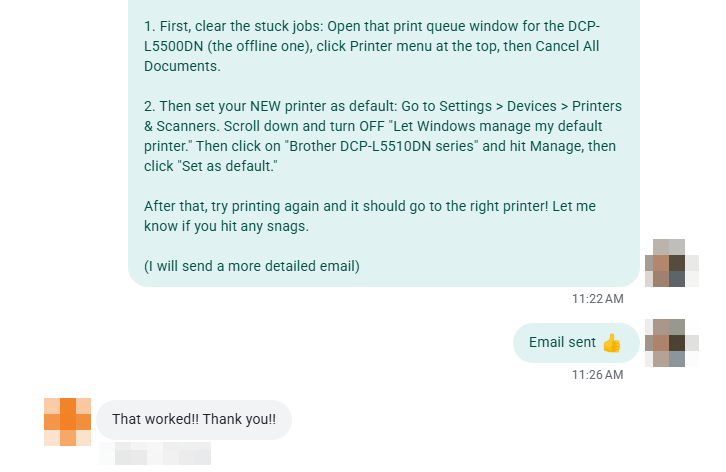
Step 1: Clear the stuck print jobs from the old printer 🧹
- Go to Settings > Devices > Printers & Scanners
- Click on the old printer (in my case, “Brother DCP-L5500DN”) and click Open queue
- In the queue window, click the Printer menu at the top
- Click Cancel All Documents and confirm with Yes
- Close the queue window
Step 2: Set the new printer as your default
⚠️ Important: You MUST do step 2a before step 2b. Windows hides the “Set as default” option entirely when it thinks it’s managing the default printer for you. If you skip ahead and click Manage on your new printer, you simply won’t see a “Set as default” button. It won’t be there. This trips people up constantly.
2a. Go back to Settings > Devices > Printers & Scanners and scroll all the way to the bottom of the page. You should see a checkbox that says “Let Windows manage my default printer.” Uncheck it (turn it OFF). 🔑
2b. Now scroll back up and find your new printer (in my case, “Brother DCP-L5510DN series”). Click on it, then click Manage. NOW you will see the “Set as default” button. Click it.
That’s it. Try printing again and your documents should go straight to the new printer. 🎉
Bonus: Clean up old printer entries 🧼
You may also notice that Windows has accumulated multiple entries for the old printer over time. In my client’s case there were four stale entries: “DCP-L5500DN”, “DCP-L5500DN series”, “DCP-L5500DN series IP”, etc. All offline, all useless, all confusing.
To clean these up:
- Go to Settings > Devices > Printers & Scanners
- Click on each old/offline printer entry
- Click Remove device
This won’t affect your new printer at all, and it removes the clutter so there’s less chance of accidentally selecting the wrong one in the future.
Why does this happen?
A few reasons:
Windows 10’s “Let Windows manage my default printer” feature is based on location and usage history. If you’ve been printing to the old printer for months or years, Windows has a strong preference for it. Swapping in a new printer (even one connected to the same USB port) doesn’t automatically transfer that preference.
Also, if the old and new printer are similar models (like the L5500 vs L5510 in my case), it’s easy to not notice that the wrong one is selected, especially in applications that remember your last-used printer independently from the Windows default.
Final thought
This is one of those 2-minute fixes that saves a lot of frustration. If you just replaced a printer and “nothing prints,” check the queue on the old printer first. Odds are your documents are all sitting right there, waiting to be sent to a printer that’s already been hauled away. 😄
Hope this helps someone out there. Have a GREAT day!
-J.D.
People found this page by searching for:
- windows 10 printing to wrong printer
- print jobs going to old printer
- set as default printer missing windows 10
- new printer installed but won’t print
- printer queue stuck offline windows 10
- let windows manage my default printer problem
- replaced printer but still printing to old one
- brother printer offline but new one connected
- cancel all documents printer queue windows 10
- where is set as default printer windows 10
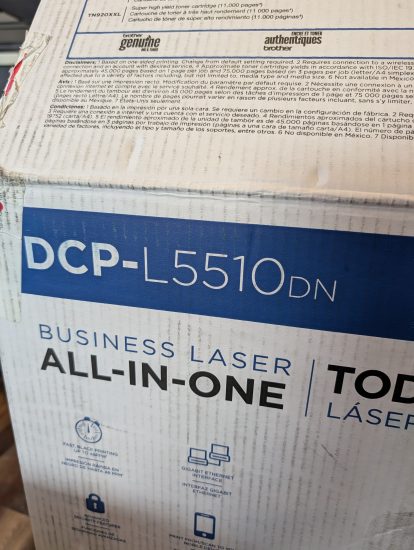
Happy ending! Printer works and the user was able to resolve the issue without a service call or remote desktop session. Also, I should have anticipated the issue and set the default the day before. I apologized as such. 👍 Here’s the success confirmation text: 😊