Portable FTP server: Serva 32/64
While looking for a nice portable (no installation, etc.) FTP server today, I found the following:
Serva is an all-in-one portable multi-server
- HTTP server
- FTP server
- TFTP server
- TFTP client
- DHCP server
- proxyDHCP server
- BINL server *
- DNS server
- SNTP server
- SYSLOG server
- * MS WAIK independent RIS and WDS install server alternative
via Serva 32/64 – Serva32 – Serva64.
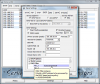
Serva 32/64 – Serva32 – Serva64http://www.vercot.com/~serva/default.htmlHome HowTo Windows PXE Debian PXE Ubuntu PXE Advanced Serva Protocols TFTP Topics DHCP Topics Null S. Shares Troubleshooting Tools PXESERVA Pwd ePuTTY 32/64 Download Contact
Top Search Terms:
- pxeserva.0 (13)
- serva 32/64 (10)
- serva32 (8)
- "pxeserva.0" (5)
- portable ftp server (4)
- serva portable (3)
- serva 32 (3)
- pxeserva (3)
- serva 3264 (3)
- pxeserva.0 download (3)
you’ve found a real gem, that tiny Serva is very useful
Thanks Sammy, have a great week!
Good morning, I have downloaded serva32 and want to start using it for file transfer. This is the first time i use FTP server. What is a simple procedure to use it to transfer files. How do I need to configure my IP address.
Hey Arrie, for a basic local network file transfer with Serva, here’s the quick version: (1) Launch Serva, go to Settings > FTP, check “FTP Server” and set the root folder to whatever folder holds the files you want to share. (2) For your IP address, just open a command prompt and type “ipconfig”, use the IPv4 address listed there (usually something like 192.168.1.x). (3) On the other computer, open a web browser or FTP client and go to ftp://[your-IP]. That should be enough to get files moving. Both computers need to be on the same local network for this to work without extra firewall configuration.