Could Not Update Post in the Database [SOLVED]
WordPress Gutenberg “Could Not Update Post in the Database” Fix (IONOS, utf8mb3, and Emoji Issues)
I ran into a fun one tonight while trying to publish a post to an older WordPress site hosted on IONOS. Figured I’d document it since it took me a few minutes to figure this out and hopefully this saves someone else the trouble.
The Problem
I wrote a post in the Gutenberg block editor, hit Publish, and got this:
“Publishing failed. Could not update post in the database.”
Tried again. Same error.
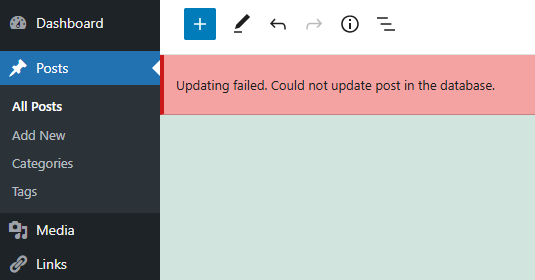
The post title saved fine. The draft showed up in the database. But the body content would not save through Gutenberg no matter what I tried.
What I Checked First
I went into phpMyAdmin to poke around. The database looked healthy:
- All 16 tables present, all InnoDB, no overhead
- Total database size: 21 MiB (tiny)
SHOW VARIABLES LIKE 'max_allowed_packet'returned 67108864 (64MB, way more than enough)- The draft post was sitting in
wp_postswith the correct title, a status of “draft,” and an emptypost_contentfield
So the database was responsive. Writes were working. The title saved. The content did not.
The Root Cause: utf8mb3
When I looked at the table collation in phpMyAdmin, every table in the database was using utf8mb3_general_ci.
That’s the old MySQL 3-byte UTF-8 encoding. It handles most standard text just fine, but it cannot store 4-byte Unicode characters. That includes emoji (like the 🙂 I had in my post), many Asian characters, mathematical symbols, and various other Unicode blocks.
WordPress has been trying to move to utf8mb4 (the real, full UTF-8 implementation) since version 4.2 back in 2015. But here’s the catch: WordPress automatic updates will never change your existing database collation. If your site was created before that migration, or if the migration couldn’t run because your MySQL version was too old at the time, your tables are still utf8mb3 today. Ten years later.
The Gutenberg editor sends content to WordPress via the REST API. When that content includes a 4-byte character (even a single emoji), MySQL rejects the insert because utf8mb3 can’t store it. I even manually (via phpmyadmin) set the post status to published and tried updating. WordPress catches the database error and surfaces it as “Could not update post in the database.” The error message gives you zero indication that character encoding is the problem.
The Quick Fix (Get Your Post Published Now)
If you’re stuck right now and just need to publish, you can bypass Gutenberg entirely and write the content directly to the database. Go to phpMyAdmin, click the SQL tab, and run something like this:
UPDATE wp_posts
SET post_content = '<p>Your post content here</p>'
WHERE ID = YOUR_POST_ID;
Important: If your database is still utf8mb3, you cannot include emoji in your SQL content either. MySQL will throw Warning #1366: Incorrect string value and the update will silently fail (0 rows affected). Use text smileys like :) instead. WordPress has a built-in filter (wptexturize) that converts those to graphical smileys on the front end anyway.
You may also need to set the post status if it’s still in draft:
UPDATE wp_posts
SET post_status = 'publish',
    post_date_gmt = '2026-02-16 20:00:00'
WHERE ID = YOUR_POST_ID;
Adjust the date to current UTC. That gets your post live immediately.
The Real Fix: Convert to utf8mb4
The proper long-term fix is converting your database tables from utf8mb3 to utf8mb4. This is what WordPress would have done automatically if conditions were right during the 4.2 upgrade.
Back up your database first. Then:
Option A: wp-config.php + WordPress Internal Upgrade
Edit your wp-config.php and make sure these lines read:
define( 'DB_CHARSET', 'utf8mb4' );
define( 'DB_COLLATE', 'utf8mb4_unicode_ci' );
Then trigger the WordPress database upgrade by visiting yoursite.com/wp-admin/upgrade.php. WordPress should attempt to convert the tables. This doesn’t always work on older installs, but it’s the least invasive approach.
Option B: Convert Tables Manually via SQL
If Option A doesn’t do the job, you can convert tables directly. In phpMyAdmin, run this for each table that needs conversion:
ALTER TABLE wp_posts
CONVERT TO CHARACTER SET utf8mb4
COLLATE utf8mb4_unicode_ci;
Repeat for wp_postmeta, wp_comments, wp_options, and any other tables still on utf8mb3. You can check all table collations at a glance from the phpMyAdmin Structure tab for your database.
Note: On large databases this can take a while. One user on the WordPress Trac reported a 3.2GB database taking over 20 minutes for a single table conversion. For a small blog, it should be nearly instant.
Option C: Use the Lighthouse Plugin
If you’d rather not run raw SQL, the Lighthouse plugin (by getButterfly) recently added a UTF8MB4 Database Conversion Tool that automates the whole process through the WordPress admin. Install, run the conversion, then remove the plugin.
Bonus Issue: Gutenberg vs. Classic Editor
Even after fixing the encoding, you might still hit “Could not update post in the database” on some IONOS-hosted sites. IONOS runs ModSecurity/WAF rules that can flag Gutenberg’s REST API requests as suspicious, especially when the post content contains URLs or code snippets.
If the utf8mb4 conversion doesn’t fully resolve your issues, installing the Classic Editor plugin is a solid workaround. The Classic Editor uses the older admin-ajax.php endpoint instead of the REST API, which typically bypasses the WAF rules. It’s officially supported by WordPress through at least 2025 (and likely beyond).
How I Found This
I was using Claude (AI) to help me draft a blog post for one of my sites that had been dormant for a while. The post looked great in the editor. Hit publish, got the error. Claude helped me work through the diagnostics: check phpMyAdmin, inspect the tables, test the max_allowed_packet variable, and eventually identify the utf8mb3 collation as the culprit. When we tried inserting the content via SQL and included a 🙂 emoji, MySQL kicked back Warning #1366: Incorrect string value '\xF0\x9F\x99\x82</...' and that confirmed it. Swapped the emoji for a text smiley, the SQL went through, and the post went live.
The whole episode is a good reminder that “it just works” is never permanent with self-hosted WordPress. Databases, character sets, hosting configurations: these things drift over time, and a site that was perfectly configured in 2013 can have silent incompatibilities a decade later. Especially when the editor changes from Classic to Gutenberg underneath you.
If you’re running an older WordPress install and haven’t checked your database collation recently, it’s worth a look. You might be one emoji away from a frustrating evening.
Tags: wordpress, gutenberg, mysql, utf8mb4, utf8mb3, emoji, ionos, database, fix
Categories: computer tips, WordPress tips