How to Set Up a SSH Connection in Claude Code Desktop
Summary: Claude Code’s desktop app can SSH into a remote machine and run sessions there against your repo, MCP servers, and ~/.claude config. Setup is a four-field dialog, assuming ssh user@host (where user is your username and host is the hostname or IP) already works from your terminal. The non-obvious caveat: session history is siloed. The desktop app, the CLI on the remote, and the VS Code extension (if you use it) on the remote each keep separate session lists.
Details and use cases
I generally use a Windows desktop or laptop and a Linux dev VM, sometimes with a Mac thrown into the mix. The repo, the MCP servers, and the ~/.claude config with all my custom instructions and skills live on a dedicated development environment on the Linux VM. The Windows or Mac machines are the comfortable daily drivers that I use VS Code on, with remote SSH access to the Linux VM.
I also want to be up to date on Anthropic’s desktop app situation. The desktop app’s SSH option supports exactly what I like: an easy desktop interface for remote Claude Code instances. (You can do the same thing with Codex and their Codex desktop app.) The setup for a SSH connection in Claude Code Desktop is straightforward:
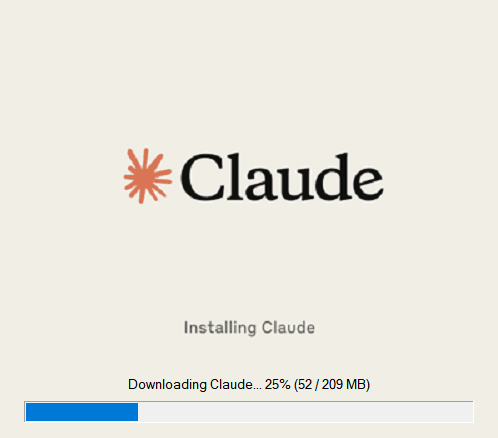
First, if you haven’t already, install Claude Desktop for Windows or Mac.
Here are the key ingredients:
- Claude Code desktop app installed on Windows or Mac, signed in with a Claude account that has Claude Code access
- A remote machine reachable over SSH on port 22 (or whatever port you use for SSH)
- A SSH key pair on your local machine whose public half is in
~/.ssh/authorized_keyson the remote - The remote user, hostname or IP
If ssh user@host already works from your terminal, you are done with prereqs. The desktop app handles installing Claude Code on the remote automatically the first time you connect, so the claude binary does not need to exist there yet.
Walk-through
1. Open the desktop app and pick where Claude runs
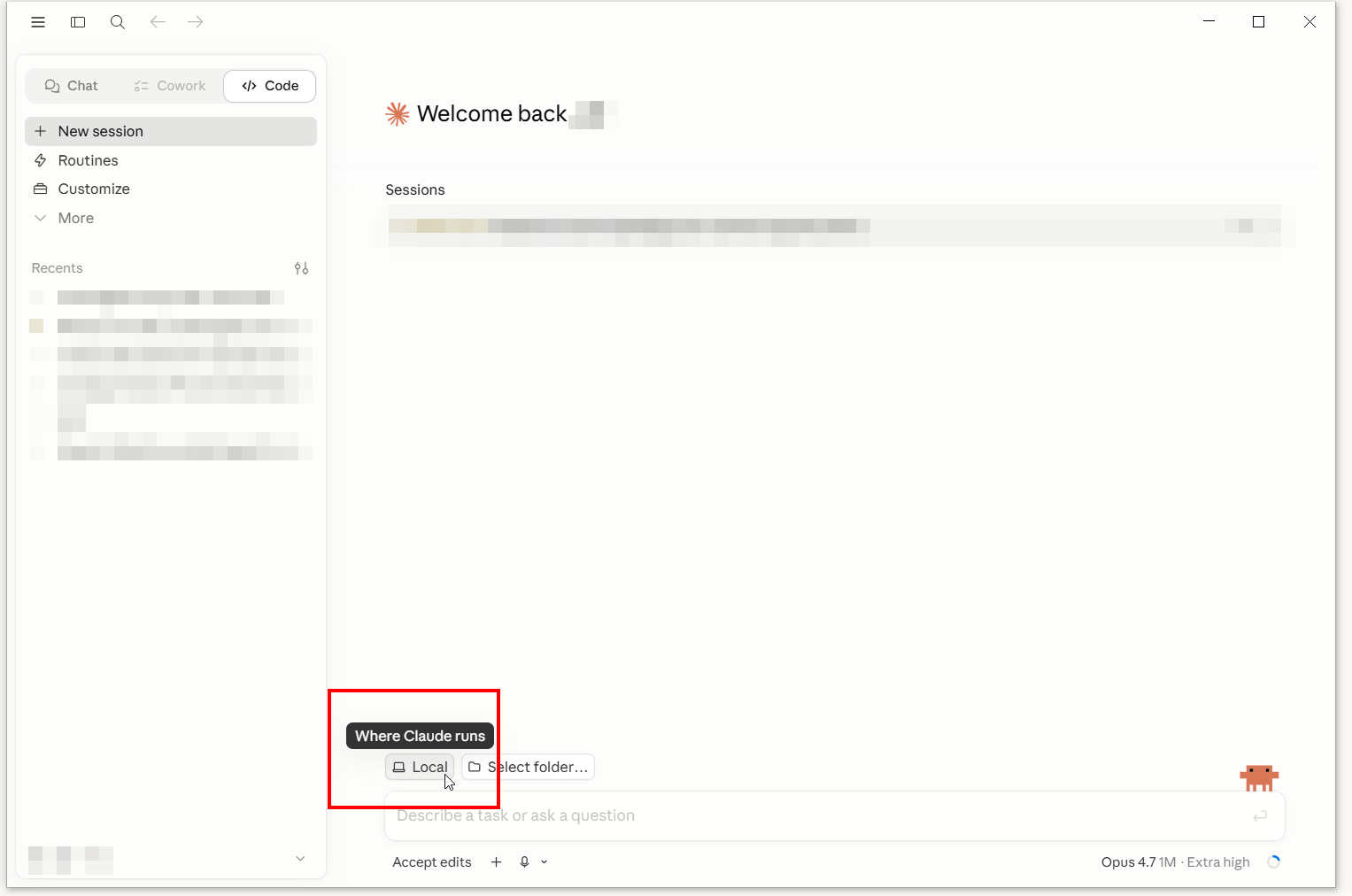
The app opens to a “Welcome back” screen. Below the prompt box at the bottom is a small environment selector labeled “Where Claude runs.” Click it.
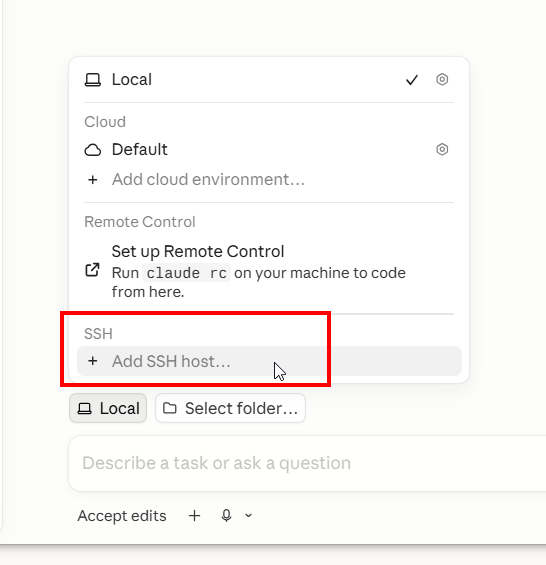
The popover shows Local, Cloud, Remote Control, and SSH sections. Click Add SSH host… under SSH.
2. Fill in the SSH connection dialog
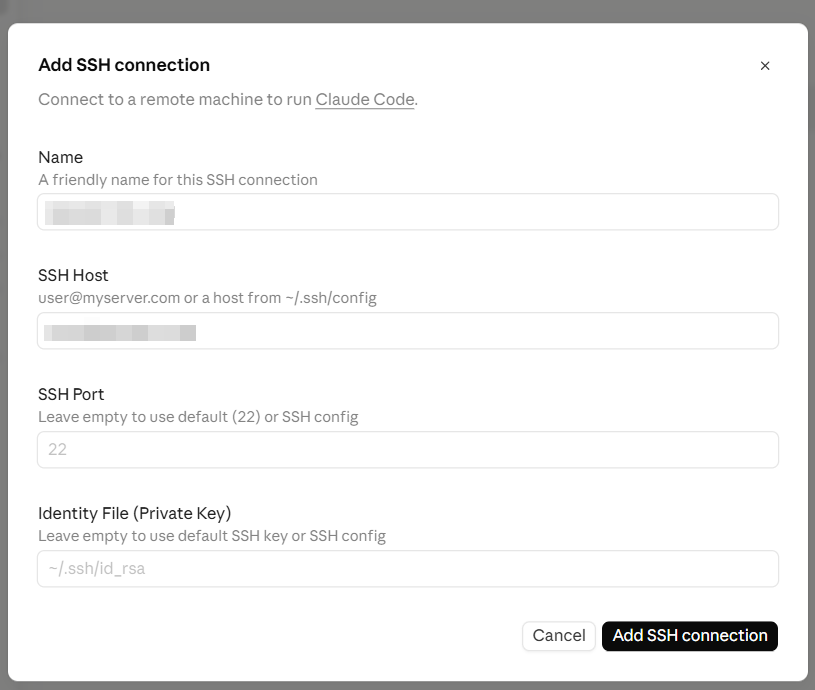
- Name: anything readable that makes sense to you. Shows in your environment list.
- SSH Host:
user@hostname-or-ip(fill these in with your details) - SSH Port: leave blank for 22.
- Identity File: leave blank if your default OpenSSH key is already authorized on the remote.
If you leave the SSH Host as just an IP like 192.168.1.10 without the user@ prefix, Claude Code likely defaults to your local username (Windows username or Mac short name). On a Linux box where the remote account is named something else, the connection fails and you get a password prompt that no password can satisfy, because the username itself is wrong. Always prepend the remote user.
3. Verify SSH itself before you commit
Before saving the dialog, you can also confirm SSH key auth works from your terminal:
ssh youruser@192.168.1.10 "uname -s && whoami"Expected output: Linux on its own line, then the username you connected as. No password prompt. If you do get a password prompt, the usual cause is that OpenSSH cannot find your key in its default location: C:\Users\<you>\.ssh\ on Windows or ~/.ssh/ on macOS. It usually looks for id_ed25519 or id_rsa. Either point the Identity File field at the real key path, or move the key to the default location. If the key is in the right place and you still get prompted, the next thing to check is whether your public key is actually in ~/.ssh/authorized_keys on the remote.
Note: do not test for the claude binary at this stage. The desktop app installs Claude Code on the remote during the first connection, so a clean remote will not have it yet.
4. Pick a folder
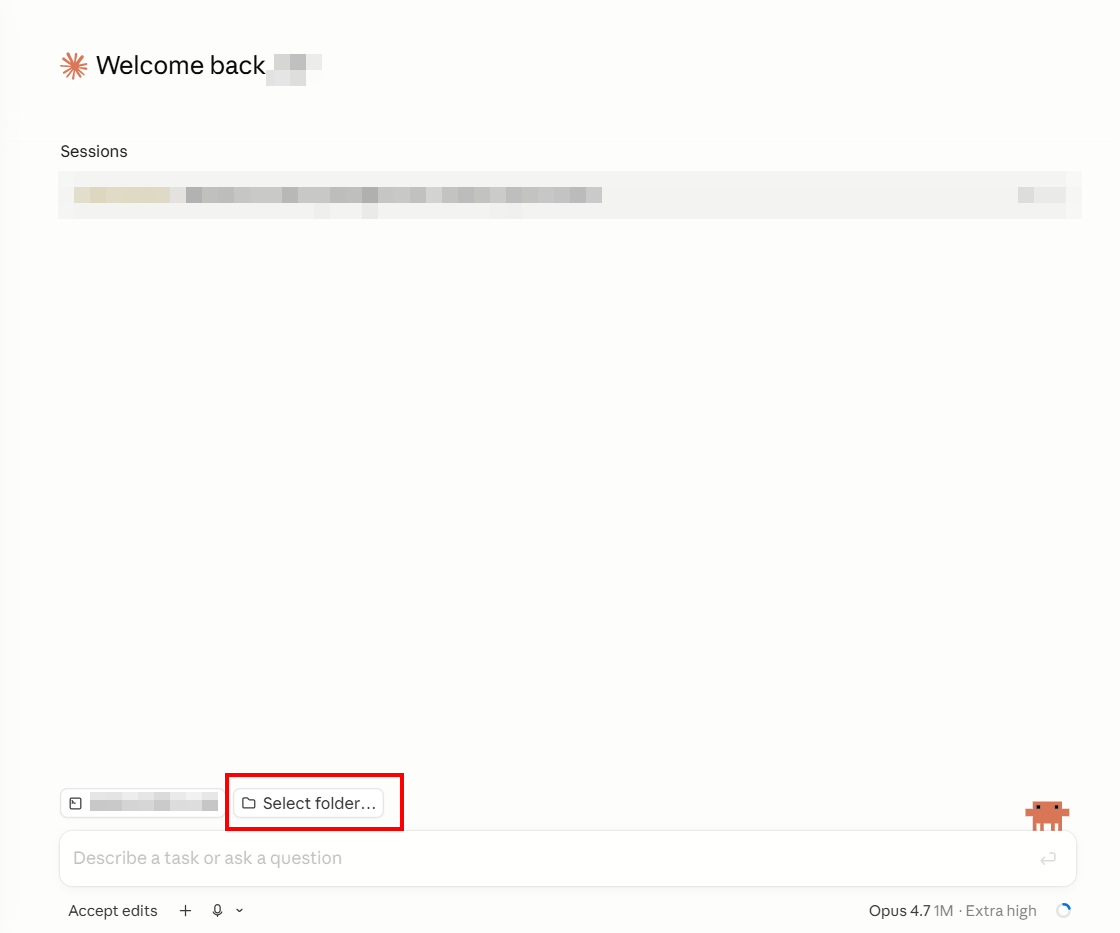
The folder you pick is on the remote machine, the same place you would cd to in a terminal. That path becomes the working directory for the session and the root that Claude’s tools operate against.
5. Trust the workspace
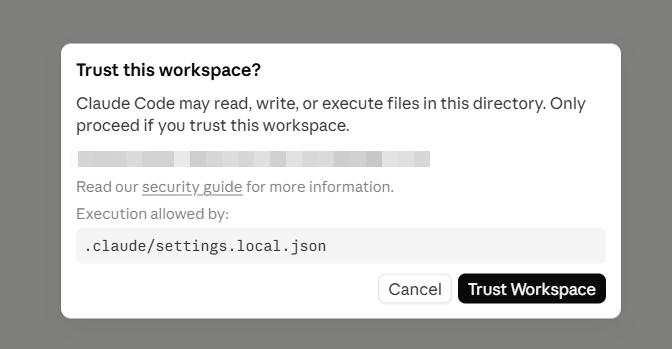
If you have used Claude Code in that folder before, a .claude/settings.local.json already exists and the app shows it. Click Trust Workspace.
That is the happy path. You can prompt the session like any local Claude Code window.
The sessions issue
Here is the part that might catch you off guard. The CLI on the remote, the desktop app on the local machine, and the VS Code extension all have different session histories. Same dev machine, same ~/.claude/ config, same .jsonl files on disk. So you might expect some coherency between sessions, but that is not the case:
Per Anthropic’s own sessions documentation: “The desktop app, Claude Code on the web, and the VS Code extension each maintain their own session history.”
This is not a big deal b/c you should have plenty of documentation in your projects to get going with new sessions etc. But it can still be a bit of a pain if you just want to hop between sessions. A quick handoff prompt and you will hopefully be fine. 💪
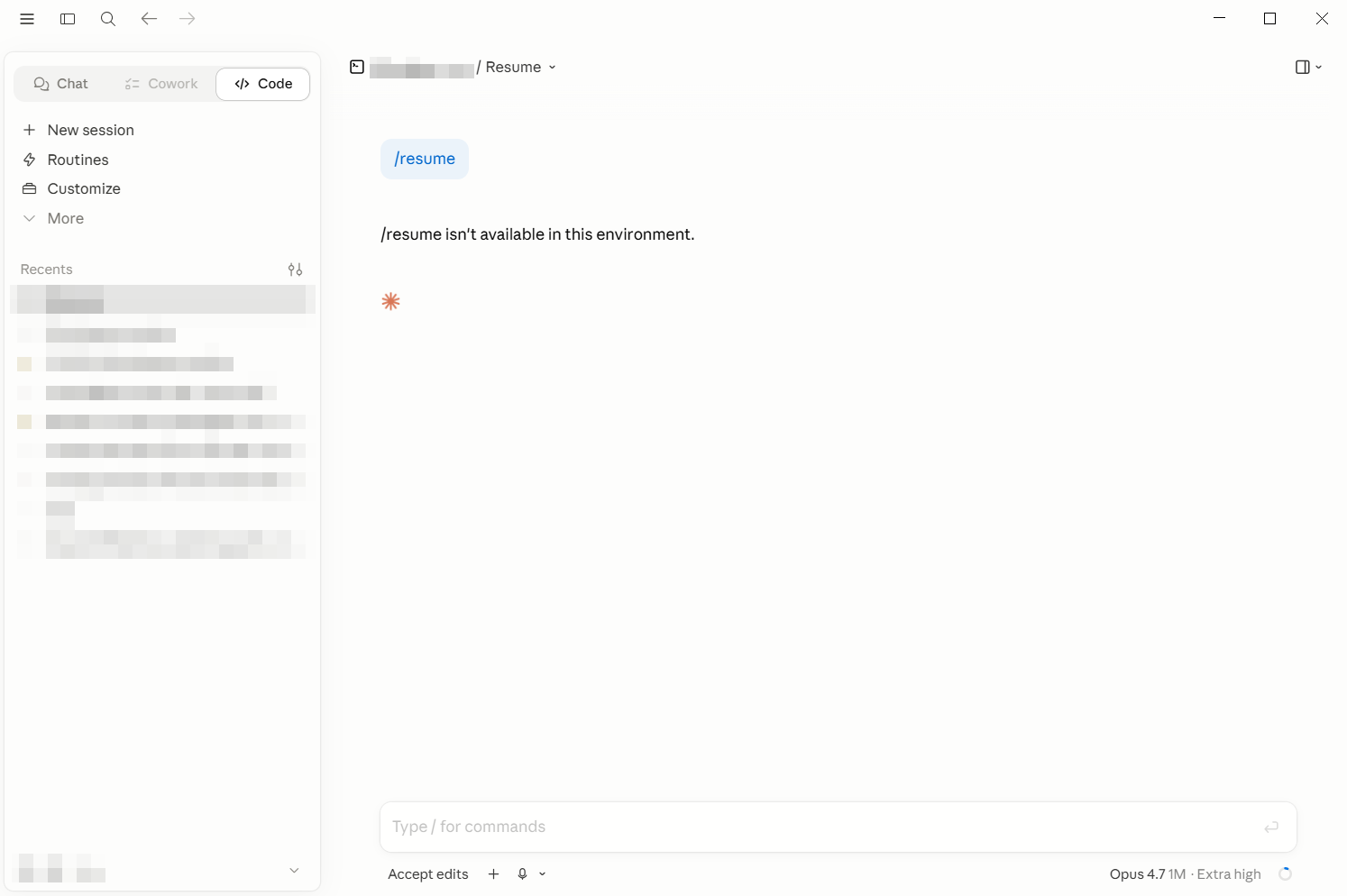
In practice:
- Historical sessions on the remote (from CLI and VS Code work) do not appear in the desktop app’s Recents.
/resume, the CLI command for picking a past session, is not available in the desktop app. I tried. The reply was literally: “/resume isn’t available in this environment.”- The desktop app starts a fresh Recents list from its own usage.
What does still merge across surfaces:
- The repo and your files on the remote (same disk).
- The
~/.claude/config: CLAUDE.md, settings, auto-memory, MCP servers, plugins. - Git state.
- Anthropic API quota and billing.
So the silo is purely the conversation history list. To browse historical sessions, you still need a terminal on the remote and claude --resume, or the VS Code extension’s resume picker.
Quality-of-life upgrades
DHCP reservation
If your remote is on DHCP, its IP can change after a reboot and silently break your saved SSH connection. Open your router admin, set a reservation for the remote’s MAC at its current IP, and the IP stays put through future leases.
If you get stuck
Hit a snag I did not cover? Visit with your own Claude session. Hand it the error message, point it at this post for context, and ask it to walk through your specific setup. 👍
One tip that matters: tell Claude to research before advising. App versions ship with new dialogs, defaults change, and a Claude that verifies the current state of things beats one pattern-matching from training data. Something like “check the current docs and confirm before answering” goes a long way.
The End
If ssh user@host already works from your terminal, the desktop app’s SSH connection is four fields and a folder selection. The interesting part is the session-history silo: desktop, CLI, and VS Code each keep their own Recents list, so claude --resume on the remote will not populate the desktop app’s sidebar. Happy coding!
Sources and Further Reading
- Anthropic docs: Manage sessions – definitive source for the per-surface session-history silo.
- Anthropic docs: Desktop quickstart – where the SSH environment option is introduced as one of the run-location choices.
Accurate at time of writing. Something off? Drop a comment.